Need help with Dual Boot...PLEEEEASE!!!

bossboss25

New member
Local time
3:26 PM
Messages
6
Hi Guys,

New to the forum...first post...sorry it's a problem.

I have an Acer Aspire one. It came with XP and I have it dual booting into Windows 7 which is working well which I installed from a USB Drive as this model doesnt have a CD Drive.

In the main boot screen it says "Earlier version of Windows" For XP and "Windows 7" for windows 7. All was working well until yesterday...

Now I can't boot into "Earlier version of Windows" i.e. XP. It gives me the C:\windows\system32\config\system is missing or corrupt message. I can boot into Windows 7 fine but all of my work stuff is on the XP platform (I know I can access the files from "7" but I need to get it operational again).

Any ideas? Can I do a repair from the USB Drive?..I've tried a couple of things to boot from the USB Drive but to no avail. And I can't find the BOOT.INI file from XP (I think it gets moved to Windows 7's hidden boot partition when I installed it. I cant seem to access that partition either).

My brain is frying...please help....thanks guys.
 

My Computer

OS
Windows 7 Dual boot with XP
Hi Guys,

New to the forum...first post...sorry it's a problem.

I have an Acer Aspire one. It came with XP and I have it dual booting into Windows 7 which is working well which I installed from a USB Drive as this model doesnt have a CD Drive.

In the main boot screen it says "Earlier version of Windows" For XP and "Windows 7" for windows 7. All was working well until yesterday...

Now I can't boot into "Earlier version of Windows" i.e. XP. It gives me the C:\windows\system32\config\system is missing or corrupt message. I can boot into Windows 7 fine but all of my work stuff is on the XP platform (I know I can access the files from "7" but I need to get it operational again).

Any ideas? Can I do a repair from the USB Drive?..I've tried a couple of things to boot from the USB Drive but to no avail. And I can't find the BOOT.INI file from XP (I think it gets moved to Windows 7's hidden boot partition when I installed it. I cant seem to access that partition either).

My brain is frying...please help....thanks guys.
Hello bossboss25, and welcome to Windows Seven Forums!

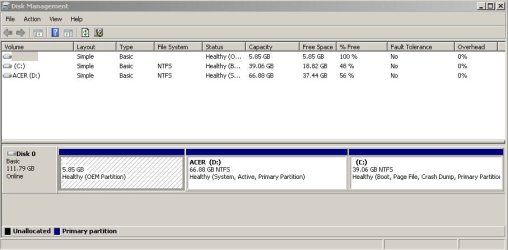
Can you post a screenshot of your Disk Management screen?

Some tutorials that might provide you some info:

http://www.sevenforums.com/tutorials/3413-repair-install.html

http://www.sevenforums.com/tutorials/8057-dual-boot-installation-windows-7-xp.html

Cheers!
Robert

.
 

My Computer

OS
...
Yes Disk Management screenie would be a big help: use Snipping tool on Start menu, attach file using paper clip in reply box.

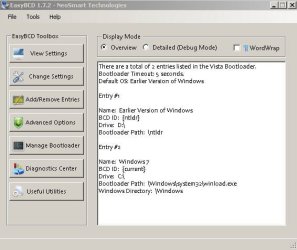
Also, download EasyBCD and attach a screenshot of the drive listings on the front tab.

If XP isn't listed there then we have found your problem: Go to Add/Remove tab and add XP by name, type (XP) and drive letter. reboot
 
Thanks Robert. Here's a screen shot of my Disk Management and EasyBCD.

Thanks for the links but they all refer to how to fix "7"...it's my XP that's screwed. It also seems to be particularly difficult to fix because it refers to XP as "earlier version of windows" so it doesn't offer any F8 options on boot (i.e. the repair options) it only offers these for "7"....
 

Attachments

  • Disk Manager.JPG
    Disk Manager.JPG
    43.9 KB · Views: 13
  • EasyBCD.JPG
    EasyBCD.JPG
    33.4 KB · Views: 14

My Computer

OS
Windows 7 Dual boot with XP
p.s.s you guys are awesome for answering so damn quickly!!!!!
 

My Computer

OS
Windows 7 Dual boot with XP
http://support.microsoft.com/kb/307545

Look at the error messages given in this MS KB to see if the one you are receiving is there.

Unfortunately you have an OEM installed OS so the fix given in the KB does not apply.

The fix for this if you cannot startup is an XP repair install, which saves all programs, files and settings while reinstalling the OS, but in order to do that you must boot from an XP CD.

If your machine came with a clean XP disk (not recovery disk) and you have access to another computer, you can load it onto a flash stick to make it bootable.

Otherwise, another option might be to see if the built-in recovery partition has the ability to do just a repair install and not a full factory recovery (which would wipe out your data and Windows 7). I would try to start it up under tight control so that it DOES NOT PROCEED if it wants to do a full factory recovery.

There is no way that a repair install would not fix that error since it replaces damaged system files, and we cannot get into XP to run the SYstem File Checker which would also replace damaged sysfiles.

Later we will have to use Easy BCD to add Win7 back into the Boot Menu as an XP repair install reassserts the XP ntldr boot which doesn't recognize Win7.

If you were not given an XP CD with the machine then you are looking for an OEM (any XP install disk that is not retail and not a recovery disk) XP CD with the same Service pack as you have. We can help you load its files into a bootable flash stick installer if you have one.
 
Thanks once again gregrocker, great advice.

Couple of questions if you don't mind:

1. Not sure what service pack my XP was..any way to find out from inside 7?
2. There was no CD with the laptop when I bought it new...might try and find a torrent but need to know the service pack first right?
3. I can't seem to access my Hidden Partition even though it comes up in disk manager (when I right click on that partition in disk manager it only offers a "help" option...which of course is no help...). Is there any other way to access that partition?

Thanks
 

My Computer

OS
Windows 7 Dual boot with XP
p.s. I have a retail version of XP but that's no good huh?
 

My Computer

OS
Windows 7 Dual boot with XP
p.s. I have a retail version of XP but that's no good huh?

there is a file that can be edited that causes Xp retail installer to be viewed as an OEM, then change the volume name: http://xcorats-tech.blogspot.com/2008/08/installing-xp-oem-with-retail-key-or.html Did it last week OEM installer w/retail key and it works.

You need to know the SP so it can be slipstreamed into installer then recompiled into ISO using NLite. Then UltraISO trial can write the ISO to a USB stick using its Bootable tab.

Since you suggested, I would go for an OEM SP3 download. Why wouldnt' you have SP3 on there? If it fails due to SP2, go back for one of those.

Look for the F key given on the first screen to tap at bootup for Recovery.

Ideally there would be a repair console in that Recov partition, but we don't know that for sure as many just force you to accept a formatted full factory recovery.

Also may be avail when you tap F8 at bootup , or attempt for XP Last known good config, sysrestore, or boot into safe mode
 
Last edited:
cool thanks. I'll try your suggestion using NLite now. What did you mean by slipstreamed into installer?
 

My Computer

OS
Windows 7 Dual boot with XP
Run View attachment 39930 which audits your hard/software and should give the installed SP's as well as activation key #'s for any OS/licenses on that machine.

I am looking on my XP machine now for a file which might reveal SP.

NLite is a really cool program that lets you load the files from your XP, then gives a menu to Add in Service Packs, drivers, apps you like, etc.

If you also select Create ISO on first menu it leads to a final menu which puts it all into an ISO, then use same drop-down menu to Burn to CD.

Before loading the XP files into Nlite, make the edits from the link given based on the OEM version which you wish to emulate, then select its exact Volume name from the list to name your finished ISO.
 
Last edited:
Back
Top