
How to Remove and Restore the Default "New" Context Menu Items in Windows 7 and Windows 8
Information
This will show you how to either remove or restore the default New context menu items in Windows 7 and Windows 8. These include the NEW - Folder, Shortcut, Bitmap image, Contact, Journal Document, Rich Text Document, Library, Text Document, Compressed (zipped) Folder, and Briefcase context menu items.
You must be logged in as an administrator to be able to do the steps in the tutorial below.
You must be logged in as an administrator to be able to do the steps in the tutorial below.
Note
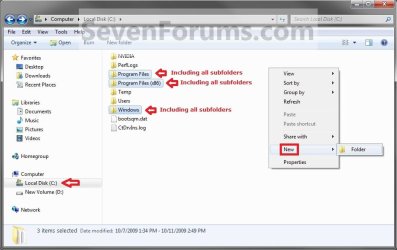
You will only have Folder available in the New context menu in the root directory of the C: drive, C:\Windows folder, C:\Program Files folder, C:\Program Files (x86) folder, and C:\Users folder.
EXAMPLE: "New" Context Menu
NOTE: You can only see this New context menu when you right click on a empty space on the desktop or on a empty space in a Windows Explorer window.

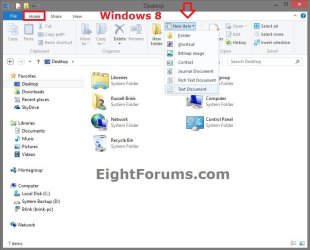
EXAMPLE: "New" Context Menu in Ribbon
NOTE: This is only available in the Home tab in the Windows 8 File Explorer Ribbon.
EXAMPLE: "New" Context Menu in Root Directory
NOTE: In the C: drive, C:\Program Files, C:\Program Files (x86), and C:\Windows root directory folders and all of their subfolders, you will only have New - Folder available.
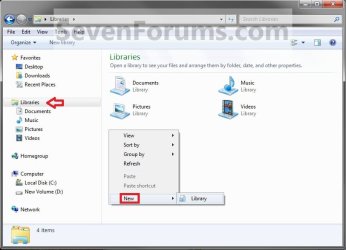
EXAMPLE: "New" Context Menu in Libraries
NOTE: In the Libraries folder, you will only have New - Library available. However, in the included folders in a library, you will still have the default New context menu items available.
Here's How:
1. To Remove or Restore "Bitmap image"
A) Click/tap on the download button below to download the file below.
Bitmap_image_New_Context_Menu_Item.zip
Download
2. To Remove or Restore "Briefcase"
NOTE: This item is not in the "New" context menu in Windows 8 by default, but can be added with this step.
A) Click/tap on the download button below to download the below.
Briefcase_New_Context_Menu_Item.zip
Download
3. To Remove or Restore "Compressed (zipped) Folder"
A) Click/tap on the download button below to download the below.
Compressed_(zipped)_Folder_New_Context_Menu_Item.zip
Download
4. To Remove or Restore "Contact"
A) Click/tap on the download button below to download the below.
Contact_New_Context_Menu_Item.zip
Download
5. To Remove or Restore "Folder"
A) Click/tap on the download button below to download the below.
Folder_New_Context_Menu_Item.zip
Download
6. To Remove or Restore "Journal Document"
A) Click/tap on the download button below to download the below.
Journal_Document_New_Context_Menu_Item.zip
Download
7. To Remove or Restore "Library"
A) Click/tap on the download button below to download the below.
Library_New_Context_Menu_Item.zip
Download
8. To Remove or Restore "Rich Text Document"
A) Click/tap on the download button below to download the below.
NOTE: This is for a WordPad .rtf document file. If you have Office Word installed, then it may be set to be the default program instead of WordPad to open RTF files with and would remove Rich Text Document if so, and you may have Microsoft Word Document instead.
Rich_Text_Document_New_Context_Menu_Item.zip
Download
9. To Remove or Restore "Shortcut"
A) Click/tap on the download button below to download the below.
Shortcut_New_Context_Menu_Item.zip
Download
10. To Remove or Restore "Text Document"
A) Click/tap on the download button below to download the below.
Text_Document_New_Context_Menu_Item.zip
Download
11. Save the .zip file to the desktop.
12. Open the downloaded .zip file and extract (drag and drop) the .reg file (remove or restore) that you want to use to your desktop.
13. Double click/tap on the extracted .reg file to merge it.
14. When prompted, click/tap on Run, Yes (UAC), Yes, and OK to approve merging the .reg file.
15. You can now delete the downloaded ZIP and REG files if you like.
16. Sometimes it may take a moment before the missing New context menu item to reappear. If not, then restart the computer to apply.
That's it,
Shawn
Related Tutorials
- How to Edit the Windows 7 Desktop NEW Context Menu
- How to Remove and Restore the Default Windows 7 Send To Context Menu Items
- How to Create a New Library in Windows 7
- How to Restore or Remove "New" from the Context Menu in Vista and Windows 7
- How to Add "New VBScript File" to the Context Menu in Windows
- How to Add "New Batch File" to the Context Menu in Windows
- How to Add "New Registry File" to the Context Menu in Windows
- Restore Default Windows 7 File Extension Type Associations
Attachments
-
Bitmap_image_New_Context_Menu_Item.zip741 bytes · Views: 22,753
-
Briefcase_New_Context_Menu_Item.zip869 bytes · Views: 15,954
-
Contact_New_Context_Menu_Item.zip882 bytes · Views: 14,953
-
Library_New_Context_Menu_Item.zip822 bytes · Views: 10,716
-
Journal_Document_New_Context_Menu_Item.zip808 bytes · Views: 10,614
-
Rich_Text_Document_New_Context_Menu_Item.zip1.5 KB · Views: 9,764
-
Text_Document_New_Context_Menu_Item.zip1.3 KB · Views: 18,638
-
Compressed_(zipped)_Folder_New_Context_Menu_Item.zip1.8 KB · Views: 19,203
-
Folder_New_Context_Ment_Item.zip12.3 KB · Views: 156,529
-
Shortcut_New_Context_Menu_Item.zip1.2 KB · Views: 12,268
Last edited:


