
New Installation: How to Create a General System Image in Audit Mode

   Note
Audit Mode is a very practical way to prepare a system image without any user specific information like usernames or computer name. With it you can create a General System Image that gives you always when used a fresh, clean Windows 7 setup as if it were a virgin, fresh install, only difference being your software, drivers and updates are already installed. Using System Image recovery is a much faster method to start fresh than reinstalling everything.

When recovering image created with this method, computer will start in so called First Run OOBE mode without any user accounts but all drivers, software and updates installed, stopping to ask for initial username, computer name, language (if additional languages installed), time zone, network and homegroup settings. An image includes no user accounts, no activation information and no SID so you always start fresh.


This tutorial takes you through following steps:
  1. Installing Windows 7 and entering Audit Mode during first boot after the installation
  2. Installing drivers, software, software updates and additional languages (Ultimate and Enterprise editions only)
  3. Creating a system image
  4. Booting to Windows Welcome (OOBE)

       Note
    Notice that Windows Update does not work in Audit Mode.

Step 1: Install Windows 7

  1. Beginn installation of Windows 7 as told in this tutorial
  2. When you reach step 11 in above mentioned installation tutorial, DO NOT ENTER USERNAME AND COMPUTER NAME! Instead press CTRL + SHIFT + F3:
    .
    183650d1321295239-windows-7-installation-prepare-pc-sold-audit_1.png

    .
  3. This reboots Windows 7 now in so called Audit Mode using built-in administrator profile. There's no need to set up user accounts for now
  4. Continue installation from installation tutorial's step 15
  5. Finally Windows 7 starts in Audit Mode. Click Cancel to close System Preparation Tool for now:
    .
    183652d1321295526-windows-7-installation-prepare-pc-sold-audit_3.png
Step 2: Install drivers, software and updates

  1. Install all third party drivers needed (audio, video etc.)
  2. If using Ultimate or Enterprise editions, install additional language packs if needed
  3. Install your software (third party browsers and mail clients, MsOffice, PhotoShop, Flash Player, PDF reader etc.)
  4. Install software updates
  5. If you want to change where all future User accounts will be located, you can relocate the main Users folder now as told in this tutorial: http://www.sevenforums.com/tutorial...reate-move-during-windows-7-installation.html
  6. When ready, continue from Step 3
Notice: Installing drivers, updates and software might cause your computer to reboot several times. As long as you have not selected to exit Audit Mode, Windows reboots always automatically back to Audit Mode. In this case just close the System Preparation Tool as told above in Step 1.5.

Step 3: Create a System Image

When you are ready with customization, close all open applications and Explorer windows, and open an elevated command prompt. Give the following command:
Code:
%windir%\system32\sysprep\sysprep.exe /oobe /shutdown
Windows will now run the System Preaparation Tool (sysprep) and shut down.

Now the only thing missing is creating the image. Boot the PC with the boot disk of your chosen imaging application and create the image. You can use any third party imaging application, my choice is the free edition of Macrium Reflect. Here you can find an easy to read, complete tutorial showing you how to do it with Macrium


Step 4: First boot (Welcome or OOBE boot)

When image is done, shut down the PC. Remove the boot disk of the imaging application, turn the PC on to start Windows . It will now boot to a so called First Run OOBE (Out-of-Box Experience) boot, stopping to ask initial user profile name and computer name as told in this tutorial, Step 11 and further. If language packs are installed (Ultimate or Enterprise only), initial first boot also asks user in what language he / she wants Windows to be set up.

Now you have your Windows 7 set up, with a System Image that you can use anytime you want to get fast back to fresh Windows.

Have Fun!

Kari


Attachments
  • 2012-12-09_175125.png
    2012-12-09_175125.png
    21.9 KB · Views: 21,304
Last edited:
Kari, I have no doubt, you are absolutely correct and I stand corrected.
 

My Computers My Computers

  • At a glance

    Windows 11 ProRyzen 9 5900X32GB G Skill DDR4-3600EVGA RTX 3080 FTW 3 Ultra
    Computer type
    PC/Desktop
    Computer Manufacturer/Model Number
    ALWAYS UNDER CONSTRUCTION
    OS
    Windows 11 Pro
    CPU
    Ryzen 9 5900X
    Motherboard
    Asus X570 Crosshair Viii Hero
    Memory
    32GB G Skill DDR4-3600
    Graphics Card(s)
    EVGA RTX 3080 FTW 3 Ultra
    Sound Card
    On Board/Sennheiser PC37X Headset
    Monitor(s) Displays
    3 X Asus 27"
    Screen Resolution
    2560x1440
    Hard Drives
    2 X 1 TB NVME drives
    PSU
    EVGA 850
    Case
    Phanteks Eclipse P400A
    Cooling
    EVGA 280 AIO
    Keyboard
    Logitech G510s/ Logitech G13
    Mouse
    Logitech G502
    Internet Speed
    24/1
    Antivirus
    ESET/MBAM Pro/SAS Pro
    Browser
    Chrome/ Firefox/ Edge
  • At a glance

    Windows 11 ProIntel Ultra 9 288V32 GB LPDDR5X 8533
    Computer type
    Laptop
    System Manufacturer/Model Number
    Dell 16 Plus
    OS
    Windows 11 Pro
    CPU
    Intel Ultra 9 288V
    Memory
    32 GB LPDDR5X 8533
    Monitor(s) Displays
    16" Mini-LED HDR600 Touch 90 Hz
    Screen Resolution
    2560X1600
    Hard Drives
    1 TB NVME
Thanks Kari and essenbe for the answerers!
I was referring to the apps installed in Windows and not a clean install as Kari first responded.
I'll look for this apps to copy everything, because reinstall Windows the least time consuming for me, in the other hand the apps and library links...that took almost full three days the last time I installed a new HDD.
Thanks again!
 

My Computer My Computer

At a glance

Windows 7 x64 UltimateIntel 4770kCorsair Vengance DDR3 (2x8) 16GBZotac 580 GTX (nVidia)
Computer type
PC/Desktop
Computer Manufacturer/Model Number
Custom Build
OS
Windows 7 x64 Ultimate
CPU
Intel 4770k
Motherboard
Asus Maximus VI Formula
Memory
Corsair Vengance DDR3 (2x8) 16GB
Graphics Card(s)
Zotac 580 GTX (nVidia)
Sound Card
Onboard
Monitor(s) Displays
Samsung XL2370
Screen Resolution
1920x1080p
Hard Drives
1 SSD Corsair Neutron
1 WD Blue
1 Seagate
PSU
Thermaltake 1000W
Case
NZXT Phantom 530
Cooling
4 case coolers, Zalman 9900MAX CPU and GPU stock cooler
Keyboard
Microsoft X4 Sidewinder
Mouse
G700 wireless Logitech
Internet Speed
10mb/s
Antivirus
Kaspersky PURE 3
Browser
Firefox and Thor
Other Info
DVD-ROM Sony Opticarc OEM
Thank you so much. Great tutorial.
I wish I had seen it 5 hours ago.

I have already installed everything, just finished.
Is there any way I can do this audit mode thing?
I have already created a username and set it up the "normal" way.


Thanks.
 

My Computer My Computer

At a glance

Windows 7 Ultimate x64AMD Sempron 145, 2800 MHz (14 x 200)6 GB KingstonNVIDIA GeForce 7025 / NVIDIA nForce 630a (256...
Computer type
PC/Desktop
OS
Windows 7 Ultimate x64
CPU
AMD Sempron 145, 2800 MHz (14 x 200)
Motherboard
ASRock N68-VS3 FX (nVIDIA nForce 7025-630a, AMD K10)
Memory
6 GB Kingston
Graphics Card(s)
NVIDIA GeForce 7025 / NVIDIA nForce 630a (256 MB)
Sound Card
VIA VT1705 @ nVIDIA nForce 7025-630a (MCP68SE)
Monitor(s) Displays
LG E1941 (Analog) [18.5" LCD] (21112731)
Screen Resolution
1366x768
Hard Drives
* SAMSUNG HD161HJ SCSI Disk Device
* Toshiba Canvio 3.0 USB
Keyboard
Microsoft Wireless Desktop 800 keyboard
Mouse
Microsoft Wireless Desktop 800 mouse
Internet Speed
12mbps
Antivirus
avast!
Browser
Google Chrome
I have already installed everything, just finished.
Is there any way I can do this audit mode thing?
I have already created a username and set it up the "normal" way.
You gain nothing by doing this now. Remember the tutorial next time you want to / need to reinstall :).

In your case, Windows already installed, you can create the system image normally. It is the best backup method available. You can use Windows own native imaging tool or any third party tool you like.

Useful tutorials:
Kari
 

My Computer My Computer

At a glance

Windows 10 Pro x64 EN-GB1.6 GHz Intel Core i7-720QM Processor6 GBATI Mobility Radeon HD 5850 Graphics
Computer type
Laptop
Computer Manufacturer/Model Number
HP ENVY 17-1150eg
OS
Windows 10 Pro x64 EN-GB
CPU
1.6 GHz Intel Core i7-720QM Processor
Memory
6 GB
Graphics Card(s)
ATI Mobility Radeon HD 5850 Graphics
Sound Card
Beats sound system with integrated subwoofer
Monitor(s) Displays
17" laptop display, 22" LED and 32" Full HD TV through HDMI
Screen Resolution
1600*900 (1), 1920*1080 (2&3)
Hard Drives
Internal: 2 x 500 GB SATA Hard Disk Drive 7200 rpm
External: 2TB for backups, 3TB USB3 network drive for media
Cooling
As Envy runs a bit warm, I have it on a Cooler Master pad
Keyboard
Logitech diNovo Media Desktop Laser (bluetooth)
Mouse
Logitech Performance Mouse MX
Internet Speed
50/10 Mbps VDSL
Antivirus
Windows Defender 4.3.9431.0
Browser
Maxthon 3.5.2., IE11
Thank you for replying.

I'll keep this in mind next time.


I just wanted to do it because I set up a new system (changed mobo/processor) for my partner's dad as a favor, and it would have been cool to do it that way, as if it were a brand new PC he bought from a store.


Regards.
 

My Computer My Computer

At a glance

Windows 7 Ultimate x64AMD Sempron 145, 2800 MHz (14 x 200)6 GB KingstonNVIDIA GeForce 7025 / NVIDIA nForce 630a (256...
Computer type
PC/Desktop
OS
Windows 7 Ultimate x64
CPU
AMD Sempron 145, 2800 MHz (14 x 200)
Motherboard
ASRock N68-VS3 FX (nVIDIA nForce 7025-630a, AMD K10)
Memory
6 GB Kingston
Graphics Card(s)
NVIDIA GeForce 7025 / NVIDIA nForce 630a (256 MB)
Sound Card
VIA VT1705 @ nVIDIA nForce 7025-630a (MCP68SE)
Monitor(s) Displays
LG E1941 (Analog) [18.5" LCD] (21112731)
Screen Resolution
1366x768
Hard Drives
* SAMSUNG HD161HJ SCSI Disk Device
* Toshiba Canvio 3.0 USB
Keyboard
Microsoft Wireless Desktop 800 keyboard
Mouse
Microsoft Wireless Desktop 800 mouse
Internet Speed
12mbps
Antivirus
avast!
Browser
Google Chrome
Thanks Kari, Macrium looks a good way of doing it for me.
 

My Computer My Computer

At a glance

Windows 7 x64 UltimateIntel 4770kCorsair Vengance DDR3 (2x8) 16GBZotac 580 GTX (nVidia)
Computer type
PC/Desktop
Computer Manufacturer/Model Number
Custom Build
OS
Windows 7 x64 Ultimate
CPU
Intel 4770k
Motherboard
Asus Maximus VI Formula
Memory
Corsair Vengance DDR3 (2x8) 16GB
Graphics Card(s)
Zotac 580 GTX (nVidia)
Sound Card
Onboard
Monitor(s) Displays
Samsung XL2370
Screen Resolution
1920x1080p
Hard Drives
1 SSD Corsair Neutron
1 WD Blue
1 Seagate
PSU
Thermaltake 1000W
Case
NZXT Phantom 530
Cooling
4 case coolers, Zalman 9900MAX CPU and GPU stock cooler
Keyboard
Microsoft X4 Sidewinder
Mouse
G700 wireless Logitech
Internet Speed
10mb/s
Antivirus
Kaspersky PURE 3
Browser
Firefox and Thor
Other Info
DVD-ROM Sony Opticarc OEM
i havn't done it yet, but thought i would ask....

can you add the computer to the domain while in audit mode or will this cause it to do strange things?
 

My Computer My Computer

At a glance

Windows 7 Professional 32bit, 64 bit, Windows...Intel4GB-8GB
Computer type
PC/Desktop
Computer Manufacturer/Model Number
Dell Optiplex
OS
Windows 7 Professional 32bit, 64 bit, Windows XP Professional
CPU
Intel
Memory
4GB-8GB
Monitor(s) Displays
1-3
Hard Drives
80GB+
Keyboard
wired dell stock keyboard and wireless logitech
Mouse
wired dell stock mouse and wireless logitech
Antivirus
System Center 2012 Endpoint Protection
Browser
Internet Explorer 8/9, Firefox, Chrome
No, there's no sense in adding a Windows PC to domain in Audit Mode, to start because in Audit Mode you are logged in as the built-in administrator.

Kari
 

My Computer My Computer

At a glance

Windows 10 Pro x64 EN-GB1.6 GHz Intel Core i7-720QM Processor6 GBATI Mobility Radeon HD 5850 Graphics
Computer type
Laptop
Computer Manufacturer/Model Number
HP ENVY 17-1150eg
OS
Windows 10 Pro x64 EN-GB
CPU
1.6 GHz Intel Core i7-720QM Processor
Memory
6 GB
Graphics Card(s)
ATI Mobility Radeon HD 5850 Graphics
Sound Card
Beats sound system with integrated subwoofer
Monitor(s) Displays
17" laptop display, 22" LED and 32" Full HD TV through HDMI
Screen Resolution
1600*900 (1), 1920*1080 (2&3)
Hard Drives
Internal: 2 x 500 GB SATA Hard Disk Drive 7200 rpm
External: 2TB for backups, 3TB USB3 network drive for media
Cooling
As Envy runs a bit warm, I have it on a Cooler Master pad
Keyboard
Logitech diNovo Media Desktop Laser (bluetooth)
Mouse
Logitech Performance Mouse MX
Internet Speed
50/10 Mbps VDSL
Antivirus
Windows Defender 4.3.9431.0
Browser
Maxthon 3.5.2., IE11
I just read this today, very very useful. Thanks. :D
 

My Computer My Computer

At a glance

Win7 SP1 + Ultimate 64 bitIntel G325832gb GskillGTX 660Ti EVGA x 2
Computer type
PC/Desktop
Computer Manufacturer/Model Number
Hybrid
OS
Win7 SP1 + Ultimate 64 bit
CPU
Intel G3258
Motherboard
GA Z97X Gaming 3
Memory
32gb Gskill
Graphics Card(s)
GTX 660Ti EVGA x 2
Monitor(s) Displays
Asus 23" LCD Widescreen
Screen Resolution
1920/1080
Hard Drives
1 x Samsung EVO840 250gb SSD
1 X 1 TB Velociraptor
1 x 1 Seagate 7200rpm
PSU
750W Thermaltake
Case
Thermaltake A60
Cooling
Xigmatek Dark Knight CPU and stock case fans
Keyboard
Alienware
Mouse
Microsoft USB
Internet Speed
Optusnet Cable
Antivirus
MS, Malwarebytes
Browser
Palemoon 64Bit

My Computer My Computer

At a glance

Windows 10 Pro x64 EN-GB1.6 GHz Intel Core i7-720QM Processor6 GBATI Mobility Radeon HD 5850 Graphics
Computer type
Laptop
Computer Manufacturer/Model Number
HP ENVY 17-1150eg
OS
Windows 10 Pro x64 EN-GB
CPU
1.6 GHz Intel Core i7-720QM Processor
Memory
6 GB
Graphics Card(s)
ATI Mobility Radeon HD 5850 Graphics
Sound Card
Beats sound system with integrated subwoofer
Monitor(s) Displays
17" laptop display, 22" LED and 32" Full HD TV through HDMI
Screen Resolution
1600*900 (1), 1920*1080 (2&3)
Hard Drives
Internal: 2 x 500 GB SATA Hard Disk Drive 7200 rpm
External: 2TB for backups, 3TB USB3 network drive for media
Cooling
As Envy runs a bit warm, I have it on a Cooler Master pad
Keyboard
Logitech diNovo Media Desktop Laser (bluetooth)
Mouse
Logitech Performance Mouse MX
Internet Speed
50/10 Mbps VDSL
Antivirus
Windows Defender 4.3.9431.0
Browser
Maxthon 3.5.2., IE11

My Computer My Computer

At a glance

Win7 SP1 + Ultimate 64 bitIntel G325832gb GskillGTX 660Ti EVGA x 2
Computer type
PC/Desktop
Computer Manufacturer/Model Number
Hybrid
OS
Win7 SP1 + Ultimate 64 bit
CPU
Intel G3258
Motherboard
GA Z97X Gaming 3
Memory
32gb Gskill
Graphics Card(s)
GTX 660Ti EVGA x 2
Monitor(s) Displays
Asus 23" LCD Widescreen
Screen Resolution
1920/1080
Hard Drives
1 x Samsung EVO840 250gb SSD
1 X 1 TB Velociraptor
1 x 1 Seagate 7200rpm
PSU
750W Thermaltake
Case
Thermaltake A60
Cooling
Xigmatek Dark Knight CPU and stock case fans
Keyboard
Alienware
Mouse
Microsoft USB
Internet Speed
Optusnet Cable
Antivirus
MS, Malwarebytes
Browser
Palemoon 64Bit
Kari I must say, the title is misleading.

The fact is you cannot take a general system image using the builtin tool in audit mode. You should just replace the tutorial with an explanation that it CANNOT be done. It's not like you haven't written other excellent tutorials. This one just says "How to do X in audit mode : Quit audit mode and then do X".

Now if you have a workaround, that's what this kind of tutorial is for.
 

My Computer My Computer

At a glance

Windows 7 Home Premium x64Intel Core 2 Quad Q6600 G0Transcend JM800QLU-2G x 2 (2x2GB)Sapphire Radeon HD6850 1GB
Computer type
PC/Desktop
Computer Manufacturer/Model Number
Custom
OS
Windows 7 Home Premium x64
CPU
Intel Core 2 Quad Q6600 G0
Motherboard
MSI P45 Platinum MS-7512
Memory
Transcend JM800QLU-2G x 2 (2x2GB)
Graphics Card(s)
Sapphire Radeon HD6850 1GB
Hard Drives
Seagate ST3360320AS in Transcend Storejet Ultra35 eSATA
Seagate ST31000524AS
PSU
Corsair GS600
Cooling
Stock
Mouse
Logitech Wired M500 USB
Internet Speed
15Mbps
Antivirus
Microsoft Security Essentials
Browser
Google Chrome
Kari I must say, the title is misleading.

The fact is you cannot take a general system image using the builtin tool in audit mode. You should just replace the tutorial with an explanation that it CANNOT be done. It's not like you haven't written other excellent tutorials. This one just says "How to do X in audit mode : Quit audit mode and then do X".

Now if you have a workaround, that's what this kind of tutorial is for.

Once again one of these posts. "Nah that cannot work, no use even to test it, I know it does not work". A shame that you really obviously based your comment on what you think of it, instead of testing, doing it as told in the tutorial.

OK, let's start. When writing a tutorial about How to create a system image in Audit Mode, I thought an appropriate title would be How to Create a General System Image in Audit Mode. I accept that you think it to be a misleading title, so if you have a better name, please let me know and I will ask mods to change the title. OK?

When in Audit Mode, the Sysprep tool is always running on the background if not manually stopped. If the user now tries to use Windows native imaging tool, this error message will be shown and the backup operation is interrupted, it refuses to run:

2014-08-06_10h40_36.png

This is because Windows treats Audit Mode with Sysprep running as Safe Mode. Quit the Sysprep and Windows no longer thinks it's in Safe Mode.

This is why the Sysprep must be terminated before the imaging, as told in tutorial Step 3. Now the Windows native imaging tool runs just fine in Audit Mode, without issues.

One of my goals when writing these tutorials is to use native Windows tools as often and as much as possible. I want to show that quite a lot of things in and around Windows can be made without third party tools. If this tutorial was only to show how to create a system image using a third party imaging tool when Windows is first modified in Audit Mode, I had written it differently, telling first to shut down the PC exiting Audit Mode when modifications and installations are done, then booting the PC with the imaging tool's own boot disk and create the image.

However, as I wanted to show how it can be done by using the Windows native imaging tool, the method and steps taken in this tutorial is the only possibility. The image (when using native imaging tool) must be created when Windows is still in Audit Mode; if Windows is shut down and Audit Mode exited, then Windows rebooted normally, the situation and resulting image will no longer be the same. Creating the image as told in this tutorial is the only possibility to get an image prior to creating any user profiles.

As is my custom in cases when a method or procedure I have suggested is questioned, before responding to your post I just now installed a Windows 7 Professional on a test rig, then entered Audit Mode and followed this tutorial to create a system image in Audit Mode as if I did not know how it's done but instead following the tutorial step by step. I then restored the resulting image to the same PC. Both creating the image in Audit Mode with Windows native Backup & Restore and restoring the image worked flawlessly.

Next time, please think before posting. Do not tell other members and visitors that something does not work if you just think so but have in fact not tested it. Do you really think I write a tutorial without first researching the subject and testing it myself?

Conclusion:

   Note
The imaging method using Windows own native imaging tool for creating a system image in Audit Mode works exactly as told in this tutorial.

I ask possible future readers of this thread to ignore the post I quoted in the beginning of this reply.


Kari
 

My Computer My Computer

At a glance

Windows 10 Pro x64 EN-GB1.6 GHz Intel Core i7-720QM Processor6 GBATI Mobility Radeon HD 5850 Graphics
Computer type
Laptop
Computer Manufacturer/Model Number
HP ENVY 17-1150eg
OS
Windows 10 Pro x64 EN-GB
CPU
1.6 GHz Intel Core i7-720QM Processor
Memory
6 GB
Graphics Card(s)
ATI Mobility Radeon HD 5850 Graphics
Sound Card
Beats sound system with integrated subwoofer
Monitor(s) Displays
17" laptop display, 22" LED and 32" Full HD TV through HDMI
Screen Resolution
1600*900 (1), 1920*1080 (2&3)
Hard Drives
Internal: 2 x 500 GB SATA Hard Disk Drive 7200 rpm
External: 2TB for backups, 3TB USB3 network drive for media
Cooling
As Envy runs a bit warm, I have it on a Cooler Master pad
Keyboard
Logitech diNovo Media Desktop Laser (bluetooth)
Mouse
Logitech Performance Mouse MX
Internet Speed
50/10 Mbps VDSL
Antivirus
Windows Defender 4.3.9431.0
Browser
Maxthon 3.5.2., IE11
:thumbsup: Kari.......one cannot beat facts.
 

My Computer My Computer

At a glance

Windows 10 Pro x64 ; Xubuntu x64Intel i7 860 @ 2.80 GHz O/C'ed to 4.0GHz16GB Corsair Vengance DDR3 @ 661 MHz Dual Cha...EVGA NVidia GTX 560 1024MB
Computer type
PC/Desktop
Computer Manufacturer/Model Number
Golden Mk. I.4
OS
Windows 10 Pro x64 ; Xubuntu x64
CPU
Intel i7 860 @ 2.80 GHz O/C'ed to 4.0GHz
Motherboard
Gigabyte P55A-UD3R Rev.1. Award BIOS F13
Memory
16GB Corsair Vengance DDR3 @ 661 MHz Dual Channel (9-9-9-24)
Graphics Card(s)
EVGA NVidia GTX 560 1024MB
Sound Card
Realtek Integrated
Monitor(s) Displays
Dual Samsung SyncMaster 2494HS
Screen Resolution
1920*1080 and 1920*1080
Hard Drives
1*Samsung 840 EVO 120GB SSD;
1*OCZ Vertex 2 60GB SSD;
2*Samsung F3 SpinPoint 1TB in RAID0;
1*Samsung F1 SpinPoint 1TB;
2*Western Digital 1TB External USB 3.0
1*Western Digital 500GB External USB 3.0
1*Seagate 500GB External USB 2.0
PSU
Thermaltake ToughPower QFan 750W
Case
Thermaltake Element S VK60001W2Z
Cooling
Corsair H60 Water Cooling, 2*230mm and 2*80mm case fans
Keyboard
Logitech G110
Mouse
Logitech MX518
Yes. It might be my tone in response above was a bit harsh but I am really fed up with these posts, based on "I think it's like this, it cannot work" without really trying it out and then converting this thought to a fact like this member in saying The fact is you cannot take a general system image using the builtin tool in audit mode when the real fact is that of course it can be done, exactly as told in the tutorial.

Other type of complaints I dislike is when OP is trying but cutting short, not following the instructions step by step and then complaining when it does not work.
 

My Computer My Computer

At a glance

Windows 10 Pro x64 EN-GB1.6 GHz Intel Core i7-720QM Processor6 GBATI Mobility Radeon HD 5850 Graphics
Computer type
Laptop
Computer Manufacturer/Model Number
HP ENVY 17-1150eg
OS
Windows 10 Pro x64 EN-GB
CPU
1.6 GHz Intel Core i7-720QM Processor
Memory
6 GB
Graphics Card(s)
ATI Mobility Radeon HD 5850 Graphics
Sound Card
Beats sound system with integrated subwoofer
Monitor(s) Displays
17" laptop display, 22" LED and 32" Full HD TV through HDMI
Screen Resolution
1600*900 (1), 1920*1080 (2&3)
Hard Drives
Internal: 2 x 500 GB SATA Hard Disk Drive 7200 rpm
External: 2TB for backups, 3TB USB3 network drive for media
Cooling
As Envy runs a bit warm, I have it on a Cooler Master pad
Keyboard
Logitech diNovo Media Desktop Laser (bluetooth)
Mouse
Logitech Performance Mouse MX
Internet Speed
50/10 Mbps VDSL
Antivirus
Windows Defender 4.3.9431.0
Browser
Maxthon 3.5.2., IE11
Too many people have bothered to follow the instructions and found that it does in fact work to even pay any attention to his comments. Great answer, Kari. Much better than I would have done. :thumbsup:
 

My Computers My Computers

  • At a glance

    Windows 11 ProRyzen 9 5900X32GB G Skill DDR4-3600EVGA RTX 3080 FTW 3 Ultra
    Computer type
    PC/Desktop
    Computer Manufacturer/Model Number
    ALWAYS UNDER CONSTRUCTION
    OS
    Windows 11 Pro
    CPU
    Ryzen 9 5900X
    Motherboard
    Asus X570 Crosshair Viii Hero
    Memory
    32GB G Skill DDR4-3600
    Graphics Card(s)
    EVGA RTX 3080 FTW 3 Ultra
    Sound Card
    On Board/Sennheiser PC37X Headset
    Monitor(s) Displays
    3 X Asus 27"
    Screen Resolution
    2560x1440
    Hard Drives
    2 X 1 TB NVME drives
    PSU
    EVGA 850
    Case
    Phanteks Eclipse P400A
    Cooling
    EVGA 280 AIO
    Keyboard
    Logitech G510s/ Logitech G13
    Mouse
    Logitech G502
    Internet Speed
    24/1
    Antivirus
    ESET/MBAM Pro/SAS Pro
    Browser
    Chrome/ Firefox/ Edge
  • At a glance

    Windows 11 ProIntel Ultra 9 288V32 GB LPDDR5X 8533
    Computer type
    Laptop
    System Manufacturer/Model Number
    Dell 16 Plus
    OS
    Windows 11 Pro
    CPU
    Intel Ultra 9 288V
    Memory
    32 GB LPDDR5X 8533
    Monitor(s) Displays
    16" Mini-LED HDR600 Touch 90 Hz
    Screen Resolution
    2560X1600
    Hard Drives
    1 TB NVME
I think that milindsmart must also concider on this forum Tutorial are not posted with out testing and permission of the Bosses.

Kari your answered back was much nicer than I would of given so I will stop now in this post so I don't step on my p p
 
Last edited:

My Computer My Computer

At a glance

Windows 10 Pro. 64/ version 1709 Windows 7 Pr...Intel i7-6800K @ 4.3Corsair Platinum 16 gig @2400EVGA GTX 1070 OC
Computer type
PC/Desktop
Computer Manufacturer/Model Number
Home made Desktop
OS
Windows 10 Pro. 64/ version 1709 Windows 7 Pro/64
CPU
Intel i7-6800K @ 4.3
Motherboard
ASUS X-99 Deluxe II
Memory
Corsair Platinum 16 gig @2400
Graphics Card(s)
EVGA GTX 1070 OC
Monitor(s) Displays
Asus 27" LED LCD/VE278Q
Screen Resolution
1920-1080 or 1280-720 HDMI
Hard Drives
INTEL SSD 730-240 Gb Sata 3.0/
PSU
EVGA Platium 1200W
Case
Phanteks Luxe Tempered Glass 8 fans/ one radiator
Cooling
XSPC/ Water Cooled CPU
Keyboard
Das 4 Professional
Mouse
Logitech M705/MX Anywhere 2-S
Internet Speed
100 mbits
Antivirus
Microsoft Security Essentials/ Malwarebytes Premium 3.0/ SAS
Browser
I.E. 11 default/Firefox/ ISP Time Warner Cable/Spectrum
Other Info
LG BluRay Burner/
Sound system-KLipsch-THX/
Icy Dock ssd Hot Swap bays.
I am really very very VERY sorry for the way I commented. Please forgive me.... I was amazingly idiotic in the way I misunderstood "Shutdown Options : Quit"

Your explanation makes perfect sense, and I finally understand what's going on. I thought the step that quits Sysprep was actually going back to OOBE, which defeats the entire purpose of keeping it in audit mode.

I was following this tutorial when I faced this issue... apparently I don't read things as completely as I should, and I gathered that "Quit" just reboots into OOBE. I thought for some more time, then decided to give up, and booted up into OOBE.

I too have the exact same preference to use native Windows tools as much as possible... I was greatly saddened by the imagined impossibility of taking an image in audit mode, and was just going to post a question about how to as nearly approximate a pre-OOBE system on a post-OOBE system as possible, by removing user accounts, or what not...

Again, I apologize, and will remember to read more carefully before criticizing. And I request you to include your explanation making clear the difference between dismissing the sysprep dialog box clicking cancel, and quitting it completely, while still in audit mode. I read quite a bit about audit mode but did not get this important point.

In fact this reinstallation was necessitated by a previous attempt with Users folder relocation (your answer file method) in Windows 8.1. It somehow broke the ability to create new users, and ultimately it came down apparently some bug in executing answer files in windows 8.1 setup (see this 8F thread : http://www.eightforums.com/installation-setup/29456-sysprep-windows-8-1-a.html)

So hoping you're not still mad at me,

  1. I've now taken an image backup in normal windows mode. It's fairly minimal, but I'm fairly obsessive about doing it right, so : how much can I approximate pre-OOBE state?
  2. Assuming the answer to (1) isn't good enough, can I find some way of extracting the windows updates so that I don't have to redownload?
  3. Any best practices on capturing a WIM rather than a VHD (which is what a system image backup seems to be, from what I observed while poking around)?
Thanks in advance.
 
Last edited:

My Computer My Computer

At a glance

Windows 7 Home Premium x64Intel Core 2 Quad Q6600 G0Transcend JM800QLU-2G x 2 (2x2GB)Sapphire Radeon HD6850 1GB
Computer type
PC/Desktop
Computer Manufacturer/Model Number
Custom
OS
Windows 7 Home Premium x64
CPU
Intel Core 2 Quad Q6600 G0
Motherboard
MSI P45 Platinum MS-7512
Memory
Transcend JM800QLU-2G x 2 (2x2GB)
Graphics Card(s)
Sapphire Radeon HD6850 1GB
Hard Drives
Seagate ST3360320AS in Transcend Storejet Ultra35 eSATA
Seagate ST31000524AS
PSU
Corsair GS600
Cooling
Stock
Mouse
Logitech Wired M500 USB
Internet Speed
15Mbps
Antivirus
Microsoft Security Essentials
Browser
Google Chrome
Elaborating :
The wording "The fact is... " came from my (bad) understanding of your tutorial and one subsequent post about just this :

  1. System Image Backup gave me that safe mode error.
  2. That other poster also said the same thing.
  3. You agreed.
  4. The solution was to quit "audit mode".
  5. Hence windows system image backup cannot be done in audit mode.
QED (NOT!!)


And about users folder relocation :
In my current fresh installation I've done the registry modification so that all future accounts are created in the new location, but the initial admin user folder lives in C:\Users . My thinking, looking for the next best compromise, was : keep one account in the absolute default location, so that when restoring from system image or custom installation image, the other user accounts are abandoned, which I can extract contents from.


Your opinion?
 

My Computer My Computer

At a glance

Windows 7 Home Premium x64Intel Core 2 Quad Q6600 G0Transcend JM800QLU-2G x 2 (2x2GB)Sapphire Radeon HD6850 1GB
Computer type
PC/Desktop
Computer Manufacturer/Model Number
Custom
OS
Windows 7 Home Premium x64
CPU
Intel Core 2 Quad Q6600 G0
Motherboard
MSI P45 Platinum MS-7512
Memory
Transcend JM800QLU-2G x 2 (2x2GB)
Graphics Card(s)
Sapphire Radeon HD6850 1GB
Hard Drives
Seagate ST3360320AS in Transcend Storejet Ultra35 eSATA
Seagate ST31000524AS
PSU
Corsair GS600
Cooling
Stock
Mouse
Logitech Wired M500 USB
Internet Speed
15Mbps
Antivirus
Microsoft Security Essentials
Browser
Google Chrome
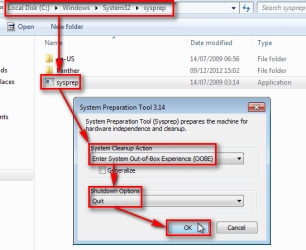
As I have mentioned, the Sysprep is running all the time in the background when in Audit Mode. When Sysprep is in the background, Windows thinks it's in Safe Mode. As soon as the Sysprep process has been terminated, Windows no longer thinks being in Safe Mode and Windows Backup can be run in Audit Mode.

Let's make this really clear: Windows Backup does not work in Audit Mode if Sysprep is not terminated. It works in Audit Mode when Sysprep is run and stopped with the Quit switch.

To get a Windows image when restored to act as if it was the first ever boot (OOBE boot), the image have to be created after a successful Sysprep and before the machine is booted from the HDD. This can be achieved either by creating the image in Audit Mode after running the Sysprep /OOBE with Quit switch, or running the Sysprep /OOBE with Shutdown switch and then booting the machine with a WinPE boot disk (for example a Macrium Imaging boot disk) and using third party tools to create the image.

To put it very simple, there are basically only one major difference in using this method (create a vhd image) and creating an install.wim file: The vhd restores an image setting up a copy (image) of a previously installed Windows, whereas the install.wim setups Windows by doing a clean install. Other than that the result is the same. For home users I recommend the method told in this tutorial, the vhd image as it is a bit simpler and does not require non-native Windows tools to capture the image.

Kari
 

My Computer My Computer

At a glance

Windows 10 Pro x64 EN-GB1.6 GHz Intel Core i7-720QM Processor6 GBATI Mobility Radeon HD 5850 Graphics
Computer type
Laptop
Computer Manufacturer/Model Number
HP ENVY 17-1150eg
OS
Windows 10 Pro x64 EN-GB
CPU
1.6 GHz Intel Core i7-720QM Processor
Memory
6 GB
Graphics Card(s)
ATI Mobility Radeon HD 5850 Graphics
Sound Card
Beats sound system with integrated subwoofer
Monitor(s) Displays
17" laptop display, 22" LED and 32" Full HD TV through HDMI
Screen Resolution
1600*900 (1), 1920*1080 (2&3)
Hard Drives
Internal: 2 x 500 GB SATA Hard Disk Drive 7200 rpm
External: 2TB for backups, 3TB USB3 network drive for media
Cooling
As Envy runs a bit warm, I have it on a Cooler Master pad
Keyboard
Logitech diNovo Media Desktop Laser (bluetooth)
Mouse
Logitech Performance Mouse MX
Internet Speed
50/10 Mbps VDSL
Antivirus
Windows Defender 4.3.9431.0
Browser
Maxthon 3.5.2., IE11
Back
Top