
"no permission to access this folder"

phamersma

New member
Local time
9:42 AM
Messages
17
I did a fresh instal of windows 7 pro 64 bit.

I have only installed AVG, all motherboarddrivers all updates and Chrome browser.

When i plugin my external HD some folder give the error: "you currently have no permission to access this folder"

Now, i can continu and i have permission but every subfolder gives the same problem.

I used security settings to add "everybody" and that works untill i reboot. Then i have to remove "everybody" and this gives some errors (probably because i don't have permissions) and then add "evrybody" but this works only temporarely.
I gave "everybody" full acces!
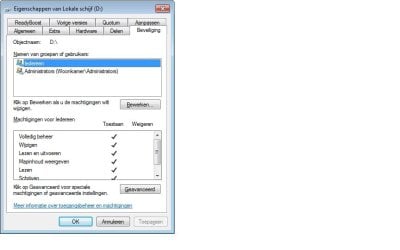
Rights.jpg

I did a new install of Windows again but this did not help.

what can i do?
 

My Computer My Computer

Computer type
PC/Desktop
Computer Manufacturer/Model Number
custom
OS
Windows 7 Professional x64 SP1
CPU
Celeron G530 Dual 2.4GHz
Memory
4GB
Hard Drives
128GB SSD +
500GB 7200rpm
Antivirus
AVG
Browser
Chrome
I did a fresh instal of windows 7 pro 64 bit.

I have only installed AVG, all motherboarddrivers all updates and Chrome browser.

When i plugin my external HD some folder give the error: "you currently have no permission to access this folder"

Now, i can continu and i have permission but every subfolder gives the same problem.

I used security settings to add "everybody" and that works untill i reboot. Then i have to remove "everybody" and this gives some errors (probably because i don't have permissions) and then add "evrybody" but this works only temporarely.
I gave "everybody" full acces!

I did a new install of Windows again but this did not help.

what can i do?

See if the following works;

• Right-click on the drive and select "Properties"
• Click "Advanced"
• Click "Change Permissions"
• Ensure that Administrators is listed (at the very least...if not also your username)
• Click the "Replace all child object..." check box
• Click "OK"

If that doesn't work, take ownership first:
• Right-click on the drive and select "Properties"
• Click "Advanced"
• Click the "Owner" tab
• Click "Edit"
• Select your username
• Click the "Replace owner on..." check box
• Click "OK"
• Then go back and perform the first set of steps listed above

HTH
 

My Computer My Computer

Computer type
PC/Desktop
Computer Manufacturer/Model Number
Custom Built
OS
Windows 7 Professional x64
CPU
Intel i5 quad processor
Motherboard
DP67BG
Memory
16 GB
Graphics Card(s)
Radeon HD 5770
Sound Card
Realtek High Definition Audio
Monitor(s) Displays
Samsung SyncMaster
Screen Resolution
1920X1080
Hard Drives
WD 2TB (SATA Internal)
WD 1TB (USB External)
PSU
Corsair GS800
Case
Tower (Generic)
Cooling
3 Internal Fans
Keyboard
MS Wireless
Mouse
MS Optical Wired
Internet Speed
54 mbps
Antivirus
Emsisoft
Browser
IE-Version 9, Palemoon-Version 24.2.0
First option gave a permission error, 2nd did work for now. Thanks.

I am administrator. So why do i need to take ownership then?
 

My Computer My Computer

Computer type
PC/Desktop
Computer Manufacturer/Model Number
custom
OS
Windows 7 Professional x64 SP1
CPU
Celeron G530 Dual 2.4GHz
Memory
4GB
Hard Drives
128GB SSD +
500GB 7200rpm
Antivirus
AVG
Browser
Chrome

My Computer My Computer

Computer type
PC/Desktop
Computer Manufacturer/Model Number
Custom Built
OS
Windows 7 Professional x64
CPU
Intel i5 quad processor
Motherboard
DP67BG
Memory
16 GB
Graphics Card(s)
Radeon HD 5770
Sound Card
Realtek High Definition Audio
Monitor(s) Displays
Samsung SyncMaster
Screen Resolution
1920X1080
Hard Drives
WD 2TB (SATA Internal)
WD 1TB (USB External)
PSU
Corsair GS800
Case
Tower (Generic)
Cooling
3 Internal Fans
Keyboard
MS Wireless
Mouse
MS Optical Wired
Internet Speed
54 mbps
Antivirus
Emsisoft
Browser
IE-Version 9, Palemoon-Version 24.2.0
Had the same problem

Found a quick and easy solution

First right click on drive/folder/file whichever is giving the problem.

for me it was my whole drive. Click on properties, securities, then click on advance.

click on system, if you dont have system, add one. (click add then enter system in object name select box, then click on check name, and finally add.)

Once done with that, click on system and use the edit button. Allow everything and click on apply, then check the box that reads "apply these permission to objects and folder within this container only and click ok. still with system highlighted, click replace all child objects with permission from this object, then click apply

This should sort out your problem.
 

My Computer My Computer

Computer type
PC/Desktop
OS
64
Back
Top