NVIDIA Drivers - Avoid Problems

How to Avoid NVIDIA Driver Problems


   Information
This tutorial will show you how to do a clean install of NVIDIA graphics drivers for those having problems with the drivers.


Here's How:

1. Download the driver you want to install from your computer manufacturer or from NVIDIA.com.
See also: http://www.sevenforums.com/graphic-cards/602-latest-nvidia-forceware-video-drivers-windows-7-a.html
2. The first thing to do is open Windows updates, in the left column click change settings, in the drop down box select check for updates but let me choose whether to download and install them. The purpose of this is to keep Windows update from automatically installing a driver. We do not want conflicts with drivers.
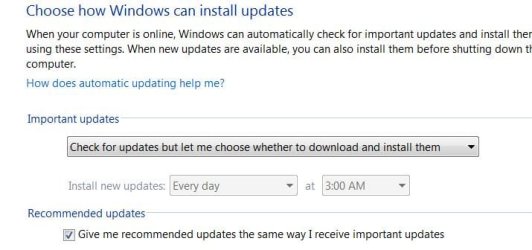
Update settings.JPG
3. Next go to your "C" dive and there should be a folder named Nvidia.
C drive.JPG
4. Open the folder and you will find a folder named 'Display Drivers', inside that folder will be all the drivers you have installed designated by number.

Display%20drivers.JPG
5. Delete all of the folders with numbers but Do Not delete the Display Driver Folder itself.

6. Next go to Control Panel (category View) and Uninstall a Program
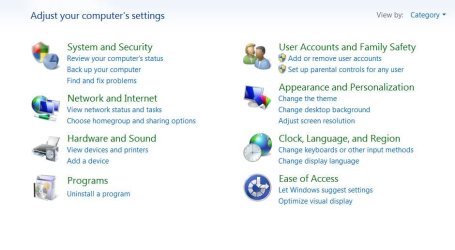
uninstall a program.JPG
7. Scroll down to the Nvidia drivers and begin to uninstall them but read the info box below before you start.

   Information
If you have an Nvidia chipset, DO NOT uninstall the chipset driver only the Display drivers. Also, uninstall all of the display type drivers but BE SURE TO UNINSTALL THE GRAPHICS DRIVER LAST.
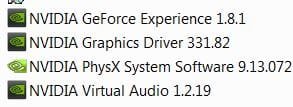
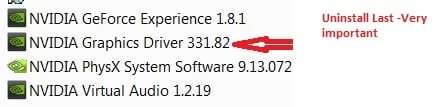
uninstall drivers CP.JPG

uninstall drivers CP 1.jpg
8. When you uninstall the Graphics driver, Windows will request a reboot, do so. Upon reboot Windows will install a graphics adapter, that is good.

9. Open the new driver you downloaded, agree to terms and select custom install. Under custom install uncheck everything except the Graphics driver, PhysX and GeForce experience, if you want that. Be sure the 'CLEAN INSTALL' box is checked
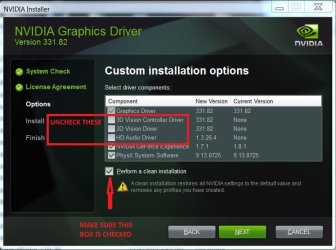
clean install drivers SET UP.jpg
10. Your set up should look like this.
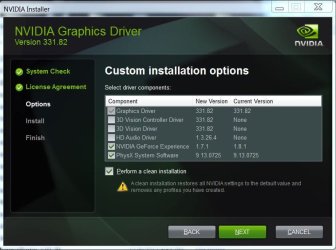
clean install drivers.JPG
11. Click next and begin the installation, after which you will reboot. This should give you a clean install of your drivers. You can now re set Windows Update to your preferred setting, as you are through.


Last edited:

My Computer

Computer type
PC/Desktop
Computer Manufacturer/Model Number
custom build
OS
Microsoft Windows 7 Ultimate 64-bit 7601 Multiprocessor Free Service Pack 1
CPU
Intel(R) Core(TM)2 Duo CPU E7200 @ 2.53GHz
Motherboard
To be filled by O.E.M. To be filled by O.E.M.
Memory
4.00 GB
Graphics Card(s)
NVIDIA GeForce 210
Sound Card
(1) NVIDIA High Definition Audio (2) Realtek High Definiti
Screen Resolution
1920 x 1080 x 32 bits (4294967296 colors) @ 60 Hz
Hard Drives
ST3500312CS ATA Device
Hi, Why no reply to my query
 

My Computer

Computer type
PC/Desktop
Computer Manufacturer/Model Number
custom build
OS
Microsoft Windows 7 Ultimate 64-bit 7601 Multiprocessor Free Service Pack 1
CPU
Intel(R) Core(TM)2 Duo CPU E7200 @ 2.53GHz
Motherboard
To be filled by O.E.M. To be filled by O.E.M.
Memory
4.00 GB
Graphics Card(s)
NVIDIA GeForce 210
Sound Card
(1) NVIDIA High Definition Audio (2) Realtek High Definiti
Screen Resolution
1920 x 1080 x 32 bits (4294967296 colors) @ 60 Hz
Hard Drives
ST3500312CS ATA Device
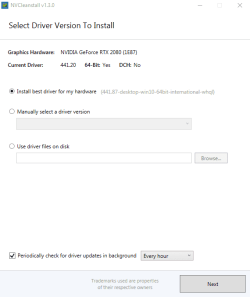
My Windows 7 x64 install is nearly eleven years old, and in that time I have attempted a few times, to update the Nvidia graphics drivers to the latest compatible version for my card. However all attempts failed using the downloading option from the Nvidia site and I gave up. A few weeks ago I came across a small utility for installing drivers, and decided to give it a shot. Well it worked and was simple and quick, with no website visit necessary or any careful method.

NVCleanstall (v1.14.0) Download | TechPowerUp

NVCleanstall lets you customize the NVIDIA GeForce Driver package by removing components that you don't need (or want). This not only keeps things tidy, but also lowers disk usage and memory footprint.
Unlike the NVIDIA custom installation, you can unselect packages like "Stereo 3D Glasses", "USB-C", Notebook Optimizations or Telemetry from the NVIDIA drivers.

133_large-v1668622316.png
 

My Computer

Computer type
PC/Desktop
OS
Windows 7 Enterprise x64
CPU
Intel Xeon X5492 (modded to work on Skt775)
Motherboard
ASUS P5Q SE PLUS
Memory
ZVVT 4x4GB 16GB DDR2 800MHz Kit Dual Channel (2U4E80ZVT0H0)
Graphics Card(s)
ASUS GeForce GTX550 Ti DirectCU
Sound Card
Edirol UA-4FX
Monitor(s) Displays
iiyama ProLite X2783HSU
Screen Resolution
27"
Hard Drives
INTEL SSDSC2BW240A4 240GB SSD SATA
Western Digital WDC WD7500AAKS-00RBA0 750GB SATA
PSU
OCZ Fatal1ty 550W
Case
Akasa Eclipse 62
Cooling
Phantek PH-TC12DX 120mm (CPU) 1800rpm
Keyboard
Lenovo USB Enhanced Performance Keyboard (SK-8815)
Mouse
Redragon M711 COBRA RGB Gaming Mouse
Internet Speed
200Mbit
Antivirus
ESET Internet Security
Browser
Chrome / Firefox
Other Info
2x iXtrema120mm Case Fans
Removed Kingston HyperX 4x2GB 8GB Kit Dual Channel (KHX8500D2K2_4G) 10-11-2022
Back
Top