
Offscreen Window - Move Back to Desktop

How to Move Offscreen Window Back to Desktop in Windows 7 and Windows 8

   Information
If you have a opened window that is offscreen from your main display, then this will show you how to move the offscreen window back on your desktop in Windows 7 and Windows 8.

   Note
This would be a opened window that you accidentally moved off the screen to far to get to it with the mouse pointer, or if a laptop or desktop computer is plugged up to a temporary secondary monitor display and then disconnected without remembering to move the open window(s) back to the primary desktop display.


Here's How:
1. Hover the mouse pointer over the offscreen open window icon on the taskbar until you see it's taskbar thumbnail preview display. (see screenshot below)
Step1.jpg
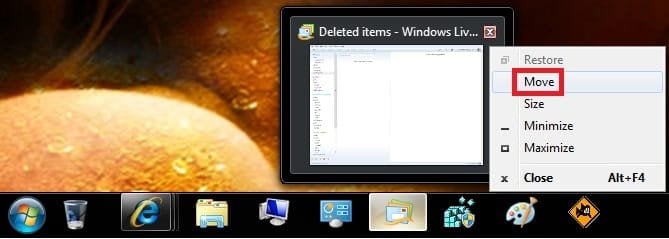
2. Right click on the taskbar thumbnail preview, and click/tap on Move. (see screenshot below)

NOTE: You could also press and hold the Shift key, right click on the taskbar icon of the offscreen window, release the Shift key, then click/tap on Move.
Step2B.jpg
   Tip
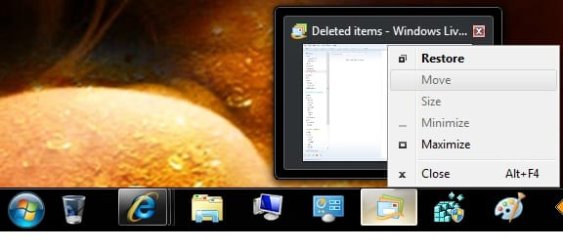
If Move is grayed out, then that means that the offscreen window has been minimized to the taskbar. Click/tap on Maximize or Restore and repeat step 2 to now be able to click/tap on Move.
Step2A.jpg

3. The mouse pointer will now turn into the move cursor Move_Cursor.jpg on the offscreen window, but you will not see this quite yet.

4. Press and release one of the arrow keys on the keyboard.

5. Now drag the offscreen window back to your desktop by either moving the mouse or using the arrow keys.
NOTE: You may need to move the mouse around a bit until you see what direction the offscreen window is coming from.

6. When you have the window back to where you want it on the desktop, left click or press Enter to drop the window into place.
That's it,
Shawn


Last edited:
Finally

Thank you, I spent hours searching, re-installing, re-downloading, & re-storing my system/programs. I couldn't figure out the issue with my new/first desktop PC but finally after about a week, this solved a majority of the issues I'm having. Such a simple fix but so hard to get from start to finish of an unknown issue. Once again, thanks :thumbsup:
 

My Computer

Computer type
PC/Desktop
Computer Manufacturer/Model Number
IBP
OS
windows 7
My problem is only with a text document, every single one I open is either minimized so small that it's no longer visible or it's just not showing at all. What I've been doing to be able to use it is open the task manager and under applications clicking on the text file and selecting Maximize, it will then be full page. This however is only effecting that 1 page for that 1 time, it's not a fix it's the only way I have available to se the page. There is no move or maximize available when I right click the icon on the task bar, just a list of recent files. I have Pin to taskbar, close this window and the notepad for my options.

I have to add that I run 4 monitors at all times and I never had any problems with programs off screen except if I changed their cables around and then made corrections through AMD's software first. I usually will check their positions with windows desktop utility then go to AMD. This just started about a week ago and I'm thinking I may have accidentally caught a corner of a text window and moved it to where it's just 1 pixel wide or tall but it's not visible at all.

I've tried to maximize then minimize and see if I can see where it goes but I can't seem to be able to trace it. I
ll try with animation and see if I can locate it easier.
 

My Computer

Computer type
PC/Desktop
Computer Manufacturer/Model Number
user built
OS
Windows 7 Ultimate x64
CPU
AMD Phenom II X4 970 BE
Motherboard
GA-790FXTA-UD5
Memory
CORSAIR 1800 12GB runniing at 1300
Graphics Card(s)
ATI HD 4850 (2 OF THEM not in crossfire for normal use)
Hard Drives
7 ON BOARD TOTAL 2-1.5TB Hitachi 2-500GB SEAGATE 1-300GB WESTERN 1-750 SEAGATE 1-500GB MATOR &
5 OR 6 OTHERS CONNECTED BY USB 2
Antivirus
PANDA
Browser
FIREFOX

My Computer

Computer type
PC/Desktop
Computer Manufacturer/Model Number
Self built custom
OS
64-bit Windows 11 Pro for Workstations
CPU
Intel i7-8700K OC'd to 5 GHz
Motherboard
ASUS ROG Maximus XI Formula Z390
Memory
64 GB (4x16GB) G.SKILL TridentZ RGB DDR4 3600 MHz
Graphics Card(s)
ASUS ROG-STRIX-GTX1080TI-O11G-GAMING
Sound Card
Integrated
Monitor(s) Displays
2 x Samsung Odyssey G7 27"
Screen Resolution
2560x1440
Hard Drives
1TB Samsung 990 PRO M.2,
4TB Samsung 990 PRO PRO M.2,
TerraMaster F8 SSD Plus NAS
PSU
Seasonic Prime Titanium 850W
Case
Thermaltake Core P3
Cooling
Corsair Hydro H115i
Keyboard
Logitech wireless K800
Mouse
Logitech MX Master 4
Internet Speed
2 Gb/s Download and 100 Mb/s Upload
Antivirus
Malwarebyte Anti-Malware Premium
Browser
Google Chrome
Other Info
Logitech Z625 speaker system,
Logitech BRIO 4K Pro webcam,
HP Color LaserJet Pro MFP M477fdn,
APC SMART-UPS RT 1000 XL - SURT1000XLI,
Galaxy S23 Plus phone
Back
Top