Georgeann, There are actually different kinds of Toolbars in use in Windows and on-line, and in different applications, and you CAN change the size of many of the Toolbars. Take a look at my first item below, and when you get to Advanced, scroll down to 3D Objects, and Menu, both of which control different Toolbars. Experiment with the other Advanced settings as well, because all except the last one allow you to change the size.
Here's my list of all the ways to change the various sizes of fonts, images, and displays:
1. This is the one of the main setting tools for setting various locations of Windows font sizes. Right-click on the Desktop and go to Personalize, Window Color and Appearance. Click on Advanced, and in the drop-down menu, select the item that controls the location where you wish to change the font size. (Note: the last one, Window, does not have an option to control font size.)
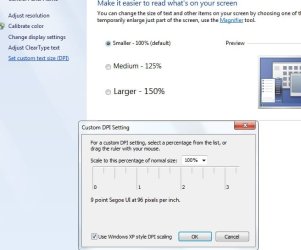
2. DPI - Right click on Desktop, Personalize, On Personalization Page, go to left column to: Adjust Font size – DPI, DPI Scaling: Click on Large scale (120 DPI), and click Apply.
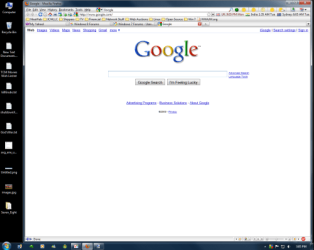
3. Screen Resolution: Right-click on the Desktop, choose Screen Resolution, click on the down-arrow at the end of the Resolution box, and pick the desired resolution. Check OK.
4. Display: Right-click on the Desktop, select Personalize, then Display. From the 3 settings: Small, Medium, Large, if screen defaults to Medium (125% size for font and images) and that’s too large, use Small for 100% size (aka “normal”)
At the lower right hand corner of every IE web page, there’s a Zoom control that lets you increase the size of every web page, and
it stays at that Zoom setting for every page until/unless you change it
Open Internet Explorer, go to Tools, Internet Options, General, Accessibility, Select Ignore font sizes specified on web pages. Click OK, then Apply, then OK.
7. Open Internet Explorer, go to Tools, Internet Options, Advanced, uncheck all three:
Reset text size to Medium for new windows and tabs,
and
Reset text size to Medium while Zooming,
and
Reset Zoom level to 100% for new windows and tabs
8. Open Internet Explorer, click the Page button, click Text Size, and then select the size you want i.e. Large (Largest may be too large).
9. Ease of Access Center – Go to: Control Panel, and Explore all settings. Under the following heading, Make things on the screen larger, select: Change the size of text + icons. This takes you to the dpi settings screen.
10.] If you have a scroll wheel on your mouse, use command/ctrl + your scroll on a web page to increase the font size.
11. MS Office apps have a Zoom slider at the lower right hand corner of every page, that lets you increase the size of every Office app page, and
it stays at that Zoom setting until/unless you change it
12. MS Word templates: In the Ribbon or QuickAccess Bar select Styles, Normal, and when the little arrow appears, select Modify. Under Formatting you can change the default font size (12) to whatever size you wish. At the bottom of the screen select Only in this documents OR New documents based on this template. Click OK. You can change this font size setting for any/all other MS Word templates as well.
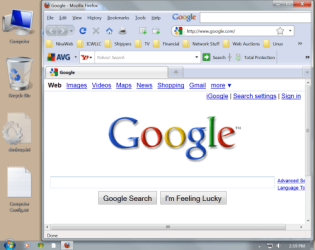
13. In IE and FireFox (for current use – not permanent): press Ctrl and the + key to increase screen size. To reduce screen size press Ctrl and the – key. (To restore screen size to 100% press Ctrl and 0.)
14. FireFox (permanent setting): go to Tools, Options, Content, and on that screen set the new default text size that you wish. Then, click Advanced and there are additional default text size settings. Plus, in the box that says "Minimum text size" select None, and down below, UNcheck the box that says "allow pages to choose their own fonts instead of my selections above."
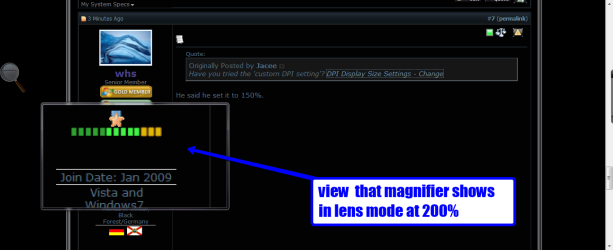
15. Magnifier – For those instances when you need to magnify a certain portion of the screen - go to Start, in the Search pane, type in "magnifier" + click the program at the top. (To read more about Magnifier go to Start, click "Help & Support" on the right hand side, type in "magnifier.") Magnifier is actually located at: Start, All Programs, Accessories, Ease of Access, Magnifier. (You can set Magnifier to DOCKED MODE which gives you a re-sizable window at the top of the screen that follows the cursor. )
16. FireFox Add-On:
NoSquint: Firefox Extension
(If you go to Internet Explorer, Internet Options, Appearance, Fonts, How to ignore present fonts - The notes refer you to numbers 5, 6, 8, 10, and 13 above).