
How to Create an "On-Screen Keyboard" Shortcut in Vista, Windows 7, and Windows 8
Information
Instead of relying on the physical keyboard to type and enter data, you can use the On-Screen Keyboard. The "On-Screen Keyboard" displays a visual keyboard with all the standard keys. You can select keys using the mouse or another pointing device, or you can use a single key or group of keys to cycle through the keys on the screen.
This tutorial will show you how to create or download an On-Screen Keyboard shortcut to pin or use where you like in Vista, Windows 7, and Windows 8.
This tutorial will show you how to create or download an On-Screen Keyboard shortcut to pin or use where you like in Vista, Windows 7, and Windows 8.
EXAMPLE: On-Screen Keyboard
NOTE: In order below from Vista, Windows 7, and Windows 8.
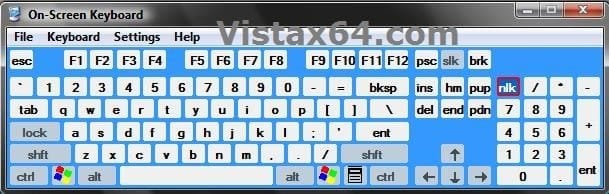
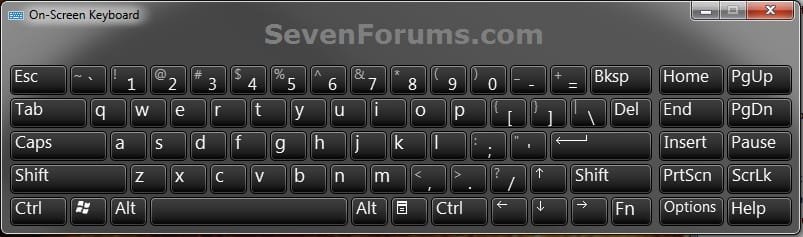
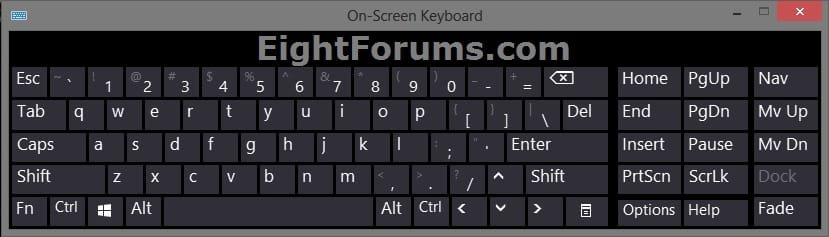
OPTION ONE
To Download the "On-Screen Keyboard" Shortcut
1. Click/tap on the download button below to download the file below.
On-Screen_Keyboard.zip
Download
2. Save the .zip file to your desktop.
3. Open the downloaded .zip file and extract (drag and drop) the On-Screen Keyboard shortcut to your desktop.
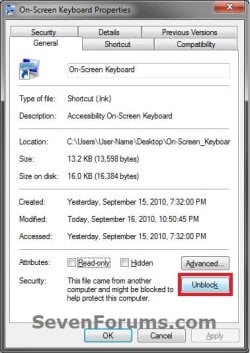
4. Right click on the On-Screen Keyboard shortcut, and click on Properties, General tab, and on the Unblock button. (see screenshot below)
NOTE: If you do not have a Unblock button under the General tab, then the shortcut is already unblocked and you can continue on to step 5.
5. In Windows 7 and Vista, you can now Pin to Taskbar (Windows 7 only) or Pin to Start Menu, add to Quick Launch, assign a keyboard shortcut to it, or move this shortcut to where you like for easy use.
6. In Windows 8, you can Pin to Taskbar on desktop, Pin to Start screen, add to Quick Launch, assign a keyboard shortcut to it, or move this shortcut to where you like for easy use.
7. When finished, you can delete the downloaded .zip file if you like.
OPTION TWO
To Manually Create the "On-Screen Keyboard" Shortcut
1. Right click or press and hold on an empty area on your desktop, and click/tap on New and Shortcut.
2. Copy and paste the location below into the location area, and click/tap on the Next button. (see screenshot below)
%windir%\System32\osk.exe
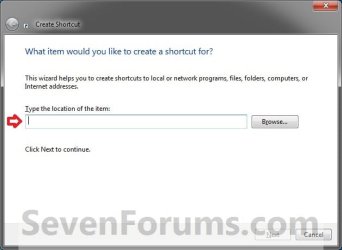
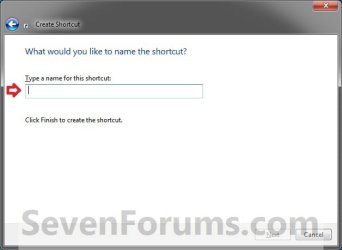
3. Type On-Screen Keyboard for the name, and click/tap on the Finish button. (see screenshot below)
NOTE: You can name the shortcut anything you like though.
6. In Windows 7 and Vista, you can now Pin to Taskbar (Windows 7 only) or Pin to Start Menu, add to Quick Launch, assign a keyboard shortcut to it, or move this shortcut to where you like for easy use.
7. In Windows 8, you can Pin to Taskbar on desktop, Pin to Start screen, add to Quick Launch, assign a keyboard shortcut to it, or move this shortcut to where you like for easy use.
That's it,
Shawn
Attachments
Last edited:


