
How to Open Folder in New Process in Windows 7 and Windows 8
Information
This tutorial will show you how to open a drive, folder, or library window in a separate new explorer process in Windows 7 and Windows 8.
Note
This is not the same as just having a folder open in a separate new window. Those two folder windows would still just be running in the same single explorer.exe process.
Having a folder open in a separate process will allow multiple instances of the open folder window to be running with each instance running with a separate explorer.exe process. If one of these instances should close or crash, the other instances would be completely unaffected by it.
Having a folder open in a separate process will allow multiple instances of the open folder window to be running with each instance running with a separate explorer.exe process. If one of these instances should close or crash, the other instances would be completely unaffected by it.
Warning
This can increase the stability of Windows 7 by opening every folder in a separate part of memory. Use this setting if your computer frequently crashes, and you are trying to minimize problems or troubleshoot. Be aware, however, that doing this could slow down the performance of your computer.
Tip
To see what processes (ex: explorer.exe) are running:
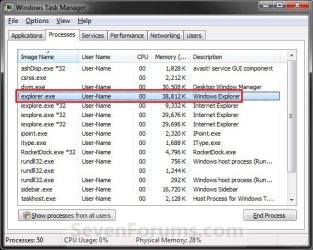
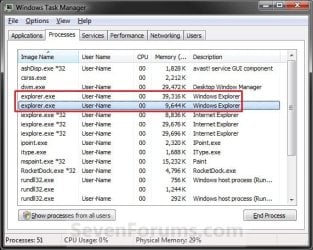
- Open Task Manager (CTRL+SHIFT+ESCAPE).
- Click on the Processes tab. (See screenshots below)
- Under Image Name, look for how many explorer.exe processes you have open. You will have one for each new folder process you open.
OPTION ONE
To Manually Open a Folder in a New Process
NOTE: This will allow you to manually open a selected folder window in a new separate process.
1. Press and hold the Shift key, then right click on the drive, folder, or library that you want to open in a separate process, release the Shift key, and click/tap on Open in New Process. (See screenshot below)
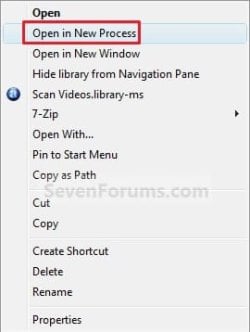
2. This will now open the selected folder in a separate window that is in a new process.
OPTION TWO
Turn On or Off to Launch Folders in Separate Process in Folder Options
NOTE: This will set Windows to always open all folder windows in a separate new process or not when they are opened.
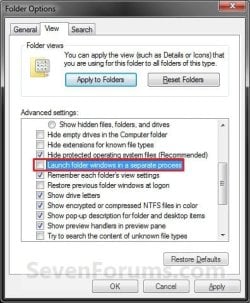
1. Open Folder Options in Windows 7 or Windows 8, and click/tap on the View tab. (See screenshot below step 4)
2. To Launch Folder Windows in a Separate Process when Opened
NOTE: Folders open in the same process as each other, but a separate instance to the process that provides the Shell.
A) Check the Launch folder windows in a separate process box. (See screenshot below step 4)
B) Go to step 4.
3. To Not Launch Folder Windows in a Separate Process when Opened
NOTE: Folders open in the same process as each other, in the same instance to the process that provides the Shell. This is the default setting.
A) Uncheck the Launch folder windows in a separate process box. (See screenshot below step 4)
4. Click on OK. (See screenshot below)
OPTION THREE
Turn On or Off to Launch Folders in Separate Process using a REG File
1. To Launch Folder Windows in a Separate Process when Opened
A) Click on the Download button below to download the file below.
Launch_Folder_Windows_in_Separate_Process.reg
Download
B) Go to step 3.
2. To Not Launch Folder Windows in a Separate Process when Opened
A) Click on the Download button below to download the file below.
NOTE: This is the default setting.
Not_Launch_Folder_Windows_in_Separate_Process.reg
Download
3. Save the .reg file to your desktop.
4. Double click/tap on the downloaded .reg file to merge it.
5. If prompted, click/tap on Run, Yes (UAC), Yes, and OK to approve the merge.
6. If open, close and reopen Windows Explorer (Window 7) or File Explorer (Windows 8) to apply.
NOTE: If you do not see a change, then log off and log on, or restart the computer to apply.
7. When done, you can delete the downloaded .reg file if you like.
That's it,
Shawn
Related Tutorials
- How to Open each Folder in the Same or Own Separate New Window in Windows 7
- How to Open each Folder in the Same or Own Separate New Window in Windows 8
- How to Add or Remove "Open in new process" Context Menu in Windows 7 and Windows 8
- How to Use "Open in New Process" Context Menu Item With or Without Shift+Right Click
Attachments
Last edited:


