Open With - Change Default Program

How to Change the Default Program a File Type Opens With in Windows 7

   Information
A default program is the program that Windows 7 uses when you open a particular type of file extension. This will show you how to change a file type to open with a different default program for just this one time or always using the context menu in Windows 7.

These Default Programs association settings are a per user setting and not applied to all users.


Here's How:
1. Right click on the file type (ex: .txt file) that you want to change the default program for, then click on Open with. (see screenshot below)
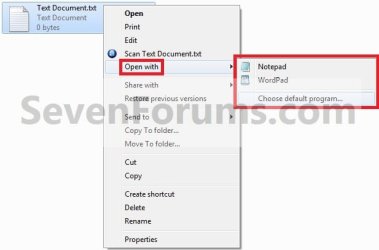
Step1.jpg

   Note
If you do not have Open with in the context menu, then this means this file does not have a program associated to open it with.
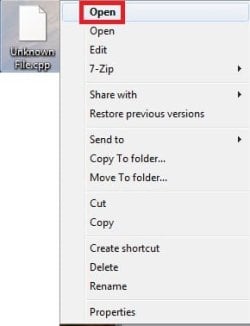
  • Instead, click on Open.
Open-1.jpg
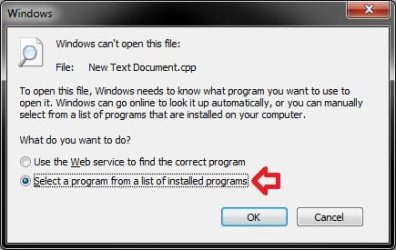
  • Select (dot) Select a program from a list of installed programs, and click on OK.
  • Go to step 3.
Open.jpg


2. To Select a Program that is Already Listed in Context Menu
NOTE: This option will only open the file type with this program for just this one time and not everytime by default.
A) After you have expanded Open with, select a listed program (ex: Notepad or Wordpad) that you want to open the file with for just this one time. (see screenshot below)
Step1.jpg
B) Go to step 4.
3. To Select a Program that is Not Listed in Context Menu
NOTE: This option will allow you to be able to select to have the file type to always open with the selected program by default if you like.
A) After you have expanded Open with, select Choose default program. (see screenshot below step 1)

B) Under Other Programs, click on the drop down arrow to the far right to exapnd it and see more programs to select from. (See screenshot below)
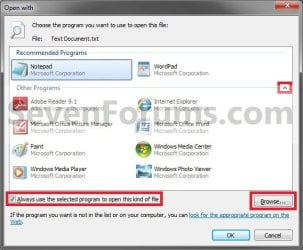
Step2.jpg
C) Select the program that you want to open the file with. (See screenshot above)
NOTE: If the program you wanted to select is still not listed, then click on the Browse button and navigate to the program's exe file. Select it, and click on the Open button to add it to be able to select it.


D) To Always Open this File Type with the Selected Program by Default
  • Check the Always use the selected program to open this kind of file box. (See screenshot below step 3B)
  • Go to step 3F.
E) To Only Open this File Type with the Selected Program for Just this One Time
  • Uncheck the Always use the selected program to open this kind of file box. (See screenshot below step 3B)
F) Click on OK. (See screenshot below step 3B)
4. The file will now be opened by the selected program.
That's it,
Shawn


Last edited:
Thanks for the offer, I truly appreciate it. I have two copies installed, for some reason. How about either this path

c:\lpex\bin\evfwlx40.exe or c:\utilities\lpex\BIN\evfwlx40.exe

I wonder how many others will read this thread and use your response to fix a problem they too have ?

Ok. Here are two .reg files below. One to add the context menu, and the other to remove if needed.

I used: c:\utilities\lpex\BIN\evfwlx40.exe

I hope it'll do the trick for you. :)

View attachment Add_Open_with_Lpex.reg

View attachment Remove_Open_with_Lpex.reg
 
Last edited:

My Computer

Computer type
PC/Desktop
Computer Manufacturer/Model Number
Self built custom
OS
64-bit Windows 11 Pro for Workstations
CPU
Intel i7-8700K OC'd to 5 GHz
Motherboard
ASUS ROG Maximus XI Formula Z390
Memory
64 GB (4x16GB) G.SKILL TridentZ RGB DDR4 3600 MHz
Graphics Card(s)
ASUS ROG-STRIX-GTX1080TI-O11G-GAMING
Sound Card
Integrated
Monitor(s) Displays
2 x Samsung Odyssey G7 27"
Screen Resolution
2560x1440
Hard Drives
1TB Samsung 990 PRO M.2,
4TB Samsung 990 PRO PRO M.2,
TerraMaster F8 SSD Plus NAS
PSU
Seasonic Prime Titanium 850W
Case
Thermaltake Core P3
Cooling
Corsair Hydro H115i
Keyboard
Logitech wireless K800
Mouse
Logitech MX Master 4
Internet Speed
2 Gb/s Download and 100 Mb/s Upload
Antivirus
Malwarebyte Anti-Malware Premium
Browser
Google Chrome
Other Info
Logitech Z625 speaker system,
Logitech BRIO 4K Pro webcam,
HP Color LaserJet Pro MFP M477fdn,
APC SMART-UPS RT 1000 XL - SURT1000XLI,
Galaxy S23 Plus phone
Thanks for the offer, I truly appreciate it. I have two copies installed, for some reason. How about either this path

c:\lpex\bin\evfwlx40.exe or c:\utilities\lpex\BIN\evfwlx40.exe

I wonder how many others will read this thread and use your response to fix a problem they too have ?
 

My Computer

Computer type
PC/Desktop
Computer Manufacturer/Model Number
IBM
OS
ON - Ontario
CPU
Xeon
Uhhh.....ok. I was hoping to see the internals of your "program", so I might better understand how it works. When I clicked on it, it just "ran". and that was it. Then I realised I was in a position of absolute trust in your assistance. So far, so good, I rebooted and yes indeed, the right click on one of the files shows not only Open with Notepad, but also Open with Lpex. What I am still missing, if you would be so kind, is a way to associate certain file types with Lpex. Can you describe a way to have Lpex appear in the Set Associations menu ? No matter WHAT I do I cannot get Win7 to retain my choice long enough for it to appear. Thanks for what you have done so far.
 

My Computer

Computer type
PC/Desktop
Computer Manufacturer/Model Number
IBM
OS
ON - Ontario
CPU
Xeon
You're most welcome. :)

This is the contents of the add .reg file below. The remove .reg file just deletes it.

Code:
Windows Registry Editor Version 5.00
 
[HKEY_CLASSES_ROOT\*\shell\Open with Lpex\command]
@="C:\\utilities\\lpex\\BIN\\evfwlx40.exe %1"

Did you need a context menu for both .exe files?

I'm afraid that it may not be possible to add Lpex to Default Programs since it's so old, and doesn't appear to be fully compatible with Windows 7.

When you right click on the file, and click on the added "Open with Lpex", it should open that file in Lpex for you if Lpex supports opening that file type. This is just a workaround since Lpex isn't being added to the default "Open with" context menu.
 

My Computer

Computer type
PC/Desktop
Computer Manufacturer/Model Number
Self built custom
OS
64-bit Windows 11 Pro for Workstations
CPU
Intel i7-8700K OC'd to 5 GHz
Motherboard
ASUS ROG Maximus XI Formula Z390
Memory
64 GB (4x16GB) G.SKILL TridentZ RGB DDR4 3600 MHz
Graphics Card(s)
ASUS ROG-STRIX-GTX1080TI-O11G-GAMING
Sound Card
Integrated
Monitor(s) Displays
2 x Samsung Odyssey G7 27"
Screen Resolution
2560x1440
Hard Drives
1TB Samsung 990 PRO M.2,
4TB Samsung 990 PRO PRO M.2,
TerraMaster F8 SSD Plus NAS
PSU
Seasonic Prime Titanium 850W
Case
Thermaltake Core P3
Cooling
Corsair Hydro H115i
Keyboard
Logitech wireless K800
Mouse
Logitech MX Master 4
Internet Speed
2 Gb/s Download and 100 Mb/s Upload
Antivirus
Malwarebyte Anti-Malware Premium
Browser
Google Chrome
Other Info
Logitech Z625 speaker system,
Logitech BRIO 4K Pro webcam,
HP Color LaserJet Pro MFP M477fdn,
APC SMART-UPS RT 1000 XL - SURT1000XLI,
Galaxy S23 Plus phone
Yes, thanks very much, it does allow me to select it if I right click on the file. It is just a bit more work to do that, as opposed to a simple double click and have the file association do the work. Oh well, if that is the best I can get, so be it. I was thinking there might be some file someplace in Win7 that retained all the file associations, that I could somehow edit to add Lpex. I appreciate the help.
 

My Computer

Computer type
PC/Desktop
Computer Manufacturer/Model Number
IBM
OS
ON - Ontario
CPU
Xeon
Reverse

I'm just curious how would you do this in reverse? to make it show the white paper instead of something you "open with" ??
 

My Computer

Computer type
PC/Desktop
OS
windows 10
I'm just curious how would you do this in reverse? to make it show the white paper instead of something you "open with" ??

Hello Nyxflame, and welcome to Seven Forums. :)

You would need to delete the registry entries for the set file association.

:ar: File Extension Type - Unassociate - Windows 7 Help Forums

What file extension did you want to unassociate?

I'll be happy to post back with a .reg file that will do it for you.
 

My Computer

Computer type
PC/Desktop
Computer Manufacturer/Model Number
Self built custom
OS
64-bit Windows 11 Pro for Workstations
CPU
Intel i7-8700K OC'd to 5 GHz
Motherboard
ASUS ROG Maximus XI Formula Z390
Memory
64 GB (4x16GB) G.SKILL TridentZ RGB DDR4 3600 MHz
Graphics Card(s)
ASUS ROG-STRIX-GTX1080TI-O11G-GAMING
Sound Card
Integrated
Monitor(s) Displays
2 x Samsung Odyssey G7 27"
Screen Resolution
2560x1440
Hard Drives
1TB Samsung 990 PRO M.2,
4TB Samsung 990 PRO PRO M.2,
TerraMaster F8 SSD Plus NAS
PSU
Seasonic Prime Titanium 850W
Case
Thermaltake Core P3
Cooling
Corsair Hydro H115i
Keyboard
Logitech wireless K800
Mouse
Logitech MX Master 4
Internet Speed
2 Gb/s Download and 100 Mb/s Upload
Antivirus
Malwarebyte Anti-Malware Premium
Browser
Google Chrome
Other Info
Logitech Z625 speaker system,
Logitech BRIO 4K Pro webcam,
HP Color LaserJet Pro MFP M477fdn,
APC SMART-UPS RT 1000 XL - SURT1000XLI,
Galaxy S23 Plus phone
Back
Top