Organizing folders and files

Alan9377

New member
Local time
2:31 PM
Messages
3
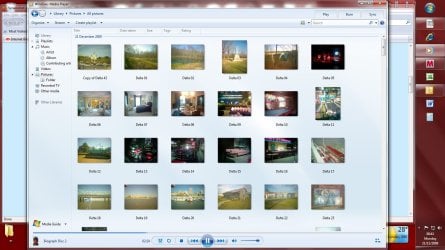
Downloaded picures all show up in "library". I can add them to a file as well but they continue to show in library. So "library" shows 88 photos and if I click "folders" I am looking at two stacked folder icons. Surely library should show only folders which you would then go to to open or play? The hierarchy seems upside down.
 

My Computer My Computer

At a glance

windows 7
OS
windows 7

My Computer My Computer

At a glance

Windows 7 Professional x64Intel i7 2600K OC'd @ 4620 MHz16GB GSkill Sniper 2133 Mhz (4x4GB)EVGA GeForce GTX 480 SuperClocked+
Computer Manufacturer/Model Number
Custom
OS
Windows 7 Professional x64
CPU
Intel i7 2600K OC'd @ 4620 MHz
Motherboard
Asus P8Z68-V Pro
Memory
16GB GSkill Sniper 2133 Mhz (4x4GB)
Graphics Card(s)
EVGA GeForce GTX 480 SuperClocked+
Sound Card
Realtek High Definition Audio
Monitor(s) Displays
2x Acer S273HLbmii 27"
Screen Resolution
2 x 1920x1080
Hard Drives
64GB Crucial M4 SSD

Storage: Hitachi 1TB 5400RPM, Samsung 1.5TB 5400RPM
PSU
Corsair HW Series 750w (modular)
Case
Cooler Master HAF 932 Advanced Blue Edition
Cooling
CM Hyper 212+ CPU cooler, 3x 230mm + 1x 140mm case fans
Keyboard
Logitech MK320 (wireless)
Mouse
Logitech MK320 (wireless)
Internet Speed
30 Mb/s : 2 Mb/s
I've gone through that but what I want either isn't there or I am too lacking to pick it up: how do I get "library" only to show folder icons, not all their contents?
 

My Computer My Computer

At a glance

windows 7
OS
windows 7
Hello Alan,
Could you please post a screenshot of your problem?
Thanks,
~Jonathan
 

My Computer My Computer

At a glance

Windows 7 Professional x64Intel i7 2600K OC'd @ 4620 MHz16GB GSkill Sniper 2133 Mhz (4x4GB)EVGA GeForce GTX 480 SuperClocked+
Computer Manufacturer/Model Number
Custom
OS
Windows 7 Professional x64
CPU
Intel i7 2600K OC'd @ 4620 MHz
Motherboard
Asus P8Z68-V Pro
Memory
16GB GSkill Sniper 2133 Mhz (4x4GB)
Graphics Card(s)
EVGA GeForce GTX 480 SuperClocked+
Sound Card
Realtek High Definition Audio
Monitor(s) Displays
2x Acer S273HLbmii 27"
Screen Resolution
2 x 1920x1080
Hard Drives
64GB Crucial M4 SSD

Storage: Hitachi 1TB 5400RPM, Samsung 1.5TB 5400RPM
PSU
Corsair HW Series 750w (modular)
Case
Cooler Master HAF 932 Advanced Blue Edition
Cooling
CM Hyper 212+ CPU cooler, 3x 230mm + 1x 140mm case fans
Keyboard
Logitech MK320 (wireless)
Mouse
Logitech MK320 (wireless)
Internet Speed
30 Mb/s : 2 Mb/s
libraryshot.jpg
Here it is. libraryshot.jpg
I confess I can't see how this will help, though. Essentially I am asking whether there is a way to change the factory setting of what the picture library automatically shows, and if so where it is since it isn't anywhere obvious.
 

My Computer My Computer

At a glance

windows 7
OS
windows 7
Hmm... I don't know of a way.
 

My Computer My Computer

At a glance

Windows 7 Professional x64Intel i7 2600K OC'd @ 4620 MHz16GB GSkill Sniper 2133 Mhz (4x4GB)EVGA GeForce GTX 480 SuperClocked+
Computer Manufacturer/Model Number
Custom
OS
Windows 7 Professional x64
CPU
Intel i7 2600K OC'd @ 4620 MHz
Motherboard
Asus P8Z68-V Pro
Memory
16GB GSkill Sniper 2133 Mhz (4x4GB)
Graphics Card(s)
EVGA GeForce GTX 480 SuperClocked+
Sound Card
Realtek High Definition Audio
Monitor(s) Displays
2x Acer S273HLbmii 27"
Screen Resolution
2 x 1920x1080
Hard Drives
64GB Crucial M4 SSD

Storage: Hitachi 1TB 5400RPM, Samsung 1.5TB 5400RPM
PSU
Corsair HW Series 750w (modular)
Case
Cooler Master HAF 932 Advanced Blue Edition
Cooling
CM Hyper 212+ CPU cooler, 3x 230mm + 1x 140mm case fans
Keyboard
Logitech MK320 (wireless)
Mouse
Logitech MK320 (wireless)
Internet Speed
30 Mb/s : 2 Mb/s
The Microsoft Help file has this to say on creating/modifying libraries:
Windows has four default libraries: Documents, Music, Pictures, and Videos. You can also create new libraries. For more information, see Create a new library.
Here are some ways you can modify an existing library:

  • Include or remove a folder. Libraries gather content from included folders, or library locations. You can include up to 50 folders in one library. For more information, see Include folders in a library.
  • Change the default save location. The default save location determines where an item is stored when it's copied, moved, or saved to the library. For more information, see Customize a library.
  • Change the type of file a library is optimized for. Each library can be optimized for a certain file type (such as music or pictures). Optimizing a library for a certain file type changes the available options for arranging your files. For more information, see Customize a library.

I suppose the other option would be to simply use traditional folders and shortcuts. You could create a folder called "Photo Library" or something and place shortcuts in it to all the folders with photos in them. This is the type of thing Libraries was meant to eliminate, but it might serve your particular purpose better...
 

My Computer My Computer

At a glance

Windows 7 Ultimate 64-bit, Windows Server 2008
OS
Windows 7 Ultimate 64-bit, Windows Server 2008
Back
Top