I would like for you to run a PowerShell script and then upload the file which the script places on your desktop.
# **********************INSTRUCTIONS**************************
# STEP 1 ** RUN POWERSHELL AS ADMINISTRATOR ******************
# ************************************************************
#
# WIN key | type POWERSHELL | do NOT hit ENTER |
# in the PROGRAMS list, right-click on WINDOWS POWERSHELL |
# choose "Run as administrator" |
# Click on the YES button (if such appears)
#
# WIN key = key with Microsoft log on top
#
# for the guru:
# WIN | type POWERSHELL | CTRL+SHIFT+ENTER key combo | ALT+Y keycombo
# ************************************************************
# STEP 2 ** COPY AND PASTE ***********************************
# ************************************************************
#
# COPY the script using CTRL+C,
# COPY every line of script down thru both EXIT statements
#
# PASTE into Powershell
#----Right-Click at the PowerShell Prompt
#----(Ctrl+V does not work)
#
# Start copying with first script line without a # at start of the line
# Note: Actually, you can paste the entire file if you rather
#-------Lines starting with a # are ignored by PowerShell
# ************************************************************
# STEP 3 ** SCRIPT OUTPUT & SCRIPT PURPOSE *******************
# ************************************************************
# --The script output and purpose is given at the very front of the script
#
# --The script output and purpose is given at the very front of the script
#
# ************************************************************
# ***************** NOTE - POWERSHELL VERSION*****************
# if you receive this error msg:
#--The system can not find the path specified
# you may need to update your PowerShell
# you must be using Powershell 2.0 or later.
#
# To determine your Powershell version:
#---Run PowerShell
#---enter $host.version
#---you should see at least:
# Major Minor Build Revision
# ----- ----- ----- --------
# 2......0......-1.....-1
#
# If you do not see the above, update your Vista/Win 7.
# ************************************************************
# *************** NOTE - EXECUTION POLICY*********************
# If you haven't set the execution policy, you may need to:
#---Run PowerShell
#---enter SET-EXECUTIONPOLICY -EXECUTIONPOLICY REMOTESIGNED
# ************************************************************
PHP:
# *************************************************************************
# ############################### DISK VOLUMES ############################
# Places Disk Volumes.txt on the desktop
# Contains info about your disk volumes (partitions)
# *************************************************************************
# Create an array to hold the result
$arr = @()
# Create an array of managementobjects
$dskvol = gwmi win32_volume -filter "NOT(drivetype= 2) OR  NOT(capacity=null)"
$dskrmv = $dskvol | ? {$_.drivetype -eq 2}
$dskodd = $dskvol | ? {$_.drivetype -eq 5}
$dsk    = $dskvol | ? {$_.drivetype -eq 3}

# Process the array
foreach ($e in $dsk) {
  # Create a hash array
  $hash = @{
  "DISK PARTITION"   = "*" * 40
  "Caption"       = $e.caption
  "Drive Letter"  = $e.driveletter
  "Label"         = $e.label
  "Capacity"      = "{0:n2} GB = {1:n0} MB" -f (($e.capacity/1GB),($e.capacity/1MB))
  "Free Space"    = "{0:n2} GB = {1:n0} MB" -f (($e.freespace/1GB),($e.freespace/1MB))
  "Volume Type"   = "Partition"
  "Boot Volume"   = $e.bootvolume
  "System Volume" = $e.systemvolume
  "Compressed"    = $e.compressed
  "Serial Number" = $e.serialnumber
  "Device ID"     = $e.deviceid
  "File System"   = $e.filesystem
  "Block Size"    = $e.blocksize
  "Indexing Enabled" = $e.indexingenabled
  "Auto Mount"    = $e.automount
  "Dirty Bit Set" = $e.dirtybitset
  } # end Hash table

  # Create obj based upon  hash; use select to specify order
  $obj = New-Object -TypeName PSObject -Property $hash |
  SELECT "DISK PARTITION", label,"Drive Letter",  capacity,"free space", `
  "volume type", "file system","block size","boot volume", `
  "system volume", compressed,"indexing enabled", "auto mount", "serial number"

 # add to obj to the result array
 $arr += $obj
} # end of foreach

foreach ($e in $dskodd) {
  # Create a hash array
  $hash = @{
  "CDROM"         = "*" * 40
  "Caption"       = $e.caption
  "Drive Letter"  = $e.driveletter
  "Label"         = $e.label
  "Capacity"      = "{0:n2} GB = {1:n0} MB" -f (($e.capacity/1GB),($e.capacity/1MB))
  "Free Space"    = "{0:n2} GB = {1:n0} MB" -f (($e.freespace/1GB),($e.freespace/1MB))
  "Volume Type"   = "CDROM"
  "Boot Volume"   = $e.bootvolume
  "System Volume" = $e.systemvolume
  "Compressed"    = $e.compressed
  "Serial Number" = $e.serialnumber
  "Device ID"     = $e.deviceid
  "File System"   = $e.filesystem
  "Block Size"    = $e.blocksize
  "Indexing Enabled" = $e.indexingenabled
  "Auto Mount"    = $e.automount
  "Dirty Bit Set" = $e.dirtybitset
  } # end Hash table

  # Create obj based upon  hash; use select to specify order
  $obj = New-Object -TypeName PSObject -Property $hash |
  SELECT "CDROM", label,"Drive Letter",  capacity,"free space", `
  "volume type", "file system","block size","boot volume", `
  "system volume", compressed,"indexing enabled", "auto mount", "serial number"

 # add to obj to the result array
 $arr += $obj
} # end of foreach

foreach ($e in $dskRMV) {
  # Create a hash array
  $hash = @{
  "REMOVABLE DISK" = "*" * 40
  "Caption"       = $e.caption
  "Drive Letter"  = $e.driveletter
  "Label"         = $e.label
  "Capacity"      = "{0:n2} GB = {1:n0} MB" -f (($e.capacity/1GB),($e.capacity/1MB))
  "Free Space"    = "{0:n2} GB = {1:n0} MB" -f (($e.freespace/1GB),($e.freespace/1MB))
  "Volume Type"   = "Removable"
  "Boot Volume"   = $e.bootvolume
  "System Volume" = $e.systemvolume
  "Compressed"    = $e.compressed
  "Serial Number" = $e.serialnumber
  "Device ID"     = $e.deviceid
  "File System"   = $e.filesystem
  "Block Size"    = $e.blocksize
  "Indexing Enabled" = $e.indexingenabled
  "Auto Mount"    = $e.automount
  "Dirty Bit Set" = $e.dirtybitset
  } # end Hash table

  # Create obj based upon  hash; use select to specify order
  $obj = New-Object -TypeName PSObject -Property $hash |
  SELECT "REMOVABLE DISK", label,"Drive Letter",  capacity,"free space", `
  "volume type", "file system","block size","boot volume", `
  "system volume", compressed,"indexing enabled", "auto mount", "serial number"

 # add to obj to the result array
 $arr += $obj
} # end of foreach

$arr > $env:userprofile\desktop\"DISK VOLUMES.TXT"

EXIT
EXIT
==============================================




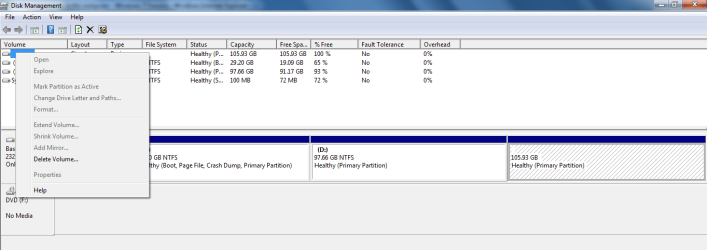
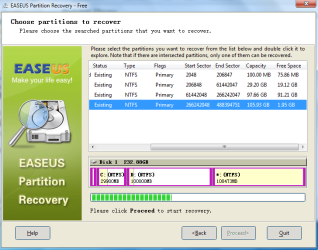
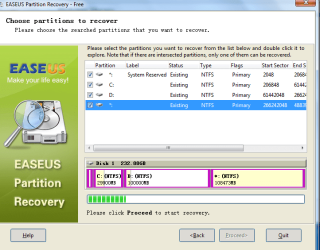

 NTFS) (Not system reserved, last partition in easeus recovery listings) see the attributes for the drive like amount of occupied space and free space then u will get the idea.....
