Permissions - Allow or Deny Users and Groups

How to Allow or Deny Permissions to Users and Groups

   Information
This will show you how to allow or deny users and groups access permissions and add or remove inheritable permissions to either a file, folder, drive, or registry key objects in Windows 7 or Vista.

   Note
After you set user or group permissions of a parent object (folder, drive, or registry key), any newly created files and subfolders in the folder or drive, or newly created subkeys under the registry key, will also inherit these permissions by default.

   Warning
I would highly recommend that you create a restore point before making changes to a file, folder, drive, or registry key permission settings. This way if you make a mistake and lock (access denied) yourself out of the item, you will be able to do a system restore at boot and select the restore point to undo the mistake.


Here's How:1. Do step 2 or 3 below for what object (folder, drive, or registry key) you would like to change the permission settings of.

2. To Change the Access Permissions of a File, Folder, or DriveA) In Windows Explorer, right click on the file, folder, or drive (object) that you want to change the permissions of and click on Properties.

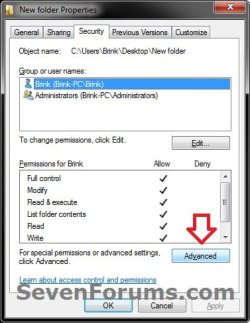
B) Click on the Security tab, and click on the Advanced button. (see screenshot below)Folder-1.jpg

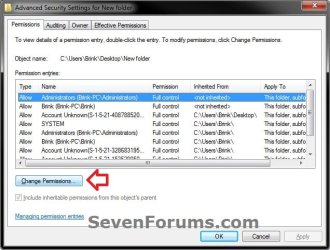
C) In the Permissions tab, click on the Change Permissions button. (see screenshot below)Folder-2.jpg

D) If prompted by UAC, then click on Yes (Windows 7) or Continue (Vista)

E) Go to step 4.

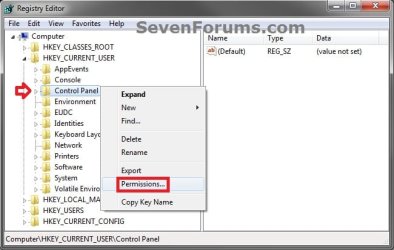
3. To Change the Access Permissions of a Registry KeyA) In the left pane of Registry Editor (regedit.exe), right click on the key (object) that you want to change the permissions of and click on Permissions. (see screenshot below)Registry_Key_1.jpg

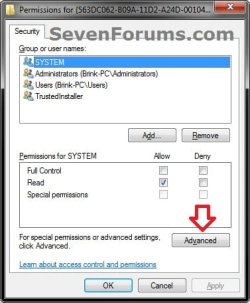
B) Click on the Advanced button. (see screenshot below)Registry.jpg

C) Go to step 4 below.

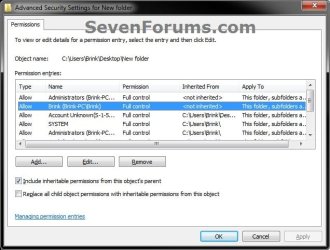
4. You will now see this below. Do step 5, 6, or 7 below for what you would like to do. (see screenshot and table below)Change-Permissions.jpg

ItemDescription
Object NameFull path of the selected file, folder, drive, or registry key from step 2 or 3 above.
Permission entriesDisplays each permission entry for this object:
Type - Either Allow or Deny this group or user this permission for this object.
Name - Resource, user, or group.
Permission - Restrictions currently applied to this object for this resource, user, or group.
Inherited from - Identifies the full path of the parent object for the "object name".
Apply To - Identifies any descendant objects to which the permissions are also applied.


5. To Include Inheritable Permissions from Object's Parent
NOTE: This will have this "object name" inherit (add) all of the permission entries from it's "parent object".A) Check the Include inheritable permissions from the objects parent box, and click on Apply. (see screenshot below step 4)

B) Go to step 8 or 9 below.

6. To Remove All Inherited Parent Permissions from Object
NOTE: This will remove all of the inherited parent permission entries from this "object name".A) Uncheck the Include inheritable permissions from the objects parent box. (see screenshot below step 4)

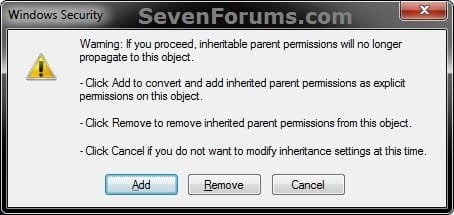
B) Click on the Remove button. (see screenshot below)Inheritable_permissions-1.jpg

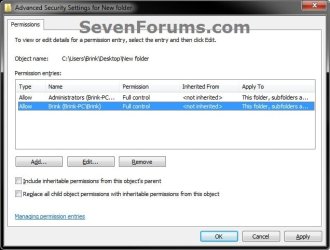
C) Click on the Apply button. (see screenshot below)Removed.jpg

D) Go to step 8 below.

7. To Convert All Inherited Parent Permissions as Explicit for Object
NOTE: This will convert all of the inherited parent permission entries as explicit permissons (<not inherited>) instead for this "object name" under the Inherited From column.A) Uncheck the Include inheritable permissions from the objects parent box. (see screenshot below step 4)

B) Click on the Add button. (see screenshot below)Inheritable_permissions-1.jpg

C) Click on the Apply button. (see screenshot below step 4)
NOTE: If you get a Access is denied message, then it means that you will need to take ownership of this object first and repeat the steps above.

D) Go to step 8 below.

8. Do step 9 and/or 10 below if you would like to add or remove permissons entries that are explicit (<not inherited>). If not, then go to step 11 below instead.

9. To Remove Explicit Permission Entries from Object
NOTE: This step is if you want to remove permission entries (users or groupa) that have explicit (<not inherited>) permissions from this object.A) Select a listed permission entry that has <not inherited> under the Inherited From column that you want to remove, and click on Remove. (see screenshot below step 4)

B) Repeat step 9A for any other permission entries you would like to remove for this object.

C) When finished, click on the Apply button. (see screenshot below step 4)
NOTE: If you get a Access is denied message, then it means that you will need to take ownership of this object first and repeat the steps above.

D) Go to step 10 or 11 below for what you would like to do.


10. To Add Permission Entries to Object
NOTE: This step is if you want to add permission entries (users or groups) to this object that will have explicit (<not inherited>) permissions.A) Click on the Add button. (see screenshot below step 4)

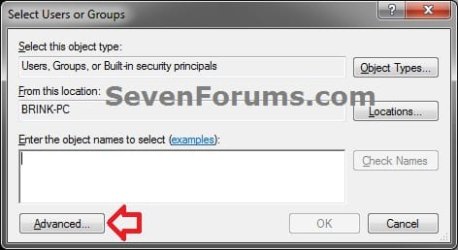
B) Click on the Advanced button. (see screenshot below)Add-2.jpg

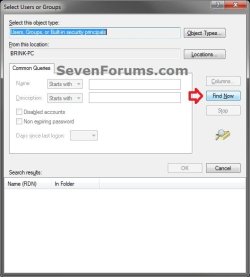
C) Click on the Find Now button. (see screenshot below)Add-3.jpg

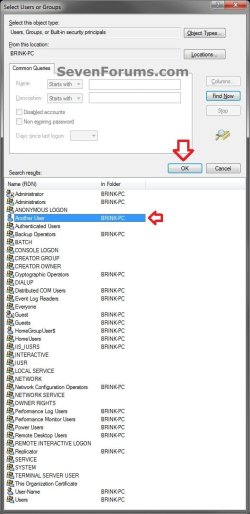
D) In the bottom pane under Search results, select the user(s) and/or group(s) that you want to add and click on OK. (see screenshot below)
NOTE: You can press and hold the CTRL key to select more than one listed item.Add-4.jpg

E) Click on OK. (see screenshot below)Add-5.jpg

F) Repeat steps 10A-10E for any other explicit permission entries you would like to add for this object.

G) When finished, click on the Apply button. (see screenshot below step 4)
NOTE: If you get a Access is denied message, then it means that you will need to take ownership of this object first and repeat the steps above.

H) Go to step 11 below.

11. To Allow or Deny Permissions for a User or GroupA) Select a listed permission entry that has <not inherited> under the Inherited From column, and click on Edit. (see screenshot below step 4)
NOTE: Permission entries that are inherited will need to be have their permission settings changed from the object's parent instead, or remove them (step 6) and add explicit permission (step 10) entries to set for this object instead.

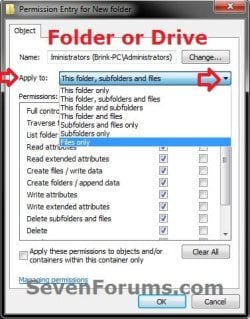
B) Select the Apply to drop down menu item for how you would like to apply the permissions for this permission entry. (see screenshots below step 11E)
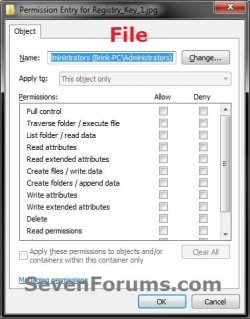
NOTE: You will not be able to select a Apply to item for a file object.

C) Check the Allow or Deny boxes for the items that you want to allow or deny permissions for the selected user or group (permission entry). (see screenshots below step 11E)


   Note

  • In most cases, Deny overrides Allow unless a folder is inheriting conflicting settings from different parents. In that case, the setting inherited from the parent closest to the object in it's full path will have precedence.
  • Be sure to not deny permissions to or remove your user account for this object. Doing so could prevent you from having access to it.
  • Be sure to not deny permissions to the Everyone group for this opbject. This will also include your user account.
  • Be sure to not deny permissions to or remove TrustedInstaller, LOCAL SERVICE, RESTRICTED, SERVICE, or SYSTEM permission entries if listed. Doing so will prevent Windows from having access, and could cause Windows to not run properly afterwards.
  • Checking the Full Control item will also check all items under either Allow or Deny.


D) If you like, depending on what you selected in step 11B, check the Apply these permissions to objects and/or containers within this container only box.
NOTE: This would be to apply only to say subfolders and files in this folder.

E) Click on OK. (see screenshots below)Edit-Folder-Drive.jpgEdit-File.jpg

Edit-Registry_Key.jpg


F) Click on Apply. (see screenshot below step 4)
NOTE: If you get a Access is denied message, then it means that you will need to take ownership of this object first and repeat the steps above.

12. If you like, check the Replace all child object permissions with inheritable permissions from this object box, and click on Apply. (see screenshot below step 4)
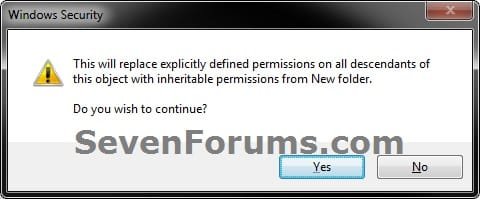
NOTE: When checked, all permissions entries on this now parent object will replace (update) those on its descendant child objects (ex: subfolders, files, or subkeys). If left unchecked, permissions on each object, whether parent or its descendant, can be unique.A) Click on Yes. (see screenshot below)Child-1.jpg

B) The Replace all child object permissions with inheritable permissions from this object check box will now automatically clear again by default, but it was still applied for these permission changes. (see screenshot below step 4)

13. When finished, click on OK. (see screenshot below step 4)

14. If open, click on OK. (see screenshot below step 2C)

15. Click on OK. (see screenshot below step 2B or 3B)


That's it,
Shawn Brink


Last edited:
You're most welcome. :)
 

My Computer My Computer

Computer type
PC/Desktop
Computer Manufacturer/Model Number
Self built custom
OS
64-bit Windows 11 Pro for Workstations
CPU
Intel i7-8700K OC'd to 5 GHz
Motherboard
ASUS ROG Maximus XI Formula Z390
Memory
64 GB (4x16GB) G.SKILL TridentZ RGB DDR4 3600 MHz
Graphics Card(s)
ASUS ROG-STRIX-GTX1080TI-O11G-GAMING
Sound Card
Integrated
Monitor(s) Displays
2 x Samsung Odyssey G7 27"
Screen Resolution
2560x1440
Hard Drives
1TB Samsung 990 PRO M.2,
4TB Samsung 990 PRO PRO M.2,
TerraMaster F8 SSD Plus NAS
PSU
Seasonic Prime Titanium 850W
Case
Thermaltake Core P3
Cooling
Corsair Hydro H115i
Keyboard
Logitech wireless K800
Mouse
Logitech MX Master 4
Internet Speed
2 Gb/s Download and 100 Mb/s Upload
Antivirus
Malwarebyte Anti-Malware Premium
Browser
Google Chrome
Other Info
Logitech Z625 speaker system,
Logitech BRIO 4K Pro webcam,
HP Color LaserJet Pro MFP M477fdn,
APC SMART-UPS RT 1000 XL - SURT1000XLI,
Galaxy S23 Plus phone
Step 2 has two letter Ds. Maybe the second one should be an E.

D) If prompted by UAC, then click on Yes (Windows 7) or Continue (Vista)

E) Go to step 4.
 

My Computer My Computer

Computer type
Laptop
Computer Manufacturer/Model Number
Employer provided Dell Latitude
OS
W7 Pro SP1 64bit
CPU
i7
Memory
8GB
Graphics Card(s)
Intel HD Graphics
Hard Drives
crappy SSD
Antivirus
Employer mandated Symantec Endpoint Protection
Browser
Pale Moon 64bit, IE11 64bit & Chrome 64bit
Oops. Thank you. Fixed. :)
 

My Computer My Computer

Computer type
PC/Desktop
Computer Manufacturer/Model Number
Self built custom
OS
64-bit Windows 11 Pro for Workstations
CPU
Intel i7-8700K OC'd to 5 GHz
Motherboard
ASUS ROG Maximus XI Formula Z390
Memory
64 GB (4x16GB) G.SKILL TridentZ RGB DDR4 3600 MHz
Graphics Card(s)
ASUS ROG-STRIX-GTX1080TI-O11G-GAMING
Sound Card
Integrated
Monitor(s) Displays
2 x Samsung Odyssey G7 27"
Screen Resolution
2560x1440
Hard Drives
1TB Samsung 990 PRO M.2,
4TB Samsung 990 PRO PRO M.2,
TerraMaster F8 SSD Plus NAS
PSU
Seasonic Prime Titanium 850W
Case
Thermaltake Core P3
Cooling
Corsair Hydro H115i
Keyboard
Logitech wireless K800
Mouse
Logitech MX Master 4
Internet Speed
2 Gb/s Download and 100 Mb/s Upload
Antivirus
Malwarebyte Anti-Malware Premium
Browser
Google Chrome
Other Info
Logitech Z625 speaker system,
Logitech BRIO 4K Pro webcam,
HP Color LaserJet Pro MFP M477fdn,
APC SMART-UPS RT 1000 XL - SURT1000XLI,
Galaxy S23 Plus phone
Hi Brink Sir,

If suppose, some admin, and not default admin, by accidentally disabled one user account and gone, I think a general user standard account, could access the default admin account as per the instruction of lusrmgr.msc and then remove the tick so as to get admin icon in the log on screen. Is it correct?
If the general account user could log on to the account and get to C:users and can open any files under different user accounts. Is it correct?
If not, how to access those files, if the admin left the place on some grounds and leave the files not accessible by the other users. What is the way.
 

My Computer My Computer

Computer type
PC/Desktop
Computer Manufacturer/Model Number
custom build
OS
Microsoft Windows 7 Ultimate 64-bit 7601 Multiprocessor Free Service Pack 1
CPU
Intel(R) Core(TM)2 Duo CPU E7200 @ 2.53GHz
Motherboard
To be filled by O.E.M. To be filled by O.E.M.
Memory
4.00 GB
Graphics Card(s)
NVIDIA GeForce 210
Sound Card
(1) NVIDIA High Definition Audio (2) Realtek High Definiti
Screen Resolution
1920 x 1080 x 32 bits (4294967296 colors) @ 60 Hz
Hard Drives
ST3500312CS ATA Device
I forgot to click instant email notification
 

My Computer My Computer

Computer type
PC/Desktop
Computer Manufacturer/Model Number
custom build
OS
Microsoft Windows 7 Ultimate 64-bit 7601 Multiprocessor Free Service Pack 1
CPU
Intel(R) Core(TM)2 Duo CPU E7200 @ 2.53GHz
Motherboard
To be filled by O.E.M. To be filled by O.E.M.
Memory
4.00 GB
Graphics Card(s)
NVIDIA GeForce 210
Sound Card
(1) NVIDIA High Definition Audio (2) Realtek High Definiti
Screen Resolution
1920 x 1080 x 32 bits (4294967296 colors) @ 60 Hz
Hard Drives
ST3500312CS ATA Device
Hello jraju,

Sorry, but no. A standard user will not be able to enable the built-in Administrator.

In addition, it would be against our forum rules to help you bypass security to access files that your did not originally have access to.
 

My Computer My Computer

Computer type
PC/Desktop
Computer Manufacturer/Model Number
Self built custom
OS
64-bit Windows 11 Pro for Workstations
CPU
Intel i7-8700K OC'd to 5 GHz
Motherboard
ASUS ROG Maximus XI Formula Z390
Memory
64 GB (4x16GB) G.SKILL TridentZ RGB DDR4 3600 MHz
Graphics Card(s)
ASUS ROG-STRIX-GTX1080TI-O11G-GAMING
Sound Card
Integrated
Monitor(s) Displays
2 x Samsung Odyssey G7 27"
Screen Resolution
2560x1440
Hard Drives
1TB Samsung 990 PRO M.2,
4TB Samsung 990 PRO PRO M.2,
TerraMaster F8 SSD Plus NAS
PSU
Seasonic Prime Titanium 850W
Case
Thermaltake Core P3
Cooling
Corsair Hydro H115i
Keyboard
Logitech wireless K800
Mouse
Logitech MX Master 4
Internet Speed
2 Gb/s Download and 100 Mb/s Upload
Antivirus
Malwarebyte Anti-Malware Premium
Browser
Google Chrome
Other Info
Logitech Z625 speaker system,
Logitech BRIO 4K Pro webcam,
HP Color LaserJet Pro MFP M477fdn,
APC SMART-UPS RT 1000 XL - SURT1000XLI,
Galaxy S23 Plus phone
Thank you,
I am not asking to bypass the security. Do you wish to say that he could not even access default admin to genuine uses.But I also wish to state that the alert that one should have admin rights to do the following . Could not he access the default admin account? academically improving thro the thread owner.
So, he should contact, is the only answer. Thanking you
Expecting reply. I have not tried to access lusrmgr. msc with standard account
 

My Computer My Computer

Computer type
PC/Desktop
Computer Manufacturer/Model Number
custom build
OS
Microsoft Windows 7 Ultimate 64-bit 7601 Multiprocessor Free Service Pack 1
CPU
Intel(R) Core(TM)2 Duo CPU E7200 @ 2.53GHz
Motherboard
To be filled by O.E.M. To be filled by O.E.M.
Memory
4.00 GB
Graphics Card(s)
NVIDIA GeForce 210
Sound Card
(1) NVIDIA High Definition Audio (2) Realtek High Definiti
Screen Resolution
1920 x 1080 x 32 bits (4294967296 colors) @ 60 Hz
Hard Drives
ST3500312CS ATA Device
You will not be able to access lusrmgr.msc or the default Admin with a standard account's credentials.
 

My Computer My Computer

Computer type
PC/Desktop
Computer Manufacturer/Model Number
Self built custom
OS
64-bit Windows 11 Pro for Workstations
CPU
Intel i7-8700K OC'd to 5 GHz
Motherboard
ASUS ROG Maximus XI Formula Z390
Memory
64 GB (4x16GB) G.SKILL TridentZ RGB DDR4 3600 MHz
Graphics Card(s)
ASUS ROG-STRIX-GTX1080TI-O11G-GAMING
Sound Card
Integrated
Monitor(s) Displays
2 x Samsung Odyssey G7 27"
Screen Resolution
2560x1440
Hard Drives
1TB Samsung 990 PRO M.2,
4TB Samsung 990 PRO PRO M.2,
TerraMaster F8 SSD Plus NAS
PSU
Seasonic Prime Titanium 850W
Case
Thermaltake Core P3
Cooling
Corsair Hydro H115i
Keyboard
Logitech wireless K800
Mouse
Logitech MX Master 4
Internet Speed
2 Gb/s Download and 100 Mb/s Upload
Antivirus
Malwarebyte Anti-Malware Premium
Browser
Google Chrome
Other Info
Logitech Z625 speaker system,
Logitech BRIO 4K Pro webcam,
HP Color LaserJet Pro MFP M477fdn,
APC SMART-UPS RT 1000 XL - SURT1000XLI,
Galaxy S23 Plus phone
Technically speaking it is correct.
But about accidental or intentional disable of a/cs by a person with some intention. I suppose, there is no way, except he has no access to any files and folders in his account by others. This is also in academic interest, as i come across terms like take ownership and all that. If you think, this also in violation of forum rules, reconsider reply.
But even in some threads, for eg. in analysing cbs.log, one advice is to take ownership of the file in the dos command. Standard user is the term that one has restriction permission. Administrator means full control of the system, where he can a user access to some folders only in the system.ok
 

My Computer My Computer

Computer type
PC/Desktop
Computer Manufacturer/Model Number
custom build
OS
Microsoft Windows 7 Ultimate 64-bit 7601 Multiprocessor Free Service Pack 1
CPU
Intel(R) Core(TM)2 Duo CPU E7200 @ 2.53GHz
Motherboard
To be filled by O.E.M. To be filled by O.E.M.
Memory
4.00 GB
Graphics Card(s)
NVIDIA GeForce 210
Sound Card
(1) NVIDIA High Definition Audio (2) Realtek High Definiti
Screen Resolution
1920 x 1080 x 32 bits (4294967296 colors) @ 60 Hz
Hard Drives
ST3500312CS ATA Device
Great tutorial. I'm able to do it with folders and single files.
My question is: if I deny full control for a user over certain .sys driver files, will the hardware be disabled for this user??
I'm trying to disable wired network card but allowing wireless for a specific user.
 

My Computer My Computer

Computer type
PC/Desktop
OS
Windows 7 Pro x64
Hello Takichiro,

Sorry, but no. It would only disable the users ability to access/open the file instead. Hopefully you'll get a solution in your original thread soon.
 

My Computer My Computer

Computer type
PC/Desktop
Computer Manufacturer/Model Number
Self built custom
OS
64-bit Windows 11 Pro for Workstations
CPU
Intel i7-8700K OC'd to 5 GHz
Motherboard
ASUS ROG Maximus XI Formula Z390
Memory
64 GB (4x16GB) G.SKILL TridentZ RGB DDR4 3600 MHz
Graphics Card(s)
ASUS ROG-STRIX-GTX1080TI-O11G-GAMING
Sound Card
Integrated
Monitor(s) Displays
2 x Samsung Odyssey G7 27"
Screen Resolution
2560x1440
Hard Drives
1TB Samsung 990 PRO M.2,
4TB Samsung 990 PRO PRO M.2,
TerraMaster F8 SSD Plus NAS
PSU
Seasonic Prime Titanium 850W
Case
Thermaltake Core P3
Cooling
Corsair Hydro H115i
Keyboard
Logitech wireless K800
Mouse
Logitech MX Master 4
Internet Speed
2 Gb/s Download and 100 Mb/s Upload
Antivirus
Malwarebyte Anti-Malware Premium
Browser
Google Chrome
Other Info
Logitech Z625 speaker system,
Logitech BRIO 4K Pro webcam,
HP Color LaserJet Pro MFP M477fdn,
APC SMART-UPS RT 1000 XL - SURT1000XLI,
Galaxy S23 Plus phone
OK. So I won't do it this way. You saved time to me! Thank you!

Hello Takichiro,

Sorry, but no. It would only disable the users ability to access/open the file instead. Hopefully you'll get a solution in your original thread soon.
 

My Computer My Computer

Computer type
PC/Desktop
OS
Windows 7 Pro x64
- I am administrators user
- I completely disable the UAC
- My drive is NTFS
with those conditions, is it possible to make a file undeletable but still accessible?
 

My Computer My Computer

OS
Windows 7 Ultimate x64
Hello eterNEETy, and welcome to Seven Forums. :)

An administrator will always be able to delete a file.

Disabling UAC will only stop the UAC prompt to approve anything that requires elevated rights. This will let an administrator perform elevated rights without the UAC prompt.
 

My Computer My Computer

Computer type
PC/Desktop
Computer Manufacturer/Model Number
Self built custom
OS
64-bit Windows 11 Pro for Workstations
CPU
Intel i7-8700K OC'd to 5 GHz
Motherboard
ASUS ROG Maximus XI Formula Z390
Memory
64 GB (4x16GB) G.SKILL TridentZ RGB DDR4 3600 MHz
Graphics Card(s)
ASUS ROG-STRIX-GTX1080TI-O11G-GAMING
Sound Card
Integrated
Monitor(s) Displays
2 x Samsung Odyssey G7 27"
Screen Resolution
2560x1440
Hard Drives
1TB Samsung 990 PRO M.2,
4TB Samsung 990 PRO PRO M.2,
TerraMaster F8 SSD Plus NAS
PSU
Seasonic Prime Titanium 850W
Case
Thermaltake Core P3
Cooling
Corsair Hydro H115i
Keyboard
Logitech wireless K800
Mouse
Logitech MX Master 4
Internet Speed
2 Gb/s Download and 100 Mb/s Upload
Antivirus
Malwarebyte Anti-Malware Premium
Browser
Google Chrome
Other Info
Logitech Z625 speaker system,
Logitech BRIO 4K Pro webcam,
HP Color LaserJet Pro MFP M477fdn,
APC SMART-UPS RT 1000 XL - SURT1000XLI,
Galaxy S23 Plus phone
Then, can I make a file like "%windir%\Web\Wallpaper\Windows\img0.jpg"?
without take ownership, it's exactly a file that I want (undeletable but accessible)
I have tried several ways of icacls but it make the files become undeletable & inaccessible
 

My Computer My Computer

OS
Windows 7 Ultimate x64
That would be a system file, and an administrator can still be able to delete it after jumping through hoops to do so.
 

My Computer My Computer

Computer type
PC/Desktop
Computer Manufacturer/Model Number
Self built custom
OS
64-bit Windows 11 Pro for Workstations
CPU
Intel i7-8700K OC'd to 5 GHz
Motherboard
ASUS ROG Maximus XI Formula Z390
Memory
64 GB (4x16GB) G.SKILL TridentZ RGB DDR4 3600 MHz
Graphics Card(s)
ASUS ROG-STRIX-GTX1080TI-O11G-GAMING
Sound Card
Integrated
Monitor(s) Displays
2 x Samsung Odyssey G7 27"
Screen Resolution
2560x1440
Hard Drives
1TB Samsung 990 PRO M.2,
4TB Samsung 990 PRO PRO M.2,
TerraMaster F8 SSD Plus NAS
PSU
Seasonic Prime Titanium 850W
Case
Thermaltake Core P3
Cooling
Corsair Hydro H115i
Keyboard
Logitech wireless K800
Mouse
Logitech MX Master 4
Internet Speed
2 Gb/s Download and 100 Mb/s Upload
Antivirus
Malwarebyte Anti-Malware Premium
Browser
Google Chrome
Other Info
Logitech Z625 speaker system,
Logitech BRIO 4K Pro webcam,
HP Color LaserJet Pro MFP M477fdn,
APC SMART-UPS RT 1000 XL - SURT1000XLI,
Galaxy S23 Plus phone
I'm hoping someone can clear an issue for me; the solution could be posted within this tutorial but I don't know which method I should follow.

A sub-folder which I'm sharing is accessible by another computer, although I can't read the contents of the sub-folder neither can I write to the sub-folder. Although I don't want to write to the sub-folder I strictly want to only read the contents of the sub-folder. When I attempt to access the sub-folder by another computer on the network, I'm prompt that I don't have the correct permissions ?

The parent folder of the sub-folder must have R/W access but the specific sub-folder mentioned should only have read permissions.
 

My Computer My Computer

Computer type
PC/Desktop
Computer Manufacturer/Model Number
Custom Built
OS
Windows 10 Pro
CPU
Core2Quad (2.6 Ghz)
Motherboard
nVidia 775
Memory
8 Gigs DDR2
Graphics Card(s)
Geforce Titan Black
Sound Card
Motherboard Audio
Monitor(s) Displays
25" Asus LCD
Screen Resolution
1680x1050
Hard Drives
120 Gig SSD
60 Gig SSD
750 Gig HDD
PSU
850 Watts
Case
Mid-Size
Keyboard
Logitech
Mouse
Logitech - I love logitech mouses
Internet Speed
DSL 25Mbps - Although extremely expensive
Antivirus
Microsoft Anti-Virus
Browser
FireFox 36.x

My Computer My Computer

Computer type
PC/Desktop
Computer Manufacturer/Model Number
Self built custom
OS
64-bit Windows 11 Pro for Workstations
CPU
Intel i7-8700K OC'd to 5 GHz
Motherboard
ASUS ROG Maximus XI Formula Z390
Memory
64 GB (4x16GB) G.SKILL TridentZ RGB DDR4 3600 MHz
Graphics Card(s)
ASUS ROG-STRIX-GTX1080TI-O11G-GAMING
Sound Card
Integrated
Monitor(s) Displays
2 x Samsung Odyssey G7 27"
Screen Resolution
2560x1440
Hard Drives
1TB Samsung 990 PRO M.2,
4TB Samsung 990 PRO PRO M.2,
TerraMaster F8 SSD Plus NAS
PSU
Seasonic Prime Titanium 850W
Case
Thermaltake Core P3
Cooling
Corsair Hydro H115i
Keyboard
Logitech wireless K800
Mouse
Logitech MX Master 4
Internet Speed
2 Gb/s Download and 100 Mb/s Upload
Antivirus
Malwarebyte Anti-Malware Premium
Browser
Google Chrome
Other Info
Logitech Z625 speaker system,
Logitech BRIO 4K Pro webcam,
HP Color LaserJet Pro MFP M477fdn,
APC SMART-UPS RT 1000 XL - SURT1000XLI,
Galaxy S23 Plus phone
I'm using work groups; therefore the Share with, context menu only lists advanced sharing. The Security tab shows two users, although no groups. Those two users is the current user logged into Windows and the administrator; although the tutorial you linked to seems to be directed towards when using home groups ?

Is it possible to assign a user to strictly the sub-folder and be prompt for the assigned user to the sub-folder when wanting to strictly read the contents of the sub-folder ?
 

My Computer My Computer

Computer type
PC/Desktop
Computer Manufacturer/Model Number
Custom Built
OS
Windows 10 Pro
CPU
Core2Quad (2.6 Ghz)
Motherboard
nVidia 775
Memory
8 Gigs DDR2
Graphics Card(s)
Geforce Titan Black
Sound Card
Motherboard Audio
Monitor(s) Displays
25" Asus LCD
Screen Resolution
1680x1050
Hard Drives
120 Gig SSD
60 Gig SSD
750 Gig HDD
PSU
850 Watts
Case
Mid-Size
Keyboard
Logitech
Mouse
Logitech - I love logitech mouses
Internet Speed
DSL 25Mbps - Although extremely expensive
Antivirus
Microsoft Anti-Virus
Browser
FireFox 36.x
You should be able to set up "advanced sharing" -> "Permissions" -> "Add" -> selecting the workgroup in "Locations", then set the permissions you want for the user.
 

My Computer My Computer

Computer type
PC/Desktop
Computer Manufacturer/Model Number
Self built custom
OS
64-bit Windows 11 Pro for Workstations
CPU
Intel i7-8700K OC'd to 5 GHz
Motherboard
ASUS ROG Maximus XI Formula Z390
Memory
64 GB (4x16GB) G.SKILL TridentZ RGB DDR4 3600 MHz
Graphics Card(s)
ASUS ROG-STRIX-GTX1080TI-O11G-GAMING
Sound Card
Integrated
Monitor(s) Displays
2 x Samsung Odyssey G7 27"
Screen Resolution
2560x1440
Hard Drives
1TB Samsung 990 PRO M.2,
4TB Samsung 990 PRO PRO M.2,
TerraMaster F8 SSD Plus NAS
PSU
Seasonic Prime Titanium 850W
Case
Thermaltake Core P3
Cooling
Corsair Hydro H115i
Keyboard
Logitech wireless K800
Mouse
Logitech MX Master 4
Internet Speed
2 Gb/s Download and 100 Mb/s Upload
Antivirus
Malwarebyte Anti-Malware Premium
Browser
Google Chrome
Other Info
Logitech Z625 speaker system,
Logitech BRIO 4K Pro webcam,
HP Color LaserJet Pro MFP M477fdn,
APC SMART-UPS RT 1000 XL - SURT1000XLI,
Galaxy S23 Plus phone
Back
Top