Permissions - Allow or Deny Users and Groups

How to Allow or Deny Permissions to Users and Groups

   Information
This will show you how to allow or deny users and groups access permissions and add or remove inheritable permissions to either a file, folder, drive, or registry key objects in Windows 7 or Vista.

   Note
After you set user or group permissions of a parent object (folder, drive, or registry key), any newly created files and subfolders in the folder or drive, or newly created subkeys under the registry key, will also inherit these permissions by default.

   Warning
I would highly recommend that you create a restore point before making changes to a file, folder, drive, or registry key permission settings. This way if you make a mistake and lock (access denied) yourself out of the item, you will be able to do a system restore at boot and select the restore point to undo the mistake.


Here's How:1. Do step 2 or 3 below for what object (folder, drive, or registry key) you would like to change the permission settings of.

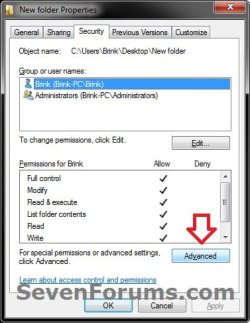
2. To Change the Access Permissions of a File, Folder, or DriveA) In Windows Explorer, right click on the file, folder, or drive (object) that you want to change the permissions of and click on Properties.

B) Click on the Security tab, and click on the Advanced button. (see screenshot below)Folder-1.jpg

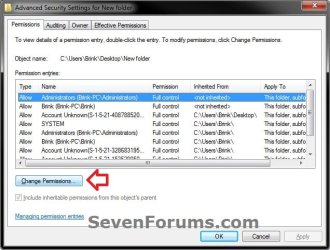
C) In the Permissions tab, click on the Change Permissions button. (see screenshot below)Folder-2.jpg

D) If prompted by UAC, then click on Yes (Windows 7) or Continue (Vista)

E) Go to step 4.

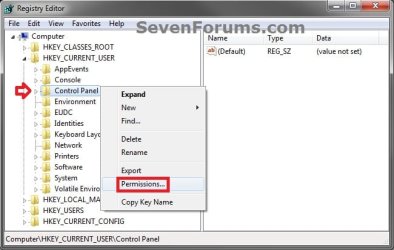
3. To Change the Access Permissions of a Registry KeyA) In the left pane of Registry Editor (regedit.exe), right click on the key (object) that you want to change the permissions of and click on Permissions. (see screenshot below)Registry_Key_1.jpg

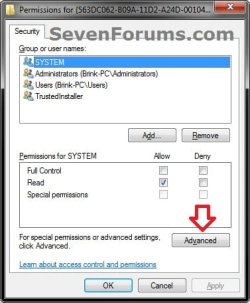
B) Click on the Advanced button. (see screenshot below)Registry.jpg

C) Go to step 4 below.

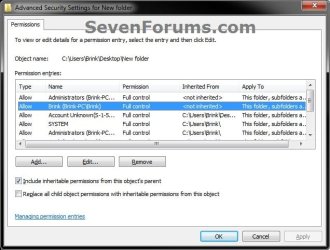
4. You will now see this below. Do step 5, 6, or 7 below for what you would like to do. (see screenshot and table below)Change-Permissions.jpg

ItemDescription
Object NameFull path of the selected file, folder, drive, or registry key from step 2 or 3 above.
Permission entriesDisplays each permission entry for this object:
Type - Either Allow or Deny this group or user this permission for this object.
Name - Resource, user, or group.
Permission - Restrictions currently applied to this object for this resource, user, or group.
Inherited from - Identifies the full path of the parent object for the "object name".
Apply To - Identifies any descendant objects to which the permissions are also applied.


5. To Include Inheritable Permissions from Object's Parent
NOTE: This will have this "object name" inherit (add) all of the permission entries from it's "parent object".A) Check the Include inheritable permissions from the objects parent box, and click on Apply. (see screenshot below step 4)

B) Go to step 8 or 9 below.

6. To Remove All Inherited Parent Permissions from Object
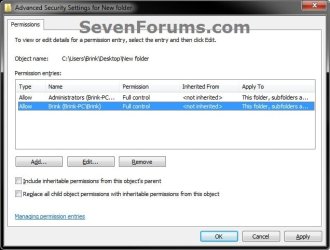
NOTE: This will remove all of the inherited parent permission entries from this "object name".A) Uncheck the Include inheritable permissions from the objects parent box. (see screenshot below step 4)

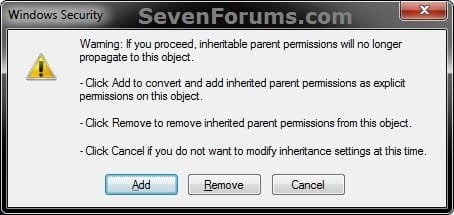
B) Click on the Remove button. (see screenshot below)Inheritable_permissions-1.jpg

C) Click on the Apply button. (see screenshot below)Removed.jpg

D) Go to step 8 below.

7. To Convert All Inherited Parent Permissions as Explicit for Object
NOTE: This will convert all of the inherited parent permission entries as explicit permissons (<not inherited>) instead for this "object name" under the Inherited From column.A) Uncheck the Include inheritable permissions from the objects parent box. (see screenshot below step 4)

B) Click on the Add button. (see screenshot below)Inheritable_permissions-1.jpg

C) Click on the Apply button. (see screenshot below step 4)
NOTE: If you get a Access is denied message, then it means that you will need to take ownership of this object first and repeat the steps above.

D) Go to step 8 below.

8. Do step 9 and/or 10 below if you would like to add or remove permissons entries that are explicit (<not inherited>). If not, then go to step 11 below instead.

9. To Remove Explicit Permission Entries from Object
NOTE: This step is if you want to remove permission entries (users or groupa) that have explicit (<not inherited>) permissions from this object.A) Select a listed permission entry that has <not inherited> under the Inherited From column that you want to remove, and click on Remove. (see screenshot below step 4)

B) Repeat step 9A for any other permission entries you would like to remove for this object.

C) When finished, click on the Apply button. (see screenshot below step 4)
NOTE: If you get a Access is denied message, then it means that you will need to take ownership of this object first and repeat the steps above.

D) Go to step 10 or 11 below for what you would like to do.


10. To Add Permission Entries to Object
NOTE: This step is if you want to add permission entries (users or groups) to this object that will have explicit (<not inherited>) permissions.A) Click on the Add button. (see screenshot below step 4)

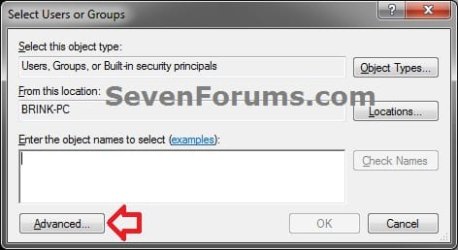
B) Click on the Advanced button. (see screenshot below)Add-2.jpg

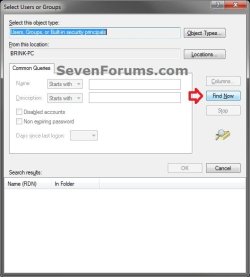
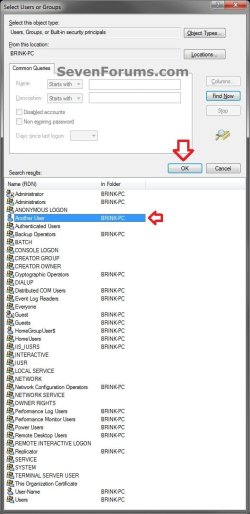
C) Click on the Find Now button. (see screenshot below)Add-3.jpg

D) In the bottom pane under Search results, select the user(s) and/or group(s) that you want to add and click on OK. (see screenshot below)
NOTE: You can press and hold the CTRL key to select more than one listed item.Add-4.jpg

E) Click on OK. (see screenshot below)Add-5.jpg

F) Repeat steps 10A-10E for any other explicit permission entries you would like to add for this object.

G) When finished, click on the Apply button. (see screenshot below step 4)
NOTE: If you get a Access is denied message, then it means that you will need to take ownership of this object first and repeat the steps above.

H) Go to step 11 below.

11. To Allow or Deny Permissions for a User or GroupA) Select a listed permission entry that has <not inherited> under the Inherited From column, and click on Edit. (see screenshot below step 4)
NOTE: Permission entries that are inherited will need to be have their permission settings changed from the object's parent instead, or remove them (step 6) and add explicit permission (step 10) entries to set for this object instead.

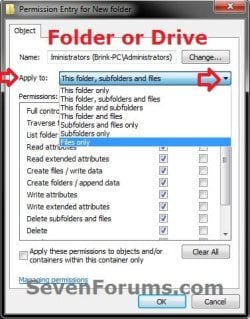
B) Select the Apply to drop down menu item for how you would like to apply the permissions for this permission entry. (see screenshots below step 11E)
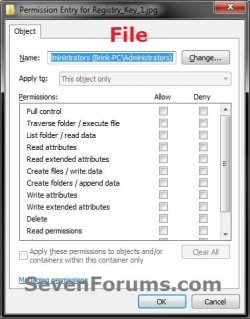
NOTE: You will not be able to select a Apply to item for a file object.

C) Check the Allow or Deny boxes for the items that you want to allow or deny permissions for the selected user or group (permission entry). (see screenshots below step 11E)


   Note

  • In most cases, Deny overrides Allow unless a folder is inheriting conflicting settings from different parents. In that case, the setting inherited from the parent closest to the object in it's full path will have precedence.
  • Be sure to not deny permissions to or remove your user account for this object. Doing so could prevent you from having access to it.
  • Be sure to not deny permissions to the Everyone group for this opbject. This will also include your user account.
  • Be sure to not deny permissions to or remove TrustedInstaller, LOCAL SERVICE, RESTRICTED, SERVICE, or SYSTEM permission entries if listed. Doing so will prevent Windows from having access, and could cause Windows to not run properly afterwards.
  • Checking the Full Control item will also check all items under either Allow or Deny.


D) If you like, depending on what you selected in step 11B, check the Apply these permissions to objects and/or containers within this container only box.
NOTE: This would be to apply only to say subfolders and files in this folder.

E) Click on OK. (see screenshots below)Edit-Folder-Drive.jpgEdit-File.jpg

Edit-Registry_Key.jpg


F) Click on Apply. (see screenshot below step 4)
NOTE: If you get a Access is denied message, then it means that you will need to take ownership of this object first and repeat the steps above.

12. If you like, check the Replace all child object permissions with inheritable permissions from this object box, and click on Apply. (see screenshot below step 4)
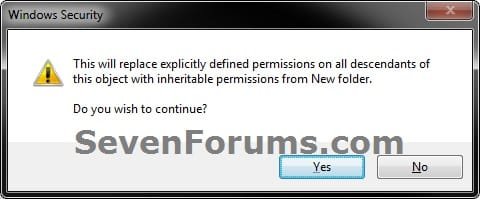
NOTE: When checked, all permissions entries on this now parent object will replace (update) those on its descendant child objects (ex: subfolders, files, or subkeys). If left unchecked, permissions on each object, whether parent or its descendant, can be unique.A) Click on Yes. (see screenshot below)Child-1.jpg

B) The Replace all child object permissions with inheritable permissions from this object check box will now automatically clear again by default, but it was still applied for these permission changes. (see screenshot below step 4)

13. When finished, click on OK. (see screenshot below step 4)

14. If open, click on OK. (see screenshot below step 2C)

15. Click on OK. (see screenshot below step 2B or 3B)


That's it,
Shawn Brink


Last edited:
I enabled share this folder for the sub-folder, set a user for the sub-folder by going Select Users or Groups > Advanced > Find Now; but when trying to access the sub-folder by another computer other then the host computer sharing the sub-folder I'm prompt that I don't have permission ?
 

My Computer My Computer

Computer type
PC/Desktop
Computer Manufacturer/Model Number
Custom Built
OS
Windows 10 Pro
CPU
Core2Quad (2.6 Ghz)
Motherboard
nVidia 775
Memory
8 Gigs DDR2
Graphics Card(s)
Geforce Titan Black
Sound Card
Motherboard Audio
Monitor(s) Displays
25" Asus LCD
Screen Resolution
1680x1050
Hard Drives
120 Gig SSD
60 Gig SSD
750 Gig HDD
PSU
850 Watts
Case
Mid-Size
Keyboard
Logitech
Mouse
Logitech - I love logitech mouses
Internet Speed
DSL 25Mbps - Although extremely expensive
Antivirus
Microsoft Anti-Virus
Browser
FireFox 36.x
It may be best to go ahead and create a thread for this in the Network and Sharing forum area to see what we can do to help there.
 

My Computer My Computer

Computer type
PC/Desktop
Computer Manufacturer/Model Number
Self built custom
OS
64-bit Windows 11 Pro for Workstations
CPU
Intel i7-8700K OC'd to 5 GHz
Motherboard
ASUS ROG Maximus XI Formula Z390
Memory
64 GB (4x16GB) G.SKILL TridentZ RGB DDR4 3600 MHz
Graphics Card(s)
ASUS ROG-STRIX-GTX1080TI-O11G-GAMING
Sound Card
Integrated
Monitor(s) Displays
2 x Samsung Odyssey G7 27"
Screen Resolution
2560x1440
Hard Drives
1TB Samsung 990 PRO M.2,
4TB Samsung 990 PRO PRO M.2,
TerraMaster F8 SSD Plus NAS
PSU
Seasonic Prime Titanium 850W
Case
Thermaltake Core P3
Cooling
Corsair Hydro H115i
Keyboard
Logitech wireless K800
Mouse
Logitech MX Master 4
Internet Speed
2 Gb/s Download and 100 Mb/s Upload
Antivirus
Malwarebyte Anti-Malware Premium
Browser
Google Chrome
Other Info
Logitech Z625 speaker system,
Logitech BRIO 4K Pro webcam,
HP Color LaserJet Pro MFP M477fdn,
APC SMART-UPS RT 1000 XL - SURT1000XLI,
Galaxy S23 Plus phone
Should I deny privileges to all but myself?

Hi! Should I deny privileges to all but myself, for maximum protection, on all of my files and folders and programs?:p
 

My Computer My Computer

Computer type
Laptop
Computer Manufacturer/Model Number
HP
OS
Windows 7
CPU
Intel(R) Core(TM)2 Duo CPU T5870 @ 2.00GHz
Motherboard
Intel(R) Core(TM)2 Duo CPU T5870 @ 2.00GHz
Memory
Intel(R) Core(TM)2 Duo CPU T5870 @ 2.00GHz
Graphics Card(s)
Intel(R) Core(TM)2 Duo CPU T5870 @ 2.00GHz
Sound Card
Intel(R) Core(TM)2 Duo CPU T5870 @ 2.00GHz
Monitor(s) Displays
Intel(R) Core(TM)2 Duo CPU T5870 @ 2.00GHz
Screen Resolution
Intel(R) Core(TM)2 Duo CPU T5870 @ 2.00GHz
Hard Drives
Intel(R) Core(TM)2 Duo CPU T5870 @ 2.00GHz
PSU
Intel(R) Core(TM)2 Duo CPU T5870 @ 2.00GHz
Case
Intel(R) Core(TM)2 Duo CPU T5870 @ 2.00GHz
Cooling
Intel(R) Core(TM)2 Duo CPU T5870 @ 2.00GHz
Keyboard
Intel(R) Core(TM)2 Duo CPU T5870 @ 2.00GHz
Mouse
Intel(R) Core(TM)2 Duo CPU T5870 @ 2.00GHz
Internet Speed
Intel(R) Core(TM)2 Duo CPU T5870 @ 2.00GHz
Antivirus
Windows Defender
Browser
Google Chrome
Other Info
Intel(R) Core(TM)2 Duo CPU T5870 @ 2.00GHz
Hi! Should I deny privileges to all but myself, for maximum protection, on all of my files and folders and programs?:p

Hello Debby, :-)

You wouldn't want to do that for everything since it could mistakenly deny access to something (ex: system or program) that needed it.

It's usually better to only deny access to specific items (ex: folder or file) instead.
 

My Computer My Computer

Computer type
PC/Desktop
Computer Manufacturer/Model Number
Self built custom
OS
64-bit Windows 11 Pro for Workstations
CPU
Intel i7-8700K OC'd to 5 GHz
Motherboard
ASUS ROG Maximus XI Formula Z390
Memory
64 GB (4x16GB) G.SKILL TridentZ RGB DDR4 3600 MHz
Graphics Card(s)
ASUS ROG-STRIX-GTX1080TI-O11G-GAMING
Sound Card
Integrated
Monitor(s) Displays
2 x Samsung Odyssey G7 27"
Screen Resolution
2560x1440
Hard Drives
1TB Samsung 990 PRO M.2,
4TB Samsung 990 PRO PRO M.2,
TerraMaster F8 SSD Plus NAS
PSU
Seasonic Prime Titanium 850W
Case
Thermaltake Core P3
Cooling
Corsair Hydro H115i
Keyboard
Logitech wireless K800
Mouse
Logitech MX Master 4
Internet Speed
2 Gb/s Download and 100 Mb/s Upload
Antivirus
Malwarebyte Anti-Malware Premium
Browser
Google Chrome
Other Info
Logitech Z625 speaker system,
Logitech BRIO 4K Pro webcam,
HP Color LaserJet Pro MFP M477fdn,
APC SMART-UPS RT 1000 XL - SURT1000XLI,
Galaxy S23 Plus phone
Thanks for explaining! You can close this now.
 

My Computer My Computer

Computer type
Laptop
Computer Manufacturer/Model Number
HP
OS
Windows 7
CPU
Intel(R) Core(TM)2 Duo CPU T5870 @ 2.00GHz
Motherboard
Intel(R) Core(TM)2 Duo CPU T5870 @ 2.00GHz
Memory
Intel(R) Core(TM)2 Duo CPU T5870 @ 2.00GHz
Graphics Card(s)
Intel(R) Core(TM)2 Duo CPU T5870 @ 2.00GHz
Sound Card
Intel(R) Core(TM)2 Duo CPU T5870 @ 2.00GHz
Monitor(s) Displays
Intel(R) Core(TM)2 Duo CPU T5870 @ 2.00GHz
Screen Resolution
Intel(R) Core(TM)2 Duo CPU T5870 @ 2.00GHz
Hard Drives
Intel(R) Core(TM)2 Duo CPU T5870 @ 2.00GHz
PSU
Intel(R) Core(TM)2 Duo CPU T5870 @ 2.00GHz
Case
Intel(R) Core(TM)2 Duo CPU T5870 @ 2.00GHz
Cooling
Intel(R) Core(TM)2 Duo CPU T5870 @ 2.00GHz
Keyboard
Intel(R) Core(TM)2 Duo CPU T5870 @ 2.00GHz
Mouse
Intel(R) Core(TM)2 Duo CPU T5870 @ 2.00GHz
Internet Speed
Intel(R) Core(TM)2 Duo CPU T5870 @ 2.00GHz
Antivirus
Windows Defender
Browser
Google Chrome
Other Info
Intel(R) Core(TM)2 Duo CPU T5870 @ 2.00GHz
:thumbsup:
 

My Computer My Computer

Computer type
PC/Desktop
Computer Manufacturer/Model Number
Self built custom
OS
64-bit Windows 11 Pro for Workstations
CPU
Intel i7-8700K OC'd to 5 GHz
Motherboard
ASUS ROG Maximus XI Formula Z390
Memory
64 GB (4x16GB) G.SKILL TridentZ RGB DDR4 3600 MHz
Graphics Card(s)
ASUS ROG-STRIX-GTX1080TI-O11G-GAMING
Sound Card
Integrated
Monitor(s) Displays
2 x Samsung Odyssey G7 27"
Screen Resolution
2560x1440
Hard Drives
1TB Samsung 990 PRO M.2,
4TB Samsung 990 PRO PRO M.2,
TerraMaster F8 SSD Plus NAS
PSU
Seasonic Prime Titanium 850W
Case
Thermaltake Core P3
Cooling
Corsair Hydro H115i
Keyboard
Logitech wireless K800
Mouse
Logitech MX Master 4
Internet Speed
2 Gb/s Download and 100 Mb/s Upload
Antivirus
Malwarebyte Anti-Malware Premium
Browser
Google Chrome
Other Info
Logitech Z625 speaker system,
Logitech BRIO 4K Pro webcam,
HP Color LaserJet Pro MFP M477fdn,
APC SMART-UPS RT 1000 XL - SURT1000XLI,
Galaxy S23 Plus phone
Hello all,
Still very useful 10 years later! Thank you.
By the way, I believe there's a typo in the tutorial:


Step 7. To Convert All Inherited Parent Permissions as Explicit for Object
NOTE: This will convert all of the inherited parent permission entries as explicit permissons (<not inherited>) instead for this "object name" under the Inherited From column.
A) Uncheck the Include inheritable permissions from the objects parent box. (see screenshot below step 4)
B) Click on the Remove button. (see screenshot below)
You should click on the Add button instead, shouldn't you? This looks like a copy and paste of the content related to step 6.

Furthermore, you mention few steps further: "Be sure to not deny permissions to or remove TrustedInstaller, LOCAL SERVICE, RESTRICTED, SERVICE, or SYSTEM permission entries if listed." What system accournts are "RESTRICTED" or "SERVICE" or were in Windows 7? Were you talking about "NETWORK SERVICE" and "Local system (network restricted)"? Thanks to clarifY;

Cheers
 

My Computer My Computer

Computer type
Laptop
Computer Manufacturer/Model Number
Dell Latitude E6410
OS
Windows 7 Pro 64
CPU
Core i5 580-M
Motherboard
Dell
Memory
Samsung 1x4GB
Graphics Card(s)
Integrated Intel HD Graphics
Sound Card
Integrated
Monitor(s) Displays
LCD
Screen Resolution
1280 x 800
Hard Drives
Seagate Momentus 160 Go / 16 Mo / 7200 rpm
Internet Speed
ADSL 20 Mbps
Antivirus
MSE
Browser
IE11 / Firefox 31 (August 1, 2014)
Hello all,
Still very useful 10 years later! Thank you.
By the way, I believe there's a typo in the tutorial:


Step 7. To Convert All Inherited Parent Permissions as Explicit for Object
NOTE: This will convert all of the inherited parent permission entries as explicit permissons (<not inherited>) instead for this "object name" under the Inherited From column.
A) Uncheck the Include inheritable permissions from the objects parent box. (see screenshot below step 4)
B) Click on the Remove button. (see screenshot below)

You should click on the Add button instead, shouldn't you? This looks like a copy and paste of the content related to step 6.

Furthermore, you mention few steps further: "Be sure to not deny permissions to or remove TrustedInstaller, LOCAL SERVICE, RESTRICTED, SERVICE, or SYSTEM permission entries if listed." What system accournts are "RESTRICTED" or "SERVICE" or were in Windows 7? Were you talking about "NETWORK SERVICE" and "Local system (network restricted)"? Thanks to clarifY;

Cheers


Hello Peter, :-)

Thank you. It should have been "Add" and not "Remove" for step 7. It is has now been corrected.

If I remember correctly, the warning is for system groups and services.
 

My Computer My Computer

Computer type
PC/Desktop
Computer Manufacturer/Model Number
Self built custom
OS
64-bit Windows 11 Pro for Workstations
CPU
Intel i7-8700K OC'd to 5 GHz
Motherboard
ASUS ROG Maximus XI Formula Z390
Memory
64 GB (4x16GB) G.SKILL TridentZ RGB DDR4 3600 MHz
Graphics Card(s)
ASUS ROG-STRIX-GTX1080TI-O11G-GAMING
Sound Card
Integrated
Monitor(s) Displays
2 x Samsung Odyssey G7 27"
Screen Resolution
2560x1440
Hard Drives
1TB Samsung 990 PRO M.2,
4TB Samsung 990 PRO PRO M.2,
TerraMaster F8 SSD Plus NAS
PSU
Seasonic Prime Titanium 850W
Case
Thermaltake Core P3
Cooling
Corsair Hydro H115i
Keyboard
Logitech wireless K800
Mouse
Logitech MX Master 4
Internet Speed
2 Gb/s Download and 100 Mb/s Upload
Antivirus
Malwarebyte Anti-Malware Premium
Browser
Google Chrome
Other Info
Logitech Z625 speaker system,
Logitech BRIO 4K Pro webcam,
HP Color LaserJet Pro MFP M477fdn,
APC SMART-UPS RT 1000 XL - SURT1000XLI,
Galaxy S23 Plus phone
Hello Brink,

Many thanks for your prompt reply. Regarding the Windows SIDs / Security Groups / Identities, names and labels have slightly evolved from Windows 2000 to Windows 10 / Windows Server 2019.

Here below are some Microsoft technical articles where I was able to found these generic identity labels as RESTRICTED, SERVICE and SYSTEM. Relations to special system users like TrustedInstaller or Local System are not always clear and may have changed over time. I will give it a closer look to clarifiy things in my head :-)

Cheers.


Special Identities (Windows 10) - Microsoft 365 Security | Microsoft Docs
Understand Implicit Groups and Identities in Windows Server 2008 | Microsoft Docs
Security identifiers (Windows 10) - Microsoft 365 Security | Microsoft Docs
https://support.microsoft.com/en-us...rity-identifiers-in-windows-operating-systems
 
Last edited:

My Computer My Computer

Computer type
Laptop
Computer Manufacturer/Model Number
Dell Latitude E6410
OS
Windows 7 Pro 64
CPU
Core i5 580-M
Motherboard
Dell
Memory
Samsung 1x4GB
Graphics Card(s)
Integrated Intel HD Graphics
Sound Card
Integrated
Monitor(s) Displays
LCD
Screen Resolution
1280 x 800
Hard Drives
Seagate Momentus 160 Go / 16 Mo / 7200 rpm
Internet Speed
ADSL 20 Mbps
Antivirus
MSE
Browser
IE11 / Firefox 31 (August 1, 2014)
Hello Brink,

Many thanks for your prompt reply. Regarding the Windows SIDs / Security Groups, Identities, names and labels have slightly evolved from Windows 2000 to Windows 10 / Windows Server 2019.

Here below are some Microsoft technical articles where I was able to found these generic identity labels as RESTRICTED, SERVICE and SYSTEM. Relations to special system users like TrustedInstaller or Local System are not always clear and may have changed over time. I will give it a closer look to clarifiy things in my head :-)

Cheers.


Special Identities (Windows 10) - Microsoft 365 Security | Microsoft Docs
Understand Implicit Groups and Identities in Windows Server 2008 | Microsoft Docs
Security identifiers (Windows 10) - Microsoft 365 Security | Microsoft Docs
https://support.microsoft.com/en-us...rity-identifiers-in-windows-operating-systems

Thank you. :-)
 

My Computer My Computer

Computer type
PC/Desktop
Computer Manufacturer/Model Number
Self built custom
OS
64-bit Windows 11 Pro for Workstations
CPU
Intel i7-8700K OC'd to 5 GHz
Motherboard
ASUS ROG Maximus XI Formula Z390
Memory
64 GB (4x16GB) G.SKILL TridentZ RGB DDR4 3600 MHz
Graphics Card(s)
ASUS ROG-STRIX-GTX1080TI-O11G-GAMING
Sound Card
Integrated
Monitor(s) Displays
2 x Samsung Odyssey G7 27"
Screen Resolution
2560x1440
Hard Drives
1TB Samsung 990 PRO M.2,
4TB Samsung 990 PRO PRO M.2,
TerraMaster F8 SSD Plus NAS
PSU
Seasonic Prime Titanium 850W
Case
Thermaltake Core P3
Cooling
Corsair Hydro H115i
Keyboard
Logitech wireless K800
Mouse
Logitech MX Master 4
Internet Speed
2 Gb/s Download and 100 Mb/s Upload
Antivirus
Malwarebyte Anti-Malware Premium
Browser
Google Chrome
Other Info
Logitech Z625 speaker system,
Logitech BRIO 4K Pro webcam,
HP Color LaserJet Pro MFP M477fdn,
APC SMART-UPS RT 1000 XL - SURT1000XLI,
Galaxy S23 Plus phone
Back
Top