OK Here we go:
Needed to convert the file to a Zip file to make it easy to download en bloc but no problem.
Click on this link:
http://www.jmwebsites.co.uk/Sample Pictures.zip
Make sure "Save File" is selected in the window that opens see this:
View attachment 227052
Click OK
You should then have this window:
View attachment 227053
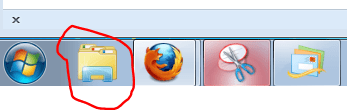
Close that and click on the folder icon next to the Start Button:
View attachment 227050
That will open Windows Explorer. Click on "Downloads" as shown here:
View attachment 227049
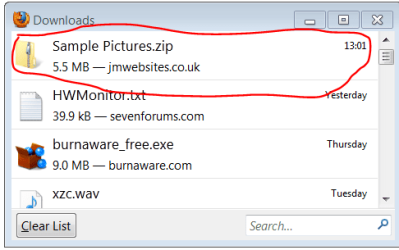
You will see the Sample Pictures.zip file in the list. You wont see the same list as shown on the screenshot but the zip file will bethere!
RIGHT click on the zip file and in the window that opens, choose
"Extract all...". The next window will be like this:
View attachment 227051
Click Browse then in the window that opens, click "Libraries" then "Pictures" then click. "Make new folder". Click OK (We can rename this folder later).
Now in the window you will see the path to the New Folder. Click "Extract" as in the screenshot:
View attachment 227054
Wait a few seconds and that's it. All done.
Now click the folder icon next to the Start Button as you did before, click "Libraries" Click "Pictures" in there click "New Folder" and there's you pictures back as before.
Anytime you want to rename the New Folder, right click the folder and choose "Rename" just type Sample Pictures. Job done!