Pin multiple Windows Explorer icons to Taskbar

HaLo2FrEeEk

New member
Local time
11:51 PM
Messages
13
I have Windows 7 Ultimate x64. I wrote this post on Techspot originally and decided I should also ask it here, hopefully I can get this solved, it's driving me crazy.

Before anyone says this is impossible, it's not. I had it set up like this before and I reinstalled Windows, now I can't get it back to the way it was. I know it was a pain the first time around too, though.

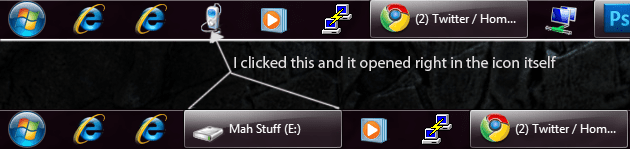
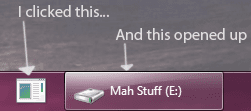
Ok, basically, I want a taskbar icon that, when clicked, opens up one of my harddrives. When I click this icon, I want the window to open using that icon, not as a separate item in the taskbar. For example, see attached images. The first image is what it should do when I click to open it, the second is what it should not do (the little mp3 player icon is the E: drive shortcut, opening the window changes the icon to a harddrive).

Now, if I change the target of the shortcut to this:

C:\Windows\explorer.exe /e, /root,E:

Then it works like it should, however, there's a problem: I want more than one shortcut. The other shortcut is to an FTP site. I actually thought to save the original shortcut from before I reinstalled Windows, and the target for it is this:

C:\Windows\explorer.exe /e, /root,ftp://username:[email protected]/

(with the actual site and credentials obviously being changed here) This also works as it should, opening the window using the icon. Here's the problem though, both work when they're the only ones on the taskbar, but if I put them both on the taskbar at the same time, then whichever one I added first takes precedence. By that I mean that if I add the shortcut to the E: drive, then add the shortcut to the FTP site, clicking the E: drive shortcut opens the window using the correct icon, but clicking the FTP site shortcut opens the window using the E: drive icon.

I know this may sound like a trivial little thing, but it's possible, I know it is, and it's just how I want it set up.

Can anyone help me out, please! I read somewhere that I could make a copy of explorer.exe, rename it explorer2.exe and point one of the shortcuts to it, and that would solve the problem. Well I did that, and it didn't fix it, it just reversed it, now clicking on the E: shortcut opens a window using the FTP shortcut. It doesn't make sense, and I had it working before, I just don't remember what I did.
 

Attachments

  • likethis.png
    likethis.png
    14.2 KB · Views: 43
  • notlikethis.png
    notlikethis.png
    14.2 KB · Views: 37

My Computer

Computer Manufacturer/Model Number
Custom
OS
Windows 7 Ultimate x64
CPU
AMD Athlon 64 X2 3.0GHz
Motherboard
ASUS M2N-E SLI
Memory
8GB GSkill DDR2 800MHz
Graphics Card(s)
nVidia GeForce 8800 GT Superclocked 512MB
Sound Card
Soundblaster X-Fi Titanium
Monitor(s) Displays
2x Acer P241WBD 24"
Screen Resolution
1920x1200 each
Hard Drives
1TB WD Caviar Black
1TB WD Caviar Green
500GB Samsung
200GB WD
PSU
500W
Case
Sunbeam Transformer
Cooling
Stock/fans
Keyboard
Microsoft Wireless Desktop 6000
Mouse
Microsoft Wireless Desktop 6000
Internet Speed
12Mbps up / 1.5Mbps down
right click on the drive then select Create shortcut

a shortcut will appear on your desktop

drag the shortcut to your taskbar

right click the explorer icon on the taskbar, you will see the shortcut that you want there

you can then delete the shortcut from your desktop
 

My Computer

Computer Manufacturer/Model Number
Dell Studio 15
OS
Windows 7 Ultimate 64 bit
right click on the drive then select Create shortcut

a shortcut will appear on your desktop

drag the shortcut to your taskbar

right click the explorer icon on the taskbar, you will see the shortcut that you want there

you can then delete the shortcut from your desktop

That doesn't work, you can't pin a folder (or drive) shortcut directly to the taskbar, you have to trick it into thinking it's a program by using the explorer.exe /e, /root params.

I don't want the drive shortcut to be pinned in the jumplist of another shortcut, I want it to be it's own shortcut. In the attached images I uploaded, you can see the little mp3 player icon. When I click that, it should open up the E: drive. I don't want to have to right click an icon then click the drive shortcut, that's not how I had it before.
 

My Computer

Computer Manufacturer/Model Number
Custom
OS
Windows 7 Ultimate x64
CPU
AMD Athlon 64 X2 3.0GHz
Motherboard
ASUS M2N-E SLI
Memory
8GB GSkill DDR2 800MHz
Graphics Card(s)
nVidia GeForce 8800 GT Superclocked 512MB
Sound Card
Soundblaster X-Fi Titanium
Monitor(s) Displays
2x Acer P241WBD 24"
Screen Resolution
1920x1200 each
Hard Drives
1TB WD Caviar Black
1TB WD Caviar Green
500GB Samsung
200GB WD
PSU
500W
Case
Sunbeam Transformer
Cooling
Stock/fans
Keyboard
Microsoft Wireless Desktop 6000
Mouse
Microsoft Wireless Desktop 6000
Internet Speed
12Mbps up / 1.5Mbps down

My Computer

Computer type
PC/Desktop
Computer Manufacturer/Model Number
Self Assembled
OS
Microsoft Windows 10 Pro Insider Preview 64-bit
CPU
Intel(R) Core(TM) i3-4130 CPU @ 3.40GHz
Motherboard
Gigabyte Technology Co., Ltd. B85M-D3H
Memory
Corsair Vengence 4GB x2 (8.00GB Dual-Channel DDR3 @ 798MHz)
Graphics Card(s)
2047MB GeForce GTS 450 (ZOTAC International)
Sound Card
Onboard (Realtek High Definition Audio)
Monitor(s) Displays
LG Flatron E2040T
Screen Resolution
1600x900
Hard Drives
Western Digital 1 TB
Seagate 500 GB
PSU
Corsair VS550
Case
Cooler Master K380
Cooling
Cooler Master Seidon 120V Plus
Keyboard
Logitech MK260r
Mouse
Logitech MK260r
Internet Speed
PMPL Broadband
Antivirus
Windows Defender + MBAM
Browser
Firefox
Other Info
Dell Studio 15" Laptop
Maybe I'm not being clear. I'm not having any problems getting the drive / FTP shortcuts added to the taskbar, that's not the issue. The issue is that when I click the shortcut for the E: drive, a window should open up using that shortcut's icon, and when I click the shortcut for the FTP site, then a window should open using that shortcut's icon. That is the desired behavior. What's happening is that when I click the E: drive shortcut, it opens properly using it's own icon, but clicking the FTP site shortcut opens a window that also uses the E: drive shortcut's icon. Both shortcuts are opening using a single icon, not each using their own icon like they should be doing.

I believe what's causing the issue is that both shortcuts point to explorer.exe, they just have different values for the parameters. This makes Windows think that they're the same program and it tries to make the best use of the icons. Changing the target of the E: drive shortcut to simply "E:\" makes it so that when I click on that shortcut, it opens a completely new item in the taskbar, the original icon remains the same. Clicking that icon over and over again just opens up more and more taskbar items.
 

My Computer

Computer Manufacturer/Model Number
Custom
OS
Windows 7 Ultimate x64
CPU
AMD Athlon 64 X2 3.0GHz
Motherboard
ASUS M2N-E SLI
Memory
8GB GSkill DDR2 800MHz
Graphics Card(s)
nVidia GeForce 8800 GT Superclocked 512MB
Sound Card
Soundblaster X-Fi Titanium
Monitor(s) Displays
2x Acer P241WBD 24"
Screen Resolution
1920x1200 each
Hard Drives
1TB WD Caviar Black
1TB WD Caviar Green
500GB Samsung
200GB WD
PSU
500W
Case
Sunbeam Transformer
Cooling
Stock/fans
Keyboard
Microsoft Wireless Desktop 6000
Mouse
Microsoft Wireless Desktop 6000
Internet Speed
12Mbps up / 1.5Mbps down
Maybe I'm not being clear. I'm not having any problems getting the drive / FTP shortcuts added to the taskbar, that's not the issue. The issue is that when I click the shortcut for the E: drive, a window should open up using that shortcut's icon, and when I click the shortcut for the FTP site, then a window should open using that shortcut's icon. That is the desired behavior. What's happening is that when I click the E: drive shortcut, it opens properly using it's own icon, but clicking the FTP site shortcut opens a window that also uses the E: drive shortcut's icon. Both shortcuts are opening using a single icon, not each using their own icon like they should be doing.

I believe what's causing the issue is that both shortcuts point to explorer.exe, they just have different values for the parameters. This makes Windows think that they're the same program and it tries to make the best use of the icons. Changing the target of the E: drive shortcut to simply "E:\" makes it so that when I click on that shortcut, it opens a completely new item in the taskbar, the original icon remains the same. Clicking that icon over and over again just opens up more and more taskbar items.


Maybe this will help?

7 Taskbar Tweaker - RaMMicHaeL's home page

Regards....Mike Connor
 

My Computer

OS
Several, including Windows 7 x64 Ultimate
Ok, here goes:

Taskbar grouping is set to never combine.

--------------------------------------------------

Desired outcome:

E:\ drive shortcut
FTP site shortcut

Two separate shortcuts.

Click E:\ drive shortcut, new window opens using the E:\ drive shortcut icon as its taskbar item, NOT creating a new taskbar item (refer to attached screenshots in the first post)

Click FTP site shortcut, new window opens using the FTP site shortcut icon as its taskbar item, NOT creating a new taskbar item.

--------------------------------------------------

Current outcome:

E:\ drive shortcut
FTP site shortcut

Click E:\ drive shortcut, new window opens using the E:\ drive shortcut icon as its taskbar item.
OR
Click E:\ drive shortcut, new window opens creating a new taskbar item (refer to attached screenshots in the first post)

Click FTP site shortcut, new window opens using the E:\ drive shortcut icon as its taskbar item. This should open a new window using the FTP site shortcut icon as it's taskbar item.

--------------------------------------------------

When I set this up the first time I did not use an external program or tool, I used what Windows had built in. I do not remember what I did since it was over a year ago, but obviously it is possible otherwise I wouldn't have been able to do it on my previous installation.

What I mean by "using [x] icon as its taskbar item" is, you know when you click a taskbar icon and the window opens up, the window uses that icon as its taskbar item, meaning clicking that icon will minimize the window, clicking it again will restore it, mousing over will show a preview of the window. What I want is for each of these shortcuts to use their own icons as the window's taskbar item (meaning the E: drive window will use the E: drive shortcut icon and the FTP site window will use the FTP site shortcut icon.) What I mean by "not creating a new taskbar item" is, if I set the E: drive shortcut's target to just "E:\", then clicking it will create a new taskbar item, the window that is opened will not use the existing icon as it's taskbar item. Please refer to the attached screenshots in the first post for an example of what I mean. The first screenshot is the desired behavior, I clicked the E: drive shortcut (mp3 player icon) and the window that opened used that shortcut's icon. The second screenshot shows the undesired behavior, clicking the E: drive shortcut (again, mp3 player icon) created a new taskbar item for the window that opened, and you can see the original E: drive shortcut icon.

Please, I'm being as absolutely descriptive as possible, I just really really want to get this solved. Like I said, I had it working before, so I know it's possible.
 

My Computer

Computer Manufacturer/Model Number
Custom
OS
Windows 7 Ultimate x64
CPU
AMD Athlon 64 X2 3.0GHz
Motherboard
ASUS M2N-E SLI
Memory
8GB GSkill DDR2 800MHz
Graphics Card(s)
nVidia GeForce 8800 GT Superclocked 512MB
Sound Card
Soundblaster X-Fi Titanium
Monitor(s) Displays
2x Acer P241WBD 24"
Screen Resolution
1920x1200 each
Hard Drives
1TB WD Caviar Black
1TB WD Caviar Green
500GB Samsung
200GB WD
PSU
500W
Case
Sunbeam Transformer
Cooling
Stock/fans
Keyboard
Microsoft Wireless Desktop 6000
Mouse
Microsoft Wireless Desktop 6000
Internet Speed
12Mbps up / 1.5Mbps down
No, because that would make it so that if I was in the C: drive and I double clicked to open the Users folder, that folder would open in a new window. This is not the desired functionality I'm looking for. I thoroughly explained exactly the desired functionality I'm looking for in my previous post.
 

My Computer

Computer Manufacturer/Model Number
Custom
OS
Windows 7 Ultimate x64
CPU
AMD Athlon 64 X2 3.0GHz
Motherboard
ASUS M2N-E SLI
Memory
8GB GSkill DDR2 800MHz
Graphics Card(s)
nVidia GeForce 8800 GT Superclocked 512MB
Sound Card
Soundblaster X-Fi Titanium
Monitor(s) Displays
2x Acer P241WBD 24"
Screen Resolution
1920x1200 each
Hard Drives
1TB WD Caviar Black
1TB WD Caviar Green
500GB Samsung
200GB WD
PSU
500W
Case
Sunbeam Transformer
Cooling
Stock/fans
Keyboard
Microsoft Wireless Desktop 6000
Mouse
Microsoft Wireless Desktop 6000
Internet Speed
12Mbps up / 1.5Mbps down
You edited your post, this is a reply to your original text. In reply to your edit, you already posted that article, this time you're just posting a link to an article that links to the article you already posted a link to, which, as I recall, Carolyn said was blacklisted.

I wrote out what I wanted to happen in my last post on the first page:

Click E:\ drive shortcut, new window opens using the E:\ drive shortcut icon as its taskbar item, NOT creating a new taskbar item (refer to attached screenshots in the first post)

Click FTP site shortcut, new window opens using the FTP site shortcut icon as its taskbar item, NOT creating a new taskbar item.

If I click the E: drive shortcut, then that shortcut expands and becomes the E: drive window's taskbar item, see the attached image:
 

Attachments

  • example.png
    example.png
    36.4 KB · Views: 10

My Computer

Computer Manufacturer/Model Number
Custom
OS
Windows 7 Ultimate x64
CPU
AMD Athlon 64 X2 3.0GHz
Motherboard
ASUS M2N-E SLI
Memory
8GB GSkill DDR2 800MHz
Graphics Card(s)
nVidia GeForce 8800 GT Superclocked 512MB
Sound Card
Soundblaster X-Fi Titanium
Monitor(s) Displays
2x Acer P241WBD 24"
Screen Resolution
1920x1200 each
Hard Drives
1TB WD Caviar Black
1TB WD Caviar Green
500GB Samsung
200GB WD
PSU
500W
Case
Sunbeam Transformer
Cooling
Stock/fans
Keyboard
Microsoft Wireless Desktop 6000
Mouse
Microsoft Wireless Desktop 6000
Internet Speed
12Mbps up / 1.5Mbps down
Yes, and I posted a solution to that which you are apparently not interested in.

OK. Fine. Post deleted.

Have a pleasant day!

Regards....Mike Connor
 

My Computer

OS
Several, including Windows 7 x64 Ultimate
Ok are you kidding me! I've explained in excruciating detail exactly what the problem is, what my expected outcome is, and how I know with 100% undeniable certainty that what I'm trying to do is possible. I appreciate that I'm getting replies at all, I normally don't, but it seems like every post is just a link to an article that I've already read. I Google things, thoroughly, before I post a question to a forum. Obviously I couldn't find a solution to my problem with any of the results that Google turned up, which is why I asked here. I personally hate it when people ask a question and put as little detail as possible into it, which is why I'm very verbose when it comes to asking something. I put all the details out there, everything you could possibly need to know.

If you'd look at the image that I attached to my immediate previous post, you'll see what I'm going for. I have a shortcut icon, I click it, the window opens and that shortcut icon turns into the taskbar item for that window. Closing the window would return the taskbar item back to it's icon state. Both of the shortcuts need to have this behavior, with each one opening in its own icon. Currently only one works, the other opens in the first's icon.
 

My Computer

Computer Manufacturer/Model Number
Custom
OS
Windows 7 Ultimate x64
CPU
AMD Athlon 64 X2 3.0GHz
Motherboard
ASUS M2N-E SLI
Memory
8GB GSkill DDR2 800MHz
Graphics Card(s)
nVidia GeForce 8800 GT Superclocked 512MB
Sound Card
Soundblaster X-Fi Titanium
Monitor(s) Displays
2x Acer P241WBD 24"
Screen Resolution
1920x1200 each
Hard Drives
1TB WD Caviar Black
1TB WD Caviar Green
500GB Samsung
200GB WD
PSU
500W
Case
Sunbeam Transformer
Cooling
Stock/fans
Keyboard
Microsoft Wireless Desktop 6000
Mouse
Microsoft Wireless Desktop 6000
Internet Speed
12Mbps up / 1.5Mbps down
Ok are you kidding me! I've explained in excruciating detail exactly what the problem is, what my expected outcome is, and how I know with 100% undeniable certainty that what I'm trying to do is possible. I appreciate that I'm getting replies at all, I normally don't, but it seems like every post is just a link to an article that I've already read. I Google things, thoroughly, before I post a question to a forum. Obviously I couldn't find a solution to my problem with any of the results that Google turned up, which is why I asked here. I personally hate it when people ask a question and put as little detail as possible into it, which is why I'm very verbose when it comes to asking something. I put all the details out there, everything you could possibly need to know.

If you'd look at the image that I attached to my immediate previous post, you'll see what I'm going for. I have a shortcut icon, I click it, the window opens and that shortcut icon turns into the taskbar item for that window. Closing the window would return the taskbar item back to it's icon state. Both of the shortcuts need to have this behavior, with each one opening in its own icon. Currently only one works, the other opens in the first's icon.

The only way to do what you want is to fool the taskbar into thinking that it is opening an application. The way to do that is to make a "Pseudo app", and give it its own icon.

The site I gave a link for explains how to do it. None of my checks say that site is dangerous.

Here is an extract from Lifehacker;

QUOTE
Windows 7's taskbar lets you pin any running program to the taskbar for easy future access, but it treats folders like second-class sub-items of the Explorer icon. Create a fake "program" to pin individual folder shortcuts to your taskbar.A UNAWAVE blog post notes that trying to pin a specific folder to your taskbar results in it being pinned instead to the Windows Explorer folder icon as an item you can access from a right-click. Not that jump lists can't be productive and helpful, but that's just not as convenient as just popping open your pictures, is it?
UNQUOTE

From: Lifehacker, tips and downloads for getting things done

I am not going to post a link to the site again, even though I know it is not dangerous.

That works on my system, I can have three different shortcuts to folders, all with their own separate icons, and clicking on the icon opens the folder. I can click on all three shortcuts, and I get three folders and three separate icons in the taskbar.

I assume, possibly incorrectly, that that is what you want to do.

Regards.....Mike Connor
 

My Computer

OS
Several, including Windows 7 x64 Ultimate
I am not going to post a link to the site again, even though I know it is not dangerous.

For the record, I researched the IP that was blocked and I too believe that the site is safe.
 

My Computer

Computer Manufacturer/Model Number
Dell Studio 15
OS
Windows 7 Ultimate 64 bit
Here's the problem though, I followed the UNAWAVE tutorial to the letter:

Create a text file
give it an .exe extension
right click > pin to taskbar
in the "Target" field, put in the path you're trying to get to (in my case, E:\)
Change the icon
Change the name
click ok.

There are two problems though. First, when I click the icon, a new taskbar item is spawned. It doesn't simply expand the existing taskbar icon that I created. See the attachment.

Second, logging off or restarting the computer causes this icon to disappear, since Windows knows that it's set directly to a folder and not an application.
 

Attachments

  • wrong.png
    wrong.png
    9.1 KB · Views: 303

My Computer

Computer Manufacturer/Model Number
Custom
OS
Windows 7 Ultimate x64
CPU
AMD Athlon 64 X2 3.0GHz
Motherboard
ASUS M2N-E SLI
Memory
8GB GSkill DDR2 800MHz
Graphics Card(s)
nVidia GeForce 8800 GT Superclocked 512MB
Sound Card
Soundblaster X-Fi Titanium
Monitor(s) Displays
2x Acer P241WBD 24"
Screen Resolution
1920x1200 each
Hard Drives
1TB WD Caviar Black
1TB WD Caviar Green
500GB Samsung
200GB WD
PSU
500W
Case
Sunbeam Transformer
Cooling
Stock/fans
Keyboard
Microsoft Wireless Desktop 6000
Mouse
Microsoft Wireless Desktop 6000
Internet Speed
12Mbps up / 1.5Mbps down
Here's the problem though, I followed the UNAWAVE tutorial to the letter:

Create a text file
give it an .exe extension
right click > pin to taskbar
in the "Target" field, put in the path you're trying to get to (in my case, E:\)
Change the icon
Change the name
click ok.

There are two problems though. First, when I click the icon, a new taskbar item is spawned. It doesn't simply expand the existing taskbar icon that I created. See the attachment.

Second, logging off or restarting the computer causes this icon to disappear, since Windows knows that it's set directly to a folder and not an application.

Well, you must be doing something wrong, or missing a step or something, it works for me.

I will go through it again myself now, and document each step. may be useful to somebody else as well.

It will take a few minutes..........

Regards....Mike Connor
 

My Computer

OS
Several, including Windows 7 x64 Ultimate
Well when you post them I'll do a screen recording showing every step that you write, hopefully it works.
 

My Computer

Computer Manufacturer/Model Number
Custom
OS
Windows 7 Ultimate x64
CPU
AMD Athlon 64 X2 3.0GHz
Motherboard
ASUS M2N-E SLI
Memory
8GB GSkill DDR2 800MHz
Graphics Card(s)
nVidia GeForce 8800 GT Superclocked 512MB
Sound Card
Soundblaster X-Fi Titanium
Monitor(s) Displays
2x Acer P241WBD 24"
Screen Resolution
1920x1200 each
Hard Drives
1TB WD Caviar Black
1TB WD Caviar Green
500GB Samsung
200GB WD
PSU
500W
Case
Sunbeam Transformer
Cooling
Stock/fans
Keyboard
Microsoft Wireless Desktop 6000
Mouse
Microsoft Wireless Desktop 6000
Internet Speed
12Mbps up / 1.5Mbps down
OK. Here is the sequence I just carried out.

Create a text file with the name you want to use on the desktop, I used "Pinfoldertest.txt"

Rename the file immediately, to "Pinfoldertest.exe"

When you get the warning from Windows about changing file extensions, click "yes". MAKE SURE THE FILE IS ACTUALLY NOW

Pinfoldertest.exe

The icon will now change to your default .exe icon.

Now click on the file with the right mouse button. Choose "Pin to Taskbar".

Now open Windows explorer and search for the folder you want to open.

Hold down the <SHIFT> key, and right click on the desired folder. This shows the extended context menu item, "Copy as path".

Now, right click the icon in the Taskbar and then AGAIN right click on the "Program" (Pinfoldertest.exe). In the context menu select "Properties".

Open the "Shortcut" tab, clear the "Target" field, and then <Ctrl>+ <V> to insert your target folder.

This should be the result;


You can change the icon to whatever you want. I used the question mark from Windows default icon set here.

Now delete the shortcut on the desktop.

The shortcut on the taskbar can be used immediately, but the icon will only appear after a reboot.

At this point I rebooted my machine.

You can do all this as often as you want, and you will get separate icons on the taskbar, which open separate targets. This is because the taskbar "thinks" it is opening separate applications.

This is what the taskbar icon looks like when right-clicked;


If you "hover" on the icon;


If you click on the icon, the folder is opened immediately. ( In this case drive G:\ ).

If anything is unclear, please ask.

This is a lot quicker to do than to write about! It only takes a minute or so.

Regards....Mike Connor
 
Last edited:

My Computer

OS
Several, including Windows 7 x64 Ultimate
Give me a few minutes to edit together a quick video, I'll upload it to Youtube.
 

My Computer

Computer Manufacturer/Model Number
Custom
OS
Windows 7 Ultimate x64
CPU
AMD Athlon 64 X2 3.0GHz
Motherboard
ASUS M2N-E SLI
Memory
8GB GSkill DDR2 800MHz
Graphics Card(s)
nVidia GeForce 8800 GT Superclocked 512MB
Sound Card
Soundblaster X-Fi Titanium
Monitor(s) Displays
2x Acer P241WBD 24"
Screen Resolution
1920x1200 each
Hard Drives
1TB WD Caviar Black
1TB WD Caviar Green
500GB Samsung
200GB WD
PSU
500W
Case
Sunbeam Transformer
Cooling
Stock/fans
Keyboard
Microsoft Wireless Desktop 6000
Mouse
Microsoft Wireless Desktop 6000
Internet Speed
12Mbps up / 1.5Mbps down
Back
Top