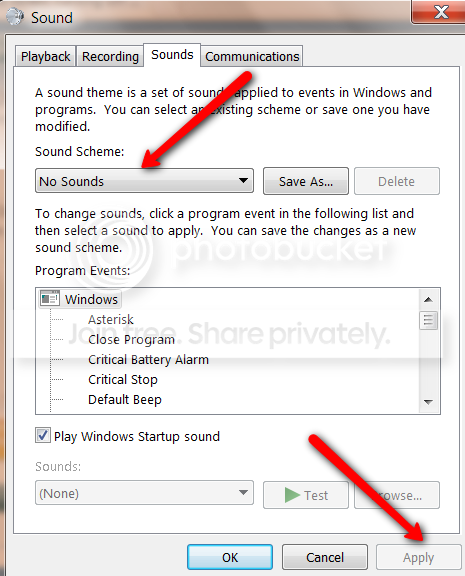
@Aphelion, thanks for the help. I do have the x64 bit version of the driver your link was for. I tried changing the setting described in your post and the "pop" still exists. Im thinking I need the vista driver needed in the link "no audio driver yet from hp" but the one for my laptop?
thanks for the help
No problem.
Speaking of "pops" an odd thing just happened to me. I had been away from the computer for a while and it has gone into sleep mode. This system is used for music production and I have a set of studio monitors + sub hooked into a 24 track mixer, all of the PC audio outs as well as external synthesizer modules/keyboards are also in the mixer. When the PC came out of sleep mode there was a loud pop. I usually monitor through phones so I usually don't hear this as they're not on while booting up or shutting down. I wonder if this is what you're hearing? It's fairly loud and definitely sounds like the battery/speaker test.
I think I know what it might be.
Right click on the Microsoft speaker icon in the taskbar.
Select Playback devices.
Select Speakers, then the "Properties" button.
Select the Enhancements tab.
Scroll down... if "Loudness Equalization" is enabled, disable it.
Might have to reboot, depends, there may be a check box for "Immediate Mode", enable that first.
The loudness enhancement is a compressor, it will try to level the audio signal, loud passages of music/speech..etc will be brought down, soft passages will be brought up.
When the computer is coming out of sleep the audio system is powered down (new green systems do this) so a small "pop" may be normal.. depends on if the output is buffered. If "loudness eq" is enabled it's hearing dead silence so it has brought the gain up, when the pop occurs, it's amplified far beyond it's original level.
Well, that's my theory... looks great on paper!

Give it a try.
Ap