How to Enable or Disable Pop-up Descriptions in Windows 7 and Windows 8
Information
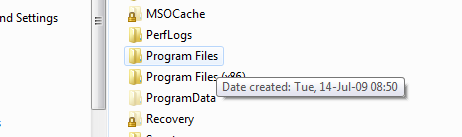
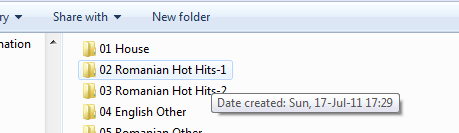
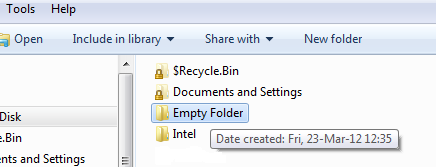
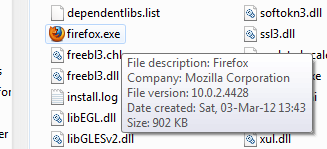
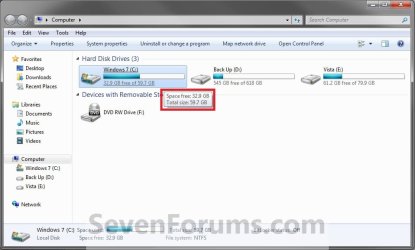
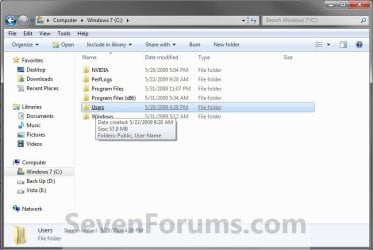
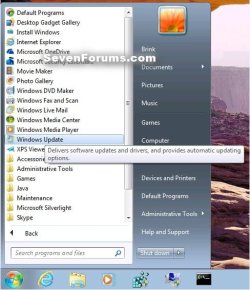
This will show you how to enable or disable pop-up descriptions that display file information when you hover the mouse pointer over files, folders, or drives, on the desktop and in Windows Explorer in Windows 7 and Windows 8.
Note
This does not affect pop-up descriptions for items on the taskbar like the Start Menu button and notification area icons, or the pop up when you are scrolling using the vertical scroll bar in Windows Explorer.
EXAMPLE: Pop-up Descriptions
OPTION ONE
To Enable or Disable Pop-up Descriptions in Folder Options
1. Open Folder Options in Windows 7 or Windows 8.
2. Click/tap on the View tab. (See screenshot below)

3. To Disable Pop-up Descriptions
A) Unheck Show pop-up description for folder and desktop items, then click/tap on OK. (See screenshot above)
4. To Enable Pop-up Descriptions
NOTE: This is the default setting.
A) Check the Show pop-up description for folder and desktop items, then click/tap on OK. (See screenshot below step 2)
OPTION TWO
To Enable or Disable Pop-up Descriptions using a REG File
1. To Disable Pop-up Descriptions
A) Click/tap on the Download button below to download the file below, and go to step 3 below.
Disable_Pop-Up_Descriptions.reg
Download
2. To Enable Pop-up Descriptions
NOTE: This is the default setting.
A) Click/tap on the Download button below to download the file below, and go to step 3 below.
Enable_Pop-Up_Descriptions.reg
Download
3. Save the .reg file to your desktop.
4. Double click/tap on the .reg file to merge it.
5. If prompted, click/tap on Run, Yes (UAC), Yes, and OK to approve the merge.
6. When done, you can delete the downloaded .reg file if you like.
OPTION THREE
To Enable or Disable Pop-up Descriptions in Registry Editor
1. Press the Windows + R keys to open the Run dialog, type regedit, and press Enter.
2. If prompted by UAC, then click/tap on Yes.
3. In regedit, go to: (See screenshot below)
HKEY_CURRENT_USER\Software\Microsoft\Windows\CurrentVersion\Explorer\Advanced

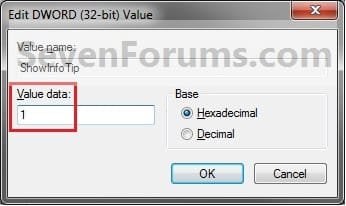
4. In the right pane, double click/tap on ShowInfoTip to modify it. (See screenshot above)
5. To Enable Pop-up Descriptions
NOTE: This is the default setting.
A) Type 1, click/tap on OK, and go to step 7 below. (See screenshot below)
6. To Disable Pop-up Descriptions
A) Type 0 (number zero), click/tap on OK, and go to step 7 below. (See screenshot above)
7. Close regedit.
That's it,
Shawn
Related Tutorials
- How to Change Start Menu Descriptive Text Pop-up Information in Vista and Windows 7
- How to Enable or Disable Explorer Thumbnail Previews in Windows 7 and Windows 8
- How to Enable or Disable Windows 7 Balloon Notifications
- How to Speed up the Menu Show Delay Time in Windows 7
- How to Change the Mouse Hover Time before Pop-up Displays in Windows 7
- How to Enable or Disable Pop-up Help Tips in Windows 8.1 and Windows RT 8.1
Attachments
Last edited: