
How to Enable or Disable Magnifier Starts at Startup and Log on in Windows 7 and Windows 8
Information
Magnifier allows you to zoom in or out of different parts of the screen. This can be useful for viewing small objects or text that are difficult to see by making them larger.
This will tutorial will show you how to enable or disable the option to have Magnifier to run automatically at startup or when you log on in Windows 7 and Windows 8.
This will tutorial will show you how to enable or disable the option to have Magnifier to run automatically at startup or when you log on in Windows 7 and Windows 8.
Warning
By default, making any changes in the Ease of Access Center will reset your Visual Effect Settings back to default. You will need to change them back again after doing this tutorial.
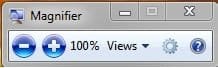
EXAMPLE: Magnifier

Here's How:
1. Do step 2 or 3 below depending on what you are able to do.
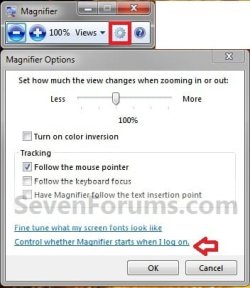
2. If Magnifier is already open, then click/tap on the sprocket icon, click/tap on the Control whether Magnifier starts when I log on (Windows 7) or Control whether Magnifier starts when I log on (Windows 8) link, click/tap on OK, close Magnifier, and go to step 4 below. (See screenshot below)
NOTE: You may need to click on the magnifying glass to see Magnifier below.
3. Open the Control Panel (icons view), click/tap on the Ease of Access Center icon, and go to step 5 below.
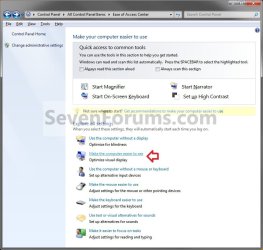
4. Click/tap on the Make the computer easier to see link. (See screenshot below)
5. Do step 6 or 7 below for what you would like to do.
6. To Enable Magnifier to Start at Startup
A) Check the Turn on Magnifier box, click/tap on OK, and go to step 8 below. (see screenshot below)

7. To Disable Magnifier to Start at Startup
A) Uncheck the Turn on Magnifier box, click/tap on OK, and go to step 8 below. (see screenshot above)
8. You can now close the Ease of Access Center window if you like.
That's it,
Shawn
Last edited:


