Printer settings could not be saved

r00ploi

New member
VIP
Local time
4:53 PM
Messages
269
HI,

I am having problems when I try and apply my Printer to be shared in windows 7 I get error message saying that printer settings could not be saved. 0x000006d9. I have reinstalled the drivers and rebooted the pc and I am logged on as an Admin but it still wont work.

I am using Windows 7 Build 7100.

Any ideas on how I can fix this annoying problem.

Thanks
 

My Computer

Computer type
Laptop
Computer Manufacturer/Model Number
HP
OS
Windows 7
Hi wizkid,

What method are you using to share the printer? I ask this just so I can get a picture built in my head :p
 

My Computer

Computer Manufacturer/Model Number
Compaq Desktop
OS
Windows 7 Ultimate x64
CPU
AMD Sempron Dual Core
Memory
3GB
Graphics Card(s)
NVIDIA GeForce 6150SE nForce 430
Screen Resolution
1024x768
Hard Drives
150GB Sata
Hi

I am using the one in Windows 7 so click on the printer select sharing. Then I select change share settings and put a name in and then click apply and then thats when the problem happens.
 

My Computer

Computer type
Laptop
Computer Manufacturer/Model Number
HP
OS
Windows 7
This might help
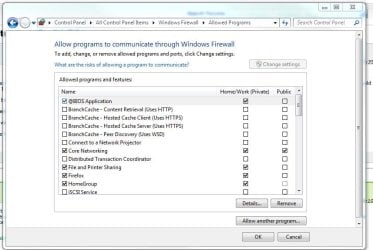
Solved the problem, but I am curious as to why this would cause the problem in the first place. I turned off the windows firewall service. When I started the service, it allowed me to share the printers again. I continued to start and stop the service, and duplicate the problem, so I'm sure that is the problem. I am unclear as to why the Windows firewall Service would cause this though.
Original Source
 

My Computer

Computer Manufacturer/Model Number
Compaq Desktop
OS
Windows 7 Ultimate x64
CPU
AMD Sempron Dual Core
Memory
3GB
Graphics Card(s)
NVIDIA GeForce 6150SE nForce 430
Screen Resolution
1024x768
Hard Drives
150GB Sata
have you tried rebooting or restarting the print spooler service?

Also as Orbital suggested, look at your firewall rules.
 

Attachments

  • firewall.JPG
    firewall.JPG
    63.2 KB · Views: 5,719

My Computer

Computer Manufacturer/Model Number
Built Myself
OS
Windows 7 7600.16384 x64
CPU
Intel Core i7 OC'd to 3.20 GHz
Motherboard
Gigabyte
Memory
6GB GSkillz Triple Channel DDR3 OC'd to 1600 MHz
Graphics Card(s)
Nvidia GTX 280
Sound Card
X-Fi Platinum
Monitor(s) Displays
Dual 2001FWP
Screen Resolution
1680x1050 x 2
Hard Drives
System - Dual 150GB Raptors Raid0
Doc Storage - 1TB SATA 32MB cache Samsung
TV Recordings - 1TB SATA 32MB cache Samsung
PSU
Gigawatt Antec
Case
Antec 900
Keyboard
Saitek
Mouse
logitech MX 10000
Internet Speed
30 mb/s
Hi

Thanks for your reply

I have now got passed that error. :)


However on the PC that I am trying to share the printer with, each time I log of it looses the connection betweeen the printer and I need to re enter the user name and password of the computer that the printer is linked to. I have clicked on remeber password but for some reason it keeps loosing the information.

any ideas.

Thanks
 

My Computer

Computer type
Laptop
Computer Manufacturer/Model Number
HP
OS
Windows 7
Check the properties of the printer. It shouldn't be prompting you for creetials iof everyone is allowed to print to it.

go to Control Panel\All Control Panel Items\Devices and Printers

choose printer, printer properties>security
make sure everyone has Print Allow
 

My Computer

Computer Manufacturer/Model Number
Built Myself
OS
Windows 7 7600.16384 x64
CPU
Intel Core i7 OC'd to 3.20 GHz
Motherboard
Gigabyte
Memory
6GB GSkillz Triple Channel DDR3 OC'd to 1600 MHz
Graphics Card(s)
Nvidia GTX 280
Sound Card
X-Fi Platinum
Monitor(s) Displays
Dual 2001FWP
Screen Resolution
1680x1050 x 2
Hard Drives
System - Dual 150GB Raptors Raid0
Doc Storage - 1TB SATA 32MB cache Samsung
TV Recordings - 1TB SATA 32MB cache Samsung
PSU
Gigawatt Antec
Case
Antec 900
Keyboard
Saitek
Mouse
logitech MX 10000
Internet Speed
30 mb/s
If this is already set, then for some reason the other machine isn't being seen as having rights on the network. It could be lack of user account password or other things.

Just browse for the printer like
\\PCNAME(name of PC sharing printer)\

then you will see the printer.

Right click and connect ad it will prompt you for credentials. You can save them there, then it shouldn't prompt you any more. But only do this as a last resort.

You may, then, have 2 of the same printers installed, delete one of them that didn't just get created.
 

My Computer

Computer Manufacturer/Model Number
Built Myself
OS
Windows 7 7600.16384 x64
CPU
Intel Core i7 OC'd to 3.20 GHz
Motherboard
Gigabyte
Memory
6GB GSkillz Triple Channel DDR3 OC'd to 1600 MHz
Graphics Card(s)
Nvidia GTX 280
Sound Card
X-Fi Platinum
Monitor(s) Displays
Dual 2001FWP
Screen Resolution
1680x1050 x 2
Hard Drives
System - Dual 150GB Raptors Raid0
Doc Storage - 1TB SATA 32MB cache Samsung
TV Recordings - 1TB SATA 32MB cache Samsung
PSU
Gigawatt Antec
Case
Antec 900
Keyboard
Saitek
Mouse
logitech MX 10000
Internet Speed
30 mb/s
yeah checked that still not working. any more ideas?
 

My Computer

Computer type
Laptop
Computer Manufacturer/Model Number
HP
OS
Windows 7
Hi

Thanks for your reply.

I have checked and this is the only printer installed.

I have right clicked on the user name of the PC that has the printer then added the user name and password then selected save password I then get a message saying that it has installed fine. I can then print and see the link levels and all is fine. However when I reboot the computer I have to do the same process all over again to get it to work again.

I am at a lost as to why it is losing it settings once either logging off or rebooting the pc.

The error that it displays is:

Operation could not be completed (error 0x0000005 access is denied)

Any ideas?
 

My Computer

Computer type
Laptop
Computer Manufacturer/Model Number
HP
OS
Windows 7
are you an administrator of this machine? Or is the account that you are suing to share the printer an admin?
 

My Computer

Computer Manufacturer/Model Number
Built Myself
OS
Windows 7 7600.16384 x64
CPU
Intel Core i7 OC'd to 3.20 GHz
Motherboard
Gigabyte
Memory
6GB GSkillz Triple Channel DDR3 OC'd to 1600 MHz
Graphics Card(s)
Nvidia GTX 280
Sound Card
X-Fi Platinum
Monitor(s) Displays
Dual 2001FWP
Screen Resolution
1680x1050 x 2
Hard Drives
System - Dual 150GB Raptors Raid0
Doc Storage - 1TB SATA 32MB cache Samsung
TV Recordings - 1TB SATA 32MB cache Samsung
PSU
Gigawatt Antec
Case
Antec 900
Keyboard
Saitek
Mouse
logitech MX 10000
Internet Speed
30 mb/s
yes i am the administrator of this machine
 

My Computer

Computer type
Laptop
Computer Manufacturer/Model Number
HP
OS
Windows 7
Hi

This problem is still happening. Any ideas on how to fix it? I still have to enter the user name and password each time I want to use the printer on the sheared computer otherwise it will say access dined

Wizkid
 

My Computer

Computer type
Laptop
Computer Manufacturer/Model Number
HP
OS
Windows 7
You have to have Windows firewall turned on to share a printer in Win 7.
 

My Computer

OS
7 Ultimate x64
[FIX] Zebra Printer

While this is for a different printer but same basic situation so I figured I'd post up the solution I found in case it's useful for anyone else who has same issue. It may not help directly but it might kick something loose that helps solve the problem.

Printer: Zebra GK420D
Connected: USB
OS: Win7 Ultimate x64

Like the OP, I found I couldn't get the blasted thing to save printing preferences, printer defaults or anything.. It just kept reverting.

In the Zebra Seagull drivers I found the following cured the issue:
  1. Open Devices and Printers and locate appropriate printer
  2. Open "Printing Properties"
  3. Click on the "Tools" tab
  4. Locate "Driver options" and click it to get a new window
  5. Click on the "Network Settings" tab
  6. Locate the "Printing Preferences" section (about half way down)
  7. Tick the "Share settings between all users"
  8. Locate the "Security" section (bottom)
  9. Change the setting for "Users allowed to modify settings" to "Administrators"
  10. Click "Apply"
  11. Change the settings for the following, back to "Users":
    "Users allowed to modify settings"
    "Network users allowed to modify settings"
  12. Click "Apply"
  13. Update your "Printing Preferences" and they should now stick.
Near as I can make out this works because it effectively resets the security settings properly so that you can actually save the settings.

It's pretty specific to the Zebra printer but, like I said, it may well help with a similar issue...
 

My Computer

Computer type
PC/Desktop
Computer Manufacturer/Model Number
Custom
OS
Windows 7 Ultimate x64
CPU
Q8200
Memory
8Gb
Graphics Card(s)
Radeon 4800 (x2)
Hard Drives
SSD + Raid 10 (4x500mb)
Antivirus
Avast, MalwareBytes
Browser
All bar Safari
Back
Top