Solved Problem changing the User Account Control Settings

Ginger5555

New member
Local time
4:47 PM
Messages
4
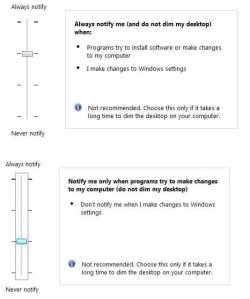
I'm trying to change the User Account Control Settings in my Standard Account but each time I try to do so I'm greeted with the message that I "must be logged in as an administrator to select this setting". What's puzzling is that I am logged in as an administrator when I try to change the setting but I still see the message.

I also tried to make the change to the Standard Account directly from the Administrator Account but the option to change the User Account Control Settings is not available. I have clicked "Manage another account" from within the Administrator Account and clicked the Standard Account icon before trying to doing so. There are 7 choices available (create a password, delete the account, etc.) but not "change the User Account Control Settings".

In summary, I can't make the change from the administrator account or from the Standard account when logged in as the Administrator. What am I doing wrong?

Thank you.

Nick
 

Attachments

  • Screenshot.jpg
    Screenshot.jpg
    15.1 KB · Views: 2

My Computer

Computer type
PC/Desktop
Computer Manufacturer/Model Number
Gateway
OS
Windows 7 Home Premium 32bit.
Browser
Chrome

My Computer

Computer type
PC/Desktop
Computer Manufacturer/Model Number
Self built custom
OS
64-bit Windows 11 Pro for Workstations
CPU
Intel i7-8700K OC'd to 5 GHz
Motherboard
ASUS ROG Maximus XI Formula Z390
Memory
64 GB (4x16GB) G.SKILL TridentZ RGB DDR4 3600 MHz
Graphics Card(s)
ASUS ROG-STRIX-GTX1080TI-O11G-GAMING
Sound Card
Integrated
Monitor(s) Displays
2 x Samsung Odyssey G7 27"
Screen Resolution
2560x1440
Hard Drives
1TB Samsung 990 PRO M.2,
4TB Samsung 990 PRO PRO M.2,
TerraMaster F8 SSD Plus NAS
PSU
Seasonic Prime Titanium 850W
Case
Thermaltake Core P3
Cooling
Corsair Hydro H115i
Keyboard
Logitech wireless K800
Mouse
Logitech MX Master 4
Internet Speed
2 Gb/s Download and 100 Mb/s Upload
Antivirus
Malwarebyte Anti-Malware Premium
Browser
Google Chrome
Other Info
Logitech Z625 speaker system,
Logitech BRIO 4K Pro webcam,
HP Color LaserJet Pro MFP M477fdn,
APC SMART-UPS RT 1000 XL - SURT1000XLI,
Galaxy S23 Plus phone
Thanks but your response did not solve the issue.
 

My Computer

Computer type
PC/Desktop
Computer Manufacturer/Model Number
Gateway
OS
Windows 7 Home Premium 32bit.
Browser
Chrome
Were you able to successfully merge a .reg file from OPTION TWO while logged in your administrator account, and restart the computer to apply?

If not, did you get any error messages?
 

My Computer

Computer type
PC/Desktop
Computer Manufacturer/Model Number
Self built custom
OS
64-bit Windows 11 Pro for Workstations
CPU
Intel i7-8700K OC'd to 5 GHz
Motherboard
ASUS ROG Maximus XI Formula Z390
Memory
64 GB (4x16GB) G.SKILL TridentZ RGB DDR4 3600 MHz
Graphics Card(s)
ASUS ROG-STRIX-GTX1080TI-O11G-GAMING
Sound Card
Integrated
Monitor(s) Displays
2 x Samsung Odyssey G7 27"
Screen Resolution
2560x1440
Hard Drives
1TB Samsung 990 PRO M.2,
4TB Samsung 990 PRO PRO M.2,
TerraMaster F8 SSD Plus NAS
PSU
Seasonic Prime Titanium 850W
Case
Thermaltake Core P3
Cooling
Corsair Hydro H115i
Keyboard
Logitech wireless K800
Mouse
Logitech MX Master 4
Internet Speed
2 Gb/s Download and 100 Mb/s Upload
Antivirus
Malwarebyte Anti-Malware Premium
Browser
Google Chrome
Other Info
Logitech Z625 speaker system,
Logitech BRIO 4K Pro webcam,
HP Color LaserJet Pro MFP M477fdn,
APC SMART-UPS RT 1000 XL - SURT1000XLI,
Galaxy S23 Plus phone
Yes, I used the third choice.

At first I tried this within the Standard Account while still logged into the Administrator Account but I encountered an error message at the end.

I then merged the .reg file successfully when in the Administrator Account but it did NOT make the required change within the Standard Account settings (from second choice to third).

I did reboot.

Again, I want to make the change to the Standard Account.
 

My Computer

Computer type
PC/Desktop
Computer Manufacturer/Model Number
Gateway
OS
Windows 7 Home Premium 32bit.
Browser
Chrome
UAC settings are global and are applied to all users.

A standard user will always have to provide an administrator's password to do an elevated (Run as administrator) action. If UAC is set to "Never Notify" (bottom) setting, then a standard user will just be denied when trying to do an elevated action instead of being prompted for a password.

What were you wanting the standard user account to be able to do?
 

My Computer

Computer type
PC/Desktop
Computer Manufacturer/Model Number
Self built custom
OS
64-bit Windows 11 Pro for Workstations
CPU
Intel i7-8700K OC'd to 5 GHz
Motherboard
ASUS ROG Maximus XI Formula Z390
Memory
64 GB (4x16GB) G.SKILL TridentZ RGB DDR4 3600 MHz
Graphics Card(s)
ASUS ROG-STRIX-GTX1080TI-O11G-GAMING
Sound Card
Integrated
Monitor(s) Displays
2 x Samsung Odyssey G7 27"
Screen Resolution
2560x1440
Hard Drives
1TB Samsung 990 PRO M.2,
4TB Samsung 990 PRO PRO M.2,
TerraMaster F8 SSD Plus NAS
PSU
Seasonic Prime Titanium 850W
Case
Thermaltake Core P3
Cooling
Corsair Hydro H115i
Keyboard
Logitech wireless K800
Mouse
Logitech MX Master 4
Internet Speed
2 Gb/s Download and 100 Mb/s Upload
Antivirus
Malwarebyte Anti-Malware Premium
Browser
Google Chrome
Other Info
Logitech Z625 speaker system,
Logitech BRIO 4K Pro webcam,
HP Color LaserJet Pro MFP M477fdn,
APC SMART-UPS RT 1000 XL - SURT1000XLI,
Galaxy S23 Plus phone
Please examine the screenshot that shows the current setting and the one I want to switch to within the Standard Account.

You write, "UAC settings are global and are applied to all users" but that does not seem to be true on my computer. Within the Standard Account, the setting is the second choice. Within the Administrator Account, the setting is the third choice. I want the third choice to prevail within the Standard Account which I use most of the time.

Thank you again.

Nick
 

Attachments

  • Screenshot of problem.jpg
    Screenshot of problem.jpg
    37.3 KB · Views: 19

My Computer

Computer type
PC/Desktop
Computer Manufacturer/Model Number
Gateway
OS
Windows 7 Home Premium 32bit.
Browser
Chrome
It's a bit tricky for what the admin VS standard user will see, but UAC is global.

Even when a standard user provides an administrator's password to change the UAC settings, they will only be able to select the top two (1 & 2) options. You have to be signed in to an administrator account to select to use the last two (3 & 4) UAC settings.

If admin sets #3, then standard will see #2 selected by default.

If admin sets #4 (bottom), then standard will see #4 as well, but will just be denied and never prompted by UAC.

A standard user will always have to provide an administrator's password to do an elevated (Run as administrator) action. If UAC is set to "Never Notify" (bottom) setting, then a standard user will just be denied when trying to do an elevated action instead of being prompted for a password.
 

My Computer

Computer type
PC/Desktop
Computer Manufacturer/Model Number
Self built custom
OS
64-bit Windows 11 Pro for Workstations
CPU
Intel i7-8700K OC'd to 5 GHz
Motherboard
ASUS ROG Maximus XI Formula Z390
Memory
64 GB (4x16GB) G.SKILL TridentZ RGB DDR4 3600 MHz
Graphics Card(s)
ASUS ROG-STRIX-GTX1080TI-O11G-GAMING
Sound Card
Integrated
Monitor(s) Displays
2 x Samsung Odyssey G7 27"
Screen Resolution
2560x1440
Hard Drives
1TB Samsung 990 PRO M.2,
4TB Samsung 990 PRO PRO M.2,
TerraMaster F8 SSD Plus NAS
PSU
Seasonic Prime Titanium 850W
Case
Thermaltake Core P3
Cooling
Corsair Hydro H115i
Keyboard
Logitech wireless K800
Mouse
Logitech MX Master 4
Internet Speed
2 Gb/s Download and 100 Mb/s Upload
Antivirus
Malwarebyte Anti-Malware Premium
Browser
Google Chrome
Other Info
Logitech Z625 speaker system,
Logitech BRIO 4K Pro webcam,
HP Color LaserJet Pro MFP M477fdn,
APC SMART-UPS RT 1000 XL - SURT1000XLI,
Galaxy S23 Plus phone
It's a bit tricky

Thanks for this information, Brink. Setting UAC notification levels for standard users seems like it would be a common task, and if not simple then at least explained somewhere. But it's amazingly hard to find.

BTW the same rules also seem to be apply to Windows 10 x64. Even an Administrator cannot arrange for a standard user to get UAC notifications only when an app tries to change settings.

In other words, we can't prevent a standard user from getting a notification when that user - not an app - attempts a change. That was my original goal since I have both an Admin and a std user account, and normally run in the latter.
 

My Computer

OS
Windows 7
:thumbsup:
 

My Computer

Computer type
PC/Desktop
Computer Manufacturer/Model Number
Self built custom
OS
64-bit Windows 11 Pro for Workstations
CPU
Intel i7-8700K OC'd to 5 GHz
Motherboard
ASUS ROG Maximus XI Formula Z390
Memory
64 GB (4x16GB) G.SKILL TridentZ RGB DDR4 3600 MHz
Graphics Card(s)
ASUS ROG-STRIX-GTX1080TI-O11G-GAMING
Sound Card
Integrated
Monitor(s) Displays
2 x Samsung Odyssey G7 27"
Screen Resolution
2560x1440
Hard Drives
1TB Samsung 990 PRO M.2,
4TB Samsung 990 PRO PRO M.2,
TerraMaster F8 SSD Plus NAS
PSU
Seasonic Prime Titanium 850W
Case
Thermaltake Core P3
Cooling
Corsair Hydro H115i
Keyboard
Logitech wireless K800
Mouse
Logitech MX Master 4
Internet Speed
2 Gb/s Download and 100 Mb/s Upload
Antivirus
Malwarebyte Anti-Malware Premium
Browser
Google Chrome
Other Info
Logitech Z625 speaker system,
Logitech BRIO 4K Pro webcam,
HP Color LaserJet Pro MFP M477fdn,
APC SMART-UPS RT 1000 XL - SURT1000XLI,
Galaxy S23 Plus phone
Back
Top