
Problem Reports and Solutions - Clear History

How to Clear Your Windows 7 Problem Report History

   Information
Problem reports help Windows 7 to identify problems and to notify you about solutions. If a solution is not available, the details in a problem report can help Microsoft create a solution. If you already solved the items in the report history, then you may want to clear the report history to start fresh again.

This will show you how to clear all of the problem reports and solutions history details from your Windows 7 computer.
   Warning
Once you clear the problem report history from your computer, you will not have access to any of the past problems or solutions in Action Center, Problem History, or Message Archive. Once you clear the problem report history, you can't undo this action, and you might lose information that could help you solve problems that were in the report history.


Here's How:
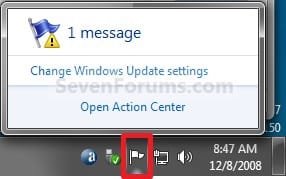
1. Click on the Action Center icon in the notification area of the taskbar, and click on Open Action Center. (See screenshot below)
Action_Center_Icon.jpg
A) Go to step 3.
OR

2. Open the Control Panel (icons view), and click on the Action Center icon.

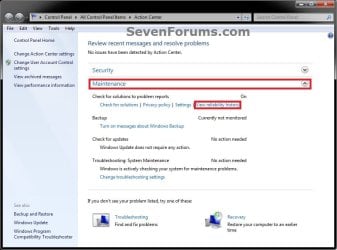
3. Click on the Maintenance drop down arrow to expand it, then click on the View reliability history link under the Check for solutions to problem reports section. (see screenshot below)
Step-1.jpg
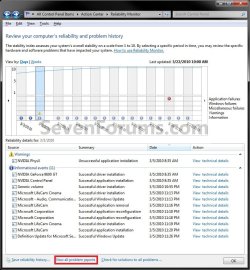
4. At the bottom of the Reliability Monitor, click on the View all problem reports link. (see screenshot below)
Step2.jpg
5. To Delete a Single Problem
A) Right click on a listed problem you want to delete, and click on Delete. (see screenshot above)

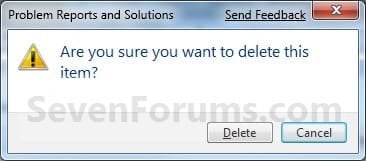
B) Click on the Delete button to confirm deletion. (See screenshot below)
Confirm_Single.jpg
C) Repeat step 5 for any other problem you wish to delete.

D) Go to step 7.
6. To Delete All Problems
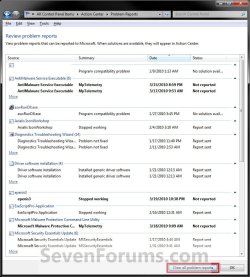
A) At the bottom of the Problem History window, click on the Clear all Problem History button. (see screenshot below)
Step3.jpg
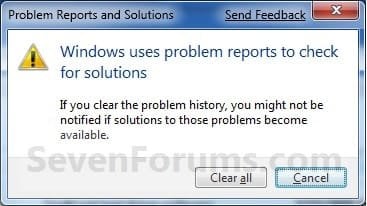
B) Click on the Clear all button to confirm this action. (see screenshot below)
Step4.jpg
C) The problem history is now clear. (see screenshot below)
Step5.jpg
7. When done, you can click on OK to return to Reliability Monitor or close the Problem History window. (see screenshot below step 5A or above)
That's it,
Shawn


Last edited:
For those that want to script emptying the Problem Report History, delete everything in the following folders:

C:\Users\Default\AppData\Local\Microsoft\Windows\WER\ReportQueue
C:\Users\<username>\AppData\Local\Microsoft\Windows\WER\ReportQueue
C:\ProgramData\Microsoft\Windows\WER\ReportQueue

Reload the Review Problem Reports control panel and those previously reported problems will be erased.
 
Last edited:

My Computer

OS
Windows 7 x64 Enterprise
Hello Shinjitai, and welcome to Seven Forums.

Thank you for the addition. :)
 

My Computer

Computer type
PC/Desktop
Computer Manufacturer/Model Number
Self built custom
OS
64-bit Windows 11 Pro for Workstations
CPU
Intel i7-8700K OC'd to 5 GHz
Motherboard
ASUS ROG Maximus XI Formula Z390
Memory
64 GB (4x16GB) G.SKILL TridentZ RGB DDR4 3600 MHz
Graphics Card(s)
ASUS ROG-STRIX-GTX1080TI-O11G-GAMING
Sound Card
Integrated
Monitor(s) Displays
2 x Samsung Odyssey G7 27"
Screen Resolution
2560x1440
Hard Drives
1TB Samsung 990 PRO M.2,
4TB Samsung 990 PRO PRO M.2,
TerraMaster F8 SSD Plus NAS
PSU
Seasonic Prime Titanium 850W
Case
Thermaltake Core P3
Cooling
Corsair Hydro H115i
Keyboard
Logitech wireless K800
Mouse
Logitech MX Master 4
Internet Speed
2 Gb/s Download and 100 Mb/s Upload
Antivirus
Malwarebyte Anti-Malware Premium
Browser
Google Chrome
Other Info
Logitech Z625 speaker system,
Logitech BRIO 4K Pro webcam,
HP Color LaserJet Pro MFP M477fdn,
APC SMART-UPS RT 1000 XL - SURT1000XLI,
Galaxy S23 Plus phone
Brink , i already try Clear History, some History is Clear , but there's some left too, can't clear all ?
 

My Computer

OS
Windows 7 Home Premium 64bit
Hello slep3pingz,

Could you post a screenshot of these to help see what may be the issue? :)

Did already try step 5 to see if you could delete those few left? Any issues unfixed will continue to still be reported though.
 

My Computer

Computer type
PC/Desktop
Computer Manufacturer/Model Number
Self built custom
OS
64-bit Windows 11 Pro for Workstations
CPU
Intel i7-8700K OC'd to 5 GHz
Motherboard
ASUS ROG Maximus XI Formula Z390
Memory
64 GB (4x16GB) G.SKILL TridentZ RGB DDR4 3600 MHz
Graphics Card(s)
ASUS ROG-STRIX-GTX1080TI-O11G-GAMING
Sound Card
Integrated
Monitor(s) Displays
2 x Samsung Odyssey G7 27"
Screen Resolution
2560x1440
Hard Drives
1TB Samsung 990 PRO M.2,
4TB Samsung 990 PRO PRO M.2,
TerraMaster F8 SSD Plus NAS
PSU
Seasonic Prime Titanium 850W
Case
Thermaltake Core P3
Cooling
Corsair Hydro H115i
Keyboard
Logitech wireless K800
Mouse
Logitech MX Master 4
Internet Speed
2 Gb/s Download and 100 Mb/s Upload
Antivirus
Malwarebyte Anti-Malware Premium
Browser
Google Chrome
Other Info
Logitech Z625 speaker system,
Logitech BRIO 4K Pro webcam,
HP Color LaserJet Pro MFP M477fdn,
APC SMART-UPS RT 1000 XL - SURT1000XLI,
Galaxy S23 Plus phone
Here's the SS :

ddonxx.jpg


2w3qjjm.jpg
 

My Computer

OS
Windows 7 Home Premium 64bit

My Computer

Computer type
PC/Desktop
Computer Manufacturer/Model Number
Self built custom
OS
64-bit Windows 11 Pro for Workstations
CPU
Intel i7-8700K OC'd to 5 GHz
Motherboard
ASUS ROG Maximus XI Formula Z390
Memory
64 GB (4x16GB) G.SKILL TridentZ RGB DDR4 3600 MHz
Graphics Card(s)
ASUS ROG-STRIX-GTX1080TI-O11G-GAMING
Sound Card
Integrated
Monitor(s) Displays
2 x Samsung Odyssey G7 27"
Screen Resolution
2560x1440
Hard Drives
1TB Samsung 990 PRO M.2,
4TB Samsung 990 PRO PRO M.2,
TerraMaster F8 SSD Plus NAS
PSU
Seasonic Prime Titanium 850W
Case
Thermaltake Core P3
Cooling
Corsair Hydro H115i
Keyboard
Logitech wireless K800
Mouse
Logitech MX Master 4
Internet Speed
2 Gb/s Download and 100 Mb/s Upload
Antivirus
Malwarebyte Anti-Malware Premium
Browser
Google Chrome
Other Info
Logitech Z625 speaker system,
Logitech BRIO 4K Pro webcam,
HP Color LaserJet Pro MFP M477fdn,
APC SMART-UPS RT 1000 XL - SURT1000XLI,
Galaxy S23 Plus phone
If you wanted to clear your bottom screenshot post above, then yep the .bat file in the tutorial I linked to is the best and easiest way to have it done automatically so as not to worry about making a mistake. :)
 

My Computer

Computer type
PC/Desktop
Computer Manufacturer/Model Number
Self built custom
OS
64-bit Windows 11 Pro for Workstations
CPU
Intel i7-8700K OC'd to 5 GHz
Motherboard
ASUS ROG Maximus XI Formula Z390
Memory
64 GB (4x16GB) G.SKILL TridentZ RGB DDR4 3600 MHz
Graphics Card(s)
ASUS ROG-STRIX-GTX1080TI-O11G-GAMING
Sound Card
Integrated
Monitor(s) Displays
2 x Samsung Odyssey G7 27"
Screen Resolution
2560x1440
Hard Drives
1TB Samsung 990 PRO M.2,
4TB Samsung 990 PRO PRO M.2,
TerraMaster F8 SSD Plus NAS
PSU
Seasonic Prime Titanium 850W
Case
Thermaltake Core P3
Cooling
Corsair Hydro H115i
Keyboard
Logitech wireless K800
Mouse
Logitech MX Master 4
Internet Speed
2 Gb/s Download and 100 Mb/s Upload
Antivirus
Malwarebyte Anti-Malware Premium
Browser
Google Chrome
Other Info
Logitech Z625 speaker system,
Logitech BRIO 4K Pro webcam,
HP Color LaserJet Pro MFP M477fdn,
APC SMART-UPS RT 1000 XL - SURT1000XLI,
Galaxy S23 Plus phone
Back
Top