problem soundblaster xfi titanium

george centar

New member
Local time
11:52 PM
Messages
2
hello

I have this problem with my xfi titanium audio card
after i install the audio card and install the drivers for windows 7
i have a number of problems first of all the speakers in the control panel-sound-manage audio devices appear unplugged and only the spdif option appears active so i don't have any sound
also i know i have install my audio card correctly because when windows 7 finds my card before i install the drivers works fine with a difference that recognize the audio card as high definition audio device and not the brand name.
please help me i am afraid that i spend 80 euros for nothing
also all the software from creative when i tried to use them says that i dont have the right device and they have to closed down!!!!
:cry::cry::cry::cry::cry:
 

My Computer

OS
windows 7
Motherboard
asus p5b
Graphics Card(s)
9800 gt 512mb
Sound Card
soundblaster xfi titanium
Let's see if we can't get your card working. The following steps should get your card working,

1. To rule out any compatibility issues, make sure that any drivers and software for the onboard audio is uninstalled. Also make sure that the onboard audio is disabled (can ignore this is it has been disabled from the start).

2. Download the driver package from here,

SB X-Fi Series Support Pack 2.0 (05/15/2009) - Creative Labs

3. Uninstall anything Creative related through Programs and Features.

4. Extract the above file. It is a self-extracting file, so no need for any other program. Once it is extracted cancel the install.

5. Follow the steps shown here,

Device Manager - Install Driver - Vista Forums

to manually install the driver. When you get to the step of locating the appropriate file you want to go to the following folder,

Drivers\X-Fi\XFI_SupportPack_2_0\Drivers\SBXF\wdm

the file needed is called "wdma_emu.inf".

6. If #5 is successful in getting the driver installed, you should then be able to run the setup.exe from the main extracted folder to install the apps (or only the ones you want) from that driver package.
 

My Computer

Computer type
PC/Desktop
Computer Manufacturer/Model Number
Me
OS
Win 7 Ultimate x64
CPU
FX-8350 @ 4.6 GHz so far
Motherboard
Asus M5A97 EVO
Memory
ADATA XPG V1 Series Black 8GB DDR3 1600
Graphics Card(s)
Sapphire R9 270x Dual-X
Sound Card
Xonar DGX w/ Corsair Vengence 1300
Monitor(s) Displays
Acer S232HL Abid
Screen Resolution
1920x1080
Hard Drives
120 GB OCZ Vertex 3
500 GB Seagate 7200.12
PSU
Antec Earthwatts 650W Green
Case
Antec Three Hundred
Cooling
Cooler Master 212 EVO
Keyboard
Logitech G510
Mouse
Logitech G500s
Internet Speed
35000/3000
I can't say this will work but I wanted to mention this because it worked for me. My mic stopped working in BF2 and it would no longer work in win7. After trying a few ideas it was to no avail. For whatever reason the recording devices for the mic read "Line-In 2/Mic2. Which I knew was not correct. Mic2 is for the I/O panel. I had my mic plugged to the sound card itself. Microphone was labeled as "Currently unavailable".

I then tried the diag.exe in BF2's directory. It did some sort of diagnostic program which a small popup screen came up and starting showing a lists of files and other window features (OK, I don't recall exactly). After it finished (about 2 minutes later) low and behold my mic started working. Microphone was labeled as "available" and I was able to use that as teh default.
 

My Computer

OS
Win7
I having trouble installing the x-fi drivers. I folowed the necesairy steps from tghe post abouve, but when i manualy select the file its say windows cant find a driver for my hardware, and i must see if the driver is made for an x64 based sytem (ore somthing like that-> transtlated roughly from dutch). What must i do now?
 
EDIT:

*Fixed* !!!

ok anyone with my problem, which is the same as the OPs, and the second post doesnt work for you, here is what you need to do.

download the support pack linked above and extract it, somewhere you will remember.

then go into Device Manager, select the devices that display High Definition Audio (should be two of them), right click and select Uninstall driver.

DO NOT CLOSE DEVICE MANAGER.

with device manager open, head to the folder where you extracted the downloaded Support content, run setup.exe

simply let the process go, and cancel the setup of any software item you dont want. when it comes to the driver at the end, you will get one of those "are you sure you want to install drivers that are not signed?" messages, just say Install anyway.

then restart when prompted.

if all else fails, try this as it worked a charm for me, when the above method did not.
 
Last edited:

My Computer

OS
Windows 7 Home Premium 64-Bit
CPU
Core 2 Quad Q9650
Motherboard
Gigabyte X38-DS4
Memory
Corsair Dominator PC8500
Graphics Card(s)
Sapphire ATI HD4890
Sound Card
Creative X-Fi Titanium PCI-E
Monitor(s) Displays
Samsung 2493HM
Hard Drives
1x WDD 1TB
1x WDD 500GB
PSU
Silverstone 850w
Case
ThermalTake Armour
Cooling
Swiftech Apogee GTZ Custom Water Loop
Fixed the mic not working issue..its not driver related

This fixed me...

Go to audio control panel

Start
All Programs
Creative
Creative Audio Control Panel
Go to FlexiJack Tab
Check Microphone(you will now hear yourself in the headphones but thats ok!)
Click close at bottom right
Now go to:
Same as step 1,2, 3 above then go to Creative Audio Console Launcher
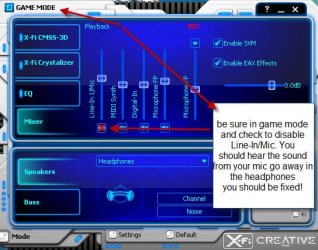
Go to Mixer Choice
Click to disable Line-In/Mic

You should be fixed. See screenshot below :party:
 

Attachments

  • 1-1-2010 11-29-46 AM.jpg
    1-1-2010 11-29-46 AM.jpg
    48.4 KB · Views: 266

My Computer

OS
win7
This is worked to me. I got a brand new Xfi Titanium with pcie. Ofc i got this problem too. I download the support pack 2.0 and i installed. After that i installed the Creative's brand CD too from the box.
It's working guys!
GL&HF and good muzix to you!
UT4Ever! :-)


EDIT:

*Fixed* !!!

ok anyone with my problem, which is the same as the OPs, and the second post doesnt work for you, here is what you need to do.

download the support pack linked above and extract it, somewhere you will remember.

then go into Device Manager, select the devices that display High Definition Audio (should be two of them), right click and select Uninstall driver.

DO NOT CLOSE DEVICE MANAGER.

with device manager open, head to the folder where you extracted the downloaded Support content, run setup.exe

simply let the process go, and cancel the setup of any software item you dont want. when it comes to the driver at the end, you will get one of those "are you sure you want to install drivers that are not signed?" messages, just say Install anyway.

then restart when prompted.

if all else fails, try this as it worked a charm for me, when the above method did not.
 
Last edited:

My Computer

OS
win7
Back
Top