
How to Uninstall, Change, or Repair a Program in Windows 7 and Windows 8
Information
You can uninstall a program from your computer if you no longer use it or if you want to free up space on your hard disk.
This will show you how to use Programs and Features in the Control Panel to view, uninstall, change, or repair programs that are currently installed in Windows 7 and Windows 8.
In Windows 8, this would be for desktop programs only, and not to uninstall Store apps.
In Windows XP, this would have been in Add and Remove Programs instead.
This will show you how to use Programs and Features in the Control Panel to view, uninstall, change, or repair programs that are currently installed in Windows 7 and Windows 8.
In Windows 8, this would be for desktop programs only, and not to uninstall Store apps.
In Windows XP, this would have been in Add and Remove Programs instead.
Tip
- If the program you want to uninstall is not listed in Programs and Features, then it may not have been written for this version of Windows. To uninstall the program, check the information that came with the program, or go to the program publisher's/manufacturer's website. Most programs install automatically in the C:\Program Files folder (OPTION THREE below). Look in this folder some programs also include an uninstall program that you can use.
- Programs and features included with Windows 7 can be turned off in Windows Features.
- If the program doesn't uninstall completely the first time, sometimes running the uninstall program a second time will succeed.
- If the above option doesn't work, try uninstalling the program while Windows 7 is running in safe mode.
- If you installed the program recently, you can try using System Restore to return your computer's system files to an earlier restore point dated before you installed the program.
OPTION ONE
Uninstall a Program in Programs and Features
1. Open the Control Panel (icons view) Windows 7 or Windows 8, and click/tap on Programs and Features.
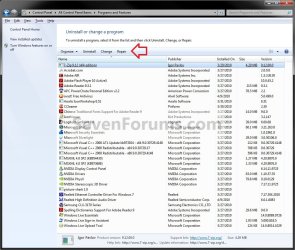
2. Select a listed program (ex: 7-Zip) to highlight it and see the available options on the toolbar for that program. (see screenshot below)
NOTE: The options will be either Uninstall, Change, Uninstall/Change, Repair, or Change/Repair. A program may not have all the options available for it.
- If mouse is set to single click, then hover the mouse pointer over the listed program to select it.
- If mouse is set to double click, then left click once on the listed program to select it.
3. To Uninstall the Program
A) Click/tap on the Uninstall or Uninstall/Change (depending on the button displayed) toolbar button. (see screenshot above)
OR
B) Double click/tap on the selected program.
OR
C) Right click on the selected program, and click/tap on Uninstall or Uninstall/Change (depending on the option available).
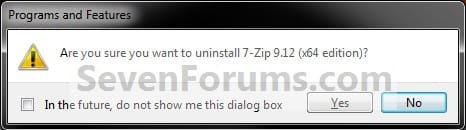
D) If you had only the Uninstall option, then you may need click/tap on Yes. (see screenshot below)
E) If prompted by UAC, then click/tap on Yes (if administrator) or type in the administrator's password (if standard user).
F) Follow the rest of the onscreen instructions to uninstall the program, then go to step 6.
NOTE: Some programs may require a restart afterwards.
4. To Change the Program
NOTE: This will allow you to install or uninstall optional features of the program without uninstalling it. Not all programs use the Change button, and may offer only Uninstall.
A) Click/tap on the Change or Uninstall/Change (depending on the button displayed) toolbar button. (see screenshot above)
OR
B) Right click on the selected program, and click/tap on Change or Uninstall/Change (depending on the option available).
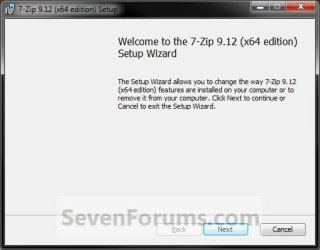
C) Follow the rest of the onscreen instructions to change the program (ex: 7-Zip), then go to step 6. (see screenshot below)
NOTE: Some programs may require a restart afterwards.
5. To Repair the Program
NOTE: Repair is usually used when you want corrupted files and settings replaced with original ones from the selected program's installation program. Sometimes the entire program is just reinstalled with all files overwritten and settings returned to default for the selected program. Not all programs will have a "Repair" button, and may many offer only Uninstall.
A) Click/tap on the Repair or Change/Repair (depending on the button displayed) toolbar button. (see screenshot above)
OR
B) Right click on the selected program, and click/tap on Repair or Change/Repair (depending on the option available).
C) Follow the rest of the onscreen instructions to repair the program, then go to step 6.
NOTE: Some programs may require a restart afterwards.
6. When finished, close Program and Features.
OPTION TWO
Uninstall a Program from the Start Menu
NOTE: Some programs will add a shortcut in the Start Menu All Programs area that includes an option to uninstall it. This option is only available in Windows 7.
1. Open the Start Menu, and click on All Programs.
2. Click on the program's folder (ex: picture-shark) to expand it. (see screenshot below)

3. If available, click on the program's uninstaller shortcut. (see screenshot above)
4. If prompted by UAC, then click on Yes (if administrator) or type in the administrator's password (if standard user).
5. Follow the rest of the onscreen instructions to uninstall the program.
NOTE: Some programs may require a restart afterwards.
OPTION THREE
Uninstall a Program from it's Program Files Folder
NOTE: If the program is not list in Programs and Features (OPTION ONE) and is not in the Start Menu (OPTION TWO), then you may be able to uninstall the program through the Program Files folder.
1. For 32-bit Windows 7/8, open the C:\Program Files folder, open the program's folder (ex: picture-shark), and go to step 3 below. (see screenshots below step 2)
2. For 64-bit Windows 7/8, open either the C:\Program Files folder for a installed 64-bit program or C:\Program Files (x86) folder for a installed 32-bit program, and open the program's folder (ex: picture-shark). (see screenshots below)
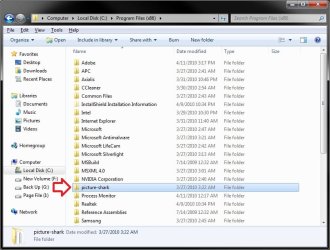
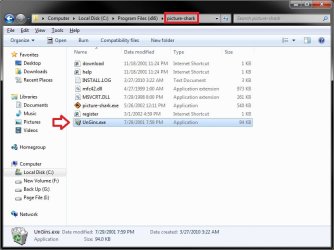
3. If available, click/tap on the program's uninstaller application file. (see right screenshot above)
4. If prompted by UAC, then click/tap on Yes (if administrator) or type in the administrator's password (if standard user).
5. Follow the rest of the onscreen instructions to uninstall the program.
NOTE: Some programs may require a restart afterwards.
OPTION FOUR
To Uninstall a Program in a Command Prompt
1. For how, see: How to Uninstall Programs using Command Prompt in Windows
That's it,
Shawn
Related Tutorials
- How to Uninstall Programs using Command Prompt in Windows
- How to Uninstall Windows Store Apps in Windows 8
- How to Create a Windows 7 Programs and Features Shortcut
- How to Enable or Disable Programs and Features in Windows 7
- How to Remove a Uninstall Entry in Programs and Features for Vista, Windows 7, and Windows 8
- How to Uninstall a Windows Update in Windows 7
- How to Turn Windows 7 Features On or Off
- How to Prevent Users from Running Specified Programs in Windows
- How to Allow Users to Run Only Specified Programs in Windows
- How to Uninstall Programs and their Leftovers using Revo Uninstaller Freeware
- Uninstall and Remove Software in Safe Mode
- How to Free Up and Recover Hard Drive Space in Windows 7
- How to Restore the Uninstall Confirmation Prompt in Programs and Features
- How to Uninstall One or More "Windows Essentials" Programs
- How to View Disk Space Usage in Windows 8.1 Update
- How to Completely Uninstall Avast Antivirus
Last edited:


