
You are using an out of date browser. It may not display this or other websites correctly.
You should upgrade or use an alternative browser.
You should upgrade or use an alternative browser.
QuickCam Pro 9000
- Thread starter Iknewitwin7
- Start date
Halaster
New member
I managed it to make it work now, I needed to make the service able to interact with desktop, and then it crashed explorer like you said. My camera now works great, thanks.
Also, I think you don't need to restart camputer, you can just log off and then back on and it works.
EDIT: I have one problem now, I tried to run camera preview in another program, and now picture turned gray. I uninstalled the software, and now when I try to install it it stops at starting services and the thing I did before won't work.
How exactly did you get it to "interact with desktop" ?
I have tried to run as administrator and it still halts at the Starting Service.
My Computer
- OS
- Windows 7 64-bit Build 7100
- CPU
- E8400 @4Ghz
- Motherboard
- EVGA
- Memory
- 4GB DDR2 OCZ 4-4-4-12
- Graphics Card(s)
- BFG GeForce 7800 GTS 320MB
- Sound Card
- On Board
- Monitor(s) Displays
- Samsung 52" LN52A750 + Dell 24" Widescreen
- Screen Resolution
- 1920x1080 + 1920x1200
- Hard Drives
- 2TB Array
800GB Array
400GB Stand Alone
- Case
- Kandalf
- Internet Speed
- 26MB Comcast

It "halts" (it doesnt halt actualy, just takes ****loads of time), because of antivirus, so disable it before you installing quickcam software  however i was geting chain explorer error after, couldnt even boot computer until i disabled quickcam service. Atm im runing only drivers from 11.9 quickcam package and everything seems to work (ofc not to full extent but...).
edit: oh ye im having pro 5000 however, but its same software anyway.
however i was geting chain explorer error after, couldnt even boot computer until i disabled quickcam service. Atm im runing only drivers from 11.9 quickcam package and everything seems to work (ofc not to full extent but...).edit: oh ye im having pro 5000 however, but its same software anyway.
My Computer
- Computer Manufacturer/Model Number
- Custom
- OS
- Windows 7 SP1 x64 build 7601.21701
- CPU
- Intel Q9450 @3608mhz (8x451)
- Motherboard
- Asus Rampage Formula
- Memory
- 6GB - 2x Corsair CM2X1024-8500C5D and 2x CM2X2048-8500C5D
- Graphics Card(s)
- Zotac nVidia GTX295
- Sound Card
- SoundMAX ADI1988B (X-FI MB)
- Monitor(s) Displays
- LG L227WTP & Samsung LE26R71B LCD TV
- Screen Resolution
- 1680x1050 & 1360x768
- Hard Drives
- 2x Seagate ST3500630NS in RAID0
- PSU
- Thermaltake Toughpower 750W
- Case
- Thermaltake
- Cooling
- Thermalright Ultra-120 Extreme and couple of fans
- Keyboard
- Logitech G15 v2
- Mouse
- Razer DeathAdder
- Internet Speed
- FTTH 50/50 (dualstack IPv4 & native IPv6)
Halaster
New member
I do not have any anti-virus software running at all.
I have a clean install of Windows 7 x64 RC1.
UAC is completely disabled.
I have the program itself running as administrator, and it never makes it past the starting of the service.
I have a clean install of Windows 7 x64 RC1.
UAC is completely disabled.
I have the program itself running as administrator, and it never makes it past the starting of the service.
My Computer
- OS
- Windows 7 64-bit Build 7100
- CPU
- E8400 @4Ghz
- Motherboard
- EVGA
- Memory
- 4GB DDR2 OCZ 4-4-4-12
- Graphics Card(s)
- BFG GeForce 7800 GTS 320MB
- Sound Card
- On Board
- Monitor(s) Displays
- Samsung 52" LN52A750 + Dell 24" Widescreen
- Screen Resolution
- 1920x1080 + 1920x1200
- Hard Drives
- 2TB Array
800GB Array
400GB Stand Alone
- Case
- Kandalf
- Internet Speed
- 26MB Comcast
and it never makes it past the starting of the service.
wierd, i did after about 20-30min, then i find out that my nod32 is what makes it to install so slow maybe you are runing windows defender? but like few people said already, quickcam software is broken for a lot of people (explorer chain errors and things like that). Just install driver only, you will loose some functions but camera it self will work.
My Computer
- Computer Manufacturer/Model Number
- Custom
- OS
- Windows 7 SP1 x64 build 7601.21701
- CPU
- Intel Q9450 @3608mhz (8x451)
- Motherboard
- Asus Rampage Formula
- Memory
- 6GB - 2x Corsair CM2X1024-8500C5D and 2x CM2X2048-8500C5D
- Graphics Card(s)
- Zotac nVidia GTX295
- Sound Card
- SoundMAX ADI1988B (X-FI MB)
- Monitor(s) Displays
- LG L227WTP & Samsung LE26R71B LCD TV
- Screen Resolution
- 1680x1050 & 1360x768
- Hard Drives
- 2x Seagate ST3500630NS in RAID0
- PSU
- Thermaltake Toughpower 750W
- Case
- Thermaltake
- Cooling
- Thermalright Ultra-120 Extreme and couple of fans
- Keyboard
- Logitech G15 v2
- Mouse
- Razer DeathAdder
- Internet Speed
- FTTH 50/50 (dualstack IPv4 & native IPv6)
[FONT="]For all of you who may experiencing installation '' halts at the Starting Service'' or '' multiple windows explorer crashes" follow the instructions.[/FONT]
[FONT="]
[/FONT]
[FONT="]This is also recommended installation procedure for all scenarios and first time fresh install of Win7x64 RC, however if you end up with multiple Explore crashes then pls follow my previous instructions. [/FONT]
[FONT="]
[/FONT]
[FONT="]Of course as before you will not have special video effects including rubbish so called "Right Light Technology" which is only good if enjoying looking at yourself repeatedly, for everybody else who is communicating with you, low frame rate which that feature inevitably introduce may make you looking like you are using low resolution camera.[/FONT]
[FONT="]
[/FONT]
[FONT="] First- Drivers only installation [/FONT]
[FONT="]
[/FONT]
[FONT="]1-Again, go and Download, if you haven’t done it already, driver’s version "quickcam_11.9.0.1263_x64.exe" from link I provided in previous post.[/FONT]
2- Go and download x64 version off 7-zip from here: Download and install program.
3-right click on "quickcam_11.9.0.1263_x64.exe” then place cursor on “7-Zip” then left click “Extract to “quickcam_11.9.0.1263_x64.exe”. You have now extracted drivers and software in a separate folder by the same name. We will need that later.
4- Right click on “quickcam_11.9.0.1263_x64.exe” and press "Run As Administrator" accept license agreement and press "next"
5-Program will ask u to connect webcam which you do
6-message appear "Camera Detected" wait
7-message appear "check for update" click "ask me again later" press "next"
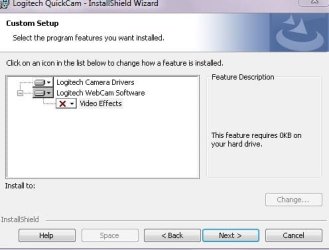
8-message appear "custom install" click "Logitech Quick Cam Drivers” DRIVERS ONLY NOT A SOFTWARE press "next" it may take a while, eventually you will get message that The installation and setup is complete! Press done.
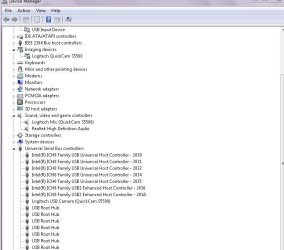
Effectively we have installed drivers only. To check go to Device Manager and check following 3 entries as per picture below it should correspond to your Logitech model.
Second- software installation
1) Unplug the camera.
2) Open previously created “quickcam_11.9.0.1263_x64” folder.
3) Then navigate to the "QuickCam” folder open it,
4) Click on the "QuickCam64.msi" application.
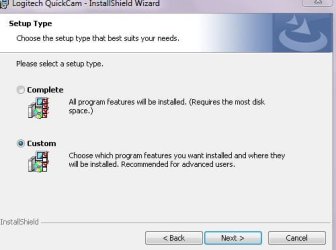
5) Installation will start. Keep pressing next until picture below
Click on “Custom” pres “next”
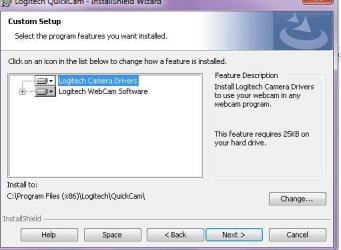
6) Click on + next to Logitech WebCam Software
Click on lower triangle arrow left of “Video Effect”
Choose Bottom option “This Feature Will Not be Available”
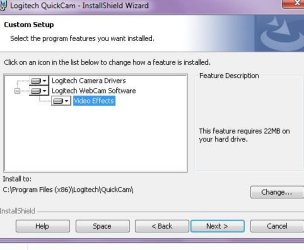
It should end up looking like below
Click “next” then “install” then “finish”
6) Plug in the camera.
That is all. Camera and basic software should work, until “Logitech so called software engineers create a compatible software for win7 RC”
[FONT="]
[/FONT]
[FONT="]This is also recommended installation procedure for all scenarios and first time fresh install of Win7x64 RC, however if you end up with multiple Explore crashes then pls follow my previous instructions. [/FONT]
[FONT="]
[/FONT]
[FONT="]Of course as before you will not have special video effects including rubbish so called "Right Light Technology" which is only good if enjoying looking at yourself repeatedly, for everybody else who is communicating with you, low frame rate which that feature inevitably introduce may make you looking like you are using low resolution camera.[/FONT]
[FONT="]
[/FONT]
[FONT="] First- Drivers only installation [/FONT]
[FONT="]
[/FONT]
[FONT="]1-Again, go and Download, if you haven’t done it already, driver’s version "quickcam_11.9.0.1263_x64.exe" from link I provided in previous post.[/FONT]
2- Go and download x64 version off 7-zip from here: Download and install program.
3-right click on "quickcam_11.9.0.1263_x64.exe” then place cursor on “7-Zip” then left click “Extract to “quickcam_11.9.0.1263_x64.exe”. You have now extracted drivers and software in a separate folder by the same name. We will need that later.
4- Right click on “quickcam_11.9.0.1263_x64.exe” and press "Run As Administrator" accept license agreement and press "next"
5-Program will ask u to connect webcam which you do
6-message appear "Camera Detected" wait
7-message appear "check for update" click "ask me again later" press "next"
8-message appear "custom install" click "Logitech Quick Cam Drivers” DRIVERS ONLY NOT A SOFTWARE press "next" it may take a while, eventually you will get message that The installation and setup is complete! Press done.
Effectively we have installed drivers only. To check go to Device Manager and check following 3 entries as per picture below it should correspond to your Logitech model.
Second- software installation
1) Unplug the camera.
2) Open previously created “quickcam_11.9.0.1263_x64” folder.
3) Then navigate to the "QuickCam” folder open it,
4) Click on the "QuickCam64.msi" application.
5) Installation will start. Keep pressing next until picture below
Click on “Custom” pres “next”
6) Click on + next to Logitech WebCam Software
Click on lower triangle arrow left of “Video Effect”
Choose Bottom option “This Feature Will Not be Available”
It should end up looking like below
Click “next” then “install” then “finish”
6) Plug in the camera.
That is all. Camera and basic software should work, until “Logitech so called software engineers create a compatible software for win7 RC”
Attachments
My Computer
- OS
- Win 7
a ye video effects are causing problems with explorer crashing  thanks!
thanks!My Computer
- Computer Manufacturer/Model Number
- Custom
- OS
- Windows 7 SP1 x64 build 7601.21701
- CPU
- Intel Q9450 @3608mhz (8x451)
- Motherboard
- Asus Rampage Formula
- Memory
- 6GB - 2x Corsair CM2X1024-8500C5D and 2x CM2X2048-8500C5D
- Graphics Card(s)
- Zotac nVidia GTX295
- Sound Card
- SoundMAX ADI1988B (X-FI MB)
- Monitor(s) Displays
- LG L227WTP & Samsung LE26R71B LCD TV
- Screen Resolution
- 1680x1050 & 1360x768
- Hard Drives
- 2x Seagate ST3500630NS in RAID0
- PSU
- Thermaltake Toughpower 750W
- Case
- Thermaltake
- Cooling
- Thermalright Ultra-120 Extreme and couple of fans
- Keyboard
- Logitech G15 v2
- Mouse
- Razer DeathAdder
- Internet Speed
- FTTH 50/50 (dualstack IPv4 & native IPv6)
Success afer following your instructions. Awesome
Thanks a lot
Thanks a lot
My Computer
- Computer Manufacturer/Model Number
- HP Pavilion Elite M9660F
- OS
- Windows 7 Ultimate 64-bit
- CPU
- AMD Phenom II X4 920 3.0 GHz
- Memory
- 8 GB
- Graphics Card(s)
- nVidia 9800GT
- Sound Card
- Realtek HD
- Monitor(s) Displays
- ViewSonic vx2835wm
- Screen Resolution
- 1920*1200

- Local time
- 9:20 AM
- Messages
- 716
I tried and tried, everyway from Sunday (never did understand that phrase).
Could not get it to work on 7100. I had it working at one point (recorded a video) then it hung again.
Most of my install attempts would hang at the microphone setup window. If I got past that the it would hang when I clicked on the microphine settings button.
And I was doing my install attempts from a image restore of my system that had never had ANY cameras installed.
I gave up. I just let MS install its drivers (Logitech) and I have IM working. Soob to try Skype. That will do until Logitech gets their ducks in a row.
Update Edit:
Spoke too soon. I can get it working briefly by any of the methods listed but as soon as ANYTHING attempts to access the Sound/Audio settings everything audio stops working.
This includes: Control Panel>Sound; Quickcam Menu>Audio; Windows Instant Messenger; Sound Forge; CD Architect; Windows Media Player; Skype
The video will still work (in QuickCam).
So it would appear it is the Quickcam Audio/Microphone drivers whether the are the ones from the Logitech install kit or the ones installed by Microsoft.
I booted into Vista Home Premium (32 bit) and installed Quickcam and Skype. Everything works perfectly so I doubt it is a hardware problem.
Just one more reason I wake in the night and go "Hmmmmmmmm......"
Could not get it to work on 7100. I had it working at one point (recorded a video) then it hung again.
Most of my install attempts would hang at the microphone setup window. If I got past that the it would hang when I clicked on the microphine settings button.
And I was doing my install attempts from a image restore of my system that had never had ANY cameras installed.
I gave up. I just let MS install its drivers (Logitech) and I have IM working. Soob to try Skype. That will do until Logitech gets their ducks in a row.
Update Edit:
Spoke too soon. I can get it working briefly by any of the methods listed but as soon as ANYTHING attempts to access the Sound/Audio settings everything audio stops working.
This includes: Control Panel>Sound; Quickcam Menu>Audio; Windows Instant Messenger; Sound Forge; CD Architect; Windows Media Player; Skype
The video will still work (in QuickCam).
So it would appear it is the Quickcam Audio/Microphone drivers whether the are the ones from the Logitech install kit or the ones installed by Microsoft.
I booted into Vista Home Premium (32 bit) and installed Quickcam and Skype. Everything works perfectly so I doubt it is a hardware problem.
Just one more reason I wake in the night and go "Hmmmmmmmm......"
Last edited:
My Computer
- OS
- XP Pro & Vista Home Premium (x86); Windows Ultimate 7600 x64 Retail
- Local time
- 9:20 AM
- Messages
- 716
I tried and tried, everyway from Sunday (never did understand that phrase).
Could not get it to work on 7100. I had it working at one point (recorded a video) then it hung again.
Most of my install attempts would hang at the microphone setup window. If I got past that the it would hang when I clicked on the microphine settings button.
And I was doing my install attempts from a image restore of my system that had never had ANY cameras installed.
I gave up. I just let MS install its drivers (Logitech) and I have IM working. Soob to try Skype. That will do until Logitech gets their ducks in a row.
Update Edit:
Spoke too soon. I can get it working briefly by any of the methods listed but as soon as ANYTHING attempts to access the Sound/Audio settings everything audio stops working.
This includes: Control Panel>Sound; Quickcam Menu>Audio; Windows Instant Messenger; Sound Forge; CD Architect; Windows Media Player; Skype
The video will still work (in QuickCam).
So it would appear it is the Quickcam Audio/Microphone drivers whether the are the ones from the Logitech install kit or the ones installed by Microsoft.
I booted into Vista Home Premium (32 bit) and installed Quickcam and Skype. Everything works perfectly so I doubt it is a hardware problem.
Just one more reason I wake in the night and go "Hmmmmmmmm......"
Update: I can boot WITHOUT the camera plugged in. All audio functions work. I plug the camera in and everything works for a brief time, the all audio functions "lock up" of hang - i.e. Control Panel>Sound will not open.
I upgraded from 7100 to 7127 - same result.
My Computer
- OS
- XP Pro & Vista Home Premium (x86); Windows Ultimate 7600 x64 Retail
OK, everything seems to install ok, but I'm stuck on quickcam saying the camera is in use by another application, and no other program can recognize a webcam is present.

My Computer
- OS
- Windows 7 x64 7100

zigzag3143
New member
- Local time
- 9:20 AM
- Messages
- 27,140
MD
I had a quickcam a few years ago and got the same error "camera is in use" and there were 2 causes. one I installed the driver with the camera attached. At some point in the install it asks you to connect the camera (or it did back then). Second if I had their streaming driver installed it always took the resources so the camera saw another application using it. Not sure that any of this is relevant but
Good luck
Ken
My Computer
- Computer Manufacturer/Model Number
- HP Pavillion dv-7 1005 Tx
- OS
- Win 8 Release candidate 8400
- Memory
- 4 gigs
- Graphics Card(s)
- Nvidia 9600M
- Sound Card
- HD built-in
- Monitor(s) Displays
- 17" Wxga
- Screen Resolution
- 1440x900
- Cooling
- none
- Internet Speed
- 45Mb down 5Mb up
- Local time
- 9:20 AM
- Messages
- 716
Looks like I'm stuck waiting on Logitech to join 2009 since no replies.
Have you tried letting your computer go to sleep?
I am with you ... I have a weird problem too. It MAY be related to yours, For me it is my AUDIO.
Plugging in the camera - it works for a while - then all my audio functions cease to work. I.E. Control Panel>Sound will not open.
My latest discovery - if I plug in camera, wait for Control Panel>Sound to "not open" and THEN let the computer go into "sleep" mode - when the computer wakes from sleep ---- the Control Pane>Sound window opens immediately and audio function are restored - for a while - until the lock up again.
So..... there is some process that is not "sharing" very nicely.

Later, when I have time, I will try stopping individual services/startup programs until I find the offender. You could try the same.
My Computer
- OS
- XP Pro & Vista Home Premium (x86); Windows Ultimate 7600 x64 Retail
zigzag3143
New member
- Local time
- 9:20 AM
- Messages
- 27,140
mmight want to wait a day or two. 7227 is out and 7230 is soonWell, gonna go from 7100 -> 7201 this week, maybe that will help
Ken
My Computer
- Computer Manufacturer/Model Number
- HP Pavillion dv-7 1005 Tx
- OS
- Win 8 Release candidate 8400
- Memory
- 4 gigs
- Graphics Card(s)
- Nvidia 9600M
- Sound Card
- HD built-in
- Monitor(s) Displays
- 17" Wxga
- Screen Resolution
- 1440x900
- Cooling
- none
- Internet Speed
- 45Mb down 5Mb up
joejoequickam1
New member
- Local time
- 8:20 AM
- Messages
- 1
hey all.. great forum.. thanks! Using the instructions here, I was able to get the quickam drivers and software working great. As is usual .. as new builds come out .. I update to them. I'm on 7201 now and immediately upon starting for the first time, I got the dreaded "This program is blocked due to compatibility issues." message. The program as it had been installed just didn't work any longer. Okay.. I uninstalled it.. and tried to go through the steps again with running the setup program in compatibility mode for Vista as administrator... which just isn't working.. I contiue to get that same message. Is there a way to tell Wondows to STOP blocking the program? Or is there another work around. Again.. following the above instructions from this board.. I got the drivers and software up and running perfectly on 7100.. now the DRIVERS still work.. software is being blocked.
Thanks for any help you can give.
j
Thanks for any help you can give.
j
My Computer
- OS
- windows 7
- Local time
- 9:20 AM
- Messages
- 716
Update: I can boot WITHOUT the camera plugged in. All audio functions work. I plug the camera in and everything works for a brief time, the all audio functions "lock up" of hang - i.e. Control Panel>Sound will not open.
I upgraded from 7100 to 7127 - same result.
Another Update: I can boot up with no camera plugged in, all audio functions fine. I plug the camera in and after a brief time all audio functions "hang" as described.
NOW..... If I click on Control Panel>Sound, nothing happens. I then start Sound Forge. The executable appears in the process list but does not "open". I then wait and let the computer go into "sleep" mode. When I "wake" the computer, voilà - immediately - the Control Panel>Sound window opens AND the Sound Forge window opens. All audio functions are working.... for a while... then the audio function "hang" again.
I hope some Logitech person is reading this thread....

P.S. This happens even if I use MSCONFIG to disable all startups and non-MS services.
Last edited:
My Computer
- OS
- XP Pro & Vista Home Premium (x86); Windows Ultimate 7600 x64 Retail
Good news. As of 06-16-09 Logitech has updated software for Vista x64. I installed it on win 7 build 7232 x64 and it workd like a charm.
Finally....
Finally....
Last edited:
My Computer
- Computer Manufacturer/Model Number
- Custom Built
- OS
- win 7 build 7232 x64
- CPU
- AMD FX 60 (2X 2.6 GHz)
- Motherboard
- MSI K8N Neo4 Platinum (MS-7125)
- Memory
- 3 Gig
- Graphics Card(s)
- ATI X1950 XTX
- Sound Card
- Creative X-Fi Elite Pro
- Monitor(s) Displays
- LG-227WTG 22" LCD
- Screen Resolution
- 1680 x 1050
- Hard Drives
- 2 500 GB Seagate Barracuda 7200.11
- PSU
- PC Power and Cooling 750 Watt
- Case
- Antec Solo
- Cooling
- Scythe Ninja
- Keyboard
- Of course
- Mouse
- Logitech Cordless Trackball
Similar threads
- Replies
- 2
- Views
- 106

- Replies
- 0
- Views
- 1K
