Recover partition after aborted diskpart clean all command

Let us explore your drive again with Test Disk. May be a repetition but you are doing it now under my control :D.
Run TestDisk again, and follow these steps: Be sure you have only the faulty external drive is connected.

A. At the first window, select “No Log” and press the <Enter> key.
B. Select which disk to analyse, choose “Proceed” and <Enter>. ( Choose Disk not drive)
C. Select partition type – Intel if it’s a PC then <Enter>.
D. Choose Advanced > press <Enter>.
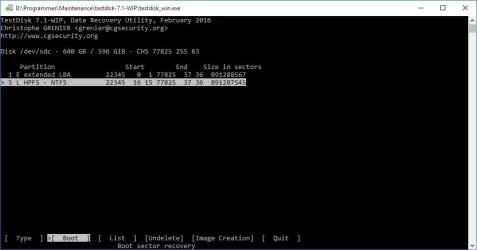
E. Choose Boot > press <Enter>.

Post the resultant screen. Remember I only want that Window not the full screen in the background. I shall see it only tomorrow morning that is about 10 hours from now. Post the screenshot and then quit TestDisk. We shall continue after I see the screenshot.

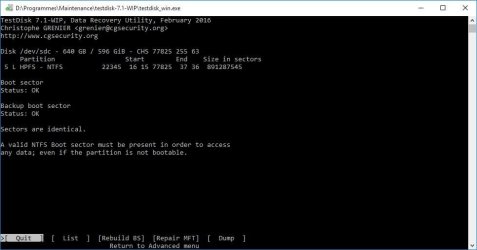
Here are the screenshots:
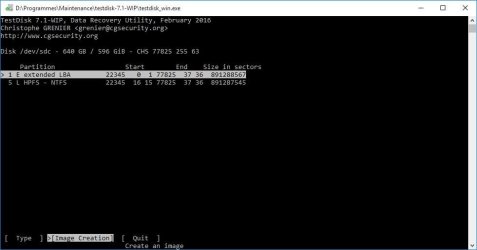
TD2-5.JPG

TD2-6.JPG

TD2-7.JPG

FYI, when I've written the TestDisk result as I said before, I've also rebuild bootsector from the backup one (Rebuild BS).
 

My Computer My Computer

Computer type
Laptop
Computer Manufacturer/Model Number
HP Probook 4530s
OS
Windows 10 Pro x64
Memory
8GB
OK, you restored the bootsector with the backup. That is perfectly ok. But you need not have done [Rebuild BS]. Normally it is done and should be done only when both boot sector and backup boot sector are bad. (I still do not get how you managed to write the MBR code and Partition table into sector 0.)

Now repeat TestDisk. When you get to the last Window in your previous post ( where it says both bootsectors are ok) highlight [MFT Repair] and press Enter. Post the screen that appears. Let us see what TestDisk says about the state of the MFT.
 

My Computer My Computer

OS
Windows 7 Home Premium 32 bit
OK, you restored the bootsector with the backup. That is perfectly ok. But you need not have done [Rebuild BS]. Normally it is done and should be done only when both boot sector and backup boot sector are bad. (I still do not get how you managed to write the MBR code and Partition table into sector 0.)

Now repeat TestDisk. When you get to the last Window in your previous post ( where it says both bootsectors are ok) highlight [MFT Repair] and press Enter. Post the screen that appears. Let us see what TestDisk says about the state of the MFT.

Regarding the bootsector, I've followed a post in another topic which was:
"Try TESTDISK .... very good software. But be carefull what you do!! cgsecurity.org ? View topic - Partitions, Filesystem, MFT all corrupt? explains a lot. Try to recover a partition that starts at sector 63 and is very large and is type NTFS. Use "Deeper search" if it isn't found.

Post camshot of results please.

After partition has been recovered you can do "Repair MFT" (also in manual). [if needed]
After that "Repais BS (boot sector)". [if needed]

Also usefull information Regain a lost drive using Test Disk - An Illustrated Guide"


I'm travelling in a work related trip for little days. I'll not have access to a PC there.
I'll reply with the screenshot after coming back. Thanks for your attention.
 

My Computer My Computer

Computer type
Laptop
Computer Manufacturer/Model Number
HP Probook 4530s
OS
Windows 10 Pro x64
Memory
8GB
OK, you restored the bootsector with the backup. That is perfectly ok. But you need not have done [Rebuild BS]. Normally it is done and should be done only when both boot sector and backup boot sector are bad. (I still do not get how you managed to write the MBR code and Partition table into sector 0.)

Now repeat TestDisk. When you get to the last Window in your previous post ( where it says both bootsectors are ok) highlight [MFT Repair] and press Enter. Post the screen that appears. Let us see what TestDisk says about the state of the MFT.

Regarding the bootsector, I've followed a post in another topic which was:
"Try TESTDISK .... very good software. But be carefull what you do!! cgsecurity.org ? View topic - Partitions, Filesystem, MFT all corrupt? explains a lot. Try to recover a partition that starts at sector 63 and is very large and is type NTFS. Use "Deeper search" if it isn't found.

Post camshot of results please.

After partition has been recovered you can do "Repair MFT" (also in manual). [if needed]
After that "Repais BS (boot sector)". [if needed]

Also usefull information Regain a lost drive using Test Disk - An Illustrated Guide"


I'm travelling in a work related trip for little days. I'll not have access to a PC there.
I'll reply with the screenshot after coming back. Thanks for your attention.


Sorry for the delay as the trip has been extended two times.

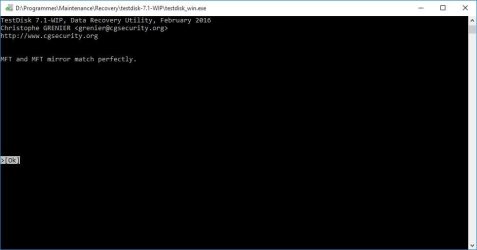
Attached the screenshot of [MFT repair]:
TD3-1.JPG
 

My Computer My Computer

Computer type
Laptop
Computer Manufacturer/Model Number
HP Probook 4530s
OS
Windows 10 Pro x64
Memory
8GB
In this case, TestDisk reports both the NTFS boot sector as well as the MFT and MFT mirror are OK. But still you are unable to access that partition.

To me it looks like you have no data at all in that partition. Remember Partition Wizard did not show anything.

Now let us dispense with Windows and check whether a live Linux can find anything. Put your drive back as an internal drive.

Create your Lucid Puppy pendrive as per the post here http://www.sevenforums.com/hardware...ly-unrecognisable-hard-drive.html#post2936753

Boot from the Lucid Puppy pendrive, and check whether Lucid Puppy sees the drive, the partition in it and any files in that partition.

http://www.sevenforums.com/software/198909-lucid-puppy-way-recover-files-non-bootable-computer.html

(If your system uses UEFI, you may have to disable secure boot, to boot Lucid Puppy from the pendrive)
 

My Computer My Computer

OS
Windows 7 Home Premium 32 bit
In this case, TestDisk reports both the NTFS boot sector as well as the MFT and MFT mirror are OK. But still you are unable to access that partition.

To me it looks like you have no data at all in that partition. Remember Partition Wizard did not show anything.

Now let us dispense with Windows and check whether a live Linux can find anything. Put your drive back as an internal drive.

Create your Lucid Puppy pendrive as per the post here http://www.sevenforums.com/hardware...ly-unrecognisable-hard-drive.html#post2936753

Boot from the Lucid Puppy pendrive, and check whether Lucid Puppy sees the drive, the partition in it and any files in that partition.

http://www.sevenforums.com/software/198909-lucid-puppy-way-recover-files-non-bootable-computer.html

(If your system uses UEFI, you may have to disable secure boot, to boot Lucid Puppy from the pendrive)

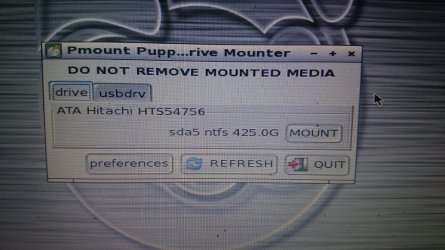
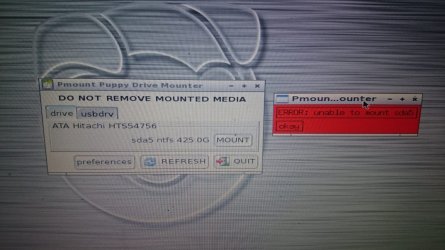
Attached the screenshots of Lucid Puppy, I've tried to mount the partition but it failed to mount.

LP-1.JPG

LP-2.JPG

BTW, I need to know your recommendation to initialize a new drive (less than 2TB) with GPT or MBR? what is the difference in data safety and performance?

Here are some input for your reference:

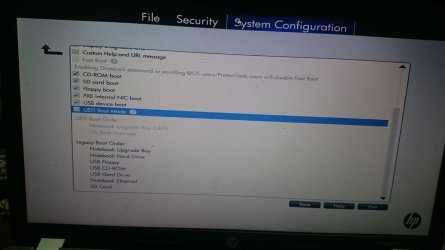
For my laptop (HP Probook 4530s) in BIOS setup, when trying to enable UEFI boot mode, it says that this mode is provided for development on this system (Attached):
BS-1.JPG

BS-2.JPG


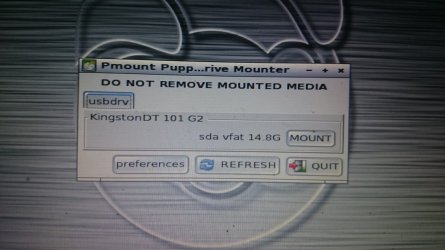
I noticed also that when I choose (IDE) as SATA device mode, the NTFS partition disappear from LucidPuppy (Attached):
BS-3.JPG

LP-3.JPG


Thanks,
 

My Computer My Computer

Computer type
Laptop
Computer Manufacturer/Model Number
HP Probook 4530s
OS
Windows 10 Pro x64
Memory
8GB
Your last option is to run PhotoRec and check whether it can recover any data. PhotoRec does not depend upon the file system to recover the files.

If Photorec does not recover even a single file, then it would mean there is no data really in that partition.

You can also run bootice and scroll through sectors beginning at 358973447 to the last sector 1250260991 and check whether it is populated with any data or it is all zeros. http://www.sevenforums.com/hardware-devices/310295-lost-partitions.html#post2584426

EDIT: Another thought that is running in my mind: I do not know how you wrote the MBR and partition tables to sector 0. It is a little bit tricky. If the partition/s found by TestDisk is not the same type as it was originally present (Primary/Logical) then the user has to change it before writing it to Sector 0. There are other variations too.It may show two partitions starting at different sectors with D before them, D standing for Deleted. In such a case we have to select each partition and press P for it to list files. Only the partition that shows the files is the correct partition. Only for that partition we have to give the Write Command to write it into Sector 0.

In PW, right click on the partition and change it to Primary. Apply the changes. See whether you can access the drive/Partition Recovery wizard Quick scan can list any files. Do this only after you try PhotoRec and Photorec fails to recover files. So I shall reorder the sequence in which the process is to be carried out.

1. Check with Bootice whether the sectors in that partition are populated and not zeros. If it shows all zeros, there is no point in doing anything else since there is no data.( No need for steps 2 and 3)

2. If you find the sectors are populated with data , then run PhotoRec recovery.

3. Whether data is recovered or not as a final step change the Partition Type as Primary and then check whether PW shows your files.
 
Last edited:

My Computer My Computer

OS
Windows 7 Home Premium 32 bit
Back
Top