Recovery Partition - Create

   Warning
THIS IS NOT INTENDED TO REPLACE YOUR WINDOWS 7 DVD, HARD DRIVES FAIL, AND YOU SHOULD ALWAYS HANG ONTO THE DISK, THIS IS SIMPLY TO SPEED UP THE PROCESS OF REINSTALLING OR DOING A RECOVERY

This recovery partition will only be available to you assuming that your bootmanager is in tact, if it becomes corrupted it will be inaccessible just like your copy of windows, another good reason for hanging on to the original disk


   Note
it is recommended that you allow windows to create the 100MB System reserved partition upon installation if you plan to do this or you will have to repeat it everytime you reinstall


1. Download Easy BCD 2.0 from here: EasyBCD 2.0 Beta Builds - The NeoSmart Forums (you will need to register on the forum first)

2. open disk management, (type "partition" into the start menu its the first option that comes up)

3a Right click a partition with free space, and click "Shrink Volume" when it asks you to select how much space to shrink by allocate 4GB or 4096MB

3b Right Click the Unallocated Space and Click "New Simple Volume"

4. click ok through the next few screens, i recommend assigning it letter Z:\ so you dont get confused and accidentally delete it or save other files here

5. place your Windows 7 DVD in your drive and go to Computer, right click and then click Open
NOTE: At this point please make sure you have "hide protected operating system files" DISABLED as it occasionally corrupts the copy, to do this press alt in any explorer window, then click tools>folder options>views>hide protected operating system files.

6. Copy the entire contents of the DVD to your Z:\ Partition

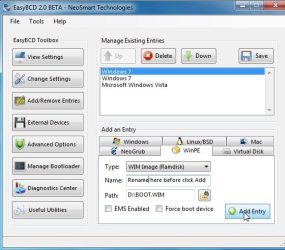
7. open Easy BCD and click "add/remove entries" click the tab labelled WinPE,
When it asks for a path browse to "Z:\sources\boot.wim" and click ok, then click "add new entry"
NOTE: At this point there is a good chance easybcd will tell you that the operation failed, just click ok and do it again, from what i can see this is simply its way of asking if your sure, and it will work 2nd time around.

8. thats it your done, when you reboot you will have 2 options, Windows 7, and NST WinPE Image, NST WinPE image is your recovery partition and will act as if you'd put the disk in.

   Note
It has come to my attention that Windows has an annoying habit of corrupting the Recovery Partition, especially after Disk Cleanups and Defrags. To get around this Open Disk Management (type it into the start menu) and right click your Recovery Partition, remove the letter so that windows cant see it any more. (Don't worry it will still boot, this just stops Windows from writing files to it)


   Information
This tutorial is the intellectual property of (c)2009 Martin Joy a.k.a severedsolo and is only authorised to be hosted on sevenforums.com This tutorial is not to be copied without my explicit consent and when consent is granted the original author must be credited along with a link to this tutorial


Last edited by a moderator:
Nice option!

Cheers!
Robert
 

My Computer

OS
...
no problem, im thinking of doing a similar one explaining how to get rid of the old Vista recovery Partition and linking to this tutorial to explain how to replace it with a Win 7 one, would anyone be interested in that?
 

My Computer

Computer type
PC/Desktop
Computer Manufacturer/Model Number
Medion Erazer (note to self: insert model number) - with custom additions
OS
Windows 10 Pro x64
CPU
Intel Core i5 7400 @ 3.00GHz
Motherboard
OEM supllied with PC
Memory
8GB 2133Mhz DDR4 (OEM supplied)
Graphics Card(s)
Gygabyte Windforce GTX 1050Ti (Factory Overclocked)
Sound Card
Realtek
Monitor(s) Displays
Acer Al1980 + HKC
Screen Resolution
1360*768(HKC) / 1280*1024(Acer)
Hard Drives
1TB Toshiba
1TB WD Caviar Green
120GB Samsung Evo 840
PSU
OEM supplied (no power rating on case)
Case
OEM Supplied
Cooling
Stock
Keyboard
Logitech Wireless
Mouse
Logitect Wireless
Internet Speed
40Mb/s Down 10Mb/s Up
Antivirus
Defender
Browser
Firefox
That's a good idea.

Makes it easy to replace that recovery partition when you get a new OS.

I make a partition that will hold an image of my hard drive, and keep a recent copy there as well as on my external hard drive. Makes it faster when I re-image.
 

My Computer

Computer type
PC/Desktop
Computer Manufacturer/Model Number
76~2.0
OS
Windows 7 Ult x64 - SP1/ Windows 8 Pro x64
CPU
Intel Core i5-3570K 4.6GHz
Motherboard
Gigabyte GA-Z77X UD3H, f18
Memory
8GB (2X4GB) DDR3 1600 Corsair Vengeance CL8 1.5v
Graphics Card(s)
Sapphire HD 7770 Vapor-X OC 1GB DDR5
Sound Card
Onboard VIA VT2021
Monitor(s) Displays
22" LCD Dell
Screen Resolution
1680x1050
Hard Drives
Samsung 840Pro 128GB SSD,
Seagate Barracuda 500GB SATA2 7200rpm 32MB cache, Seagate Barracuda 1TB SATA2 7200rpm 32MB cache,
PSU
Corsair HX650W
Case
Cooler Master Storm Scout
Cooling
Corsair H80 2x12cm Noctua NF P12 , 2x14cm case fans
Keyboard
Logitech Wave
Mouse
CM Sentinel
Internet Speed
Dismal
Antivirus
Avast
Browser
Opera Next
Other Info
Haswell laptop: HP Envy 17t-j, i7-4700MQ, GeForce 740M 2GB DDR3, 17.3" Full HD 1920x1080, 16GB RAM, Samsung 840 Pro 128GB, 1TB Hitachi 7200 HDD,
Desktop: eSATA ports,
External eSATA Seagate 500GB SATA2 7200rpm,
External WD USB 500GB
  • Like
Reactions: JMH
have given it an update to work around an issue i found, also just to confirm, deleting ei.cfg will unlock it for all versions just like from the disk
 

My Computer

Computer type
PC/Desktop
Computer Manufacturer/Model Number
Medion Erazer (note to self: insert model number) - with custom additions
OS
Windows 10 Pro x64
CPU
Intel Core i5 7400 @ 3.00GHz
Motherboard
OEM supllied with PC
Memory
8GB 2133Mhz DDR4 (OEM supplied)
Graphics Card(s)
Gygabyte Windforce GTX 1050Ti (Factory Overclocked)
Sound Card
Realtek
Monitor(s) Displays
Acer Al1980 + HKC
Screen Resolution
1360*768(HKC) / 1280*1024(Acer)
Hard Drives
1TB Toshiba
1TB WD Caviar Green
120GB Samsung Evo 840
PSU
OEM supplied (no power rating on case)
Case
OEM Supplied
Cooling
Stock
Keyboard
Logitech Wireless
Mouse
Logitect Wireless
Internet Speed
40Mb/s Down 10Mb/s Up
Antivirus
Defender
Browser
Firefox
Easy doesn't ask for the dvd anymore - it comes with boot.sdi already included.

It could be handy - I would reaffirm , that it doesn't replace the need for external bootable recovery/installation media.

This "recovery" partition relies on 7 boot management system and is subject to similar potential problems.

You can always use the name dropdown in Easy to rename it Recovery , or whatever you want - that will be what you see on the boot menu description.
 

My Computers

System One System Two

  • Computer type
    PC/Desktop
    OS
    7 X64
    CPU
    i5 8400
    Motherboard
    gigabyte b365m ds3h
    Memory
    2x8gb 3200mhz
    Hard Drives
    various
    PSU
    pure power 11 400w cm
    Case
    Coolermaster
    Cooling
    cryorig m9i
  • Computer type
    PC/Desktop
    OS
    7x64
    CPU
    g5400
    Motherboard
    ga b365m ds3h
    Memory
    8gb ddr4 2400
    PSU
    xfx pro 450w
How about integrating users own 'bloatware'? AV, Office etc.?
 

My Computer

Computer type
Laptop
Computer Manufacturer/Model Number
HP ENVY 17-1150eg
OS
Windows 10 Pro x64 EN-GB
CPU
1.6 GHz Intel Core i7-720QM Processor
Memory
6 GB
Graphics Card(s)
ATI Mobility Radeon HD 5850 Graphics
Sound Card
Beats sound system with integrated subwoofer
Monitor(s) Displays
17" laptop display, 22" LED and 32" Full HD TV through HDMI
Screen Resolution
1600*900 (1), 1920*1080 (2&3)
Hard Drives
Internal: 2 x 500 GB SATA Hard Disk Drive 7200 rpm
External: 2TB for backups, 3TB USB3 network drive for media
Cooling
As Envy runs a bit warm, I have it on a Cooler Master pad
Keyboard
Logitech diNovo Media Desktop Laser (bluetooth)
Mouse
Logitech Performance Mouse MX
Internet Speed
50/10 Mbps VDSL
Antivirus
Windows Defender 4.3.9431.0
Browser
Maxthon 3.5.2., IE11
SIW2 - thank you have deleted that step as it is now irrelevant, renaming it doesnt work, although everything recognises it as the new name, the actual bootloader entry will still read NST winPE Image, there is a warning at the top stating that it is not a substitution for the original installation media, i do not see the point of stating it twice

Kari - Great idea, Unfortunately, i dont have the technical expertise to write this into the guide, if anyone would like to fill me in on how to do this ill happily include it
 

My Computer

Computer type
PC/Desktop
Computer Manufacturer/Model Number
Medion Erazer (note to self: insert model number) - with custom additions
OS
Windows 10 Pro x64
CPU
Intel Core i5 7400 @ 3.00GHz
Motherboard
OEM supllied with PC
Memory
8GB 2133Mhz DDR4 (OEM supplied)
Graphics Card(s)
Gygabyte Windforce GTX 1050Ti (Factory Overclocked)
Sound Card
Realtek
Monitor(s) Displays
Acer Al1980 + HKC
Screen Resolution
1360*768(HKC) / 1280*1024(Acer)
Hard Drives
1TB Toshiba
1TB WD Caviar Green
120GB Samsung Evo 840
PSU
OEM supplied (no power rating on case)
Case
OEM Supplied
Cooling
Stock
Keyboard
Logitech Wireless
Mouse
Logitect Wireless
Internet Speed
40Mb/s Down 10Mb/s Up
Antivirus
Defender
Browser
Firefox
Hmm, interesting. But what would be the advantage of this approach over writing an image of your OS partition to a seperate partition on one of your drives (preferably another drive than where the OS resides) after you are all done with your installation. That would also cover Kari's comment.
 

My Computer

Computer Manufacturer/Model Number
HP, Dell, Gateway, Toshiba - 4 laptops and 2 desktops
OS
Vista, Windows7, Mint Mate, Zorin, Windows 8
CPU
from 1.6GHz Duo to i7
Monitor(s) Displays
2x HP w2207
Hard Drives
5x HDD, 7x SSD, 12x Externals
Keyboard
with trackball - no mices
Mouse
Trackball mice
Internet Speed
DSL 6000
Easy-WinPe-2010-03-10_014410.jpg

there is a warning at the top stating that it is not a substitution for the original installation media, i do not see the point of stating it twice

LOL - touchy...

Adding info that it is reliant on the boot management process - not just the health of the HD.

Nevertheless, it can be a useful addition. It allows reinstall of a clean o/s , e.g. onto another partition - can be useful if you have a problem getting into the original installation.

Not sure what advantage it offers over an image , as whs says.
 

My Computers

System One System Two

  • Computer type
    PC/Desktop
    OS
    7 X64
    CPU
    i5 8400
    Motherboard
    gigabyte b365m ds3h
    Memory
    2x8gb 3200mhz
    Hard Drives
    various
    PSU
    pure power 11 400w cm
    Case
    Coolermaster
    Cooling
    cryorig m9i
  • Computer type
    PC/Desktop
    OS
    7x64
    CPU
    g5400
    Motherboard
    ga b365m ds3h
    Memory
    8gb ddr4 2400
    PSU
    xfx pro 450w
it doesnt matter what you name it, the actual bootloader entry will still read the same, mine is called recovery, it still reads as NST winPE image in bootloader, sorry if i came across as touchy, i didnt mean to lol and yes i see what you mean now, i will change it

whs- system image is good admittedly, but what happens if you havent disabled automatic backups and when it does its backup whatever is wrong is backed up too?
 

My Computer

Computer type
PC/Desktop
Computer Manufacturer/Model Number
Medion Erazer (note to self: insert model number) - with custom additions
OS
Windows 10 Pro x64
CPU
Intel Core i5 7400 @ 3.00GHz
Motherboard
OEM supllied with PC
Memory
8GB 2133Mhz DDR4 (OEM supplied)
Graphics Card(s)
Gygabyte Windforce GTX 1050Ti (Factory Overclocked)
Sound Card
Realtek
Monitor(s) Displays
Acer Al1980 + HKC
Screen Resolution
1360*768(HKC) / 1280*1024(Acer)
Hard Drives
1TB Toshiba
1TB WD Caviar Green
120GB Samsung Evo 840
PSU
OEM supplied (no power rating on case)
Case
OEM Supplied
Cooling
Stock
Keyboard
Logitech Wireless
Mouse
Logitect Wireless
Internet Speed
40Mb/s Down 10Mb/s Up
Antivirus
Defender
Browser
Firefox
It's also not impossible the backup image is corrupted.

The naming works ok for me:

D:\windows\system32>bcdedit /enum /v

Windows Boot Loader
-------------------
identifier {c41cd56f-296a-11df-8efe-001966657855}
device ramdisk=[D:]\BOOT.WIM,{c41cd56e-296a-11df-8efe-001966657
855}
path \Windows\System32\Boot\winload.exe
description Rename here before click Add
locale en-US
osdevice ramdisk=[D:]\BOOT.WIM,{c41cd56e-296a-11df-8efe-001966657
855}
systemroot \Windows
detecthal Yes
winpe Yes

D:\windows\system32>
 

My Computers

System One System Two

  • Computer type
    PC/Desktop
    OS
    7 X64
    CPU
    i5 8400
    Motherboard
    gigabyte b365m ds3h
    Memory
    2x8gb 3200mhz
    Hard Drives
    various
    PSU
    pure power 11 400w cm
    Case
    Coolermaster
    Cooling
    cryorig m9i
  • Computer type
    PC/Desktop
    OS
    7x64
    CPU
    g5400
    Motherboard
    ga b365m ds3h
    Memory
    8gb ddr4 2400
    PSU
    xfx pro 450w
Hmm, interesting. But what would be the advantage of this approach over writing an image of your OS partition to a seperate partition on one of your drives (preferably another drive than where the OS resides) after you are all done with your installation. That would also cover Kari's comment.
We sometimes provide our customers with tailor made and assembled computers, too, although we are absolutely not a PC vendor. Each customer has own needs, different 'bloatware'.

I am really interested to find out if this approach would allow us to create a standard recovery partition. Removing ei.cfg would make it universal; some customers are happy with Professional, even HP, when most want / need Ultimate, so the customers key would decide the version.

IMO this could be something really good!

Kari
 

My Computer

Computer type
Laptop
Computer Manufacturer/Model Number
HP ENVY 17-1150eg
OS
Windows 10 Pro x64 EN-GB
CPU
1.6 GHz Intel Core i7-720QM Processor
Memory
6 GB
Graphics Card(s)
ATI Mobility Radeon HD 5850 Graphics
Sound Card
Beats sound system with integrated subwoofer
Monitor(s) Displays
17" laptop display, 22" LED and 32" Full HD TV through HDMI
Screen Resolution
1600*900 (1), 1920*1080 (2&3)
Hard Drives
Internal: 2 x 500 GB SATA Hard Disk Drive 7200 rpm
External: 2TB for backups, 3TB USB3 network drive for media
Cooling
As Envy runs a bit warm, I have it on a Cooler Master pad
Keyboard
Logitech diNovo Media Desktop Laser (bluetooth)
Mouse
Logitech Performance Mouse MX
Internet Speed
50/10 Mbps VDSL
Antivirus
Windows Defender 4.3.9431.0
Browser
Maxthon 3.5.2., IE11
SIW2 - thank you have deleted that step as it is now irrelevant, renaming it doesnt work, although everything recognises it as the new name, the actual bootloader entry will still read NST winPE Image,

sorry should have been clearer there, when you reboot, your name will not appear on the dual boot menu, every entry points to it having the right name, but at the OS selection screen there is no change
 

My Computer

Computer type
PC/Desktop
Computer Manufacturer/Model Number
Medion Erazer (note to self: insert model number) - with custom additions
OS
Windows 10 Pro x64
CPU
Intel Core i5 7400 @ 3.00GHz
Motherboard
OEM supllied with PC
Memory
8GB 2133Mhz DDR4 (OEM supplied)
Graphics Card(s)
Gygabyte Windforce GTX 1050Ti (Factory Overclocked)
Sound Card
Realtek
Monitor(s) Displays
Acer Al1980 + HKC
Screen Resolution
1360*768(HKC) / 1280*1024(Acer)
Hard Drives
1TB Toshiba
1TB WD Caviar Green
120GB Samsung Evo 840
PSU
OEM supplied (no power rating on case)
Case
OEM Supplied
Cooling
Stock
Keyboard
Logitech Wireless
Mouse
Logitect Wireless
Internet Speed
40Mb/s Down 10Mb/s Up
Antivirus
Defender
Browser
Firefox
it doesnt matter what you name it, the actual bootloader entry will still read the same, mine is called recovery, it still reads as NST winPE image in bootloader, sorry if i came across as touchy, i didnt mean to lol and yes i see what you mean now, i will change it

whs- system image is good admittedly, but what happens if you havent disabled automatic backups and when it does its backup whatever is wrong is backed up too?

Well, I would make a one time image and delete the xml definition file. Thus I am sure it will not be repeated and accidently write over the original.
 

My Computer

Computer Manufacturer/Model Number
HP, Dell, Gateway, Toshiba - 4 laptops and 2 desktops
OS
Vista, Windows7, Mint Mate, Zorin, Windows 8
CPU
from 1.6GHz Duo to i7
Monitor(s) Displays
2x HP w2207
Hard Drives
5x HDD, 7x SSD, 12x Externals
Keyboard
with trackball - no mices
Mouse
Trackball mice
Internet Speed
DSL 6000
Ther's something wrong then.

The last entry on my boot menu reads:

Rename Here before click add

I have done it hundreds of times - may be a glitch in the version of Easy you are using.

Try d/l ing build 82.

EasyBCD 2.0 Beta Builds - The NeoSmart Forums


SIW2 - thank you have deleted that step as it is now irrelevant, renaming it doesnt work, although everything recognises it as the new name, the actual bootloader entry will still read NST winPE Image,

sorry should have been clearer there, when you reboot, your name will not appear on the dual boot menu, every entry points to it having the right name, but at the OS selection screen there is no change
 

My Computers

System One System Two

  • Computer type
    PC/Desktop
    OS
    7 X64
    CPU
    i5 8400
    Motherboard
    gigabyte b365m ds3h
    Memory
    2x8gb 3200mhz
    Hard Drives
    various
    PSU
    pure power 11 400w cm
    Case
    Coolermaster
    Cooling
    cryorig m9i
  • Computer type
    PC/Desktop
    OS
    7x64
    CPU
    g5400
    Motherboard
    ga b365m ds3h
    Memory
    8gb ddr4 2400
    PSU
    xfx pro 450w
Hi Kari,

If you are interested in that kind of thing , it is pretty easy to add extra functions and apps. to the boot.wim , to access extra recovery tools - such as the free versions of Paragon PM and Backup and recover , Partition Wizard, Nir Sofer's free apps, like Produkey , password blanker, there are lots of nice open source apps. and so on.

It's a lot easier than it appears.

For example, if you are on Win 7 , this little app. will add some in automatically for you ( Paragon Pm 2010 Free and Backup and Recovery 10 free as long as you have them installed ).

pe - Windows Live

If it's for customers , obviously need to check the licenses allow it.
 

My Computers

System One System Two

  • Computer type
    PC/Desktop
    OS
    7 X64
    CPU
    i5 8400
    Motherboard
    gigabyte b365m ds3h
    Memory
    2x8gb 3200mhz
    Hard Drives
    various
    PSU
    pure power 11 400w cm
    Case
    Coolermaster
    Cooling
    cryorig m9i
  • Computer type
    PC/Desktop
    OS
    7x64
    CPU
    g5400
    Motherboard
    ga b365m ds3h
    Memory
    8gb ddr4 2400
    PSU
    xfx pro 450w
Hi all,

First up, thanks for this great tutorial. The instructions are very clear and concise and I was able to follow them without any problems whatsoever!

I've been having issues with my Recovery Partition, and was wondering if you could help.

I have a 120GB Backup Disk. On this I created a 4GB Recovery Partition (Z:\) with the Windows 7 Pro 64-Bit DVD contents on it, and on the same disk I also created a second partition (G:\) with my System Image on it, plus an export of my Registry.

I have used EasyBCD to create a boot menu, and as long as my Primary Boot Disk is functioning, I am able to select the Recovery Partition from the boot menu and load it.

All OK so far! :)

However, I my Primary Boot Disk recently failed. Now when I try to boot the Recovery Partition, I get told that the disk is not bootable. I have changed the boot disk priorities in the BIOS so that the disk that the Recovery Partition is on is the primary boot device, but it still isn't bootable.

I understand that the boot menu was on the failed disk, but I would have thought that the Recovery Partition would be bootable, seeing as the Windows 7 DVD is.

Can anyone tell me what I'm doing wrong?
 

My Computer

Computer Manufacturer/Model Number
Planeswalker-3/1108-09 (Rev 1.2)
OS
Windows 7 Pro 64-Bit
CPU
Intel Core 2 Duo @ 3.0GHz
Motherboard
Asus Maximus Formula
Memory
8GB OCZ PC3 6300 RAM (Nvidia SLI)
Graphics Card(s)
2 x Nvidia 8800 GTX Video Cards (SLI Enabled)
Sound Card
Supreme FX II
Monitor(s) Displays
17" IIyama
Screen Resolution
1280x1024
Hard Drives
C: 250GB SATA (OS)
D: 250GB SATA (APPS & GAMES)
E: 2 x 1TB in RAID1 (MEDIA)

Backup (500GB):
G: Backup Partition (System Image & Registry)
Y: 10GB Linux Bootable Partition (Ubuntu latest release)
Z: 4GB Bootable Windows 7 Recovery Partition
PSU
HighPower 750W Modular PSU
Case
Coolermaster Spedo
Cooling
6 x Fans
Keyboard
Logitech Wireless KB
Mouse
Standard Dell USB Mouse
Internet Speed
Sky Connect (4-8MB)
Did you try marking the recovery partition Active?
 

My Computers

System One System Two

  • Computer type
    PC/Desktop
    OS
    7 X64
    CPU
    i5 8400
    Motherboard
    gigabyte b365m ds3h
    Memory
    2x8gb 3200mhz
    Hard Drives
    various
    PSU
    pure power 11 400w cm
    Case
    Coolermaster
    Cooling
    cryorig m9i
  • Computer type
    PC/Desktop
    OS
    7x64
    CPU
    g5400
    Motherboard
    ga b365m ds3h
    Memory
    8gb ddr4 2400
    PSU
    xfx pro 450w
Hmmm... I have a feeling you may be on to something there..

I'll see if I can get my dead HDD (it occasionally still works for random periods of time!) to work for long enough for me to check.

I'll post back here with the results.
 

My Computer

Computer Manufacturer/Model Number
Planeswalker-3/1108-09 (Rev 1.2)
OS
Windows 7 Pro 64-Bit
CPU
Intel Core 2 Duo @ 3.0GHz
Motherboard
Asus Maximus Formula
Memory
8GB OCZ PC3 6300 RAM (Nvidia SLI)
Graphics Card(s)
2 x Nvidia 8800 GTX Video Cards (SLI Enabled)
Sound Card
Supreme FX II
Monitor(s) Displays
17" IIyama
Screen Resolution
1280x1024
Hard Drives
C: 250GB SATA (OS)
D: 250GB SATA (APPS & GAMES)
E: 2 x 1TB in RAID1 (MEDIA)

Backup (500GB):
G: Backup Partition (System Image & Registry)
Y: 10GB Linux Bootable Partition (Ubuntu latest release)
Z: 4GB Bootable Windows 7 Recovery Partition
PSU
HighPower 750W Modular PSU
Case
Coolermaster Spedo
Cooling
6 x Fans
Keyboard
Logitech Wireless KB
Mouse
Standard Dell USB Mouse
Internet Speed
Sky Connect (4-8MB)
Back
Top