Recovery Shortcut - Create

How to Create a System Recovery Shortcut in Windows 7

   Information
Recovery in Control Panel includes several options that can help you recover your computer from a serious error. For example, System Restore. Recovery also contains two advanced recovery methods that you can use if Windows is badly damaged or otherwise unusable. The first method replaces everything on your computer, including Windows and all of your personal files, with a backup or a recovery image. The second method reinstalls Windows in its entirety. Either method might delete any programs that you have installed.

This will show you how to create or download a System Recovery shortcut. You can also Pin to Taskbar or Pin to Start Menu this shortcut, or move where you like in Windows 7 for easy use.

EXAMPLE: Recovery
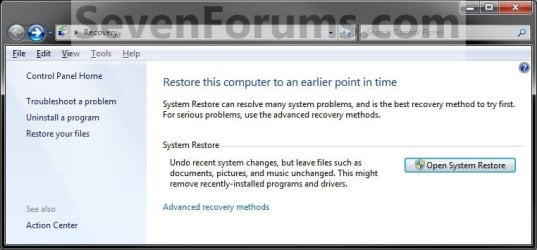
Recovery.jpg


OPTION ONE

To Download the "Recovery" Shortcut


1. Click on the download button below to download the Recovery.zip file.

Download


2. Click on Save, and save the .zip file to the desktop.

3. Open the .zip file and extract the Recovery shortcut to the desktop.

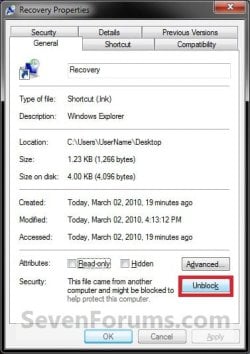
4. Right click on the Recovery shortcut, and click on Properties, General tab, and on the Unblock button. (See screenshot below)
NOTE: If you do not have a Unblock button under the General tab, then the shortcut is already unblocked and you can continue on to step 5.
Unblock.jpg
5. Move the shortcut to where you like for easy use.

6. When done, you can delete the downloaded .zip file on the desktop if you like, or save it to use again.


OPTION TWO

To Manually Create the "Recovery" Shortcut


1. Right click on a empty area on desktop, and click on New and Shortcut.

2. Copy and paste the location below into the location area, and click on the Next button. (See screenshot below)

Code:
%windir%\explorer.exe shell:::{9FE63AFD-59CF-4419-9775-ABCC3849F861}
Step1.jpg
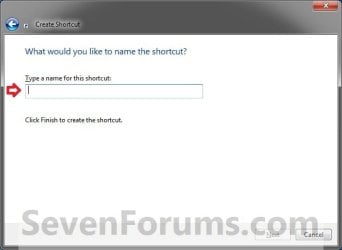
3. Type Recovery for the name, and click on the Finish button. (See screenshot below)
NOTE: You can name this anything you would like though.
Step2.jpg
4. Right click on the new Recovery shortcut on the Desktop and click on Properties.

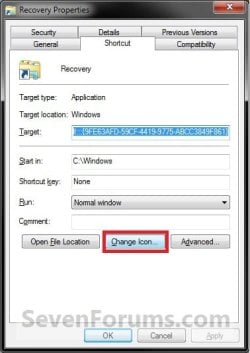
5. Click on the Shortcut tab, then click on the Change Icon button. (See screenshot below)
Step3.jpg
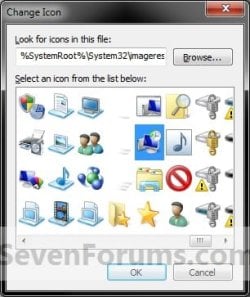
6. In the line under "Look for icons in this file", copy and paste the location below and press Enter. (See screenshot below)
%SystemRoot%\System32\imageres.dll
Step4.jpg
7. Select the icon highlighted in blue above and click on OK. (See screenshot above)
NOTE: You can use any icon that you would like instead though.

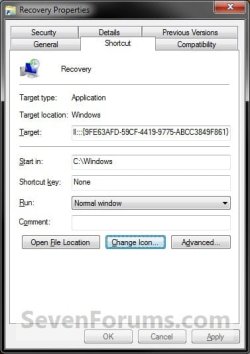
8. Click on OK. (See screenshot below)
Step5.jpg
9. Move the shortcut to where you like for easy use.
That's it,
Shawn


Attachments

Last edited:
I tried both methods, the shortcut from the download doesn't do anything when I double click it. The shortcut that I manually created opens up My Documents folder.

Any advice?
 

My Computer

Computer Manufacturer/Model Number
HP Pavilion dv5 series entertainment notebook PC
OS
Windows 7 Home Premium 32bit
CPU
Intel Mobile Core 2 Duo T6400 @ 2.00GHz Penryn 45nm Technolo
Motherboard
Quanta 3603 (CPU)
Memory
2.00GB single channel DDR2 @ 339 MHz (6-6-6-18)
Graphics Card(s)
512mB GeForce 9200M GS (HP)
Sound Card
IDT High Definition audio CODEC
Monitor(s) Displays
Generic PnP Monitoe (1280 x 800 @ 60Hz)
Hard Drives
313GB Toshiba MK3252GSX ATA device (SATA)
Hello Jiamin, and welcome to Seven Forums.

Try downloading the shortcut again to see if this one will work for you. :)
 

My Computer

Computer type
PC/Desktop
Computer Manufacturer/Model Number
Self built custom
OS
64-bit Windows 11 Pro for Workstations
CPU
Intel i7-8700K OC'd to 5 GHz
Motherboard
ASUS ROG Maximus XI Formula Z390
Memory
64 GB (4x16GB) G.SKILL TridentZ RGB DDR4 3600 MHz
Graphics Card(s)
ASUS ROG-STRIX-GTX1080TI-O11G-GAMING
Sound Card
Integrated
Monitor(s) Displays
2 x Samsung Odyssey G7 27"
Screen Resolution
2560x1440
Hard Drives
1TB Samsung 990 PRO M.2,
4TB Samsung 990 PRO PRO M.2,
TerraMaster F8 SSD Plus NAS
PSU
Seasonic Prime Titanium 850W
Case
Thermaltake Core P3
Cooling
Corsair Hydro H115i
Keyboard
Logitech wireless K800
Mouse
Logitech MX Master 4
Internet Speed
2 Gb/s Download and 100 Mb/s Upload
Antivirus
Malwarebyte Anti-Malware Premium
Browser
Google Chrome
Other Info
Logitech Z625 speaker system,
Logitech BRIO 4K Pro webcam,
HP Color LaserJet Pro MFP M477fdn,
APC SMART-UPS RT 1000 XL - SURT1000XLI,
Galaxy S23 Plus phone
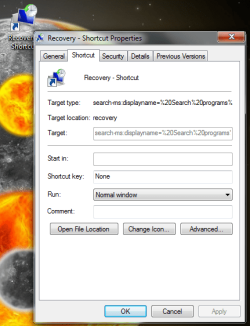
I am just wondering how you exactly got the shortcut. I tried to find it under a .cpl but couldn't. I also dragged it out of the search box in the start menu and onto my desktop. I right-clicked it and went to properties, but couldn't copy the target location.

kjs.png
 
Last edited by a moderator:

My Computer

Computer Manufacturer/Model Number
Dell Studio 1558 Laptop
OS
Windows 7 Ultimate x64
CPU
Intel Core i3 330M @ 2.13GHz
Motherboard
Dell Inc. 0G939P (U2E1)
Memory
4.00 GB Dual-Channel DDR3 @ 532MHz
Graphics Card(s)
Intel(R) HD Graphics
Sound Card
IDT High Definition Audio CODEC
Monitor(s) Displays
Generic PnP Monitor
Screen Resolution
1280x720@60Hz
Hard Drives
488GB Seagate ST9500420AS ATA Device (SATA)
Keyboard
Standard PS/2 Keyboard
Mouse
Dell Touchpad
Hello Lol Froob, and welcome to Seven Forums.

There's not a .cpl file for this shortcut. Did you try either option in the tutorial to have the shortcut?
 

My Computer

Computer type
PC/Desktop
Computer Manufacturer/Model Number
Self built custom
OS
64-bit Windows 11 Pro for Workstations
CPU
Intel i7-8700K OC'd to 5 GHz
Motherboard
ASUS ROG Maximus XI Formula Z390
Memory
64 GB (4x16GB) G.SKILL TridentZ RGB DDR4 3600 MHz
Graphics Card(s)
ASUS ROG-STRIX-GTX1080TI-O11G-GAMING
Sound Card
Integrated
Monitor(s) Displays
2 x Samsung Odyssey G7 27"
Screen Resolution
2560x1440
Hard Drives
1TB Samsung 990 PRO M.2,
4TB Samsung 990 PRO PRO M.2,
TerraMaster F8 SSD Plus NAS
PSU
Seasonic Prime Titanium 850W
Case
Thermaltake Core P3
Cooling
Corsair Hydro H115i
Keyboard
Logitech wireless K800
Mouse
Logitech MX Master 4
Internet Speed
2 Gb/s Download and 100 Mb/s Upload
Antivirus
Malwarebyte Anti-Malware Premium
Browser
Google Chrome
Other Info
Logitech Z625 speaker system,
Logitech BRIO 4K Pro webcam,
HP Color LaserJet Pro MFP M477fdn,
APC SMART-UPS RT 1000 XL - SURT1000XLI,
Galaxy S23 Plus phone
Yes the shortcut download works and I can go to the Recovery menu with it. I actually had no doubts it would work, I was just wondering how you got the shortcut because I tried and couldn't find it.
 

My Computer

Computer Manufacturer/Model Number
Dell Studio 1558 Laptop
OS
Windows 7 Ultimate x64
CPU
Intel Core i3 330M @ 2.13GHz
Motherboard
Dell Inc. 0G939P (U2E1)
Memory
4.00 GB Dual-Channel DDR3 @ 532MHz
Graphics Card(s)
Intel(R) HD Graphics
Sound Card
IDT High Definition Audio CODEC
Monitor(s) Displays
Generic PnP Monitor
Screen Resolution
1280x720@60Hz
Hard Drives
488GB Seagate ST9500420AS ATA Device (SATA)
Keyboard
Standard PS/2 Keyboard
Mouse
Dell Touchpad
I got the GUID number {long number} that opens to this Recovery location when used in the target location like in step 2 in OPTION TWO from in the HKEY_CURRENT_USER\CLSID key in the registry. :)
 

My Computer

Computer type
PC/Desktop
Computer Manufacturer/Model Number
Self built custom
OS
64-bit Windows 11 Pro for Workstations
CPU
Intel i7-8700K OC'd to 5 GHz
Motherboard
ASUS ROG Maximus XI Formula Z390
Memory
64 GB (4x16GB) G.SKILL TridentZ RGB DDR4 3600 MHz
Graphics Card(s)
ASUS ROG-STRIX-GTX1080TI-O11G-GAMING
Sound Card
Integrated
Monitor(s) Displays
2 x Samsung Odyssey G7 27"
Screen Resolution
2560x1440
Hard Drives
1TB Samsung 990 PRO M.2,
4TB Samsung 990 PRO PRO M.2,
TerraMaster F8 SSD Plus NAS
PSU
Seasonic Prime Titanium 850W
Case
Thermaltake Core P3
Cooling
Corsair Hydro H115i
Keyboard
Logitech wireless K800
Mouse
Logitech MX Master 4
Internet Speed
2 Gb/s Download and 100 Mb/s Upload
Antivirus
Malwarebyte Anti-Malware Premium
Browser
Google Chrome
Other Info
Logitech Z625 speaker system,
Logitech BRIO 4K Pro webcam,
HP Color LaserJet Pro MFP M477fdn,
APC SMART-UPS RT 1000 XL - SURT1000XLI,
Galaxy S23 Plus phone
Back
Top