Recue disks failed!

bertie11

New member
Member
VIP
Local time
6:42 PM
Messages
254
I had trouble recently where I just couldn't boot at all. It just got to the HP logo and Press ESC but I though OK, I'll just use my rescue disks(I had used up most of my other options). After a long wait the process finished only to tell me that a file was missing, without telling what the missing file was!

So my question is, shall I dump these 3 disks and reclaim the Recovery partition as well?

Win 7 HP 64bit Pavilion DV6-2113SA.
 

My Computer

Computer type
Laptop
Computer Manufacturer/Model Number
HP Envy 15
OS
Windows 8.1.1
CPU
AMD A10-5750M APU with Radeon(tm) HD Graphics
Memory
8gb
Hard Drives
1TB Serial ATA 16mb buffer
Does the system boot into Windows now? If not, what happens when you turn it on with the recovery DVDs removed?
 

My Computer

OS
Windows

My Computer

Computer type
PC/Desktop
Computer Manufacturer/Model Number
Self Assembled
OS
Microsoft Windows 10 Pro Insider Preview 64-bit
CPU
Intel(R) Core(TM) i3-4130 CPU @ 3.40GHz
Motherboard
Gigabyte Technology Co., Ltd. B85M-D3H
Memory
Corsair Vengence 4GB x2 (8.00GB Dual-Channel DDR3 @ 798MHz)
Graphics Card(s)
2047MB GeForce GTS 450 (ZOTAC International)
Sound Card
Onboard (Realtek High Definition Audio)
Monitor(s) Displays
LG Flatron E2040T
Screen Resolution
1600x900
Hard Drives
Western Digital 1 TB
Seagate 500 GB
PSU
Corsair VS550
Case
Cooler Master K380
Cooling
Cooler Master Seidon 120V Plus
Keyboard
Logitech MK260r
Mouse
Logitech MK260r
Internet Speed
PMPL Broadband
Antivirus
Windows Defender + MBAM
Browser
Firefox
Other Info
Dell Studio 15" Laptop
Sounds like they are HP rescue disks. Are you able to boot into the HP recovery environment. I think you can get to it after pressing Esc on boot. Maybe F11.
 

My Computer

Computer type
Laptop
Computer Manufacturer/Model Number
Hewlett-Packard/G62-107SA Notebook
OS
Microsoft Windows 7 Home Premium 64-bit Service Pack 1
CPU
Intel(R) Core(TM) i3 CPU M 330 @ 2.13GHz
Motherboard
Hewlett-Packard 1425
Memory
8 GB DDR3
Graphics Card(s)
Intel(R) HD Graphics
Sound Card
Realtek High Definition Audio
Monitor(s) Displays
Builtin
Screen Resolution
1366 x 768 x 32 bits (4294967296 colors) @ 60 Hz
Hard Drives
250 GB SATA Hard Disk Drive 7200 rpm
2TB Seagate GoFlex USB 2 Drive
1TB Iomega Prestige USB 2 Drive
1.5TB Iomega Prestige USB 2 Drive (Samsung)
2TB WD MyBook Live NAS.
Mouse
Logitech Anywhere MX
Internet Speed
152 Mbs download 10 Mbs upload
Antivirus
Norton 360
Browser
Chrome
HP Recover Windows 7 Operating System Using HP Recovery - HP Customer Care (United States - English)

If Factory Recovery won't run from its partition at boot as given in tutorial above and Recovery Disks will not complete correctly, your options are to contact HP to order another set of Recovery Disks, or clean reinstall with a Win7 Installation DVD using the Product Key on your COA sticker: Reinstalling Windows 7

You can also try this to enter the Device manager to uninstall any drivers which are in error to see if it lets installation complete: Device Manager - Access During Windows 7 Installation
 
Thanks guys. I didn't give enough info, sorry for that!

I got my system working by using Wondershare Liveboot disk. I had to repair 3 times and then I was able to boot up again and everything has been fine since. The windows repair disk said it couldn't repair it and to explore other options. Even doing an Aacronis image restore didn't fix it until I used Wondershare Liveboot.

I was asking about the 3 recovery disks because after about 2 hours of waiting the recovery finished only to say that there was a file missing! Not much help.

I'm not bothered about restoring it to factory condition anyway so I was just asking about reclaiming the recovery partition, as I don't need it.
 

My Computer

Computer type
Laptop
Computer Manufacturer/Model Number
HP Envy 15
OS
Windows 8.1.1
CPU
AMD A10-5750M APU with Radeon(tm) HD Graphics
Memory
8gb
Hard Drives
1TB Serial ATA 16mb buffer
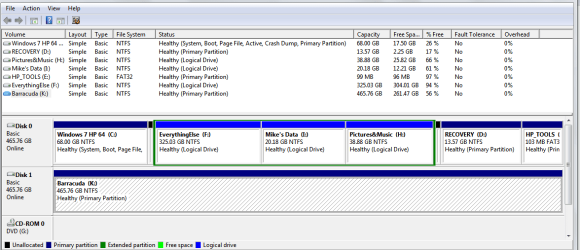
Please post back a screenshot of your maximized Disk Mgmt drive map with listings, using Snipping Tool in Start Menu. We'll give you the failsafe steps to recover the Recovery partition HD space into Win or wherever you want to put it.
 
Thank you Greg

Here is the attachment

I think C:\Windows 7 HP 64 please could use a bit more space maybe, please.

Much obliged.
 

Attachments

  • Capture.PNG
    Capture.PNG
    22.1 KB · Views: 18

My Computer

Computer type
Laptop
Computer Manufacturer/Model Number
HP Envy 15
OS
Windows 8.1.1
CPU
AMD A10-5750M APU with Radeon(tm) HD Graphics
Memory
8gb
Hard Drives
1TB Serial ATA 16mb buffer
I have a HP recovery disc and I can't boot into it like a normal disk, I have to tap F10 on the BIOS to enter HP Recovery Mode.
 

My Computer

Computer type
PC/Desktop
Computer Manufacturer/Model Number
HP
OS
Windows 7 Ultimate
CPU
DualCore Intel Pentium D 930, 3000 MHz (15 x 200)
Motherboard
Asus P5LP-LE (Emery)
Memory
3x512mb 1x1GB
Graphics Card(s)
NVIDIA GeForce 7800 GTX
Sound Card
Realtek ALC882/D/M @ Intel 82801GB ICH7
Monitor(s) Displays
Iiyama ProLite E2407HDS
Screen Resolution
1920 x 1080 70 Hz
Hard Drives
1TB WD10EARS-00Y5B1 ATA Device
Keyboard
Hewlett Packard Wireless Ergo
Mouse
Logitech USB Wheel Mouse
Internet Speed
20mbps Download - 2mbps Upload
Antivirus
Windows Defender - Malwarebytes Anti Malware
Browser
Google Chrome
If you don't need the HP Recovery and TOols partitions you can delete them in Disk Management and create new partition(s) in that space.

If you need to expand C then it will be a little more involved but doable with free Partition Wizard bootable CD. Let us know.
 
Hi Greg

Recovery and HP Tools appear to be adjacent, so do I need to 'merge' them, create a partition, move that partition adjacent to C:\Windows and then merge C:\ and the new partition?

I've got the iso CD so I'm ready to go!

Thanks.
 

My Computer

Computer type
Laptop
Computer Manufacturer/Model Number
HP Envy 15
OS
Windows 8.1.1
CPU
AMD A10-5750M APU with Radeon(tm) HD Graphics
Memory
8gb
Hard Drives
1TB Serial ATA 16mb buffer
Easiest will be to delete the Recovery and Tools partitions to create a new partition there or add them to H.

If you want to add more space to C, boot free Partition Wizard CD, rightclick on F to Resize, slide its right grey border to the right to free up space on its left., click OK.

Next rightclick C to Resize, grab and slide the right grey border to the right to take up the space you made from F, click OK. Apply all steps.
 
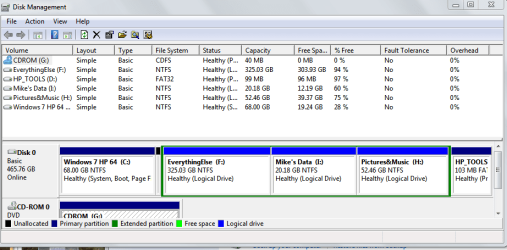
Recovery partition now absorbed by H:\

Decided to keep HP Tolls as only 200MB.

Left C:\ as it is for the moment.

Attached capture1.

Thanks again Greg, much appreciated!
 

Attachments

  • Capture1.PNG
    Capture1.PNG
    22 KB · Views: 4

My Computer

Computer type
Laptop
Computer Manufacturer/Model Number
HP Envy 15
OS
Windows 8.1.1
CPU
AMD A10-5750M APU with Radeon(tm) HD Graphics
Memory
8gb
Hard Drives
1TB Serial ATA 16mb buffer
Back
Top