Remote Desktop Connection (RDC) - Network

How to Enable Windows to Make and Accept a Remote Desktop Connection

   Information
This tutorial will show you how to enable Remote Desktop Connection, and to connect remotely in Vista, Windows 7, and Windows 8.


   Warning
While all editions of Vista, Windows 7, and Windows 8 can be a remote desktop client...
  • Only the Vista Business, Ultimate, and Enterprise editions can host a remote desktop connection.
  • Only the Windows 7 Professional, Ultimate, and Enterprise editions can host a remote desktop connection.
  • Only the Windows 8 Pro and Enterprise editions can host a remote desktop connection.


FIRST

To Enable Remote Connection


1. Go to Control Panel>System>Advanced System Settings
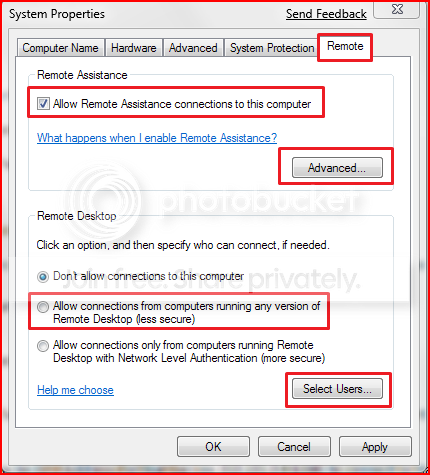
SystemProperties.png

2. Go to Remote tab.

3. Under Remote Assistance, put a check mark on Allow Remote Assistance connections to this computer.
Note: This automatically adds Remote Desktop exception to Windows Firewall.

4. Click on Apply.


OPTION ONE

To Connect to a Remote Desktop (Local Area Connectivity)


1. Go to Start>All Programs>Accessories>Remote Desktop Connection
NOTE: You could also press the Windows + R keys to open the Run dialog, type mstsc.exe, and press Enter.
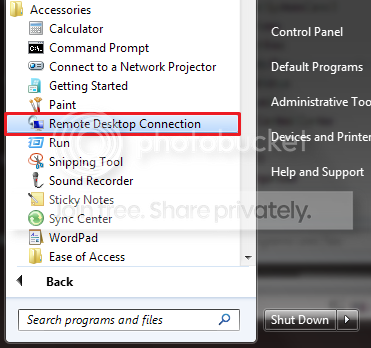
RDCLocation.png

2. Enter the Computer Name or IP address of the computer you wish to connect to.
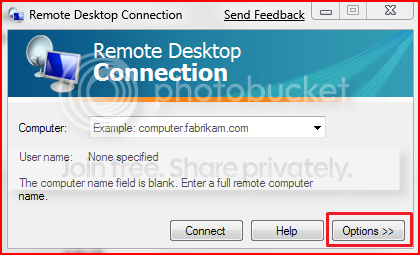
RemoteDesktopConnection.png

3. For more connection options, click on Options
NOTE: Here you can save the connection profile, adjust display properties, run specified programs upon connection, adjust connection bandwidth, etc. For more information on specific tabs, click on Help.
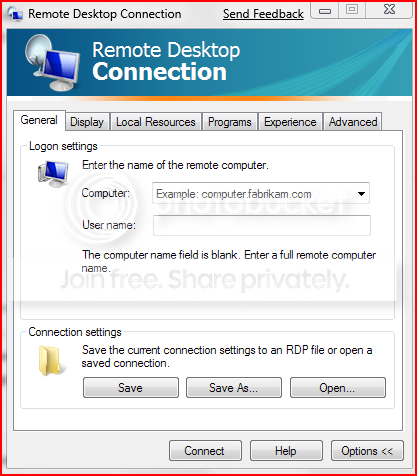
RemoteDesktopConnectionExpanded.png

4. Click on Connect.

5. Enter your log in credentials of a user account on the remote computer that is allowed to do a remote desktop connection.
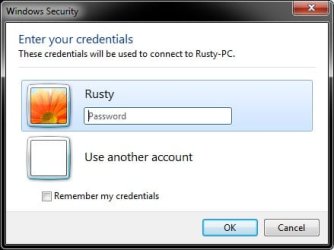
Credentials.jpg


OPTION TWO

Enable Windows to Accept Remote Desktop Connection (Local Area Connectivity)


1. Go to Control Panel>System>Advanced System Settings
SystemProperties.png

2. Go to Remote tab.

3. Under Remote Assistance, put a check mark on Allow Remote Assistance connections to this computer
Note: This automatically adds Remote Desktop exception in Windows Firewall.

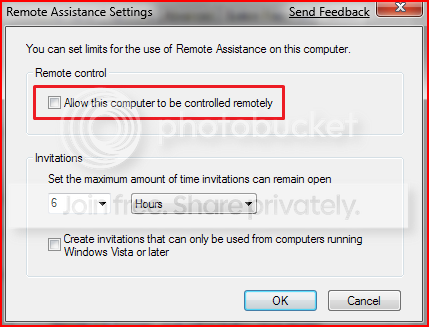
4. Click on Advanced...
RemoteAssistantSettings.png

5. Put a check mark on Allow this computer to be controlled remotely.

6. Click on OK.
Note: This automatically adds Remote Assistance exception in Windows Firewall.

7. Remote Desktop Connection behind a router (Single computer)
A) Configure your router's port forwarding to allow connections on port 3389
B) Now in RDC just type the IP address supplied by your ISP
8. Remote Desktop Connection behind a router (Multiple computers)
A) For each computer you want to remotely connect to you have to configure each computer to listen to different ports to avoid port conflicts by changing the registry key in:

HKEY_LOCAL_MACHINE\System\CurrentControlSet\Control\Terminal Server\WinStations\RDP-Tcp\PortNumber
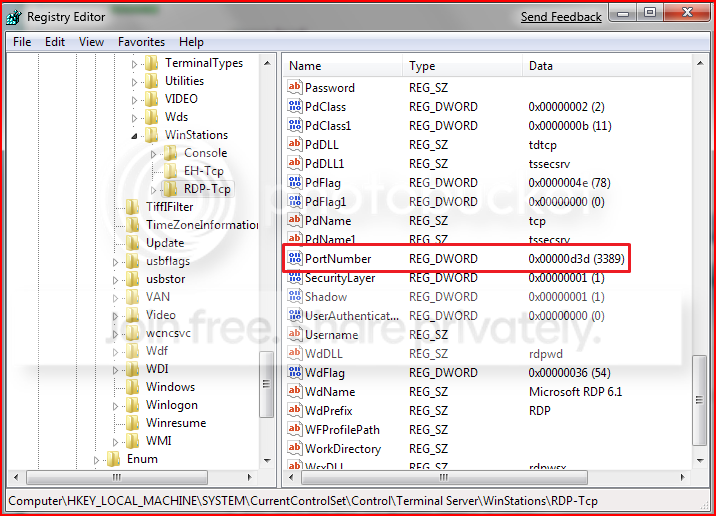
PortConfiguration.png

B) Port Numbers are in Decimal format
Note: To avoid conflict with other programs it is suggested to select a port between 49152 and 65535.

C) Now take that number you've chosen your computer to listen to and configure your router to port forward to that number

D) To connect to that computer your format will now be ISPIPAddress:PortNumber (ex. 222.222.2.8:1234) to connect to that specific computer behind the router
Important: If you have a firewall software running, that too has to be configured to allow communication to the port you opened in your router as well.

Note: The above steps assumes that you're not part of a domain.

 
Last edited by a moderator:

My Computer

Computer Manufacturer/Model Number
Custom
OS
Windows 7 Professional x64
CPU
Intel i7 2600K OC'd @ 4620 MHz
Motherboard
Asus P8Z68-V Pro
Memory
16GB GSkill Sniper 2133 Mhz (4x4GB)
Graphics Card(s)
EVGA GeForce GTX 480 SuperClocked+
Sound Card
Realtek High Definition Audio
Monitor(s) Displays
2x Acer S273HLbmii 27"
Screen Resolution
2 x 1920x1080
Hard Drives
64GB Crucial M4 SSD

Storage: Hitachi 1TB 5400RPM, Samsung 1.5TB 5400RPM
PSU
Corsair HW Series 750w (modular)
Case
Cooler Master HAF 932 Advanced Blue Edition
Cooling
CM Hyper 212+ CPU cooler, 3x 230mm + 1x 140mm case fans
Keyboard
Logitech MK320 (wireless)
Mouse
Logitech MK320 (wireless)
Internet Speed
30 Mb/s : 2 Mb/s
Answered

I have Win 7 Ultimate 64 bit and set up all the above settings to allow remote access. When I try to access the machine (from an XP machine on the same in-house network or from my work XP Pro machine outside the network) I get the the login screen asking me to select the user and enter my PASSWORD. I selected the User and entered the Password that I use for a direct login on the win 7 machine and get a message that my password is incorrect. I am able to go directly to that Win 7 machine and log on locally using the same Password so, it cant be password related (yes i checked CAPS LOCK) and it cant be user name as I am clicking on the user avatar. Am I missing something in the setup?
Note: prior to win 7 machine, I had an XP machine and never had issues connecting remotely.

I have seen this question asked several times on different forums but no-one ever attempts to answer


I just realized that when I attempted the remote from work (XP) to home (WIN 7 ULTIMATE) I was using the old username so my options were to login as the old username (bart) or "Other User" I then realized that My username was different now.
I edited my rdc login info to reflect my new user name and it worked perfectly.

I really hate when us "Smart People" make silly mistakes like this. thank you all though!
 

My Computer

OS
Windows 7 Ultimate x64
Great, glad to hear it. No worries, we all miss things at times, many of which are more obvious than a user account with the same picture.

Let us know if you need anything else!
 

My Computer

Computer Manufacturer/Model Number
Custom
OS
Windows 7 Professional x64
CPU
Intel i7 2600K OC'd @ 4620 MHz
Motherboard
Asus P8Z68-V Pro
Memory
16GB GSkill Sniper 2133 Mhz (4x4GB)
Graphics Card(s)
EVGA GeForce GTX 480 SuperClocked+
Sound Card
Realtek High Definition Audio
Monitor(s) Displays
2x Acer S273HLbmii 27"
Screen Resolution
2 x 1920x1080
Hard Drives
64GB Crucial M4 SSD

Storage: Hitachi 1TB 5400RPM, Samsung 1.5TB 5400RPM
PSU
Corsair HW Series 750w (modular)
Case
Cooler Master HAF 932 Advanced Blue Edition
Cooling
CM Hyper 212+ CPU cooler, 3x 230mm + 1x 140mm case fans
Keyboard
Logitech MK320 (wireless)
Mouse
Logitech MK320 (wireless)
Internet Speed
30 Mb/s : 2 Mb/s
hello, i am missing:
RDCLocation.png


Where do i find it? When i use search, it cannot be located.

Please advise.
 

My Computer

OS
Windows 7 x64
CPU
Q9550 (3.7Ghz)
Motherboard
Asus P5E
Memory
Mushkin 8GB 1066
Graphics Card(s)
ATI 4870
Hard Drives
Many
PSU
Antec True Power
Case
Antec
Cooling
Zalman 9700NT
Hello,

Look in C:\Windows\system32, and see if mstsc.exe and mstscax.dllare there. If so, try opening mstsc.exe and see what happens.
 

My Computer

Computer Manufacturer/Model Number
Custom
OS
Windows 7 Professional x64
CPU
Intel i7 2600K OC'd @ 4620 MHz
Motherboard
Asus P8Z68-V Pro
Memory
16GB GSkill Sniper 2133 Mhz (4x4GB)
Graphics Card(s)
EVGA GeForce GTX 480 SuperClocked+
Sound Card
Realtek High Definition Audio
Monitor(s) Displays
2x Acer S273HLbmii 27"
Screen Resolution
2 x 1920x1080
Hard Drives
64GB Crucial M4 SSD

Storage: Hitachi 1TB 5400RPM, Samsung 1.5TB 5400RPM
PSU
Corsair HW Series 750w (modular)
Case
Cooler Master HAF 932 Advanced Blue Edition
Cooling
CM Hyper 212+ CPU cooler, 3x 230mm + 1x 140mm case fans
Keyboard
Logitech MK320 (wireless)
Mouse
Logitech MK320 (wireless)
Internet Speed
30 Mb/s : 2 Mb/s
That worked, thanks a lot sir.
 

My Computer

OS
Windows 7 x64
CPU
Q9550 (3.7Ghz)
Motherboard
Asus P5E
Memory
Mushkin 8GB 1066
Graphics Card(s)
ATI 4870
Hard Drives
Many
PSU
Antec True Power
Case
Antec
Cooling
Zalman 9700NT
I have the same problem

I am having problem RDC into Windows 7 Prof thru the web too


I have no problem RDC into Windows XP Professional (behind a router) thru the web. But when the Windows XP Professonal upgraded to Windows 7 Profesional, RDC thru the web does not work. It seems the PC is found but rejected right away.

Anti-virus (Microsoft Security Essential)
Firewall ( Microsoft Firewall)
Port Used - 3389
Router Linksys (port forward same as XP machine).
 

My Computer

Computer Manufacturer/Model Number
Dell optipex
OS
Windows 7 profession x86
CPU
Dual

My Computer

Computer Manufacturer/Model Number
Custom
OS
Windows 7 Professional x64
CPU
Intel i7 2600K OC'd @ 4620 MHz
Motherboard
Asus P8Z68-V Pro
Memory
16GB GSkill Sniper 2133 Mhz (4x4GB)
Graphics Card(s)
EVGA GeForce GTX 480 SuperClocked+
Sound Card
Realtek High Definition Audio
Monitor(s) Displays
2x Acer S273HLbmii 27"
Screen Resolution
2 x 1920x1080
Hard Drives
64GB Crucial M4 SSD

Storage: Hitachi 1TB 5400RPM, Samsung 1.5TB 5400RPM
PSU
Corsair HW Series 750w (modular)
Case
Cooler Master HAF 932 Advanced Blue Edition
Cooling
CM Hyper 212+ CPU cooler, 3x 230mm + 1x 140mm case fans
Keyboard
Logitech MK320 (wireless)
Mouse
Logitech MK320 (wireless)
Internet Speed
30 Mb/s : 2 Mb/s
Windows 7 Remote Desktop on Web failed

In order to sort out the issue, I have 2 machines on my LAN, one with XP prof and another Windows 7 prof. Windows 7 prof Remote Desktop does not work outside of LAN.

The following has been configured and still failed with Windows 7 Remote Desktop :-
(a) Remote Desktop enable
(b) Port use default 3389
(c) Router forward 3389 port to specific computer
(d) Firewall (Microsoft) auto updated by (a) during enable - verified.
(e) No other anti-virus except Microsoft Security Essential

The followings have been done to verified condition
(1) A XP machine with Remote Desktop is functioning on the web
(1.1) Set up a machine with Windows XP prof, this machine with port forwarding setting in router, Windows firewall opened.
(1.2) This test concludes external IP is corrected
(1.3) Port forwarding in router is functioning

(2) The Windows 7 Prof machine with Remote Desktop working on LAN only
 

My Computer

Computer Manufacturer/Model Number
Dell optipex
OS
Windows 7 profession x86
CPU
Dual
If you have two machines in the same LAN both hosting remote desktop sessions, they will need to be forwarded differently.

How are you handling the different incoming connections? Have you changed the port in the registry? Are you using a different incoming port and redirecting it to 3389 in the router?
 

My Computer

Computer Manufacturer/Model Number
Custom
OS
Windows 7 Professional x64
CPU
Intel i7 2600K OC'd @ 4620 MHz
Motherboard
Asus P8Z68-V Pro
Memory
16GB GSkill Sniper 2133 Mhz (4x4GB)
Graphics Card(s)
EVGA GeForce GTX 480 SuperClocked+
Sound Card
Realtek High Definition Audio
Monitor(s) Displays
2x Acer S273HLbmii 27"
Screen Resolution
2 x 1920x1080
Hard Drives
64GB Crucial M4 SSD

Storage: Hitachi 1TB 5400RPM, Samsung 1.5TB 5400RPM
PSU
Corsair HW Series 750w (modular)
Case
Cooler Master HAF 932 Advanced Blue Edition
Cooling
CM Hyper 212+ CPU cooler, 3x 230mm + 1x 140mm case fans
Keyboard
Logitech MK320 (wireless)
Mouse
Logitech MK320 (wireless)
Internet Speed
30 Mb/s : 2 Mb/s
Must use VPN for Network as Workplace for Win 7 ?

I have setup the followings :-
(1) Set Registry to use 2 ports 3389, 50001
(2) Open Windows firewall for both 3389, 50001
(3) Router port forward 3389, 50001 to each specific Lan IP addresses
---------------------------------------
Still result, RDC works within LAN and outside LAN failed. Even calling External IP address from the LAN does not work either. But all these only happen to a RDC hosting machine using Windows 7 Professional, the machine using XP Professional has no problem doing RDC external from the web.

Here is something particular with Windows 7, I choose to setup my Network as WorkPlace - not Home. Microsoft might enforce user to do RDC with VPN. So I installed LogMein's VPN, and EVERYTHING WORKING. So here is my assumptiong running your network as Workplace, you must run VPN or do some Windows Registry.
 

My Computer

Computer Manufacturer/Model Number
Dell optipex
OS
Windows 7 profession x86
CPU
Dual
Hi, i am new to this forum.
I found you because i have a little problem with remote desktop connections.
First of all, i have two pcs. Both with Win 7 Pro. One x86 and one x64.
I enabled remote connections on the x86 machine and configured the other one too.
Now i have the problem with the windows firewall on the client pc. When i generally allow all outgoing connections on the firewall i can create a remote connection.
But i want to generally deny all outgoing traffic and allow only that what i want.
So what do i have to do to get the remote stuff to work?

I allready allowed remotedesktop above the "firewall -> allow program -> remotedesktop" but that didnt worked.
Does anyone know which rules i need to allow in the advanced firewall window?

Both PCs are in the same LAN so there are is no portforwarding necessary.

Greetings
 

My Computer

OS
Win 7 Pro x64
Hello,

Make sure Port 3389 is open; it uses the TCP protocol, if it matters any.
 

My Computer

Computer Manufacturer/Model Number
Custom
OS
Windows 7 Professional x64
CPU
Intel i7 2600K OC'd @ 4620 MHz
Motherboard
Asus P8Z68-V Pro
Memory
16GB GSkill Sniper 2133 Mhz (4x4GB)
Graphics Card(s)
EVGA GeForce GTX 480 SuperClocked+
Sound Card
Realtek High Definition Audio
Monitor(s) Displays
2x Acer S273HLbmii 27"
Screen Resolution
2 x 1920x1080
Hard Drives
64GB Crucial M4 SSD

Storage: Hitachi 1TB 5400RPM, Samsung 1.5TB 5400RPM
PSU
Corsair HW Series 750w (modular)
Case
Cooler Master HAF 932 Advanced Blue Edition
Cooling
CM Hyper 212+ CPU cooler, 3x 230mm + 1x 140mm case fans
Keyboard
Logitech MK320 (wireless)
Mouse
Logitech MK320 (wireless)
Internet Speed
30 Mb/s : 2 Mb/s
Yeah exactly. thats it :D
Just create an outgoing rule that allows 3389 as TCP and it works even with whitelist mode :D
 

My Computer

OS
Win 7 Pro x64
Cable Modem + Router
(Router added by me, wired connection even though the router is wireless).

There are 2 computer in the network, Home Premium and Ultimate.
Now another Ultimate will come.

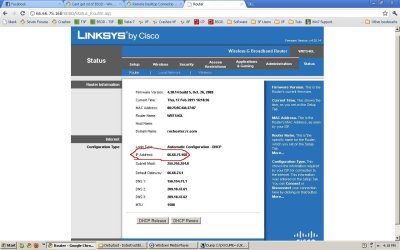
My question is, What is the IP address supplied by the ISP?
I wasn't supplied any.
Is it the one that web pages see as my IP address starting with 7?
 

My Computer

Computer Manufacturer/Model Number
ASUS G72 Notebook
OS
Windows 7 Ultimate 64-bit
CPU
Intel® Core™2 Duo mobile processor P8700 2.53 GHz
Memory
6GB DDRII
Graphics Card(s)
NVIDIA GeForce GTX 260M
Sound Card
EAX Advanced HD 4.0 + Logitech Wireless Headset G930
Monitor(s) Displays
17.3" LED-backlit LCD high-definition plus widescreen
Screen Resolution
1600 x 900
Hard Drives
2 x Seagate Momentus 500 GB 5400.6 SATA 3Gb/s
Cooling
Targus
Mouse
Logitech Wireless Trackball M570
Internet Speed
3 to 6 Mbps Download / .5 to 1 Mbps Upload
Other Info
Clear Modem with Wi-fi*
Comodo Internet Security Premium
Your ISP won't tell you the IP it gives you. You can get it from the router, or you can go to a site such as whatsmyip.com.

New Bitmap Image.JPG
 

My Computer

Computer Manufacturer/Model Number
Custom
OS
Windows 7 Professional x64
CPU
Intel i7 2600K OC'd @ 4620 MHz
Motherboard
Asus P8Z68-V Pro
Memory
16GB GSkill Sniper 2133 Mhz (4x4GB)
Graphics Card(s)
EVGA GeForce GTX 480 SuperClocked+
Sound Card
Realtek High Definition Audio
Monitor(s) Displays
2x Acer S273HLbmii 27"
Screen Resolution
2 x 1920x1080
Hard Drives
64GB Crucial M4 SSD

Storage: Hitachi 1TB 5400RPM, Samsung 1.5TB 5400RPM
PSU
Corsair HW Series 750w (modular)
Case
Cooler Master HAF 932 Advanced Blue Edition
Cooling
CM Hyper 212+ CPU cooler, 3x 230mm + 1x 140mm case fans
Keyboard
Logitech MK320 (wireless)
Mouse
Logitech MK320 (wireless)
Internet Speed
30 Mb/s : 2 Mb/s
Your ISP won't tell you the IP it gives you. You can get it from the router, or you can go to a site such as whatsmyip.com.

I just got confused by the words "IP Address supplied by the ISP".
Thanks for your reply.
 

My Computer

Computer Manufacturer/Model Number
ASUS G72 Notebook
OS
Windows 7 Ultimate 64-bit
CPU
Intel® Core™2 Duo mobile processor P8700 2.53 GHz
Memory
6GB DDRII
Graphics Card(s)
NVIDIA GeForce GTX 260M
Sound Card
EAX Advanced HD 4.0 + Logitech Wireless Headset G930
Monitor(s) Displays
17.3" LED-backlit LCD high-definition plus widescreen
Screen Resolution
1600 x 900
Hard Drives
2 x Seagate Momentus 500 GB 5400.6 SATA 3Gb/s
Cooling
Targus
Mouse
Logitech Wireless Trackball M570
Internet Speed
3 to 6 Mbps Download / .5 to 1 Mbps Upload
Other Info
Clear Modem with Wi-fi*
Comodo Internet Security Premium
You're welcome, glad I could help. :)
 

My Computer

Computer Manufacturer/Model Number
Custom
OS
Windows 7 Professional x64
CPU
Intel i7 2600K OC'd @ 4620 MHz
Motherboard
Asus P8Z68-V Pro
Memory
16GB GSkill Sniper 2133 Mhz (4x4GB)
Graphics Card(s)
EVGA GeForce GTX 480 SuperClocked+
Sound Card
Realtek High Definition Audio
Monitor(s) Displays
2x Acer S273HLbmii 27"
Screen Resolution
2 x 1920x1080
Hard Drives
64GB Crucial M4 SSD

Storage: Hitachi 1TB 5400RPM, Samsung 1.5TB 5400RPM
PSU
Corsair HW Series 750w (modular)
Case
Cooler Master HAF 932 Advanced Blue Edition
Cooling
CM Hyper 212+ CPU cooler, 3x 230mm + 1x 140mm case fans
Keyboard
Logitech MK320 (wireless)
Mouse
Logitech MK320 (wireless)
Internet Speed
30 Mb/s : 2 Mb/s
Have been trying to Remote desktop from my xp machine to my Win7 Enterprise machine. I get the login scree, login and see the desktop, but immediate disconnect from remote and logged off of local login. Anyone have any ideas. Just starting to use Win 7. My xp machine remotes to my 2003 and 2008 servers just fine.
 

My Computer

Computer Manufacturer/Model Number
Dell E6400
OS
Windows 7 Enterprise 64 bit
CPU
Intell P8700
Memory
4 gb

My Computer

Computer Manufacturer/Model Number
Custom
OS
Windows 7 Professional x64
CPU
Intel i7 2600K OC'd @ 4620 MHz
Motherboard
Asus P8Z68-V Pro
Memory
16GB GSkill Sniper 2133 Mhz (4x4GB)
Graphics Card(s)
EVGA GeForce GTX 480 SuperClocked+
Sound Card
Realtek High Definition Audio
Monitor(s) Displays
2x Acer S273HLbmii 27"
Screen Resolution
2 x 1920x1080
Hard Drives
64GB Crucial M4 SSD

Storage: Hitachi 1TB 5400RPM, Samsung 1.5TB 5400RPM
PSU
Corsair HW Series 750w (modular)
Case
Cooler Master HAF 932 Advanced Blue Edition
Cooling
CM Hyper 212+ CPU cooler, 3x 230mm + 1x 140mm case fans
Keyboard
Logitech MK320 (wireless)
Mouse
Logitech MK320 (wireless)
Internet Speed
30 Mb/s : 2 Mb/s
Back
Top