
Remote Desktop Connection (RDC) - Network

How to Enable Windows to Make and Accept a Remote Desktop Connection

   Information
This tutorial will show you how to enable Remote Desktop Connection, and to connect remotely in Vista, Windows 7, and Windows 8.


   Warning
While all editions of Vista, Windows 7, and Windows 8 can be a remote desktop client...
  • Only the Vista Business, Ultimate, and Enterprise editions can host a remote desktop connection.
  • Only the Windows 7 Professional, Ultimate, and Enterprise editions can host a remote desktop connection.
  • Only the Windows 8 Pro and Enterprise editions can host a remote desktop connection.


FIRST

To Enable Remote Connection


1. Go to Control Panel>System>Advanced System Settings
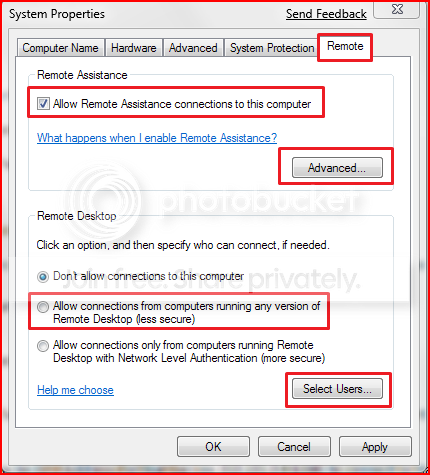
SystemProperties.png

2. Go to Remote tab.

3. Under Remote Assistance, put a check mark on Allow Remote Assistance connections to this computer.
Note: This automatically adds Remote Desktop exception to Windows Firewall.

4. Click on Apply.


OPTION ONE

To Connect to a Remote Desktop (Local Area Connectivity)


1. Go to Start>All Programs>Accessories>Remote Desktop Connection
NOTE: You could also press the Windows + R keys to open the Run dialog, type mstsc.exe, and press Enter.
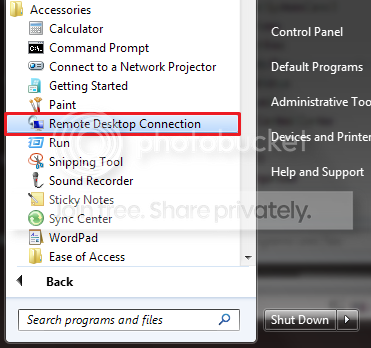
RDCLocation.png

2. Enter the Computer Name or IP address of the computer you wish to connect to.
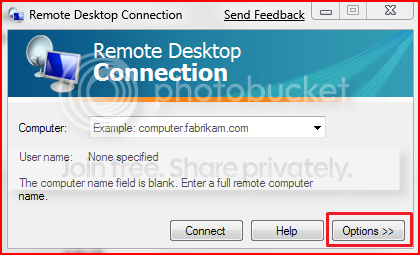
RemoteDesktopConnection.png

3. For more connection options, click on Options
NOTE: Here you can save the connection profile, adjust display properties, run specified programs upon connection, adjust connection bandwidth, etc. For more information on specific tabs, click on Help.
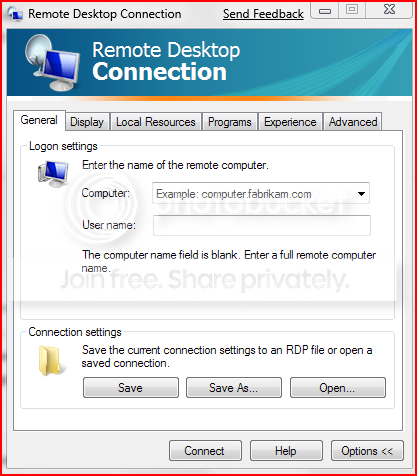
RemoteDesktopConnectionExpanded.png

4. Click on Connect.

5. Enter your log in credentials of a user account on the remote computer that is allowed to do a remote desktop connection.
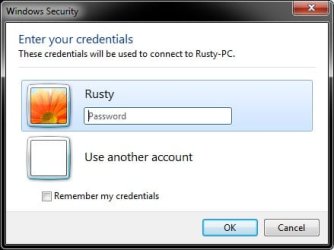
Credentials.jpg


OPTION TWO

Enable Windows to Accept Remote Desktop Connection (Local Area Connectivity)


1. Go to Control Panel>System>Advanced System Settings
SystemProperties.png

2. Go to Remote tab.

3. Under Remote Assistance, put a check mark on Allow Remote Assistance connections to this computer
Note: This automatically adds Remote Desktop exception in Windows Firewall.

4. Click on Advanced...
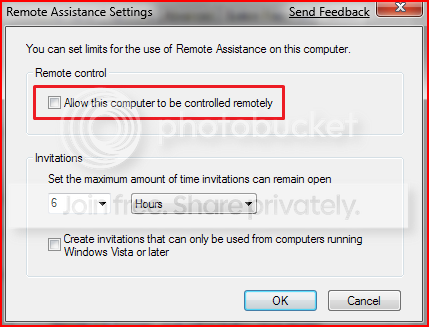
RemoteAssistantSettings.png

5. Put a check mark on Allow this computer to be controlled remotely.

6. Click on OK.
Note: This automatically adds Remote Assistance exception in Windows Firewall.

7. Remote Desktop Connection behind a router (Single computer)
A) Configure your router's port forwarding to allow connections on port 3389
B) Now in RDC just type the IP address supplied by your ISP
8. Remote Desktop Connection behind a router (Multiple computers)
A) For each computer you want to remotely connect to you have to configure each computer to listen to different ports to avoid port conflicts by changing the registry key in:

HKEY_LOCAL_MACHINE\System\CurrentControlSet\Control\Terminal Server\WinStations\RDP-Tcp\PortNumber
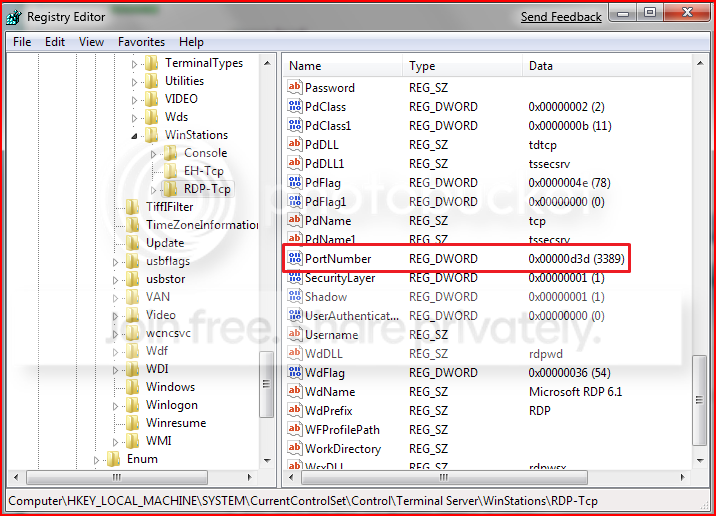
PortConfiguration.png

B) Port Numbers are in Decimal format
Note: To avoid conflict with other programs it is suggested to select a port between 49152 and 65535.

C) Now take that number you've chosen your computer to listen to and configure your router to port forward to that number

D) To connect to that computer your format will now be ISPIPAddress:PortNumber (ex. 222.222.2.8:1234) to connect to that specific computer behind the router
Important: If you have a firewall software running, that too has to be configured to allow communication to the port you opened in your router as well.

Note: The above steps assumes that you're not part of a domain.

 
Last edited by a moderator:
I have Win 7 Ultimate 32bit on two machines, a laptop and a desktop with two monitors. I have no problem connecting to either machine from the other but on the desktop I can't move the session over to the second monitor. This is the only app that has this issue.
Is there something special about RDC that stops it being moved to the other screen?
 

My Computer

OS
Windows 7 Ulimate x32
I have Win 7 Ultimate 32bit on two machines, a laptop and a desktop with two monitors. I have no problem connecting to either machine from the other but on the desktop I can't move the session over to the second monitor. This is the only app that has this issue.
Is there something special about RDC that stops it being moved to the other screen?

Use the restore down button and you should be able to move it to the other screen.
 

My Computer

Computer type
PC/Desktop
Computer Manufacturer/Model Number
Custom Build
OS
Windows 7 Pro 64bit build 7601 SP1
CPU
Intel Core I5 3570K 3.4Ghz w/ Zalman CNPS9900NT RT
Motherboard
MSI Z77A-G45 Gaming
Memory
G.Skill F3-12800CL9D-8GbXL ; 4Gx2
Graphics Card(s)
EVGA Geforce GTX 770 Superclocked
Sound Card
Creative Sound Blaster Z
Monitor(s) Displays
Dual ViewSonic VX2770Smh-LED Black 27"IPS-Panel
Screen Resolution
1920x1080
Hard Drives
Kingston Hyper X 240GB SSD Win8 Pro 64bit 6GB/s Sata III
Intel 335 Series SSD 240GB Win8 Storage 6GB/s Sata III
Intel 320 Series SSD 600GB Storage 3GB/s Sata II
Western Digital Scorpio Black 1TB - Docked via Esata
PSU
Coolermaster GX 750W
Case
Corsair Vengence C70
Cooling
Coolermaster 120mm and Enermax 140mm
Keyboard
Corsair Vengence K70
Mouse
Logitech G500
Internet Speed
22mbps+
Browser
Firefox, Chrome, IE
Other Info
Swan M50W 2.1 speakers
APC UPS
Thermaltake BlacX HDD Dock
Samsung BD Optical Drive
Netgear WNDR4500
I am trying to set up RDC so I can access two different computers from outside my home network. When I go through the step of changing the port assignment in the registry to something other than 3389, the RDC no longer works. As long as I use port 3389 I have no trouble using RDC inside or outside of my home network. I am restarting after the registry change. I've also tried adding new rules to the firewall redirect the port, but no luck.

Update: I finally found another port what would work by changing the registry value. Then I had to turn off Windows Firewall for it to connect on that port. I can't seem to create a rule which will allow RDC to work with the firewall on.
 
Last edited:

My Computer

OS
win7 64 Home Premium
Hi Atom,

Try creating a rule in Window Firewall to allow c:\windows\system32\mstsc.exe, in addition to the port.
 

My Computer

Computer Manufacturer/Model Number
Custom
OS
Windows 7 Professional x64
CPU
Intel i7 2600K OC'd @ 4620 MHz
Motherboard
Asus P8Z68-V Pro
Memory
16GB GSkill Sniper 2133 Mhz (4x4GB)
Graphics Card(s)
EVGA GeForce GTX 480 SuperClocked+
Sound Card
Realtek High Definition Audio
Monitor(s) Displays
2x Acer S273HLbmii 27"
Screen Resolution
2 x 1920x1080
Hard Drives
64GB Crucial M4 SSD

Storage: Hitachi 1TB 5400RPM, Samsung 1.5TB 5400RPM
PSU
Corsair HW Series 750w (modular)
Case
Cooler Master HAF 932 Advanced Blue Edition
Cooling
CM Hyper 212+ CPU cooler, 3x 230mm + 1x 140mm case fans
Keyboard
Logitech MK320 (wireless)
Mouse
Logitech MK320 (wireless)
Internet Speed
30 Mb/s : 2 Mb/s
Ah, well thanks for sharing. Glad you got it working!
 

My Computer

Computer Manufacturer/Model Number
Custom
OS
Windows 7 Professional x64
CPU
Intel i7 2600K OC'd @ 4620 MHz
Motherboard
Asus P8Z68-V Pro
Memory
16GB GSkill Sniper 2133 Mhz (4x4GB)
Graphics Card(s)
EVGA GeForce GTX 480 SuperClocked+
Sound Card
Realtek High Definition Audio
Monitor(s) Displays
2x Acer S273HLbmii 27"
Screen Resolution
2 x 1920x1080
Hard Drives
64GB Crucial M4 SSD

Storage: Hitachi 1TB 5400RPM, Samsung 1.5TB 5400RPM
PSU
Corsair HW Series 750w (modular)
Case
Cooler Master HAF 932 Advanced Blue Edition
Cooling
CM Hyper 212+ CPU cooler, 3x 230mm + 1x 140mm case fans
Keyboard
Logitech MK320 (wireless)
Mouse
Logitech MK320 (wireless)
Internet Speed
30 Mb/s : 2 Mb/s
Hi to all.
I'm able to connect to my pc via remote desktop, but when I close the Remote Desktop windows the relative user (the one I was using for the remote connection) is active but the user windows selection appears. There is a way to "relogin" the user to restore the situation as it was before the remote desktop connection? (the user normally is set to auto login at windows startup).
 

My Computer

OS
windows seven x64
CPU
intel core2 duo e8500 step e0
Motherboard
asus p5k se-epu
Memory
OCZ DDR2 PC2-6400 2GB KIT 2X1024MB
Graphics Card(s)
sapphire toxic ati 4850 512MB
Hard Drives
Seagate Barracuda 7200.11 500 Gb Sata 300 Buffer 32 Mb 7200 Rpm
Cooling
Dark Knight Xigmatek S1283
Hello mcyver,

I wouldn't think so. :(
 

My Computer

Computer Manufacturer/Model Number
Custom
OS
Windows 7 Professional x64
CPU
Intel i7 2600K OC'd @ 4620 MHz
Motherboard
Asus P8Z68-V Pro
Memory
16GB GSkill Sniper 2133 Mhz (4x4GB)
Graphics Card(s)
EVGA GeForce GTX 480 SuperClocked+
Sound Card
Realtek High Definition Audio
Monitor(s) Displays
2x Acer S273HLbmii 27"
Screen Resolution
2 x 1920x1080
Hard Drives
64GB Crucial M4 SSD

Storage: Hitachi 1TB 5400RPM, Samsung 1.5TB 5400RPM
PSU
Corsair HW Series 750w (modular)
Case
Cooler Master HAF 932 Advanced Blue Edition
Cooling
CM Hyper 212+ CPU cooler, 3x 230mm + 1x 140mm case fans
Keyboard
Logitech MK320 (wireless)
Mouse
Logitech MK320 (wireless)
Internet Speed
30 Mb/s : 2 Mb/s
Gosh :-(
 

My Computer

OS
windows seven x64
CPU
intel core2 duo e8500 step e0
Motherboard
asus p5k se-epu
Memory
OCZ DDR2 PC2-6400 2GB KIT 2X1024MB
Graphics Card(s)
sapphire toxic ati 4850 512MB
Hard Drives
Seagate Barracuda 7200.11 500 Gb Sata 300 Buffer 32 Mb 7200 Rpm
Cooling
Dark Knight Xigmatek S1283
Did not work for me

Hi Guys,

Been tryign off and on for months....

I have 2 PC's in the same house with Win 7 Professional. NO Passwords - so that should make it easier... but it always asks for a user name and password.....

What ...the... are these??? Let say Old-PC and New-PC. So I want to connect New-PC to Old-PC and use one of the programmes on it....

No I do not want passwords as it makes life too hard well much harder than it shoudl be... I have wasted days on this simple thing.... Can anyone help?? Can ANYONE email me the instructions with screen shots??

Dan
Rural Australla - yes no one knows outwest.
 

My Computer

OS
Wind 7 Pro 64-bit
Hello,

Passwords are necessary in order to establish a RDC connection. Set a password on the host machine, make sure RDC is enabled, and make sure no firewalls are blocking the connection.
 

My Computer

Computer Manufacturer/Model Number
Custom
OS
Windows 7 Professional x64
CPU
Intel i7 2600K OC'd @ 4620 MHz
Motherboard
Asus P8Z68-V Pro
Memory
16GB GSkill Sniper 2133 Mhz (4x4GB)
Graphics Card(s)
EVGA GeForce GTX 480 SuperClocked+
Sound Card
Realtek High Definition Audio
Monitor(s) Displays
2x Acer S273HLbmii 27"
Screen Resolution
2 x 1920x1080
Hard Drives
64GB Crucial M4 SSD

Storage: Hitachi 1TB 5400RPM, Samsung 1.5TB 5400RPM
PSU
Corsair HW Series 750w (modular)
Case
Cooler Master HAF 932 Advanced Blue Edition
Cooling
CM Hyper 212+ CPU cooler, 3x 230mm + 1x 140mm case fans
Keyboard
Logitech MK320 (wireless)
Mouse
Logitech MK320 (wireless)
Internet Speed
30 Mb/s : 2 Mb/s
Mate

Thanks for the reply. Now I am a little slow... but which is the Host Machine?

Dan
 

My Computer

OS
Wind 7 Pro 64-bit

My Computer

Computer type
PC/Desktop
Computer Manufacturer/Model Number
Self built custom
OS
64-bit Windows 11 Pro for Workstations
CPU
Intel i7-8700K OC'd to 5 GHz
Motherboard
ASUS ROG Maximus XI Formula Z390
Memory
64 GB (4x16GB) G.SKILL TridentZ RGB DDR4 3600 MHz
Graphics Card(s)
ASUS ROG-STRIX-GTX1080TI-O11G-GAMING
Sound Card
Integrated
Monitor(s) Displays
2 x Samsung Odyssey G7 27"
Screen Resolution
2560x1440
Hard Drives
1TB Samsung 990 PRO M.2,
4TB Samsung 990 PRO PRO M.2,
TerraMaster F8 SSD Plus NAS
PSU
Seasonic Prime Titanium 850W
Case
Thermaltake Core P3
Cooling
Corsair Hydro H115i
Keyboard
Logitech wireless K800
Mouse
Logitech MX Master 4
Internet Speed
2 Gb/s Download and 100 Mb/s Upload
Antivirus
Malwarebyte Anti-Malware Premium
Browser
Google Chrome
Other Info
Logitech Z625 speaker system,
Logitech BRIO 4K Pro webcam,
HP Color LaserJet Pro MFP M477fdn,
APC SMART-UPS RT 1000 XL - SURT1000XLI,
Galaxy S23 Plus phone
Thansk Mate

But how do I, and where do I put the password for the host (Old-PC)??

Since it is in my house can I avoid a password - I hve too many

Dan
 

My Computer

OS
Wind 7 Pro 64-bit
Dan,

Sorry, but no. RDC requires the use of passwords.

When you get to OPTION ONE in the tutorial, you will type in the password of the host computer's user account that you logging into via RDC at step 5. :)
 

My Computer

Computer type
PC/Desktop
Computer Manufacturer/Model Number
Self built custom
OS
64-bit Windows 11 Pro for Workstations
CPU
Intel i7-8700K OC'd to 5 GHz
Motherboard
ASUS ROG Maximus XI Formula Z390
Memory
64 GB (4x16GB) G.SKILL TridentZ RGB DDR4 3600 MHz
Graphics Card(s)
ASUS ROG-STRIX-GTX1080TI-O11G-GAMING
Sound Card
Integrated
Monitor(s) Displays
2 x Samsung Odyssey G7 27"
Screen Resolution
2560x1440
Hard Drives
1TB Samsung 990 PRO M.2,
4TB Samsung 990 PRO PRO M.2,
TerraMaster F8 SSD Plus NAS
PSU
Seasonic Prime Titanium 850W
Case
Thermaltake Core P3
Cooling
Corsair Hydro H115i
Keyboard
Logitech wireless K800
Mouse
Logitech MX Master 4
Internet Speed
2 Gb/s Download and 100 Mb/s Upload
Antivirus
Malwarebyte Anti-Malware Premium
Browser
Google Chrome
Other Info
Logitech Z625 speaker system,
Logitech BRIO 4K Pro webcam,
HP Color LaserJet Pro MFP M477fdn,
APC SMART-UPS RT 1000 XL - SURT1000XLI,
Galaxy S23 Plus phone
Mate

Sorry I am confused.

I have read the tut and it makes limited sense.

Do I do this on the PC I want to connect to (Old-PC) and do I do this while sitting at the Old-PC

Also it says enter the remote PC, but do not I want to se the Password on Old-PC (i.e. the one I am at)??

What is my user name? As I have mentioned, I do not use passwords on any of my home PC's - sorry for being stupid.

Dan
 

My Computer

OS
Wind 7 Pro 64-bit
The Old-PC that you want to connect to via RDC must have a password for it's administrator user account.

The "First" and/or "OPTION TWO" sections in the tutorial must be done on the (Old-PC).

The "OPTION ONE" section needs to be done on the (New-PC).


While sitting at (New-PC) to connect via RDC to (Old-PC) doing "OPTION ONE", you would type in the computer-name, user-name, and password for the user account on (Old-PC).
 

My Computer

Computer type
PC/Desktop
Computer Manufacturer/Model Number
Self built custom
OS
64-bit Windows 11 Pro for Workstations
CPU
Intel i7-8700K OC'd to 5 GHz
Motherboard
ASUS ROG Maximus XI Formula Z390
Memory
64 GB (4x16GB) G.SKILL TridentZ RGB DDR4 3600 MHz
Graphics Card(s)
ASUS ROG-STRIX-GTX1080TI-O11G-GAMING
Sound Card
Integrated
Monitor(s) Displays
2 x Samsung Odyssey G7 27"
Screen Resolution
2560x1440
Hard Drives
1TB Samsung 990 PRO M.2,
4TB Samsung 990 PRO PRO M.2,
TerraMaster F8 SSD Plus NAS
PSU
Seasonic Prime Titanium 850W
Case
Thermaltake Core P3
Cooling
Corsair Hydro H115i
Keyboard
Logitech wireless K800
Mouse
Logitech MX Master 4
Internet Speed
2 Gb/s Download and 100 Mb/s Upload
Antivirus
Malwarebyte Anti-Malware Premium
Browser
Google Chrome
Other Info
Logitech Z625 speaker system,
Logitech BRIO 4K Pro webcam,
HP Color LaserJet Pro MFP M477fdn,
APC SMART-UPS RT 1000 XL - SURT1000XLI,
Galaxy S23 Plus phone
Mate - it is not working

Option 1 at OLD-PC

Asks for

Remote PC = New-PC
Unser Name = what is this? I do not have one.

Then it says connect. But I am on Old-PC?? Should I not be on New-PC?
????????????????????????????????

Dan
 

My Computer

OS
Wind 7 Pro 64-bit
Yes, you should be on New-PC.

Do "First" on Old-PC

Do "OPTION ONE" on New-PC

User name = name of your account on Old-PC
 

My Computer

Computer type
PC/Desktop
Computer Manufacturer/Model Number
Self built custom
OS
64-bit Windows 11 Pro for Workstations
CPU
Intel i7-8700K OC'd to 5 GHz
Motherboard
ASUS ROG Maximus XI Formula Z390
Memory
64 GB (4x16GB) G.SKILL TridentZ RGB DDR4 3600 MHz
Graphics Card(s)
ASUS ROG-STRIX-GTX1080TI-O11G-GAMING
Sound Card
Integrated
Monitor(s) Displays
2 x Samsung Odyssey G7 27"
Screen Resolution
2560x1440
Hard Drives
1TB Samsung 990 PRO M.2,
4TB Samsung 990 PRO PRO M.2,
TerraMaster F8 SSD Plus NAS
PSU
Seasonic Prime Titanium 850W
Case
Thermaltake Core P3
Cooling
Corsair Hydro H115i
Keyboard
Logitech wireless K800
Mouse
Logitech MX Master 4
Internet Speed
2 Gb/s Download and 100 Mb/s Upload
Antivirus
Malwarebyte Anti-Malware Premium
Browser
Google Chrome
Other Info
Logitech Z625 speaker system,
Logitech BRIO 4K Pro webcam,
HP Color LaserJet Pro MFP M477fdn,
APC SMART-UPS RT 1000 XL - SURT1000XLI,
Galaxy S23 Plus phone
Back
Top