Remote Desktop Connection (RDC) - Network

How to Enable Windows to Make and Accept a Remote Desktop Connection

   Information
This tutorial will show you how to enable Remote Desktop Connection, and to connect remotely in Vista, Windows 7, and Windows 8.


   Warning
While all editions of Vista, Windows 7, and Windows 8 can be a remote desktop client...
  • Only the Vista Business, Ultimate, and Enterprise editions can host a remote desktop connection.
  • Only the Windows 7 Professional, Ultimate, and Enterprise editions can host a remote desktop connection.
  • Only the Windows 8 Pro and Enterprise editions can host a remote desktop connection.


FIRST

To Enable Remote Connection


1. Go to Control Panel>System>Advanced System Settings
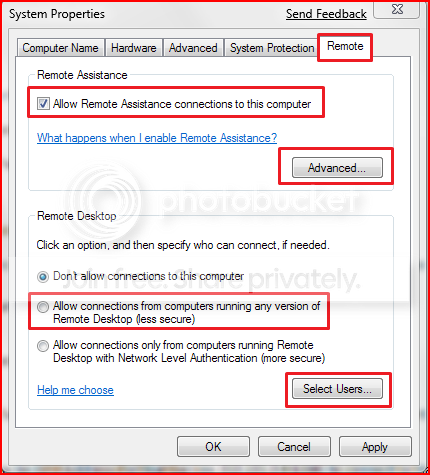
SystemProperties.png

2. Go to Remote tab.

3. Under Remote Assistance, put a check mark on Allow Remote Assistance connections to this computer.
Note: This automatically adds Remote Desktop exception to Windows Firewall.

4. Click on Apply.


OPTION ONE

To Connect to a Remote Desktop (Local Area Connectivity)


1. Go to Start>All Programs>Accessories>Remote Desktop Connection
NOTE: You could also press the Windows + R keys to open the Run dialog, type mstsc.exe, and press Enter.
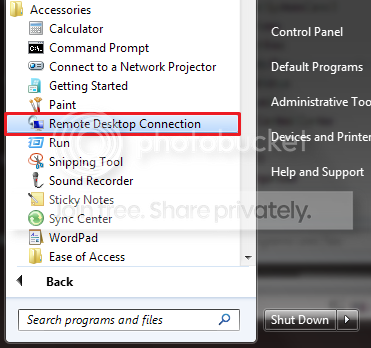
RDCLocation.png

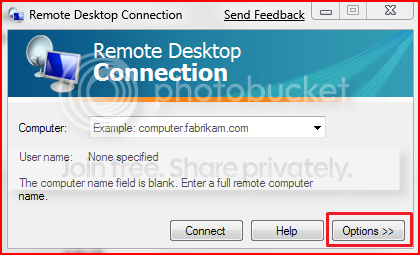
2. Enter the Computer Name or IP address of the computer you wish to connect to.
RemoteDesktopConnection.png

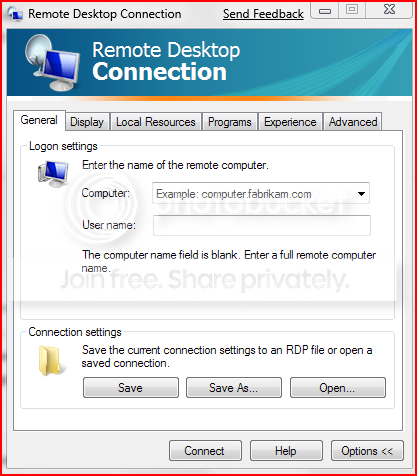
3. For more connection options, click on Options
NOTE: Here you can save the connection profile, adjust display properties, run specified programs upon connection, adjust connection bandwidth, etc. For more information on specific tabs, click on Help.
RemoteDesktopConnectionExpanded.png

4. Click on Connect.

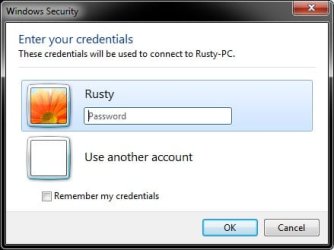
5. Enter your log in credentials of a user account on the remote computer that is allowed to do a remote desktop connection.
Credentials.jpg


OPTION TWO

Enable Windows to Accept Remote Desktop Connection (Local Area Connectivity)


1. Go to Control Panel>System>Advanced System Settings
SystemProperties.png

2. Go to Remote tab.

3. Under Remote Assistance, put a check mark on Allow Remote Assistance connections to this computer
Note: This automatically adds Remote Desktop exception in Windows Firewall.

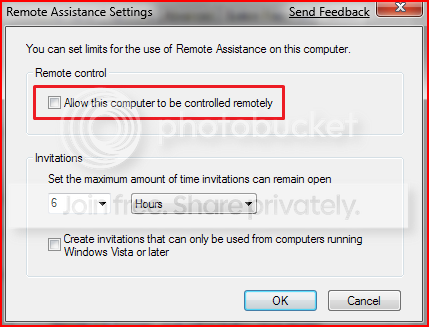
4. Click on Advanced...
RemoteAssistantSettings.png

5. Put a check mark on Allow this computer to be controlled remotely.

6. Click on OK.
Note: This automatically adds Remote Assistance exception in Windows Firewall.

7. Remote Desktop Connection behind a router (Single computer)
A) Configure your router's port forwarding to allow connections on port 3389
B) Now in RDC just type the IP address supplied by your ISP
8. Remote Desktop Connection behind a router (Multiple computers)
A) For each computer you want to remotely connect to you have to configure each computer to listen to different ports to avoid port conflicts by changing the registry key in:

HKEY_LOCAL_MACHINE\System\CurrentControlSet\Control\Terminal Server\WinStations\RDP-Tcp\PortNumber
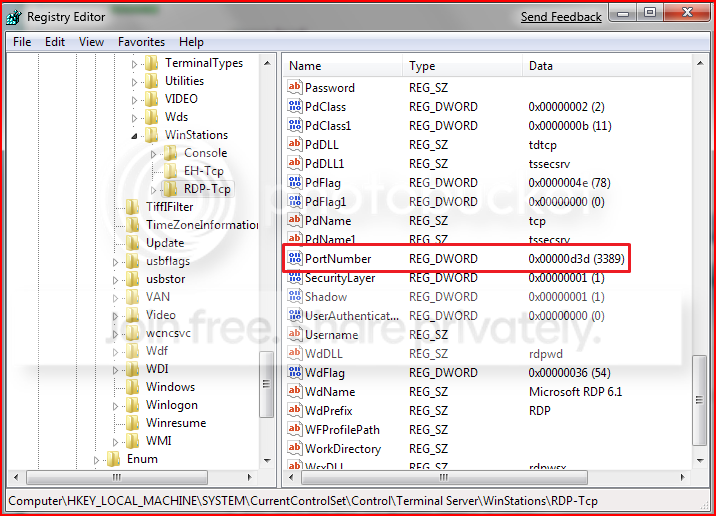
PortConfiguration.png

B) Port Numbers are in Decimal format
Note: To avoid conflict with other programs it is suggested to select a port between 49152 and 65535.

C) Now take that number you've chosen your computer to listen to and configure your router to port forward to that number

D) To connect to that computer your format will now be ISPIPAddress:PortNumber (ex. 222.222.2.8:1234) to connect to that specific computer behind the router
Important: If you have a firewall software running, that too has to be configured to allow communication to the port you opened in your router as well.

Note: The above steps assumes that you're not part of a domain.

 
Last edited by a moderator:
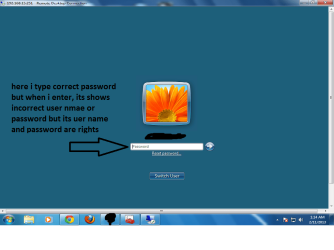
i done this sittings but my problem is not solve i cant uderstand y its says incorrect user name or password
 

My Computer

OS
windows 7 ultmate x64
You never directly answered the question below to help clarify if this was done as well.

Are you using an user name and password of an account created on the remote PC to log in with?
 

My Computer

Computer type
PC/Desktop
Computer Manufacturer/Model Number
Self built custom
OS
64-bit Windows 11 Pro for Workstations
CPU
Intel i7-8700K OC'd to 5 GHz
Motherboard
ASUS ROG Maximus XI Formula Z390
Memory
64 GB (4x16GB) G.SKILL TridentZ RGB DDR4 3600 MHz
Graphics Card(s)
ASUS ROG-STRIX-GTX1080TI-O11G-GAMING
Sound Card
Integrated
Monitor(s) Displays
2 x Samsung Odyssey G7 27"
Screen Resolution
2560x1440
Hard Drives
1TB Samsung 990 PRO M.2,
4TB Samsung 990 PRO PRO M.2,
TerraMaster F8 SSD Plus NAS
PSU
Seasonic Prime Titanium 850W
Case
Thermaltake Core P3
Cooling
Corsair Hydro H115i
Keyboard
Logitech wireless K800
Mouse
Logitech MX Master 4
Internet Speed
2 Gb/s Download and 100 Mb/s Upload
Antivirus
Malwarebyte Anti-Malware Premium
Browser
Google Chrome
Other Info
Logitech Z625 speaker system,
Logitech BRIO 4K Pro webcam,
HP Color LaserJet Pro MFP M477fdn,
APC SMART-UPS RT 1000 XL - SURT1000XLI,
Galaxy S23 Plus phone

My Computer

Computer type
PC/Desktop
Computer Manufacturer/Model Number
Self built custom
OS
64-bit Windows 11 Pro for Workstations
CPU
Intel i7-8700K OC'd to 5 GHz
Motherboard
ASUS ROG Maximus XI Formula Z390
Memory
64 GB (4x16GB) G.SKILL TridentZ RGB DDR4 3600 MHz
Graphics Card(s)
ASUS ROG-STRIX-GTX1080TI-O11G-GAMING
Sound Card
Integrated
Monitor(s) Displays
2 x Samsung Odyssey G7 27"
Screen Resolution
2560x1440
Hard Drives
1TB Samsung 990 PRO M.2,
4TB Samsung 990 PRO PRO M.2,
TerraMaster F8 SSD Plus NAS
PSU
Seasonic Prime Titanium 850W
Case
Thermaltake Core P3
Cooling
Corsair Hydro H115i
Keyboard
Logitech wireless K800
Mouse
Logitech MX Master 4
Internet Speed
2 Gb/s Download and 100 Mb/s Upload
Antivirus
Malwarebyte Anti-Malware Premium
Browser
Google Chrome
Other Info
Logitech Z625 speaker system,
Logitech BRIO 4K Pro webcam,
HP Color LaserJet Pro MFP M477fdn,
APC SMART-UPS RT 1000 XL - SURT1000XLI,
Galaxy S23 Plus phone
problem not solve hey im connect to remote pc by xp mode and its connect then y it is not connecting in win 7 to win 7
i
 

My Computer

OS
windows 7 ultmate x64
I'm afraid that I'm at a loss as well for why. :(
 

My Computer

Computer type
PC/Desktop
Computer Manufacturer/Model Number
Self built custom
OS
64-bit Windows 11 Pro for Workstations
CPU
Intel i7-8700K OC'd to 5 GHz
Motherboard
ASUS ROG Maximus XI Formula Z390
Memory
64 GB (4x16GB) G.SKILL TridentZ RGB DDR4 3600 MHz
Graphics Card(s)
ASUS ROG-STRIX-GTX1080TI-O11G-GAMING
Sound Card
Integrated
Monitor(s) Displays
2 x Samsung Odyssey G7 27"
Screen Resolution
2560x1440
Hard Drives
1TB Samsung 990 PRO M.2,
4TB Samsung 990 PRO PRO M.2,
TerraMaster F8 SSD Plus NAS
PSU
Seasonic Prime Titanium 850W
Case
Thermaltake Core P3
Cooling
Corsair Hydro H115i
Keyboard
Logitech wireless K800
Mouse
Logitech MX Master 4
Internet Speed
2 Gb/s Download and 100 Mb/s Upload
Antivirus
Malwarebyte Anti-Malware Premium
Browser
Google Chrome
Other Info
Logitech Z625 speaker system,
Logitech BRIO 4K Pro webcam,
HP Color LaserJet Pro MFP M477fdn,
APC SMART-UPS RT 1000 XL - SURT1000XLI,
Galaxy S23 Plus phone
I have one desktop and two laptops with Windows 8 Pro, and one work laptop with Windows 7 Pro.

I have successfully set up Remote Desktop Connections on and between all of these computers while inside my home and connected to my home network.

I have tried unsuccessfully using a neighbors wireless signal to RDC in from the internet to no avail.

I followed the instructions in this tutorial to enable RDC, including,

1. Port forwarding has been set up on my router to my desktop
2. Remote Desktop is allowed through the Windows Firewall (I'm not using third-party A/V).
3. And, the forwarded port is enabled in Incoming Rules section of the Advanced Settings

What am I missing here?
 

Attachments

  • remote.png
    remote.png
    10.4 KB · Views: 372
Last edited:

My Computer

Computer type
PC/Desktop
Computer Manufacturer/Model Number
Dell Studio XPS 8100
OS
Windows 8.1 Pro with Media Center
CPU
Intel Core i7-860 processor, (8MB Cache, 2.80GHz)
Motherboard
Dell (Chicony - DH57M01)
Memory
8GB DDR3 SDRAM at 1333MHz-4x2GB
Graphics Card(s)
nVidia GeForce GTS240, 1024MB GDDR3
Sound Card
OEM Integrated
Monitor(s) Displays
Dell ST2410, 24" Flat Panel Monitor
Hard Drives
256GB Samsung SSD 840 Pro, MZ-7PD256BW
Western Digital 1TB Caviar Blue, WD10EALX
Seagate Baracuda 750GB, ST3750528AS (OEM)
Western Digital 2TB Black, WD2003FZEX
PSU
OEM - Max Output Power 350W
Case
OEM
Cooling
OEM
24 hours and no replies...

After reading more in to this, I came across several (mostly positive) references to the Free version of TeamViewer and decided to give it a try instead of Windows RDC.

I have it loaded on all three laptops and my desktop, and it seems to be a fantastic app. It even has a small Windows 8 shortcut tab that's pretty cool.

I have some international business trips coming up soon, and will test it out from a few different countries.

I would still like to give RDC a try if some one here could point me in the right direction.

Thank you
 

My Computer

Computer type
PC/Desktop
Computer Manufacturer/Model Number
Dell Studio XPS 8100
OS
Windows 8.1 Pro with Media Center
CPU
Intel Core i7-860 processor, (8MB Cache, 2.80GHz)
Motherboard
Dell (Chicony - DH57M01)
Memory
8GB DDR3 SDRAM at 1333MHz-4x2GB
Graphics Card(s)
nVidia GeForce GTS240, 1024MB GDDR3
Sound Card
OEM Integrated
Monitor(s) Displays
Dell ST2410, 24" Flat Panel Monitor
Hard Drives
256GB Samsung SSD 840 Pro, MZ-7PD256BW
Western Digital 1TB Caviar Blue, WD10EALX
Seagate Baracuda 750GB, ST3750528AS (OEM)
Western Digital 2TB Black, WD2003FZEX
PSU
OEM - Max Output Power 350W
Case
OEM
Cooling
OEM
~~~
I would still like to give RDC a try if some one here could point me in the right direction.

Thank you
I cannot speak your Windows 8 RDC issue, but I hope that you have a really good password selected and that you change it often. There are lots of automated scanning tools looking for ports that respond to connections for RDC, VNC and other such tools.

I suggest that you stick with TeamViewer and you might want to install LogMeIn Free as a backup. I've had TeamViewer not respond before. It is always best to have at least two ways into system.
 

My Computer

Computer type
Laptop
Computer Manufacturer/Model Number
Employer provided Dell Latitude
OS
W7 Pro SP1 64bit
CPU
i7
Memory
8GB
Graphics Card(s)
Intel HD Graphics
Hard Drives
crappy SSD
Antivirus
Employer mandated Symantec Endpoint Protection
Browser
Pale Moon 64bit, IE11 64bit & Chrome 64bit
I cannot speak your Windows 8 RDC issue, but I hope that you have a really good password selected and that you change it often. There are lots of automated scanning tools looking for ports that respond to connections for RDC, VNC and other such tools.

I suggest that you stick with TeamViewer and you might want to install LogMeIn Free as a backup. I've had TeamViewer not respond before. It is always best to have at least two ways into system.

Thank you UsernameIssues. For now, I disabled all RDC and remote assistance capabilities on all machines, removed port forwarding and buttoned down all three firewalls. I'm gonna give TeamViewer a try.

Do the security issues you refer to about automated scanning tools apply to TV as well, or is that more centered on RDC when port forwarding is enabled?
 

My Computer

Computer type
PC/Desktop
Computer Manufacturer/Model Number
Dell Studio XPS 8100
OS
Windows 8.1 Pro with Media Center
CPU
Intel Core i7-860 processor, (8MB Cache, 2.80GHz)
Motherboard
Dell (Chicony - DH57M01)
Memory
8GB DDR3 SDRAM at 1333MHz-4x2GB
Graphics Card(s)
nVidia GeForce GTS240, 1024MB GDDR3
Sound Card
OEM Integrated
Monitor(s) Displays
Dell ST2410, 24" Flat Panel Monitor
Hard Drives
256GB Samsung SSD 840 Pro, MZ-7PD256BW
Western Digital 1TB Caviar Blue, WD10EALX
Seagate Baracuda 750GB, ST3750528AS (OEM)
Western Digital 2TB Black, WD2003FZEX
PSU
OEM - Max Output Power 350W
Case
OEM
Cooling
OEM
TeamViewer's default settings uses a better method of protecting you than Microsoft's default settings do. RDC is fine inside a network - I just would not expose it to the internet.

Visit this website:
TeamViewer Security
Download the Security Statement PDF on the right hand side of that page.

Or use this direct link to that PDF:
http://www.teamviewer.com/images/pdf/TeamViewer_SecurityStatement.pdf

Of particular interest is this from page 5:
As a defence against brute force attacks, TeamViewer exponentially increases the latency between the
connection attempts. For 24 attempts it already takes 17 hours. The latency is only reset after successfully entering the correct password.
TeamViewer does not only have a mechanism in place to protect its customers from attacks from one
specific computer, but also from multiple computers known as Botnet attacks, trying to access one
particular TeamViewer-ID.

LogMeIn has a different security model. I suggest adding the personal password to the connection process. You will need to know the username and password for the account (just like you were sitting at the computer) plus you need to know the personal password. Once you try that personal password, you will see why it cannot (as far as I know) be cracked via brute-force.
 

My Computer

Computer type
Laptop
Computer Manufacturer/Model Number
Employer provided Dell Latitude
OS
W7 Pro SP1 64bit
CPU
i7
Memory
8GB
Graphics Card(s)
Intel HD Graphics
Hard Drives
crappy SSD
Antivirus
Employer mandated Symantec Endpoint Protection
Browser
Pale Moon 64bit, IE11 64bit & Chrome 64bit
Question on this: "D) To connect to that computer your format will now be ISPIPAddress:PortNumber (ex. 222.222.2.8:1234) to connect to that specific computer behind the router"

In order to use this port number, the IP address has to be static or they will change via DHCP, how is this accomplished and still be able to receive a address via my internet host?
 

My Computer

Computer Manufacturer/Model Number
Dell 17-1750 Laptop
OS
Windows 7 Home Premium 64
CPU
Pentium Duo 2.54
Memory
4GB
Screen Resolution
1920 x 1080
Hard Drives
1 500GB
Mouse
Dell Optical
Internet Speed
768KB
The free version of the Hamachi VPN tool ends the VPN connection if the remote computer is locked. You can RDP to a remote computer using RDC, but once you disconnect, the remote computer will lock and the VPN will not be available for subsequent connections.

The info/video in this post...
http://www.sevenforums.com/performa...te-desktop-keeps-reappearing.html#post2383610
...should show you how to work around that free version limitation. You still need a second tool (like TeamViewer or LogMeIn free) to connect to the remote computer, but RDC is just better at some things than other remote admin tools.
 

My Computer

Computer type
Laptop
Computer Manufacturer/Model Number
Employer provided Dell Latitude
OS
W7 Pro SP1 64bit
CPU
i7
Memory
8GB
Graphics Card(s)
Intel HD Graphics
Hard Drives
crappy SSD
Antivirus
Employer mandated Symantec Endpoint Protection
Browser
Pale Moon 64bit, IE11 64bit & Chrome 64bit
Regarding WIN7 HOME to host a REMOTE DESKTOP CONNECTION:

All of MS literature says it cannot be done & your website indicates it can via 3rd party software, but I stumbled onto this @ answers.microsoft.com:

Simply change the fDenyTSConnections value in the “HKEY_LOCAL_MACHINE\SYSTEM\CurrentControlSet\Control\Terminal Server” hive to “0” from “1” and you can RDP into the system. One has always been able to do this. The options available in the UI reflect which editions include support for the feature. You can enable RDP on Home if you wish, it just isn’t supported.

One can also set the UserAuthentication value to 1 in the “HKEY_LOCAL_MACHINE\SYSTEM\CurrentControlSet\Control\Terminal Server\WinStations\RDP-Tcp” to require NLA if you wish.


Is this BOGUS? I have attempted it & no luck. Maybe I am missing something?
 

My Computer

Computer type
PC/Desktop
OS
Windows 7 Home Prem 32 bit
Hi. I didnt find the official site-info at microsoft answering my questions:


Can I setup this RDC ? Or does it not support different os-versions?


1. client computer = runs Windows 7 Pro
2. the host /target = runs windows 8.1

I want to use the windows7 computer at work,when travelling etc and connect to the win 8.1 machine!
And what about vpn/proxy ? does it support this?
 

My Computer

Computer type
Laptop
Computer Manufacturer/Model Number
HP ProBook 650
OS
Windows 7 Pro (64)
CPU
Intel® Core™ i5-4200M Processor (3M Cache, up to 3.10 GHz)
Motherboard
Intel
Memory
DDR3L 8 GB ( 1600 MHz )
Graphics Card(s)
Intel HD Graphics 4600
Hard Drives
128GB SSD
Antivirus
MSE
Browser
SRWareIron
Hi. I didnt find the official site-info at microsoft answering my questions:


Can I setup this RDC ? Or does it not support different os-versions?


1. client computer = runs Windows 7 Pro
2. the host /target = runs windows 8.1

I want to use the windows7 computer at work,when travelling etc and connect to the win 8.1 machine!
And what about vpn/proxy ? does it support this?

Based on what I found it is the HOME edition OS that cannot host without 3rd party software. I do not know about WIN 8.1. However, I was able to get WIN 7 HOME to be the host using ULTRAVNC:
UltraVNC VNC Remote Support Software Desktop Control Free Opensource

The documentation is poor, but YOUTUBE has some tutorials in setting it up.
 

My Computer

Computer type
PC/Desktop
OS
Windows 7 Home Prem 32 bit
Thanks..

I also found out that Windows 8.1 "home" cannot host RDC.
I have a win7 PRO laptop that can, but i need it the other way..

Win 8.1 is available to upgrade I believe..?
 

My Computer

Computer type
Laptop
Computer Manufacturer/Model Number
HP ProBook 650
OS
Windows 7 Pro (64)
CPU
Intel® Core™ i5-4200M Processor (3M Cache, up to 3.10 GHz)
Motherboard
Intel
Memory
DDR3L 8 GB ( 1600 MHz )
Graphics Card(s)
Intel HD Graphics 4600
Hard Drives
128GB SSD
Antivirus
MSE
Browser
SRWareIron
Back
Top