
How to Create a "Remote Shutdown Dialog" Shortcut
Information
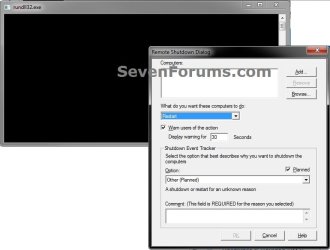
This will show you how to create a Remote Shutdown Dialog shortcut to be able to shutdown or restart one or more remote networked computers \\ComputerName all at once.
You must already have administrative privileges on the networked computer to be able to do so.
If you’re on a home network, the best way to do this is to make sure all computers are in the same workgroup and that they all have at least one Administrator account with the same user name and password.
You must already have administrative privileges on the networked computer to be able to do so.
If you’re on a home network, the best way to do this is to make sure all computers are in the same workgroup and that they all have at least one Administrator account with the same user name and password.
EXAMPLE: Remote Shutdown Dialog
OPTION ONE
To Download the "Remote Shutdown Dialog" Shortcut
1. Click on the Download button below to download the file below.
Remote_Shutdown_Dialog.zip
Download
2. Click on Save, and save the .zip file to the desktop.
3. Open the .zip file and extract (drag and drop) the Remote Shutdown Dialog shortcut to the desktop.
4. Right click on the Remote Shutdown Dialog shortcut, and click on Properties, General tab, and on the Unblock button.
NOTE: If you do not have a Unblock button under the General tab, then the shortcut is already unblocked and you can continue on to step 5.
5. Go to step 5 in OPTION TWO below if you would like to use a custom icon for the shortcut.
6. You can now Pin to Taskbar (Windows 7 only) or Pin to Start Menu this shortcut, assign a keyboard shortcut to it, or move it where you like for easy use.
7. When done, you can delete the downloaded .zip file on the desktop if you like, or save it to use again.
OPTION TWO
To Manually Create the "Remote Shutdown Dialog" Shortcut
1. Right click on a empty area on desktop, and click on New and Shortcut.
2. Copy and paste the location below into the location area, and click on the Next button. (see screenshot below)
shutdown.exe -i
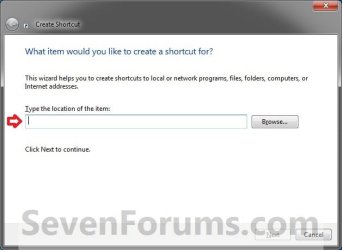
3. Type Remote Shutdown Dialog for the name, and click on the Finish button. (see screenshot below)
NOTE: You can name this anything you would like though.

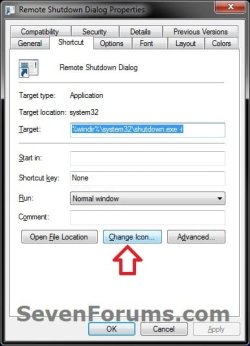
4. Right click on the new Log Off shortcut on the Desktop and click on Properties.
5. Click on the Shortcut tab, then click on the Change Icon button. (see screenshot below)
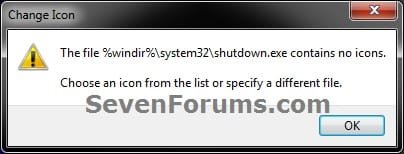
6. If prompted, click on OK. (see screenshot below)
7. To Download a Custom Icon to Use
A) Click on the Download button below to download a custom Remote_Shutdown.ico file in a ZIP file, and save it to your desktop.
Download

B) Open the downloaded ZIP file, extract (drag and drop) the Remote_Shutdown.ico file to your desktop.
C) Right click on the Remote_Shutdown.ico file, and click on Properties, General tab, and on the Unblock button. (see screenshot below)
NOTE: If you do not have a Unblock button under the General tab, then the shortcut is already unblocked and you can continue on.
D) Save the Remote_Shutdown.ico file to where you like to store it at on your Windows drive for use as the shortcut's icon.
NOTE: The icon will need to remain saved at the same location for the icon to continue to display on the shortcut.
E) Go to step 9 to select this Remote_Shutdown.ico file at the location you saved it at.
8. To Use Your Own Custom Icon
A) In the line under "Look for icons in this file", click on Browse and navigate to the location of the 256x256 pixel icon your want to use. (see screenshots below)
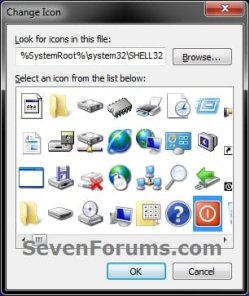
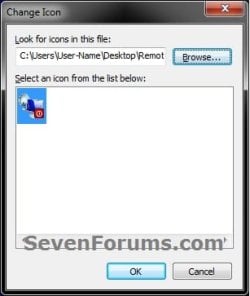
9. Select the icon and click on OK. (see screenshot above)
10. Click on OK. (see screenshot below)
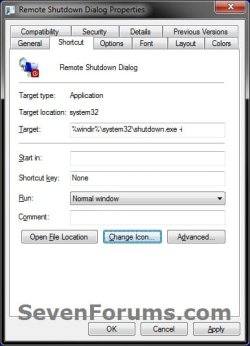
11. You can now Pin to Taskbar (Windows 7 only) or Pin to Start Menu this shortcut, assign a keyboard shortcut to it, or move it where you like for easy use.
That's it,
Shawn
Related Tutorials
- How to Create a Shut Down Windows Shortcut in Windows 7
- How to Create a Shut Down Computer Shortcut in Windows
- How to Create a Restart Computer Shortcut in Windows
- How to Create a Log Off Shortcut in Windows
- How to Terminate Remote Desktop Session when Active or Idle Time Limits are Reached
- How to Set Time Limit for Active Remote Desktop Sessions
- How to Set Time Limit for Idle Remote Desktop Sessions
- How to Create a "Remote Desktop Connection" Shortcut to a Specific Computer
- How to Enable Windows 7 to make a Remote Desktop Connection
Attachments
Last edited:


