Let's give this a whirl...
Please open Notepad and paste the following text to it:
Code:
[HKEY_LOCAL_MACHINE\SOFTWARE\Dyn\Installed]
"PureLeads"=-
[-HKEY_LOCAL_MACHINE\SOFTWARE\PureLeads]
In Notepad, click File > Save as...
Save the file to the Desktop
File name:
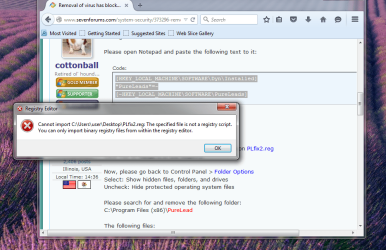
PLfix2.reg
Make sure the Save as Type field says: All Files
Next, please go to the Desktop and double-click on
PLfix2.reg
Click Yes to merge it in the Registry.
Now, please go back to Control Panel >
Folder Options
Select: Show hidden files, folders, and drives
Uncheck: Hide protected operating system files
Please search for and remove the following folder:
C:\Program Files (x86)\
PureLead
The following files:
C:\Users\user\AppData\Roaming\Microsoft\Windows\Recent\
plsapp64.lnk
...and let's see if we can remove this one:
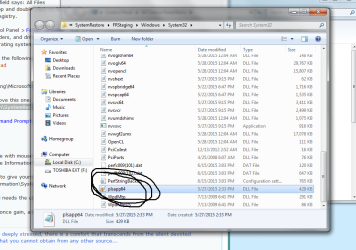
C:\System Volume Information\SystemRestore\FRStaging\Windows\System32\
plsapp64.dll
But, you need to open a
Command Prompt as Administrator
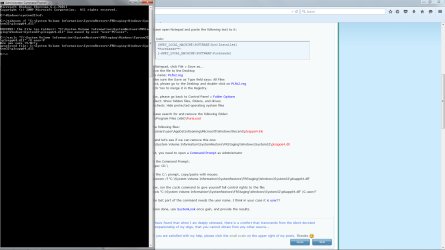
At the Command Prompt:
Type: CD \
At the C:\ prompt, copy/paste with mouse:
takeown /f "C:\System Volume Information\SystemRestore\FRStaging\Windows\System32\plsapp64.dll"
Now, run the cacls command to give yourself full control rights to the file:
cacls "C:\System Volume Information\SystemRestore\FRStaging\Windows\System32\plsapp64.dll" /G user:F
The last part of the command needs the user name. I think in your case it is
user??
When done, use
SystemLook once gain, and provide the results.