
Solved Remove view options bar from folder menu

shoober

New member
Member
Local time
6:35 AM
Messages
38
Remove explore toolbar using Windows classic theme

Can you remove the view options bar (explore toolbar) that is shown below the forward and back buttons? Here's a picture of what I'm talking about. The bar is highlighted in red.
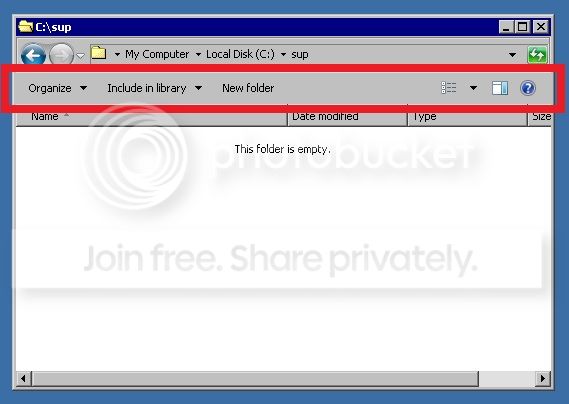
bar_zpsea92fe2f.jpg


EDIT:

I found a tutorial on how to remove the toolbar here, but it apparently will only work for people using the Aero theme. I'm using the classic theme so that tutorial didn't work. Does anyone know how to remove that toolbar using the Classic theme on Windows 7 64bit?
 
Last edited:

My Computer

OS
Windows 7 64-bit
I'm bumping this thread. Does anyone know if that explore toolbar can be removed from a 64bit machine using the classic theme?
 

My Computer

OS
Windows 7 64-bit

My Computer

Computer type
PC/Desktop
OS
Windows 10 Home x64
CPU
INTEL Core i5-750 Quad-Core 3.37GHz
Motherboard
ASUS P7P55D
Memory
HyperX Fury Black Series 8GB (2 x 4GB) 1866Mhz
Graphics Card(s)
EVGA GeForce GTX 750 Superclocked 1GB 128-Bit GDDR5
Monitor(s) Displays
LG 32MA68HY 32" IPS
Screen Resolution
1920 x 1080
Hard Drives
Samsung 840 Evo 120GB, SEAGATE 500GB Barracuda® 7200.12, SATA 3 Gb/s, 7200 RPM, 16MB cache
PSU
ANTEC TruePower New TP-550, 80 PLUS, 550W
Case
ANTEC Three Hundred Illusion
Cooling
COOLER MASTER Hyper 212 Plus, 4 x 120mm 1 x 140mm Noctua's
Internet Speed
85 + Mbps
Antivirus
Avast
Browser
Vivaldi
That's the same tutorial I linked to in my first post. I followed it exactly and it still didn't work. Maybe its my custom theme. I made a folder in Resources/Themes named after my theme and put my theme in the Shell/NormalColor folder.
 
Last edited:

My Computer

OS
Windows 7 64-bit
Ahhh, sorry, I missed the bottom info :o I've not used that tute myself. I take it you did the instructions for x64?

A Guy
 

My Computer

Computer type
PC/Desktop
OS
Windows 10 Home x64
CPU
INTEL Core i5-750 Quad-Core 3.37GHz
Motherboard
ASUS P7P55D
Memory
HyperX Fury Black Series 8GB (2 x 4GB) 1866Mhz
Graphics Card(s)
EVGA GeForce GTX 750 Superclocked 1GB 128-Bit GDDR5
Monitor(s) Displays
LG 32MA68HY 32" IPS
Screen Resolution
1920 x 1080
Hard Drives
Samsung 840 Evo 120GB, SEAGATE 500GB Barracuda® 7200.12, SATA 3 Gb/s, 7200 RPM, 16MB cache
PSU
ANTEC TruePower New TP-550, 80 PLUS, 550W
Case
ANTEC Three Hundred Illusion
Cooling
COOLER MASTER Hyper 212 Plus, 4 x 120mm 1 x 140mm Noctua's
Internet Speed
85 + Mbps
Antivirus
Avast
Browser
Vivaldi
Yes, I did follow the instructions for x64, and it still didn't work. I think it has to do with my custom theme. But, even if I choose Windows Classic like in the tutorial, it still doesn't work. So I don't think this method works for my theme.

I use a customized windows classic theme. Will this work on a customized classic theme?

When I swap the shellstyle.dll files in System32, my explorer freezes when I open folders. It doesn't do anything when I swap the SysWOW64 and Resource shellstyle.dlls.

I have just removed this toolbar by editing the shell32.dll. I followed these instructions and it worked perfectly.
 
Last edited:

My Computer

OS
Windows 7 64-bit
Good find! Glad you figured it out :thumbsup:

A Guy
 

My Computer

Computer type
PC/Desktop
OS
Windows 10 Home x64
CPU
INTEL Core i5-750 Quad-Core 3.37GHz
Motherboard
ASUS P7P55D
Memory
HyperX Fury Black Series 8GB (2 x 4GB) 1866Mhz
Graphics Card(s)
EVGA GeForce GTX 750 Superclocked 1GB 128-Bit GDDR5
Monitor(s) Displays
LG 32MA68HY 32" IPS
Screen Resolution
1920 x 1080
Hard Drives
Samsung 840 Evo 120GB, SEAGATE 500GB Barracuda® 7200.12, SATA 3 Gb/s, 7200 RPM, 16MB cache
PSU
ANTEC TruePower New TP-550, 80 PLUS, 550W
Case
ANTEC Three Hundred Illusion
Cooling
COOLER MASTER Hyper 212 Plus, 4 x 120mm 1 x 140mm Noctua's
Internet Speed
85 + Mbps
Antivirus
Avast
Browser
Vivaldi
Back
Top