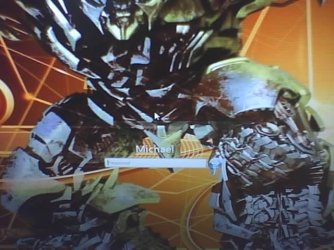
Removing Picture Frame On Startup/Login Screen

katon

New member
Local time
8:06 PM
Messages
3
I've done this before on my desktop. I removed the picture and picture frame from the startup screen. But now I'm trying to do it on my netbook and I can't remember what file I edited to remove the frame.

Anyone know what file I may have edited?

EDIT: Is it Authui.dll?
 

My Computer My Computer

At a glance

Win7 Ultimate 64 (Desktop) Win7 Ultimate 32 (...Intel i7 930 OC: 3.5 gHzG.SKILL Ripjaws 4GB 1600 (PC3 12800)EVGA 260 GTX Superclocked
Computer Manufacturer/Model Number
Custom Build
OS
Win7 Ultimate 64 (Desktop) Win7 Ultimate 32 (Netbook)
CPU
Intel i7 930 OC: 3.5 gHz
Motherboard
EVGA 3x SLI LGA1366
Memory
G.SKILL Ripjaws 4GB 1600 (PC3 12800)
Graphics Card(s)
EVGA 260 GTX Superclocked
Monitor(s) Displays
ASUS VH424
Screen Resolution
1900x1080
Hard Drives
Seagate Barracuda 7200 SATA 500GB
Seagate Barracuda 7200 UIDE 500GB
Seagate MomentusXT Hybrid 250GB (netbook)
PSU
Thermaltake TR2 750W
Case
Thermaltake v9 Black
Cooling
Thermaltake 230mm x 2 120mm x 2, 70mm under CPU, stock CPU
Keyboard
Sidewinder X4
Mouse
Sidewinder X5
Internet Speed
T1
Yes, its authui.dll. I was just looking at that file.

in all 3 uifiles (12400-12403, depending what button set you use)

Find:

UserTileTemplate

And do either of the two

<UserTile resid="UserTileTemplate" margin="rect(0rp,10rp,0rp,10rp)" height="0" layout="verticalflowlayout(0,2,2)" sheet="UsersStyle">

<UserTile resid="UserTileTemplate" margin="rect(0rp,10rp,0rp,10rp)" visible="false" layout="verticalflowlayout(0,2,2)" sheet="UsersStyle">

I would use the first since it actually shrinks it and doesnt take up space, the second method still uses up the space since its simply hidden.

And as always, back up your files before you attempt any mods to system files.

Good luck.
 

My Computer My Computer

At a glance

Windows 7 Ultimate x86amd64
OS
Windows 7 Ultimate x86
CPU
amd64
Yes, its authui.dll. I was just looking at that file.

in all 3 uifiles (12400-12403, depending what button set you use)

Find:

UserTileTemplate

And do either of the two

<UserTile resid="UserTileTemplate" margin="rect(0rp,10rp,0rp,10rp)" height="0" layout="verticalflowlayout(0,2,2)" sheet="UsersStyle">

<UserTile resid="UserTileTemplate" margin="rect(0rp,10rp,0rp,10rp)" visible="false" layout="verticalflowlayout(0,2,2)" sheet="UsersStyle">

I would use the first since it actually shrinks it and doesnt take up space, the second method still uses up the space since its simply hidden.

And as always, back up your files before you attempt any mods to system files.

Good luck.

Does that shrink the frame and picture?
 

My Computer My Computer

At a glance

Win7 Ultimate 64 (Desktop) Win7 Ultimate 32 (...Intel i7 930 OC: 3.5 gHzG.SKILL Ripjaws 4GB 1600 (PC3 12800)EVGA 260 GTX Superclocked
Computer Manufacturer/Model Number
Custom Build
OS
Win7 Ultimate 64 (Desktop) Win7 Ultimate 32 (Netbook)
CPU
Intel i7 930 OC: 3.5 gHz
Motherboard
EVGA 3x SLI LGA1366
Memory
G.SKILL Ripjaws 4GB 1600 (PC3 12800)
Graphics Card(s)
EVGA 260 GTX Superclocked
Monitor(s) Displays
ASUS VH424
Screen Resolution
1900x1080
Hard Drives
Seagate Barracuda 7200 SATA 500GB
Seagate Barracuda 7200 UIDE 500GB
Seagate MomentusXT Hybrid 250GB (netbook)
PSU
Thermaltake TR2 750W
Case
Thermaltake v9 Black
Cooling
Thermaltake 230mm x 2 120mm x 2, 70mm under CPU, stock CPU
Keyboard
Sidewinder X4
Mouse
Sidewinder X5
Internet Speed
T1
Well I did that, and it hid user name, password field and picture with frame. I remember deleting lines in 12400-3 and removing just the frame. But I can't recall or find a tutorial on this anywhere.
 

My Computer My Computer

At a glance

Win7 Ultimate 64 (Desktop) Win7 Ultimate 32 (...Intel i7 930 OC: 3.5 gHzG.SKILL Ripjaws 4GB 1600 (PC3 12800)EVGA 260 GTX Superclocked
Computer Manufacturer/Model Number
Custom Build
OS
Win7 Ultimate 64 (Desktop) Win7 Ultimate 32 (Netbook)
CPU
Intel i7 930 OC: 3.5 gHz
Motherboard
EVGA 3x SLI LGA1366
Memory
G.SKILL Ripjaws 4GB 1600 (PC3 12800)
Graphics Card(s)
EVGA 260 GTX Superclocked
Monitor(s) Displays
ASUS VH424
Screen Resolution
1900x1080
Hard Drives
Seagate Barracuda 7200 SATA 500GB
Seagate Barracuda 7200 UIDE 500GB
Seagate MomentusXT Hybrid 250GB (netbook)
PSU
Thermaltake TR2 750W
Case
Thermaltake v9 Black
Cooling
Thermaltake 230mm x 2 120mm x 2, 70mm under CPU, stock CPU
Keyboard
Sidewinder X4
Mouse
Sidewinder X5
Internet Speed
T1
Sorry, its the line right under the one I said.

<ZoomableElement id="atom(PictureContainer)" height="0" layout="filllayout()">

There is one more place. I just cant remember.
 

My Computer My Computer

At a glance

Windows 7 Ultimate x86amd64
OS
Windows 7 Ultimate x86
CPU
amd64
hey Bliz...in the other thread i created you said that since the changes are made in the authui.dll file and my machines are in a business environment it would be best not to edit that file just in case MS sends an update for that file...is there any other way in which to create a more "business look" and get rid of the logon/start menu pic? or if nothing else, set the picture to be one specific picture for every machine? maybe thru GPO or some other means?
 

My Computer My Computer

At a glance

Windows 7 ProP4 3.4 GHz2 GBNVIDIA Quadro FX 1400
Computer Manufacturer/Model Number
Dell Precision 380
OS
Windows 7 Pro
CPU
P4 3.4 GHz
Memory
2 GB
Graphics Card(s)
NVIDIA Quadro FX 1400
Sound Card
Audigy 2 ZS
Monitor(s) Displays
Dell 1907FP
Screen Resolution
1280x1024
Hard Drives
WDC WD800JD 80 GB
Seagate FreeAgent Pro 320GB
Seagate FreeAgent 1T
Internet Speed
10mb cable
is there any other way in which to create a more "business look" and get rid of the logon/start menu pic? or if nothing else, set the picture to be one specific picture for every machine? maybe thru GPO or some other means?

Everything will involve editing the uifiles directly, but yes you can remove the user container as mentioned above. As far as the user picture being the same for any user, then you create a user frame that isnt "hollow" in the middle, that will cover up the original user pic. Its still there its just that the user frame is an overlay and since the the frame isnt hollow, you cant see the user pic. Its all about tweaking.

Im coding a logon editor as we speak. Check out my facebook page. I talk about it a lot.
 

My Computer My Computer

At a glance

Windows 7 Ultimate x86amd64
OS
Windows 7 Ultimate x86
CPU
amd64
Everything will involve editing the uifiles directly, but yes you can remove the user container as mentioned above. As far as the user picture being the same for any user, then you create a user frame that isnt "hollow" in the middle, that will cover up the original user pic. Its still there its just that the user frame is an overlay and since the the frame isnt hollow, you cant see the user pic. Its all about tweaking.

Im coding a logon editor as we speak. Check out my facebook page. I talk about it a lot.
so if i do decide to edit the uifiles, will i have to edit it every time i create a new image or would i be able to edit it once and use the same uifiles every time i need to create a new image?
 

My Computer My Computer

At a glance

Windows 7 ProP4 3.4 GHz2 GBNVIDIA Quadro FX 1400
Computer Manufacturer/Model Number
Dell Precision 380
OS
Windows 7 Pro
CPU
P4 3.4 GHz
Memory
2 GB
Graphics Card(s)
NVIDIA Quadro FX 1400
Sound Card
Audigy 2 ZS
Monitor(s) Displays
Dell 1907FP
Screen Resolution
1280x1024
Hard Drives
WDC WD800JD 80 GB
Seagate FreeAgent Pro 320GB
Seagate FreeAgent 1T
Internet Speed
10mb cable
so if i do decide to edit the uifiles, will i have to edit it every time i create a new image or would i be able to edit it once and use the same uifiles every time i need to create a new image?

You got the UIfile that tells windows how to create the logonfile. Thats your main file. Once you mod the file the way you want, then you can just change the image resource to whatever you want. Just make sure you give it the same name. Most resource editors will let you choose a new image to use without having to edit the name.

So make the changes to the uifile once, and then you can "exchange" the images to whatever you want as many times as you want.

Did I make sense?
 

My Computer My Computer

At a glance

Windows 7 Ultimate x86amd64
OS
Windows 7 Ultimate x86
CPU
amd64
You got the UIfile that tells windows how to create the logonfile. Thats your main file. Once you mod the file the way you want, then you can just change the image resource to whatever you want. Just make sure you give it the same name. Most resource editors will let you choose a new image to use without having to edit the name.

So make the changes to the uifile once, and then you can "exchange" the images to whatever you want as many times as you want.

Did I make sense?
ok...so i can simply edit the UIfile once and then any time i need to create a totally new image for the group of PCs i can copy the UIfile and resource file(s) over to their appropriate locations and i'm good...correct? i want to make sure that the UIfiles aren't machine specific and that i can copy them over to any machine i wish...am i understanding correctly?
 

My Computer My Computer

At a glance

Windows 7 ProP4 3.4 GHz2 GBNVIDIA Quadro FX 1400
Computer Manufacturer/Model Number
Dell Precision 380
OS
Windows 7 Pro
CPU
P4 3.4 GHz
Memory
2 GB
Graphics Card(s)
NVIDIA Quadro FX 1400
Sound Card
Audigy 2 ZS
Monitor(s) Displays
Dell 1907FP
Screen Resolution
1280x1024
Hard Drives
WDC WD800JD 80 GB
Seagate FreeAgent Pro 320GB
Seagate FreeAgent 1T
Internet Speed
10mb cable
authui.dll won't save the changes

I'm using Resource Hacker to edit authui.dll but every time I try to save it the changes won't save. I've already taken the ownership of the file, granted myself full permissions and still nothing. Is there any other way to edit it?
 

My Computer My Computer

At a glance

Windows 7 Ultimate x64
OS
Windows 7 Ultimate x64
Hello, yes: I do realize that this is an older post, thanks to the
friendly message I know it's exactly 188 days since the last reply...

So I was looking for a solution to get rid of that annoying empty
icon-frame on the
"classic" windows logon of win7. After some time
searching, the most usefull info I could find was this post...

As an edit: I removed my earlier stated question about how to edit
the mentioned file, as it is solved now. A detailed "walkthrough"
will follow.

Zoppa
 
Last edited:

My Computer My Computer

At a glance

Windows 7 Professional (32bit & 64bit)
OS
Windows 7 Professional (32bit & 64bit)
First of all, I did this on my x86 System, so the following
explanations are meant for a 32bit System. The solution for a x64
will be similar, only the file or folder names will probably be
different?

IMPORTANT: NO WARRENTY CAN/WILL BE GIVEN. It worked for me, it
PROBABLY will work for you. PLEASE read ALL steps before actually
doing any of them, to make sure you understand what I try to do
so nothing is missed/misunderstood! All changes made to your system
and its files are at you OWN risk, as always :)

It is assumed that you know how to change/check ownership and
permissions on files. If not, please read at least something like
the folowing link, or check other sources!


Very well, let's get to it then :)

Step 1)
Locate authui.dll in the dir "C:\Windows\System32\" and make
a
backup in some other folder.
Note: the rights/permissions and the ownership will be
changed for the backup. Check out how the original
settings
on the original file in System32 are before you copy it, in
order to restore them after the changes.
I did it this way,
so restoring the original settings. I don't know if it works
without resetting the ownership/permissions afterwards!


Step 2)
Download a tool to modify resources like exe/dll. I used
"Resource Tuner" which comes with a 30day trial.

Resource Tuner 1.99 R6: Download The Best Resource Editor.
Search and replace icons and text. Icon edit.

Another possibility seems to be "Resource Hacker" which is
completely freeware. I haven't tested this yet.

http://www.angusj.com/resourcehacker/


And of course install it.


Step 3)
Open the copy of authui.dll with the Resource Tuner and
navigate to the "folder" UIFILE and expand it.
Inside, there
will be some files named with the earlier mentioned numbers
12400 - 3. For me there were only 3 files named from 12400
to 12402.

Step 4)
As Blizarro stated here: http://www.sevenforums.com/customiz...tup-login-screen-post1108579.html#post1108579,
add the bold, red part to all of the in Step 3) located
files. Searching for the first part of the string (purple)
works like a charm ;)

Code:
[COLOR=DarkOrchid]<ZoomableElement id="atom(PictureContainer)"[/COLOR] [B][COLOR=Red]height="0"[/COLOR][/B] layout="filllayout()">
In Resource Tuner, you need to select the file, e.g. 12400,
and then click the "Resource Editor" icon in the toolbar in
order to edit it. The content that is shown to the right
after selecting the files is not editable.

Then after hitting "Ok" for each file, choose: "File > Save
File as..." and save it under the same name being authui.dll.

Note: If you overwrite the copy, you need to copy the
original again, or simply rename the original in the next
step in order to keep a backup! I used the second method, as
overwriting the original with a modified version within
System32 resulted in an error-message.


Step 5)
Up to now you should have the original in System32, a copy
of it that has been modified in the previous step and
optionally a backup of the original dll.

Now, in order to proceed you have to change the ownership
and some permissions of the original file in System32. So
take ownership and set the permissions to full control.

If you do not have the optional backup, then rename the
original to something like _authui.dll or authui_backup.dll.
If and only if you have a backup, delete the original now,
and replace it by copy-pasting the modified version into
your System32 folder.


Step 6)
Reset the original ownership/permissions. For me, I opened
the "Security-Tab (RC on the file) > Advanced" and added
"NT SERVICE\TrustedInstaller" with Full Control permissions.
Then I removed all but the read/exec permissions from all
other users. Then in the Owner-Tab I resetted
TrustedInstaller as owner.


Note: this can be different on other systems, keep to your
notes from Step 1)!

After this I rebooted (maybe -logging off- will work too?) and it
worked like a charm :cool: Only thing I maybe would like to do in addition
to this is to center the input-boxes. But that's not for now. So if
someone knows what values have to be tweaked for that: let me know.
 
Last edited:

My Computer My Computer

At a glance

Windows 7 Professional (32bit & 64bit)
OS
Windows 7 Professional (32bit & 64bit)
Meanwhile I found out about another method which makes use of
changing the enclosed images within the dll. I haven't tested it,
and I probably will not because it seems to be much much more
work to change all the image files.

I am looking for an enhancement to the above method, as it seems
to have a little "side-effect". After hitting "CTRL-ALT-DEL" it
looks as if the input-fields "jump down" to their place.

Remarks and feedback are welcome...
 

My Computer My Computer

At a glance

Windows 7 Professional (32bit & 64bit)
OS
Windows 7 Professional (32bit & 64bit)

My Computer My Computer

At a glance

Windows 7 Professional x64AMD PhenomII x4 9654 x 2GB Kingston HyperX Blu2 x ATI HD6850/oc
OS
Windows 7 Professional x64
CPU
AMD PhenomII x4 965
Motherboard
MSI 890GXM-G65
Memory
4 x 2GB Kingston HyperX Blu
Graphics Card(s)
2 x ATI HD6850/oc
Sound Card
On Board
Monitor(s) Displays
BenQ G2400W
Hard Drives
360G & 160G
PSU
Thermaltake Evo Blue 750W
Case
Thermaltake Shark
Cooling
Corsair H70
Here are some screen shots NO FRAME :D
 

Attachments

  • 11-08-11_0813.jpg
    11-08-11_0813.jpg
    33.1 KB · Views: 649
  • 11-08-11_0814.jpg
    11-08-11_0814.jpg
    44.5 KB · Views: 841

My Computer My Computer

At a glance

Windows 7 Professional x64AMD PhenomII x4 9654 x 2GB Kingston HyperX Blu2 x ATI HD6850/oc
OS
Windows 7 Professional x64
CPU
AMD PhenomII x4 965
Motherboard
MSI 890GXM-G65
Memory
4 x 2GB Kingston HyperX Blu
Graphics Card(s)
2 x ATI HD6850/oc
Sound Card
On Board
Monitor(s) Displays
BenQ G2400W
Hard Drives
360G & 160G
PSU
Thermaltake Evo Blue 750W
Case
Thermaltake Shark
Cooling
Corsair H70
when i have changed the values in the dll, what do i do to save it??
 

My Computer My Computer

At a glance

Windows 7 Enterprise 32bit
OS
Windows 7 Enterprise 32bit
You need to copy the origional authui.dll to your desktop and edit it. Then rename the origional in the system32 folder after taking ownership and granting yourself full permissions then just copy your edited version in and reboot. Make backups/restore points first.

Danny
 

My Computer My Computer

At a glance

Windows 7 Home Premium x64 SP1intel(R)core(TM)2 duo CPU T6600 @ 2.20GHz3 gb ddr3ati radeon hd4570/512mb
Computer Manufacturer/Model Number
acer aspire 5935g
OS
Windows 7 Home Premium x64 SP1
CPU
intel(R)core(TM)2 duo CPU T6600 @ 2.20GHz
Motherboard
intel gm45/gm47 revision 07
Memory
3 gb ddr3
Graphics Card(s)
ati radeon hd4570/512mb
Monitor(s) Displays
lop156wh2-tle1 15.3 flat
Screen Resolution
1366x768
Hard Drives
OCZ-Agility3 60gig ssd
320gig external hdd
500gig external hdd
Mouse
Optical
Internet Speed
30Mbps Down/30Mbps Up
Thank you so much it help me out.
 

My Computer My Computer

At a glance

Seven
OS
Seven
I realize this is an old post but I still it's still being viewed. I understood Katon's original question to mean just how to get rid of that window that asks for a password when you start up Windows 7. So I will tell you what I did. I got rid of it by going into Start -> Control Panel -> User Accounts -> Remove your password and follow the instructions that follow.

This is much simpler and does the same thing. Get rid of "the picture and picture frame from the startup screen." I hope this helps.
 

My Computer My Computer

At a glance

Windows XP on my PC and Windows 7 on my laptop
OS
Windows XP on my PC and Windows 7 on my laptop
Back
Top