Repair Install

How to Do a Repair Install to Fix Windows 7


   Information
This will show you how to do a repair install (aka: in-place upgrade install) to fix your currently installed Windows 7 and preserve your user accounts, data, programs, and system drivers.
   Note
Do a Repair installation if:
  • A System Restore did not help fix your Windows 7.
  • There is no other easier option left that can fix your Windows 7.
  • You DO NOT want to do a Clean reinstall of Windows 7.
  • You DO want to preserve your user accounts, data, programs, and system drivers.
   Tip
ITEMS THAT WILL BE RESET TO DEFAULT OR AFFECTED:
  • Sounds
  • Services
  • Visual Effects Settings
  • Device Drivers - Be sure to have these handy to reinstall. They do not always remain after the repair (upgrade) install.
  • You may lose the ability to sign on to MSN Messenger, to solve this problem have a look at this thread Unable to sign in to WLM.
  • You may lose your custom themes due to not having permisions set on the old themes. Go to the hidden themes folder at C:/Users/(User-Name)/AppData/Local/Microsoft/Windows/Themes, then Take Ownership of the themes folder and you will now have all your themes back.
  • It has been reported that you may also lose your Media Center gadget after doing the repair install.
  • Windows Updates will need to be checked and reinstalled again.
   Warning

  • You can only do a repair install with the same edition Windows 7 installation disc for the same edition of Windows 7 that you have installed.
  • You cannot use a OEM Windows 7 "Factory" Restore/Recovery type of installation disc that came with or created from a store bought computer to do a repair install with. These can only be used do a clean install instead.
  • You can do a repair install on a factory OEM installation with the latest official Windows 7 with SP1 ISO file here: Microsoft: Windows 7 Direct Download Links, and use Windows 7 USB-DVD Download Tool to create a bootable DVD or USB flash drive with the ISO to do the repair install from within Windows 7.
  • You can use a retail OEM Windows 7 installation disc to do a repair install with.
  • You can use a retail (full or upgrade) Windows 7 installation disc to do a repair install with.
  • You cannot do a repair install with a System Repair Disc. A System Repair Disc is not a installation disc, and will only boot to the System Recovery Options screen.
  • If you have a 32-bit (x86) Windows 7 currently installed, then you must use a 32-bit Windows 7 installation disc to be able to do a repair install with.
  • If you have a 64-bit (x64) Windows 7 currently installed, then you must use a 64-bit Windows 7 installation disc to be able to do a repair install with.
  • You can use a retail Windows 7 SP1 installation disc (ex: Technet (available), MSDN (available), or retail (when available)) to do a repair install with on a currently installed Windows 7 SP1.
  • You can use a Windows 7 SP1 installation disc (ex: Technet (available), MSDN (available), or retail (when available)) to do a repair install with on a currently installed slipstream Windows 7 SP1.
  • You cannot use a slipstream Windows 7 installation disc to do a repair install with on a currently installed Windows 7 SP1.
  • You cannot use a slipstream Windows 7 installation disc to do a repair install with on a currently installed slipstream Windows 7 SP1.
  • You can only do a repair install from within Windows 7.
  • You cannot do a repair install at boot or in Safe Mode.
  • You must be logged into Windows 7 in a administrator account to be able to do a repair install.
  • You must have at least 8.87 GB + what is currently being used of free space (more if you have a larger installation) on the hard drive/partition Windows 7 is installed on to do a repair install.
  • If you changed the default location of a user account's profile folder, then you will need to change it back to the default C:\Users location first.
  • If you moved the default location of a user folder, then you will need to change it back to the default C:\Users\(user-name) location first.


Here's How:
NOTE: Be sure to back up anything that you do not want to lose first to be extra safe.1. Start Windows 7, and log on to an administrator account.

2. Disable any 3rd party firewall, antivirus, or other security program to avoid it from possibly preventing the repair in-place upgrade installation of Windows 7.

3. Do either step 4, step 5, or step 6 below depending if your retail Windows 7 installation ISO/DVD/USB has SP1 or not, and if your currently installed Windows 7 has SP1 installed or not.

4. Repair Installed Windows 7 SP1 using Windows 7 with SP1 ISO

   Note
If you do not have a Windows 7 with SP1 ISO, then you can download an official ISO with your retail product key from Microsoft at the link below.

:ar: Microsoft Software Recovery

You can also download the latest official Windows 7 SP1 Media Refresh (SP1 U) ISO file at the link below, but this link is not always available for download.

:ar: Microsoft: Windows 7 Direct Download Links

A) If you have not already, you will need to install a program like 7-Zip that supports extracting a ISO to a folder.

B) Using the program (ex: 7-Zip) from step 1, extract the Windows 7 SP1 ISO file to a folder on a partition or HDD other than the current Windows 7 partition. (see screenshot below)
NOTE: For example with 7-Zip, right click on ISO, click on 7-Zip, Extract files, browse button, select where you want to extract to, and click on OK twice.7-Zip.jpg
C) While in Windows 7 SP1, open the folder that you extracted the ISO into, and run the setup.exe file.

D) Go to step 7 below.
5. Repair Installed Windows 7 SP1 using Windows 7 with SP1 DVD/USB

   Note
If you do not have a Windows 7 with SP1 ISO, then you can download an official ISO with your retail product key from Microsoft at the link below.

:ar: http://www.microsoft.com/en-us/software-recovery

You can also download the latest official Windows 7 SP1 Media Refresh (SP1 U) ISO file at the link below, but this link is not always available for download.

:ar: Microsoft: Windows 7 Direct Download Links

Afterwards, you can use Windows 7 USB-DVD Download Tool to create a bootable DVD or USB flash drive with the ISO to do the repair install from within Windows 7 using this step.

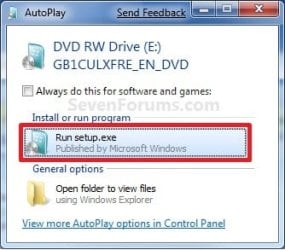
A) While in Windows 7 SP1, insert your retail Windows 7 SP1 installation DVD into the DVD drive, or connect your Windows 7 with SP1 installation USB thumb drive, and click on the Run setup.exe option in AutoPlay. (see screenshot below)
NOTE: If the AutoPlay window does not open, then open the drive folder in Computer and run the setup.exe file.AutoPlay.jpg
B) Go to Go to step 7 below.
6. Repair Installed Windows 7 without SP1 using Windows 7 without SP1 DVD/USB

   Note
If you do not have a Windows 7 without SP1 installation DVD/USB, then you can download the latest official Windows 7 Professional or Home Premium without SP1 ISO file here: Microsoft: Windows 7 Direct Download Links, and use Windows 7 USB-DVD Download Tool to create a bootable DVD or USB flash drive with the ISO to do the repair install from within Windows 7 using this step.

It is preferred to have SP1 installed on your PC and to use step 4 or step 5 above to do a repair install with instead though.

A) While in Windows 7 SP1 installed, insert your retail Windows 7 installation DVD into the DVD drive, or connect your Windows 7 installation USB thumb drive, and click on the Run setup.exe option in AutoPlay. (see screenshot below)
NOTE: If the AutoPlay window does not open, then open the drive folder in Computer and run the setup.exe file.AutoPlay.jpg
B) Go to Go to step 7 below.
7. If prompted by UAC, then click on Yes.

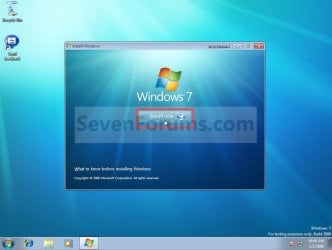
8. Click on the Install Now button to start the installation. (see screenshot below)Step1.jpg
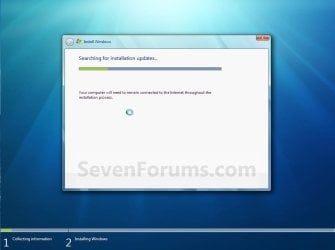
9. If prompted, uncheck the I want to help make Windows installation better box (unless you would like to :) ), and click on the Go online to get the latest updates for installation option. (see screenshot below)Step2.jpg
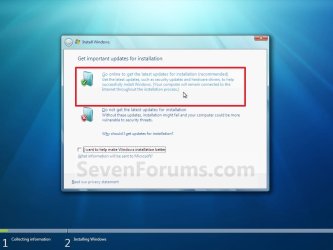
A) Windows 7 will now check online for and install any available installation updates. (see screenshots below)Step2A.jpg

Step2B.jpg

10. Check the I accept the license terms box, and click on Next. (see screenshot below)Step3.jpg
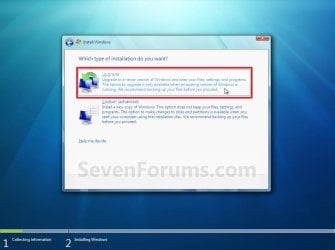
11. Click on the Upgrade option. (see screenshot below)Step4.jpg
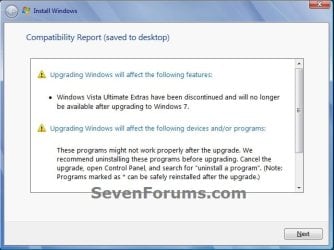
12. Windows will now check for any compatibility issues. If any are found like in the example below, click on the red X to cancel the repair install and close this "Install Windows" window, take care of any found issues (ex: uninstall any incompatible program), then restart the repair install process over again.Compatibility-Report.jpg
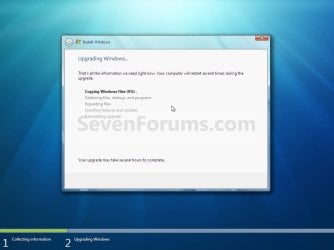
13. The installation of Windows 7 will now begin. (see screenshot below)
NOTE: During the installation process, your screen may flash and computer will restart a few times.Step5.jpg
14. After the final restart, you will see this screen for a moment. (see screenshot below)Step6.jpg
15. Type in your Windows 7 product key number. (see screenshot below step 16)

16. Uncheck the Automatically activate Windows when I'm online box unchecked, then click on the Next button. (see screenshot below)
NOTE: You can activate Windows 7 later after you make sure it is running properly. (see step 23 below)
If you chose to automatically activate Windows online when you set up your computer, automatic activation begins trying to activate your copy of Windows three days after you log on for the first time.Step7.jpg
17. Click on Use recommended settings. (see screenshot below)

:note: You will always be able to change your Windows Update settings at anytime in Windows 7.

Step8.jpg
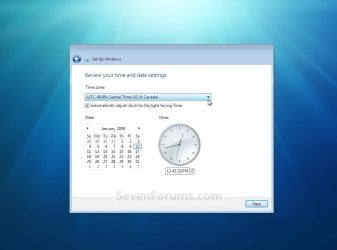
18. Select your time zone and set your time and date settings, then click on the Next button. (see screenshot below)Step9.jpg
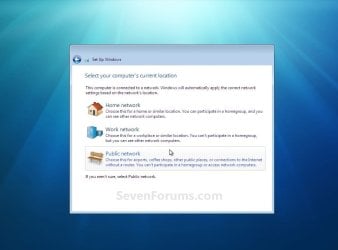
19. Click on the option for your computer's location to select the correct network location type settings to be applied for that location. (see screenshot below)
NOTE: It is best to select Public location for the best security.Step10.jpg
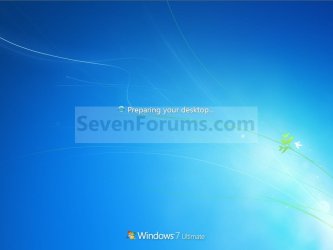
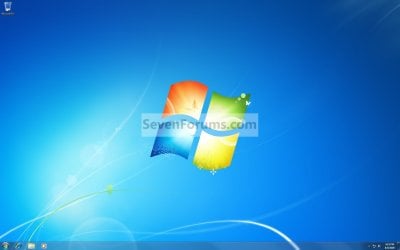
20. Windows 7 will now prepare your desktop to startup. (see screenshots below)Step11A.jpg

Desktop.jpg

21. If you used a DVD or USB to do the repair install with, then you can remove the DVD or USB when the repair install has successfully completed and you are logged in to Windows 7.

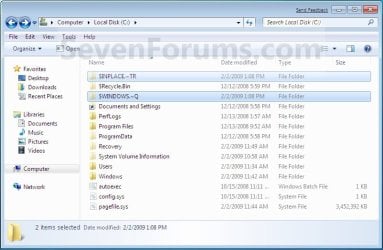
22. Check to see if you are missing any user files. If you are, then you can copy them from the C:\Windows.old or the hidden protected operating system C:\$INPLACE.~TR and C:\WINDOWS.~Q backup folders. (see screenshot below)Old_Install.jpg
23. If everything checks out in step 21, then you can run Disk Cleanup (step 5 at this link). You will need to click on the Clean up system files button first, and then could check the Files discarded by Windows upgrade, Previous Windows installations, and Windows upgrade log files boxes. (see screenshot below)
NOTE: This will delete the C:\Windows.old, C:\$INPLACE.~TR and C:\WINDOWS.~Q folders from step 21 above.Disk_Cleanup.jpg
24. Refresh your Windows Experience Index (WEI) score.

25. When finished, activate Windows 7, and make sure that your 3rd party security programs (if applicable) are enabled again.
That's it,
Shawn


Last edited:
Another strange issue is about one third of my applications appears to be all installed in August 21st 2018 under the Windows Control Panel, so they lost the original date installation. The other 2/3 kept the original dates.
 

My Computer

Computer type
PC/Desktop
OS
Windows 7 Ultimate x64
Seven months of smooth sailing since my repair install of Windows 7 Ultimate. I bought the Macrium Reflect license for up to four computers to help too. Thanks again. This tutorial saved me so much trouble.
 

My Computer

Computer type
PC/Desktop
Computer Manufacturer/Model Number
I do not know. It was put together with separately purchased parts.
OS
Windows 7 Ultimate 64-bit SP1
CPU
Intel Core i5-3570K
Motherboard
ASUS P8Z77-V PRO
Memory
Corsair Vengeance Blue 4x8 GB
Graphics Card(s)
Nvidia GTX 1060
Sound Card
M-Audio Delta 1010LT
Monitor(s) Displays
2 Asus VS247H-P 23.6-Inch LED-Lit LCD monitors
Screen Resolution
1920x1080
Hard Drives
Western Digital WD1002FAEX Caviar Black 1TB SATA III
(no SSD)
My Passport Ultra external hard drive 2TB
PSU
CORSAIR RM650 650W 80 PLUS GOLD Full Modular PSU
Case
Corsair Obsidian Series Black 550D Mid Tower
Cooling
Zalman CNPS9500AT CPU Cooler
Keyboard
Azio Large Print Tri-Color Backlit Wired Keyboard (KB505U)
Mouse
Logitech Gaming Mouse G300
Internet Speed
6-8Mbps down, 2Mbps up
Antivirus
Malwarebytes Premium
Browser
IE, Firefox, Chrome
Other Info
2nd PC: Dell Dimension 4600
OS: Windows 7 Home Premium 32-bit SP1
PSU: EVGA 500W 80+ thingo
CPU: Intel Pentium 4
RAM: 3.00 GB Dual Channel DDR @ 199MHz
MB: Dell 02Y832
GPU: 512MB Nvidia GeForce 6200
HDD: 465GB WDC WD5000AAKS-00A7B2 ATA (SATA)
Opt Drive: HL-DT-ST DVD-ROM GDR8162B ATA Device
Opt Drive: TSSTcorp CD-RW TS-H292C ATA Device
Audio: Creative SB Live
Monitor: Asus-VS247H-P
:thumbsup:
 

My Computer

Computer type
PC/Desktop
Computer Manufacturer/Model Number
Self built custom
OS
64-bit Windows 11 Pro for Workstations
CPU
Intel i7-8700K OC'd to 5 GHz
Motherboard
ASUS ROG Maximus XI Formula Z390
Memory
64 GB (4x16GB) G.SKILL TridentZ RGB DDR4 3600 MHz
Graphics Card(s)
ASUS ROG-STRIX-GTX1080TI-O11G-GAMING
Sound Card
Integrated
Monitor(s) Displays
2 x Samsung Odyssey G7 27"
Screen Resolution
2560x1440
Hard Drives
1TB Samsung 990 PRO M.2,
4TB Samsung 990 PRO PRO M.2,
TerraMaster F8 SSD Plus NAS
PSU
Seasonic Prime Titanium 850W
Case
Thermaltake Core P3
Cooling
Corsair Hydro H115i
Keyboard
Logitech wireless K800
Mouse
Logitech MX Master 4
Internet Speed
2 Gb/s Download and 100 Mb/s Upload
Antivirus
Malwarebyte Anti-Malware Premium
Browser
Google Chrome
Other Info
Logitech Z625 speaker system,
Logitech BRIO 4K Pro webcam,
HP Color LaserJet Pro MFP M477fdn,
APC SMART-UPS RT 1000 XL - SURT1000XLI,
Galaxy S23 Plus phone
with multiboot

Thanks for this excellent tutorial on doing a "repair install". One thing I didn't find was if I can "repair install" one win7 install while booted to another win7 install on a multiboot 'puter. I have XP sp3, win7 Home Premium, and Win7 Pro. The Home Premium went kaput, the XP and Win7 Pro are still fine. I'm looking to do a "repair install" on the Home Premium. It will not boot (missing or corrupt hal.dll). Thanks
 

My Computer

Computer type
PC/Desktop
Computer Manufacturer/Model Number
HO/Compaq dc5100 MT
OS
multiboot:XP Sp3, Win7 pro, Win7 Home premium (not booting)
CPU
P-4 3.4 ghz
Motherboard
PM 213 AV
Memory
2x 1gb
Graphics Card(s)
built in
Hard Drives
2x 1tb SATA = 1x 500gb PATA + 1xgeneric dvd player/burner PATA
Antivirus
Avast
Browser
Opera, secondary Chrome
if I can "repair install" one win7 install while booted to another win7 install on a multiboot 'puter.
No.:(


Need to boot into the sick OS to do a repair install.

You can try a system restore, or a clean install.
 

My Computers

System One System Two

  • Computer type
    PC/Desktop
    OS
    7 X64
    CPU
    i5 8400
    Motherboard
    gigabyte b365m ds3h
    Memory
    2x8gb 3200mhz
    Hard Drives
    various
    PSU
    pure power 11 400w cm
    Case
    Coolermaster
    Cooling
    cryorig m9i
  • Computer type
    PC/Desktop
    OS
    7x64
    CPU
    g5400
    Motherboard
    ga b365m ds3h
    Memory
    8gb ddr4 2400
    PSU
    xfx pro 450w
Ok, thanks SIW2. If I could boot into it I wouldn't need a "repair install".
 

My Computer

Computer type
PC/Desktop
Computer Manufacturer/Model Number
HO/Compaq dc5100 MT
OS
multiboot:XP Sp3, Win7 pro, Win7 Home premium (not booting)
CPU
P-4 3.4 ghz
Motherboard
PM 213 AV
Memory
2x 1gb
Graphics Card(s)
built in
Hard Drives
2x 1tb SATA = 1x 500gb PATA + 1xgeneric dvd player/burner PATA
Antivirus
Avast
Browser
Opera, secondary Chrome
This thread hasn't had any activity in over a year. Still, I just did a Windows 7 repair install & I documented some things I thought might be of interest or usefulness to others. I don't know if any of what I've posted duplicates something in this thread. It's 55 pages of stuff going back about 11 years. I'm not quite so idle that I can read through all of that. But here's what I did. Yours to decide if it's fluff, noise, or contribution.


Repair install from HDD
 

My Computer

Computer type
PC/Desktop
Computer Manufacturer/Model Number
ASUS (assembled myself)
OS
Windows 7 Professional 64-bit
CPU
Intel Core i7-4790K Quad CPU @ 4.00 GHz
Motherboard
ASUS Z97-AR, Intel Z97 Express chipset, ATX form factor
Memory
2x4G DDR3 1600MHz DIMMs
Graphics Card(s)
Intel HD Graphics 4600 on mobo; NVidia GeForce GT 710 PCI-E
Sound Card
Realtek High Definition Audio, integrated on mobo
Monitor(s) Displays
Dell SE2417HGX, 20.5"x11.5" viewable area; 32" Toshiba HDTV
Screen Resolution
1920 x 1080 @ 60 Hz, 32-bit color depth
Hard Drives
Western Digital 500G SATA
Seagate 150G SATA
2 x Seagate 6T SATA
2 x Seagate 18T SATA
PSU
EVGA 500B (500 Watts)
Case
NZXT H230 mid-tower
Cooling
CPU fan, PSU fan, 2 case fans, NVidia fan
Keyboard
Perixx 513H
Mouse
Touch pad integrated into keyboard
Internet Speed
Intel Ethernet Conn(2)I218-V, on mobo, ISP=cableTV 400Mbps
Antivirus
Comodo
Browser
Firefox
Other Info
Ext'l DVD rec: LG HL-DT-ST DVDRAM GP10NB20 USB
Monitor conn to VideoPort via HDMI-to-VideoPort adap
Realtek ALC892 8-channel High Definition Audio CODEC featuring Crystal Sound 2
Audio conn to surr recv via 25' optical S/PDIF TOSLINK audio cable
SYSINFO: 11 NIC ports but only 1 actively conn via DHCP to ISP
ISP bundled w/ cable TV+cell, claims 400Mbps,
but really 50 million bytes/sec
Can I repair Win 7 Pro 64-bit if I can't start it?

My Dell Optiplex 7010 MT dual-boots Win 7 Pro 64-bit and Win 10 Pro 64-bit. The Win 10 starts, but the Win 7 doesn't. The Win 7 gets as far as the four glowing MS flags but no further (although they continue to pulse and glow, forever).

Is there a way to repair my Win 7 Pro 64-bit while preserving apps and files, maybe using the method here?

If not, if I boot up into my Win 10, is there anything I can then do to fix/repair the Win 7 while preserving its stuff?

If not, then WHAT FOR GOD'S SAKE????

Thanks.
 

My Computer

Computer type
PC/Desktop
Computer Manufacturer/Model Number
Dell Optiplex 7010 MT
OS
Dual boot - Win 10 Pro 64-bit (good) and Win 7 Pro 64-bit (won't boot on the NVMe)
CPU
Intel Core i5 3470 @ 3.2GHz
Motherboard
Dell 0GY6Y8 - what would the Intel number be? - Q77 chipset
Memory
16GB RAM DDR3 (Four x 4GB)
Graphics Card(s)
Intel HD Graphics (on the CPU)
Sound Card
Realtek High Definition Audio - and Intel Display Audio
Monitor(s) Displays
Dell E176FP - nothing fancy
Screen Resolution
1280 x 1024 @ 60 Hz
Hard Drives
Now a Samsung 970 EVO Plus SSD NVMe, which works for the Win 10 only

Used to be two 500GB WDC WD5000AAKX (SATA @ 6GB/sec)

- External WD My Book 1110 USB device
PSU
What means PSU? I'm at sea level
Cooling
Ice cubes
Keyboard
Noisy
Mouse
Micky
Internet Speed
Verizon FIOS 500 Mbps (was 1Gbps but I can't type that fast)
Antivirus
Win 10 Windows Defender - Win 7 Avast Free
Browser
Firefox only with lots of security drives my wife crazy
Other Info
Also I still have an old but important XP SP3 machine that can run - Optiplex 755 Desktop w 4GB RAM and Momentus XT hybrid HD-SSD 500 GB hard drive. Used the registry hack to get more updates through "XP Embedded" or "POS" so now the machine rings like a cash register and the CD drawer opens to give change.
did you integrate the nvme updates into your win7 installation ?
 

My Computers

System One System Two

  • Computer type
    PC/Desktop
    OS
    7 X64
    CPU
    i5 8400
    Motherboard
    gigabyte b365m ds3h
    Memory
    2x8gb 3200mhz
    Hard Drives
    various
    PSU
    pure power 11 400w cm
    Case
    Coolermaster
    Cooling
    cryorig m9i
  • Computer type
    PC/Desktop
    OS
    7x64
    CPU
    g5400
    Motherboard
    ga b365m ds3h
    Memory
    8gb ddr4 2400
    PSU
    xfx pro 450w
SIW2 - Not recently, and I doubt I did it before. But the problem right now is that I can't start my Win 7 in my original HDD. In fact, earlier this morning I removed the new NVMe and re-ran Macrium's Fix Boot problems so that my PC now sees only the HDD.

My first goal is to repair the Win 7 in my HDD before I do anything else. Any ideas?

- - - Updated - - -

did you integrate the nvme updates into your win7 installation ?
SIW2 - As I just commented to your similar reply in TenForums, I might need to put my BIOS back to where it was before I modified it this past week, see if my Win 7 will now start, and then install the NVMe drivers to the Win 7 before re-doing the BIOS modification.

  1. Your post above has a link to https://www.sevenforums.com/attachments/drivers/406047d1543245631-nvme-driver-nvme-win7x64.zip , which has two .msu files. Do I need to run both?
  2. Are there any others I need to run to put NVMe drivers into my Win 7?
  3. Your post above also has links to USB3, DISM and nt6repair9x86 zips. Do I need to understand and run those also?

Thanks !!!!!
 

My Computer

Computer type
PC/Desktop
Computer Manufacturer/Model Number
Dell Optiplex 7010 MT
OS
Dual boot - Win 10 Pro 64-bit (good) and Win 7 Pro 64-bit (won't boot on the NVMe)
CPU
Intel Core i5 3470 @ 3.2GHz
Motherboard
Dell 0GY6Y8 - what would the Intel number be? - Q77 chipset
Memory
16GB RAM DDR3 (Four x 4GB)
Graphics Card(s)
Intel HD Graphics (on the CPU)
Sound Card
Realtek High Definition Audio - and Intel Display Audio
Monitor(s) Displays
Dell E176FP - nothing fancy
Screen Resolution
1280 x 1024 @ 60 Hz
Hard Drives
Now a Samsung 970 EVO Plus SSD NVMe, which works for the Win 10 only

Used to be two 500GB WDC WD5000AAKX (SATA @ 6GB/sec)

- External WD My Book 1110 USB device
PSU
What means PSU? I'm at sea level
Cooling
Ice cubes
Keyboard
Noisy
Mouse
Micky
Internet Speed
Verizon FIOS 500 Mbps (was 1Gbps but I can't type that fast)
Antivirus
Win 10 Windows Defender - Win 7 Avast Free
Browser
Firefox only with lots of security drives my wife crazy
Other Info
Also I still have an old but important XP SP3 machine that can run - Optiplex 755 Desktop w 4GB RAM and Momentus XT hybrid HD-SSD 500 GB hard drive. Used the registry hack to get more updates through "XP Embedded" or "POS" so now the machine rings like a cash register and the CD drawer opens to give change.

My Computers

System One System Two

  • Computer type
    PC/Desktop
    OS
    7 X64
    CPU
    i5 8400
    Motherboard
    gigabyte b365m ds3h
    Memory
    2x8gb 3200mhz
    Hard Drives
    various
    PSU
    pure power 11 400w cm
    Case
    Coolermaster
    Cooling
    cryorig m9i
  • Computer type
    PC/Desktop
    OS
    7x64
    CPU
    g5400
    Motherboard
    ga b365m ds3h
    Memory
    8gb ddr4 2400
    PSU
    xfx pro 450w
SIW2 - thanks again. But which one is phison driver?
 

My Computer

Computer type
PC/Desktop
Computer Manufacturer/Model Number
Dell Optiplex 7010 MT
OS
Dual boot - Win 10 Pro 64-bit (good) and Win 7 Pro 64-bit (won't boot on the NVMe)
CPU
Intel Core i5 3470 @ 3.2GHz
Motherboard
Dell 0GY6Y8 - what would the Intel number be? - Q77 chipset
Memory
16GB RAM DDR3 (Four x 4GB)
Graphics Card(s)
Intel HD Graphics (on the CPU)
Sound Card
Realtek High Definition Audio - and Intel Display Audio
Monitor(s) Displays
Dell E176FP - nothing fancy
Screen Resolution
1280 x 1024 @ 60 Hz
Hard Drives
Now a Samsung 970 EVO Plus SSD NVMe, which works for the Win 10 only

Used to be two 500GB WDC WD5000AAKX (SATA @ 6GB/sec)

- External WD My Book 1110 USB device
PSU
What means PSU? I'm at sea level
Cooling
Ice cubes
Keyboard
Noisy
Mouse
Micky
Internet Speed
Verizon FIOS 500 Mbps (was 1Gbps but I can't type that fast)
Antivirus
Win 10 Windows Defender - Win 7 Avast Free
Browser
Firefox only with lots of security drives my wife crazy
Other Info
Also I still have an old but important XP SP3 machine that can run - Optiplex 755 Desktop w 4GB RAM and Momentus XT hybrid HD-SSD 500 GB hard drive. Used the registry hack to get more updates through "XP Embedded" or "POS" so now the machine rings like a cash register and the CD drawer opens to give change.

My Computers

System One System Two

  • Computer type
    PC/Desktop
    OS
    7 X64
    CPU
    i5 8400
    Motherboard
    gigabyte b365m ds3h
    Memory
    2x8gb 3200mhz
    Hard Drives
    various
    PSU
    pure power 11 400w cm
    Case
    Coolermaster
    Cooling
    cryorig m9i
  • Computer type
    PC/Desktop
    OS
    7x64
    CPU
    g5400
    Motherboard
    ga b365m ds3h
    Memory
    8gb ddr4 2400
    PSU
    xfx pro 450w
The tutorial says :

If you changed the default location of a user account's profile folder, then you will need to change it back to the default C:\Users location first.

Does this include the User\Public folder as well ? I have changed its location, and I have a lot of things there, including active databases for programs. Thank you.
 

My Computer

Computer type
PC/Desktop
Computer Manufacturer/Model Number
Custom build
OS
Windows 7 Home Premium 64-bit (OEM)
CPU
AMD Athlon II X4 640 (3 GHz, 4 cores)
Motherboard
Asus M4A 89 GTD Pro/USB3
Memory
Patriot 16Gb DDR3 1600 (2 kits of 2)
Graphics Card(s)
ATI Radeon HD 4290 (integrated)
Sound Card
AMD + Realtek HD Audio (integrated)
Monitor(s) Displays
Hewlett-Packard ZR2440w (24")
Screen Resolution
1920 x 1200
Hard Drives
Internal : Samsung SSD 860 EVO 250 Gb (system), Seagate Barrcuda 1 Tb (data), Western Digital Caviar Blue 500 Gb (archives).
External (USB) : 2 x 1 Tb 2,5" Seagate Barracuda (backups).
PSU
Corsair VX 450 W
Case
Antec Solo
Cooling
Cooler Master Hyper 212 Plus, 2 Nexus Real Silent Case fans
Keyboard
Cherry KC 1000
Mouse
Logitech M 90
Internet Speed
Fiber, 300 Mbit/s down, 200 Mbit/s up
Antivirus
Microsoft Security Essentials
Browser
Vivaldi, Tor
Other Info
BIOS Date: 07/18/11 Ver: 08.00.15.
Modem-router : provided by ISP
The tutorial says :

Does this include the User\Public folder as well ? I have changed its location, and I have a lot of things there, including active databases for programs. Thank you.

It would be recommended to avoid any possible issues. You can move it back afterwards.
 
Last edited:

My Computer

Computer type
PC/Desktop
Computer Manufacturer/Model Number
Self built custom
OS
64-bit Windows 11 Pro for Workstations
CPU
Intel i7-8700K OC'd to 5 GHz
Motherboard
ASUS ROG Maximus XI Formula Z390
Memory
64 GB (4x16GB) G.SKILL TridentZ RGB DDR4 3600 MHz
Graphics Card(s)
ASUS ROG-STRIX-GTX1080TI-O11G-GAMING
Sound Card
Integrated
Monitor(s) Displays
2 x Samsung Odyssey G7 27"
Screen Resolution
2560x1440
Hard Drives
1TB Samsung 990 PRO M.2,
4TB Samsung 990 PRO PRO M.2,
TerraMaster F8 SSD Plus NAS
PSU
Seasonic Prime Titanium 850W
Case
Thermaltake Core P3
Cooling
Corsair Hydro H115i
Keyboard
Logitech wireless K800
Mouse
Logitech MX Master 4
Internet Speed
2 Gb/s Download and 100 Mb/s Upload
Antivirus
Malwarebyte Anti-Malware Premium
Browser
Google Chrome
Other Info
Logitech Z625 speaker system,
Logitech BRIO 4K Pro webcam,
HP Color LaserJet Pro MFP M477fdn,
APC SMART-UPS RT 1000 XL - SURT1000XLI,
Galaxy S23 Plus phone
Thank you, Brink.

Edit : oh, and by the way, how does one move the User\Public folder ? If my understanding is correct, one has to follow the registry hack in this tutorial for moving user profiles. However, the Public "user" does not have the corresponding registry keys. Does it mean one only has to cut and paste it to move it elsewhere ?
 

My Computer

Computer type
PC/Desktop
Computer Manufacturer/Model Number
Custom build
OS
Windows 7 Home Premium 64-bit (OEM)
CPU
AMD Athlon II X4 640 (3 GHz, 4 cores)
Motherboard
Asus M4A 89 GTD Pro/USB3
Memory
Patriot 16Gb DDR3 1600 (2 kits of 2)
Graphics Card(s)
ATI Radeon HD 4290 (integrated)
Sound Card
AMD + Realtek HD Audio (integrated)
Monitor(s) Displays
Hewlett-Packard ZR2440w (24")
Screen Resolution
1920 x 1200
Hard Drives
Internal : Samsung SSD 860 EVO 250 Gb (system), Seagate Barrcuda 1 Tb (data), Western Digital Caviar Blue 500 Gb (archives).
External (USB) : 2 x 1 Tb 2,5" Seagate Barracuda (backups).
PSU
Corsair VX 450 W
Case
Antec Solo
Cooling
Cooler Master Hyper 212 Plus, 2 Nexus Real Silent Case fans
Keyboard
Cherry KC 1000
Mouse
Logitech M 90
Internet Speed
Fiber, 300 Mbit/s down, 200 Mbit/s up
Antivirus
Microsoft Security Essentials
Browser
Vivaldi, Tor
Other Info
BIOS Date: 07/18/11 Ver: 08.00.15.
Modem-router : provided by ISP
Thank you, Brink.

Edit : oh, and by the way, how does one move the User\Public folder ? If my understanding is correct, one has to follow the registry hack in this tutorial for moving user profiles. However, the Public "user" does not have the corresponding registry keys. Does it mean one only has to cut and paste it to move it elsewhere ?

It's usually not recommended to move the "C\Users\Public" folder since it could break permissions and access to the folder.

Depending on what you wanted, you might see if creating a symbolic link or junction point like below for this location to the location you wanted it at instead.

Create Soft and Hard Symbolic Links in Windows | Tutorials
 

My Computer

Computer type
PC/Desktop
Computer Manufacturer/Model Number
Self built custom
OS
64-bit Windows 11 Pro for Workstations
CPU
Intel i7-8700K OC'd to 5 GHz
Motherboard
ASUS ROG Maximus XI Formula Z390
Memory
64 GB (4x16GB) G.SKILL TridentZ RGB DDR4 3600 MHz
Graphics Card(s)
ASUS ROG-STRIX-GTX1080TI-O11G-GAMING
Sound Card
Integrated
Monitor(s) Displays
2 x Samsung Odyssey G7 27"
Screen Resolution
2560x1440
Hard Drives
1TB Samsung 990 PRO M.2,
4TB Samsung 990 PRO PRO M.2,
TerraMaster F8 SSD Plus NAS
PSU
Seasonic Prime Titanium 850W
Case
Thermaltake Core P3
Cooling
Corsair Hydro H115i
Keyboard
Logitech wireless K800
Mouse
Logitech MX Master 4
Internet Speed
2 Gb/s Download and 100 Mb/s Upload
Antivirus
Malwarebyte Anti-Malware Premium
Browser
Google Chrome
Other Info
Logitech Z625 speaker system,
Logitech BRIO 4K Pro webcam,
HP Color LaserJet Pro MFP M477fdn,
APC SMART-UPS RT 1000 XL - SURT1000XLI,
Galaxy S23 Plus phone
Now I'm confused. Should I move the User\Public folder, or should I not ?

I realize I omitted the context. I'm thinking of doing a repair install. The tutorial says I need to move the User profiles back to their default place before doing that. After the repair has, hopefully, succeeded, I plan to move them again to where they are now : on the D disk, as per Kari's setup :

User Profiles - Create and Move During Windows 7 Installation | Tutorials

An Old School Geek’s approach to Installing & Setting Up a Windows PC - Windows 7 Forums
 

My Computer

Computer type
PC/Desktop
Computer Manufacturer/Model Number
Custom build
OS
Windows 7 Home Premium 64-bit (OEM)
CPU
AMD Athlon II X4 640 (3 GHz, 4 cores)
Motherboard
Asus M4A 89 GTD Pro/USB3
Memory
Patriot 16Gb DDR3 1600 (2 kits of 2)
Graphics Card(s)
ATI Radeon HD 4290 (integrated)
Sound Card
AMD + Realtek HD Audio (integrated)
Monitor(s) Displays
Hewlett-Packard ZR2440w (24")
Screen Resolution
1920 x 1200
Hard Drives
Internal : Samsung SSD 860 EVO 250 Gb (system), Seagate Barrcuda 1 Tb (data), Western Digital Caviar Blue 500 Gb (archives).
External (USB) : 2 x 1 Tb 2,5" Seagate Barracuda (backups).
PSU
Corsair VX 450 W
Case
Antec Solo
Cooling
Cooler Master Hyper 212 Plus, 2 Nexus Real Silent Case fans
Keyboard
Cherry KC 1000
Mouse
Logitech M 90
Internet Speed
Fiber, 300 Mbit/s down, 200 Mbit/s up
Antivirus
Microsoft Security Essentials
Browser
Vivaldi, Tor
Other Info
BIOS Date: 07/18/11 Ver: 08.00.15.
Modem-router : provided by ISP
Now I'm confused. Should I move the User\Public folder, or should I not ?

I realize I omitted the context. I'm thinking of doing a repair install. The tutorial says I need to move the User profiles back to their default place before doing that. After the repair has, hopefully, succeeded, I plan to move them again to where they are now : on the D disk, as per Kari's setup :

User Profiles - Create and Move During Windows 7 Installation | Tutorials

An Old School Geek’s approach to Installing & Setting Up a Windows PC - Windows 7 Forums

Normally, it's not recommended, but you can move it back afterwards if wanted.
 

My Computer

Computer type
PC/Desktop
Computer Manufacturer/Model Number
Self built custom
OS
64-bit Windows 11 Pro for Workstations
CPU
Intel i7-8700K OC'd to 5 GHz
Motherboard
ASUS ROG Maximus XI Formula Z390
Memory
64 GB (4x16GB) G.SKILL TridentZ RGB DDR4 3600 MHz
Graphics Card(s)
ASUS ROG-STRIX-GTX1080TI-O11G-GAMING
Sound Card
Integrated
Monitor(s) Displays
2 x Samsung Odyssey G7 27"
Screen Resolution
2560x1440
Hard Drives
1TB Samsung 990 PRO M.2,
4TB Samsung 990 PRO PRO M.2,
TerraMaster F8 SSD Plus NAS
PSU
Seasonic Prime Titanium 850W
Case
Thermaltake Core P3
Cooling
Corsair Hydro H115i
Keyboard
Logitech wireless K800
Mouse
Logitech MX Master 4
Internet Speed
2 Gb/s Download and 100 Mb/s Upload
Antivirus
Malwarebyte Anti-Malware Premium
Browser
Google Chrome
Other Info
Logitech Z625 speaker system,
Logitech BRIO 4K Pro webcam,
HP Color LaserJet Pro MFP M477fdn,
APC SMART-UPS RT 1000 XL - SURT1000XLI,
Galaxy S23 Plus phone
Thank you, I will try it. At this point, it's that or reinstalling from scratch.
 

My Computer

Computer type
PC/Desktop
Computer Manufacturer/Model Number
Custom build
OS
Windows 7 Home Premium 64-bit (OEM)
CPU
AMD Athlon II X4 640 (3 GHz, 4 cores)
Motherboard
Asus M4A 89 GTD Pro/USB3
Memory
Patriot 16Gb DDR3 1600 (2 kits of 2)
Graphics Card(s)
ATI Radeon HD 4290 (integrated)
Sound Card
AMD + Realtek HD Audio (integrated)
Monitor(s) Displays
Hewlett-Packard ZR2440w (24")
Screen Resolution
1920 x 1200
Hard Drives
Internal : Samsung SSD 860 EVO 250 Gb (system), Seagate Barrcuda 1 Tb (data), Western Digital Caviar Blue 500 Gb (archives).
External (USB) : 2 x 1 Tb 2,5" Seagate Barracuda (backups).
PSU
Corsair VX 450 W
Case
Antec Solo
Cooling
Cooler Master Hyper 212 Plus, 2 Nexus Real Silent Case fans
Keyboard
Cherry KC 1000
Mouse
Logitech M 90
Internet Speed
Fiber, 300 Mbit/s down, 200 Mbit/s up
Antivirus
Microsoft Security Essentials
Browser
Vivaldi, Tor
Other Info
BIOS Date: 07/18/11 Ver: 08.00.15.
Modem-router : provided by ISP
Back
Top