Solved Resize Partition Failure (Part 2) - PW Partition Recovery found issues

LaurieD227

New member
Power User
VIP
Local time
12:33 PM
Messages
133
Location
Central Colorado
Since I'm not an expert at present, I can't do a lot to help others in this forum solve their problems. So I figure that the most helpful thing I can do is post enough information that hopefully others can learn from my experiences. That's why I'm putting so much documentation into this thread.

I have a WD 2TB external hard drive that I use for both System Image and data file backups. A week ago, I was trying to resize one of its partitions, and the process got hung up partway through. I took some steps to try to address any problems that may have resulted, but apparently I didn't do enough.

Here's the background:

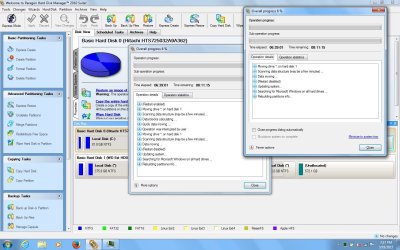
I was using Paragon Hard Disk Manager 2010 to resize a partition on a WD 2TB external hard drive. I let the process run overnight, and somehow it was interrupted during the Quick Data Moving step. Upon resuming, the program indicated it had data that still needed to be moved so I let it continue.

The process apparently stopped at the "Rebuilding Partitions Info" stage - neither the percent complete, nor the elapsed time, nor the time had remaining changed for at least the past 3-4 hours. (Until it suddenly stopped, the elapsed time had been steadily growing.)

I've attached a screenshot showing the Paragon dashboard and status windows.

Update:

When I began to deal with the issue, here were the results:
- I was able to close the Paragon app and its various windows without having to force it to close
- I was able to reboot my laptop without having to force anything to close
- Upon reboot, I could see all of my partitions, both on my internal drive and my external drive

I immediately ran CHKDSK on each partition, and each one passed with no errors except for the partition I had been trying to re-size.
- It had a corrupt attribute that said it was fixed, and part of the free space was changed to show as being allocated.
- When I checked that space through Disk Management, it had been set up as its own partition rather than being added to the partition I was trying to expand, and in fact several sections of unallocated space were showing up in odd places - but the partitions that hold data appeared to be intact and the same size as they were before I started, and I could see the files and folders that had been there before

http://www.sevenforums.com/software/364590-resize-partition-failure-process-stopped-no-error-message.html
 

Attachments
  • Paragon_HDM_issue.jpg
    Paragon_HDM_issue.jpg
    161.8 KB · Views: 0
Last edited:

My Computer My Computer

At a glance

Windows 7 Professional 64 bit SP 1Intel Core i7-4710 MQ16 GBNVIDIA GeForce GTX 870M
Computer type
Laptop
Computer Manufacturer/Model Number
ProStar Model P157SM-A
OS
Windows 7 Professional 64 bit SP 1
CPU
Intel Core i7-4710 MQ
Motherboard
No info
Memory
16 GB
Graphics Card(s)
NVIDIA GeForce GTX 870M
Hard Drives
256 GB Samsung SSD
1TB 7200 RPM Hard Drive
Antivirus
Norton Internet Security
Browser
Internet Explorer and Mozilla Firefox
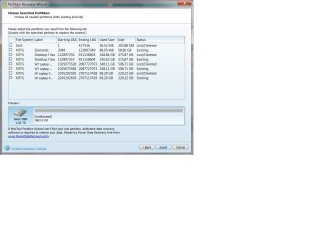
I read about PW Partition Recovery in one of the tutorials, so I ran a Quick Scan of the entire 2TB drive, with the following results (see screen shot).
 

Attachments

  • PW View WD HDD.jpg
    PW View WD HDD.jpg
    192 KB · Views: 0
  • PW Quick Scan Results.jpg
    PW Quick Scan Results.jpg
    86.5 KB · Views: 0

My Computer My Computer

At a glance

Windows 7 Professional 64 bit SP 1Intel Core i7-4710 MQ16 GBNVIDIA GeForce GTX 870M
Computer type
Laptop
Computer Manufacturer/Model Number
ProStar Model P157SM-A
OS
Windows 7 Professional 64 bit SP 1
CPU
Intel Core i7-4710 MQ
Motherboard
No info
Memory
16 GB
Graphics Card(s)
NVIDIA GeForce GTX 870M
Hard Drives
256 GB Samsung SSD
1TB 7200 RPM Hard Drive
Antivirus
Norton Internet Security
Browser
Internet Explorer and Mozilla Firefox
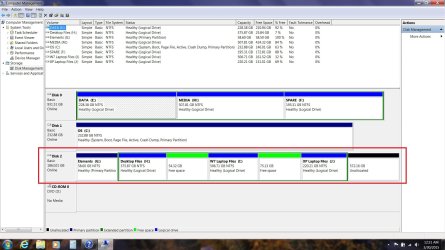
Here's what Disk Management shows:
 

Attachments

  • DM View WD HDD.jpg
    DM View WD HDD.jpg
    200.9 KB · Views: 2

My Computer My Computer

At a glance

Windows 7 Professional 64 bit SP 1Intel Core i7-4710 MQ16 GBNVIDIA GeForce GTX 870M
Computer type
Laptop
Computer Manufacturer/Model Number
ProStar Model P157SM-A
OS
Windows 7 Professional 64 bit SP 1
CPU
Intel Core i7-4710 MQ
Motherboard
No info
Memory
16 GB
Graphics Card(s)
NVIDIA GeForce GTX 870M
Hard Drives
256 GB Samsung SSD
1TB 7200 RPM Hard Drive
Antivirus
Norton Internet Security
Browser
Internet Explorer and Mozilla Firefox
I'm looking for recommendations for how to proceed, since I have never used Partition Recovery or Rebuild MBR. (So far I have done nothing except run CHKDSK and do the Quick Scan.) I'm not sure how to interpret the scan results I'm seeing.

For instance,

-Since the drive sizes for "Existing" versus "Lost/Deleted" show as the same but the LBAs don't match in all cases, is it possible that the issue is a problem with the MBR rather than the partitions themselves?

-If it is, should I try to rebuild the MBR?

-I've heard about "aligned" versus "unaligned" partitions, but I don't know how to tell if somehow any of my partitions got "unaligned" during the original failure. If that's the case, I also don't know how to fix it.

-Do I need to do a Deep Scan to get more information, or does the data I already have give enough info to know how to fix this?


If I need to move my data to another machine, I can do so. If I need to completely redo the partitions from scratch, I guess I can do that too. But first I really could use some guidance.

:eek:
 
Last edited:

My Computer My Computer

At a glance

Windows 7 Professional 64 bit SP 1Intel Core i7-4710 MQ16 GBNVIDIA GeForce GTX 870M
Computer type
Laptop
Computer Manufacturer/Model Number
ProStar Model P157SM-A
OS
Windows 7 Professional 64 bit SP 1
CPU
Intel Core i7-4710 MQ
Motherboard
No info
Memory
16 GB
Graphics Card(s)
NVIDIA GeForce GTX 870M
Hard Drives
256 GB Samsung SSD
1TB 7200 RPM Hard Drive
Antivirus
Norton Internet Security
Browser
Internet Explorer and Mozilla Firefox
Well, based on the fact that this drive will be my primary back up storage device, the main recommendation I've received is

- move any data that I want to keep to alternate storage
- completely reformat this drive
- establish new partitions
- move the saved data back to this drive

Since I still am not sure what the PW Quick Scan results (plus the other data I've provided) would indicate as my best course of action, I'll start the process outlined above.
 

My Computer My Computer

At a glance

Windows 7 Professional 64 bit SP 1Intel Core i7-4710 MQ16 GBNVIDIA GeForce GTX 870M
Computer type
Laptop
Computer Manufacturer/Model Number
ProStar Model P157SM-A
OS
Windows 7 Professional 64 bit SP 1
CPU
Intel Core i7-4710 MQ
Motherboard
No info
Memory
16 GB
Graphics Card(s)
NVIDIA GeForce GTX 870M
Hard Drives
256 GB Samsung SSD
1TB 7200 RPM Hard Drive
Antivirus
Norton Internet Security
Browser
Internet Explorer and Mozilla Firefox
I've now moved all my data off my external HDD, so I can do whatever is needed. I also did a bunch of research - tutorials on this thread, information in Windows Help and Support, plus tutorials on the Western Digital and Partition Wizard web sites.

The status right now is I think my partitions have errors and my MBR may be corrupted; in addition, I've decided I want to change the number of partitions I want to have as well as the size and position of each (I'm trying to plan for the chance that I may need to resize one or more partitions in the future, so I want to line things up to make it easy if I can).

I believe the steps I need to take are the following, in the order listed, and I plan to use PW to do it:
-Delete all my existing partitions
-Initialize my drive to an MBR disc since that's what it currently is (rather than changing to GPT)
-Create and format each partition, and then repeat until all my new partitions are established.
(NOTE: This drive will not be used to boot up anything, so my intent is that all partitions on this drive will be Logical (rather than Primary) and none will be Active.)

If I am missing something or I have the steps in the wrong order or there is something else I should be doing, please share your thoughts as I am no expert. :rolleyes:
--(For instance, if I should reconsider my plan and have at least one partition on this drive be a Primary partition I can certainly look at doing that, but please explain why that's necessary in this case if you make that suggestion :) since I'm really trying to learn this stuff)

I plan to do this on Saturday (tomorrow) and I will post what happens.


I know, I know, the suspense is just killing everyone :picnic:
 

My Computer My Computer

At a glance

Windows 7 Professional 64 bit SP 1Intel Core i7-4710 MQ16 GBNVIDIA GeForce GTX 870M
Computer type
Laptop
Computer Manufacturer/Model Number
ProStar Model P157SM-A
OS
Windows 7 Professional 64 bit SP 1
CPU
Intel Core i7-4710 MQ
Motherboard
No info
Memory
16 GB
Graphics Card(s)
NVIDIA GeForce GTX 870M
Hard Drives
256 GB Samsung SSD
1TB 7200 RPM Hard Drive
Antivirus
Norton Internet Security
Browser
Internet Explorer and Mozilla Firefox
Are you going to have this HD always connected for daily use, and backups ?

If this HD is just to be used as a "Backup" device, I suggest creating one single partition and use folders to manage data.
My large "Backup HD's" are usually offline, maybe online a couple of hours per month.
What i've learned over the years, it's not worth the effort to partition backup drives, and worry about partition sizes.
I don't care about defragging, if a backup image has 2 fragments, it doesn't affect my performance.
If a large video file has 2 fragments, it doesn't affect my performance.

Also, I don't run "regular security scans" on these storage devices.
Everything was scanned before i "saved" any data to the offline backup HD.

Keeping "Backup devices" offline protects them from malware, power glitches that could kill them, etc.

With a 2TB Backup HD i would intialize it as MBR, create one Logical partition, and create folders as i see fit ...

Personally, i also run a Diskpart Clean on any HD I am reusing to clear any remaining MBR code.
 

My Computer My Computer

At a glance

Multi-Boot W7_Pro_x64 W8.1_Pro_x64 W10_Pro_x6...AMD Athlon II x4 6206GB GSkill DDR2 800AMD 4670 GPU + AMD 4200 IGP
Computer type
PC/Desktop
Computer Manufacturer/Model Number
home built
OS
Multi-Boot W7_Pro_x64 W8.1_Pro_x64 W10_Pro_x64 +Linux_VMs +Chromium_VM
CPU
AMD Athlon II x4 620
Motherboard
Gigabyte GA-MA785G-UD3H
Memory
6GB GSkill DDR2 800
Graphics Card(s)
AMD 4670 GPU + AMD 4200 IGP
Sound Card
on board Realtek ALC889A
Monitor(s) Displays
RCA 40" LCD TV, Insignia 32" LCD TV, HP 15" LCD monitor
Screen Resolution
1680 x 1050
Hard Drives
OCZ Vertex 3 120GB,
Samsung F3 1TB (3),
Several others - WD, Seagate, Hitachi, ...
PSU
Corsair 500 W
Case
Rosewill mid tower
Cooling
CM 90mm rifle
Keyboard
Gyration wireless, Logitech wireless, Dell USB wired
Mouse
Gyration wireless, Logitech wireless, V7 USB wired
Internet Speed
Spectrum - 100Mbps D / 10Mbps U
Antivirus
Avast, MBAM3, EMET, WinPatrol
Browser
Pale Moon, Firefox, IE
Other Info
2 multi-boot PC's
Mainly HTPC/Office/Gen purpose (no gaming).
Trendnet USB KVM.
LG DVD burner/Blue Ray Player.
Tray system for removable SATA backup drives.

Not currently OCd, under-volted.
I use Hybrid sleep, rarely re-boot or shutdown.

Hauppauge HD-PVR, Avermedia PCIe TV Tuner, Hauppauge PCI TV Tuner.
I'm looking for recommendations for how to proceed, since I have never used Partition Recovery or Rebuild MBR. (So far I have done nothing except run CHKDSK and do the Quick Scan.) I'm not sure how to interpret the scan results I'm seeing.

For instance,

-Since the drive sizes for "Existing" versus "Lost/Deleted" show as the same but the LBAs don't match in all cases, is it possible that the issue is a problem with the MBR rather than the partitions themselves?

-If it is, should I try to rebuild the MBR?

FWIW I've used the Rebuild MBR function in PW on numerous occasions. It has restored functionality several times, and when it did not, it did not do any other harm. In other words, there is no downside to giving it a try.
 

My Computer My Computer

At a glance

7 x64 UltimateAMD Ryzen 516GB DDR4Radeon R7 360
Computer type
PC/Desktop
Computer Manufacturer/Model Number
Custom
OS
7 x64 Ultimate
CPU
AMD Ryzen 5
Motherboard
Gigabyte GA-AB350-Gaming
Memory
16GB DDR4
Graphics Card(s)
Radeon R7 360
Monitor(s) Displays
2 x Dell U2518D
Screen Resolution
2560x1440 2560x1440
Hard Drives
WD 500GB x2
Samsung SSD 128MB (OS)
XPG SX8200 Pro M.2 2280 1TB
PSU
Antec 500
Cooling
Hyper 212 EVO
Keyboard
Logitech cordless K800
Mouse
Logitech M510
Antivirus
Avira
Excellent advice :)
 

My Computer My Computer

At a glance

Windows 10 Pro x64Intel Core i7 6700KGSkill TridentZ RGB 16GB 3600 16-16-16-36EVGA GTX 980 Ti SC x2
Computer type
PC/Desktop
Computer Manufacturer/Model Number
Skylake Special #666
OS
Windows 10 Pro x64
CPU
Intel Core i7 6700K
Motherboard
Asus Sabertooth Z170 Mark 1
Memory
GSkill TridentZ RGB 16GB 3600 16-16-16-36
Graphics Card(s)
EVGA GTX 980 Ti SC x2
Sound Card
Realtek High Definition
Monitor(s) Displays
AOC G2460PG
Screen Resolution
1920 x 1080 144Hz
Hard Drives
Samsung 860 Pro 256GB, Seagate Barracuda 4TB x2
PSU
EVGA 1000 P2, EVGA White Custom Braided Cables
Case
Corsair Vengeance C70 Gunmetal Black
Cooling
Corsair H100i v2, Corsair ML120 x2, Thermal Grizzly Kryonaut
Keyboard
Logitech G910 Orion Spectrum
Mouse
Logitech G700s
Internet Speed
Verizon Fios Quantum Gateway 75/75
Antivirus
Windows Defender, Malwarebytes Free 3.8.3
Browser
Chrome
Other Info
Corsair SP120 x4, LG Blu-ray Drive, Durabrand HT-395 100 Watt Dolby Digital Amp, Corsair H2100 Wireless 7.1 Headset
Are you going to have this HD always connected for daily use, and backups ?

If this HD is just to be used as a "Backup" device, I suggest creating one single partition and use folders to manage data.
My large "Backup HD's" are usually offline, maybe online a couple of hours per month.
What i've learned over the years, it's not worth the effort to partition backup drives, and worry about partition sizes.
I don't care about defragging, if a backup image has 2 fragments, it doesn't affect my performance.
If a large video file has 2 fragments, it doesn't affect my performance.

Also, I don't run "regular security scans" on these storage devices.
Everything was scanned before i "saved" any data to the offline backup HD.

Keeping "Backup devices" offline protects them from malware, power glitches that could kill them, etc.

With a 2TB Backup HD i would intialize it as MBR, create one Logical partition, and create folders as i see fit ...

Personally, i also run a Diskpart Clean on any HD I am reusing to clear any remaining MBR code.


Wow - a lot of good info - let me try to respond

-The drive will be offline the majority of the time - precisely for the safety reasons you mentioned(malware, power hits, etc.). I plug it in while doing my backups and then put it away when I'm not either backing up or retrieving images or data.

-I use this device to backup my 3 devices (two laptops and 1 desktop). I had planned to create a partition for each device, but I certainly don't have to do so.

-I guess I thought that I should use partitions for two reasons:
++ First, somewhere in the past I was given to understand that smaller partitions make more efficient use of a large physical drive - something to do with the cluster sizes that get assigned based on the drive size.

When I searched for that info just now to provide a reference, I found it in an old article (2003) so I'm wondering - is this still true? Or does this not matter any more?

https://technet.microsoft.com/en-us/library/cc781134(v=ws.10).aspx

"Because NTFS uses different cluster sizes depending on the size of the volume, each file system has a maximum number of clusters it can support. The smaller the cluster size, the more efficiently a disk potentially stores information because unused space within a cluster cannot be used by other files."

++ Second, I thought that by having separate partitions, I might protect myself somewhat from some potential problems - for example, if I accidentally caused a problem to one partition (for instance something where I would need to reformat), I might be able to avoid having to reformat the entire drive. Since I have accidentally managed to cause myself a problem or two here and there :o it seemed a reasonable precaution. Does this sound reasonable, or am I just being overly cautious?
- I like the idea of adding Diskpart Clean as my first step - better to be sure I've gotten rid of any corrupt code or fragments or whatever, right?
 

My Computer My Computer

At a glance

Windows 7 Professional 64 bit SP 1Intel Core i7-4710 MQ16 GBNVIDIA GeForce GTX 870M
Computer type
Laptop
Computer Manufacturer/Model Number
ProStar Model P157SM-A
OS
Windows 7 Professional 64 bit SP 1
CPU
Intel Core i7-4710 MQ
Motherboard
No info
Memory
16 GB
Graphics Card(s)
NVIDIA GeForce GTX 870M
Hard Drives
256 GB Samsung SSD
1TB 7200 RPM Hard Drive
Antivirus
Norton Internet Security
Browser
Internet Explorer and Mozilla Firefox
I'm looking for recommendations for how to proceed, since I have never used Partition Recovery or Rebuild MBR. (So far I have done nothing except run CHKDSK and do the Quick Scan.) I'm not sure how to interpret the scan results I'm seeing.

For instance,

-Since the drive sizes for "Existing" versus "Lost/Deleted" show as the same but the LBAs don't match in all cases, is it possible that the issue is a problem with the MBR rather than the partitions themselves?

-If it is, should I try to rebuild the MBR?

FWIW I've used the Rebuild MBR function in PW on numerous occasions. It has restored functionality several times, and when it did not, it did not do any other harm. In other words, there is no downside to giving it a try.

Thanks!

I am so glad to hear from someone who has actually done it - especially when it worked for them. It makes me feel like I'm operating with a little bit of a safety net

You're right, there's no downside in trying it - especially since I have already decided I am willing to reformat and start over.

I will probably do the Rebuild MBR step as a first step regardless, even if I then go on to reformat and start from scratch, because what a great way to learn and get more practice :)
 

My Computer My Computer

At a glance

Windows 7 Professional 64 bit SP 1Intel Core i7-4710 MQ16 GBNVIDIA GeForce GTX 870M
Computer type
Laptop
Computer Manufacturer/Model Number
ProStar Model P157SM-A
OS
Windows 7 Professional 64 bit SP 1
CPU
Intel Core i7-4710 MQ
Motherboard
No info
Memory
16 GB
Graphics Card(s)
NVIDIA GeForce GTX 870M
Hard Drives
256 GB Samsung SSD
1TB 7200 RPM Hard Drive
Antivirus
Norton Internet Security
Browser
Internet Explorer and Mozilla Firefox

My Computer My Computer

At a glance

Windows 7 Professional 64 bit SP 1Intel Core i7-4710 MQ16 GBNVIDIA GeForce GTX 870M
Computer type
Laptop
Computer Manufacturer/Model Number
ProStar Model P157SM-A
OS
Windows 7 Professional 64 bit SP 1
CPU
Intel Core i7-4710 MQ
Motherboard
No info
Memory
16 GB
Graphics Card(s)
NVIDIA GeForce GTX 870M
Hard Drives
256 GB Samsung SSD
1TB 7200 RPM Hard Drive
Antivirus
Norton Internet Security
Browser
Internet Explorer and Mozilla Firefox
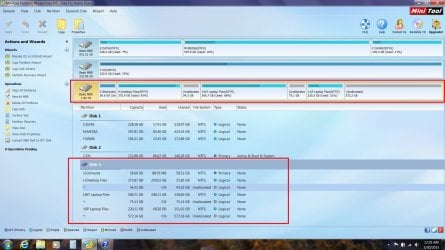
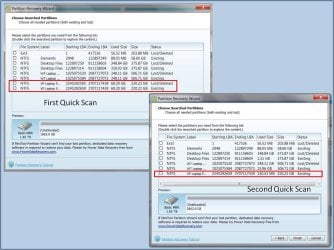
I ran Partition Wizard's "Rebuild MBR" function, in case my problem was a corrupt MBR rather than a problem with the partitions themselves. PW indicated that the operation was successful. I then re-ran PW's "Quick Scan." The results were a little bit different the second time - one of the partitions no longer shows a "lost/deleted" listing as well as an "existing" listing - so I have attached a combined "before and after" screen shot. to illustrate the change. Two of the other partitions still show up as both Existing and Lost/Deleted.
 

Attachments

  • PW QS Compare.jpg
    PW QS Compare.jpg
    181.9 KB · Views: 0

My Computer My Computer

At a glance

Windows 7 Professional 64 bit SP 1Intel Core i7-4710 MQ16 GBNVIDIA GeForce GTX 870M
Computer type
Laptop
Computer Manufacturer/Model Number
ProStar Model P157SM-A
OS
Windows 7 Professional 64 bit SP 1
CPU
Intel Core i7-4710 MQ
Motherboard
No info
Memory
16 GB
Graphics Card(s)
NVIDIA GeForce GTX 870M
Hard Drives
256 GB Samsung SSD
1TB 7200 RPM Hard Drive
Antivirus
Norton Internet Security
Browser
Internet Explorer and Mozilla Firefox
I noted something else odd.

For any data that I want to save, I saved the files elsewhere (on a completely different drive) and deleted all files and folders in each partition. At least that's what I tried to do.

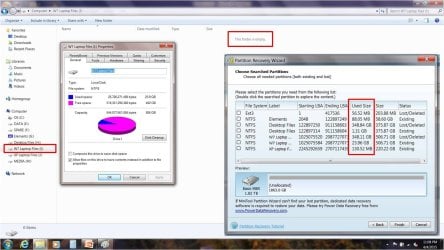
However, apparently it didn't quite work that way. The partition I had been trying to resize when this issue began now shows that there is about 24GB still in use, even though when I set the option to "show hidden files and folders" and look at the partition in Windows Explorer there are no files or folders showing. (And, yes, I remembered to empty the recycle bin.) So I have no clue what this 24GB of data represents.

Does anyone else have any idea what this 24GB represents? It's way too big for an MBR or a Partition Table as far as I know.

Right now, what I'm planning to do next is to delete my partitions using PW and then do a Diskpart Clean to make sure all old data and any code has been removed. Then I'll initialize the drive as an MBR drive and create the partition(s) that I decide I need.
 

Attachments

  • Data Used Results.jpg
    Data Used Results.jpg
    144.6 KB · Views: 0

My Computer My Computer

At a glance

Windows 7 Professional 64 bit SP 1Intel Core i7-4710 MQ16 GBNVIDIA GeForce GTX 870M
Computer type
Laptop
Computer Manufacturer/Model Number
ProStar Model P157SM-A
OS
Windows 7 Professional 64 bit SP 1
CPU
Intel Core i7-4710 MQ
Motherboard
No info
Memory
16 GB
Graphics Card(s)
NVIDIA GeForce GTX 870M
Hard Drives
256 GB Samsung SSD
1TB 7200 RPM Hard Drive
Antivirus
Norton Internet Security
Browser
Internet Explorer and Mozilla Firefox
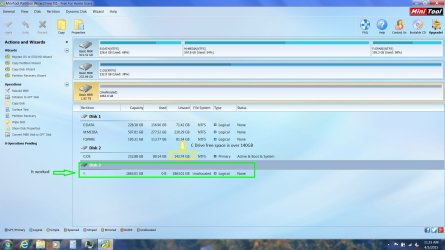
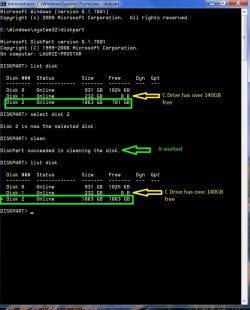
After reading the Diskpart Clean tutorial, I confirmed that I don't have to use PW to delete my partitions before I do the Clean step, so I went straight to Diskpart Clean. I added a second "list disk" step at the end to get an immediate visual confirmation of my results.

I have posted a screen shot of those results.


I've also posted a PW screen shot, because there was yet another odd thing I noticed. According to Windows Explorer, Disk Management and Partition Wizard, my C drive has more than 140GB of free space (which I believe is correct) - but in Diskpart List Disk, the results for that drive show zero free space (which I know is not correct).

I haven't figured out why this is the case - is it perhaps because that's the drive running my OS? Is it perhaps because this drive is SSD rather than a standard HDD?

:focus:

Anyway the good news is it looks like Diskpart Clean did what it needed to do.
 

Attachments

  • Diskpart Final Small2.jpg
    Diskpart Final Small2.jpg
    70.9 KB · Views: 0
  • PW After CleanSmall.jpg
    PW After CleanSmall.jpg
    164.3 KB · Views: 1
Last edited:

My Computer My Computer

At a glance

Windows 7 Professional 64 bit SP 1Intel Core i7-4710 MQ16 GBNVIDIA GeForce GTX 870M
Computer type
Laptop
Computer Manufacturer/Model Number
ProStar Model P157SM-A
OS
Windows 7 Professional 64 bit SP 1
CPU
Intel Core i7-4710 MQ
Motherboard
No info
Memory
16 GB
Graphics Card(s)
NVIDIA GeForce GTX 870M
Hard Drives
256 GB Samsung SSD
1TB 7200 RPM Hard Drive
Antivirus
Norton Internet Security
Browser
Internet Explorer and Mozilla Firefox
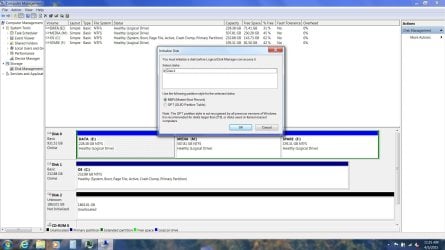
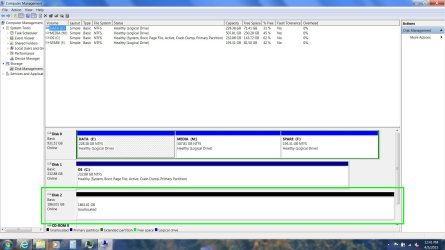
The next step was to initialize the disk. I went ahead and just did it in Disk Management.

That seemed to work just fine also, so all I have to do now is establish my partition(s) and move my data back to this drive for backup/safekeeping
 

Attachments

  • DM After Clean.jpg
    DM After Clean.jpg
    179.8 KB · Views: 1
  • DM Final.jpg
    DM Final.jpg
    160.2 KB · Views: 1

My Computer My Computer

At a glance

Windows 7 Professional 64 bit SP 1Intel Core i7-4710 MQ16 GBNVIDIA GeForce GTX 870M
Computer type
Laptop
Computer Manufacturer/Model Number
ProStar Model P157SM-A
OS
Windows 7 Professional 64 bit SP 1
CPU
Intel Core i7-4710 MQ
Motherboard
No info
Memory
16 GB
Graphics Card(s)
NVIDIA GeForce GTX 870M
Hard Drives
256 GB Samsung SSD
1TB 7200 RPM Hard Drive
Antivirus
Norton Internet Security
Browser
Internet Explorer and Mozilla Firefox
Back
Top