Solved Restoring Windows 7 from Windows 8 Developer Preview

jmanwithplan

New member
Member
Local time
5:52 PM
Messages
88
Hello forum.

Recently I decided to test windows 8 developer preview on my desktop computer. It works great, but I can't run many of my PC games because the drivers don't work with windows 8.

Anyways, I also need windows 7 for school work as well. The problem is that I installed it over Windows 7 by accident instead of dual boot. Usually if I would want to do a factory restore I would press F8, but windows 8 has replaced this with a new menu and GUI that doesn't have the option (Dell Data safe factory restore)

I know it's still on the recovery partition so there must be some way to revert my computer back to factory defaults with the correct drivers.

Any help will be appreciated.
 

My Computer

Computer Manufacturer/Model Number
Dell Inspiron One2305
OS
Window 7 Home Premium x64
CPU
AMD Athlon II X@ 240e Processor 2.80 GHZ
Memory
4 GB
As you have access to another computer, you could try creating a system repair disc.

http://www.sevenforums.com/tutorials/2083-system-repair-disc-create.html

Obviously, you can't re-install Windows with it, but it should get you into the advanced recovery options from where you may be able to carry out a factory restore.

Failing that, Dell should be able to provide you with a recovery disc and driver disc at a reasonable charge.
 

My Computer

Computer Manufacturer/Model Number
HP Pavilion Elite 495UK
OS
Windows 7 Ultimate SP1 64-Bit
CPU
Intel Core i7 870 @ 2.93GHz
Motherboard
MSI 2A9C (CPU1)
Memory
8Gb Dual-Channel DDR3 @ 664MHz
Graphics Card(s)
nVidia GeForce GTX 460 1024MB dedicated RAM
Sound Card
Realtek HD Audio
Monitor(s) Displays
HP2310i
Screen Resolution
1920 x 1080
Hard Drives
1x1954GB Hitachi HDS22020ALA 330 (RAID), 1x1954GB Hitachi External for backup and storage
PSU
460W
Case
HP Elite
Cooling
Air cooled
Keyboard
Logitech K750 solar-powered keyboard
Mouse
Logitech Wireless M180 mouse
Internet Speed
2Mb
Other Info
Pure Avanti Flow Internet Radio with iPod Dock, 64Gb iPod, HP USB Speakers, Sony MDR-V500 Headphones, Sony Vaio F-Series Laptop
Thank you, I tried this method. Normally this is the screen I would get to do a factory restore, but for some reason Dell Datasafe factory restore option is not on there. If I go to uninstall windows 8 it ask me for the installation media.
 

My Computer

Computer Manufacturer/Model Number
Dell Inspiron One2305
OS
Window 7 Home Premium x64
CPU
AMD Athlon II X@ 240e Processor 2.80 GHZ
Memory
4 GB
Last edited:

My Computer

Computer Manufacturer/Model Number
HP Pavilion Elite 495UK
OS
Windows 7 Ultimate SP1 64-Bit
CPU
Intel Core i7 870 @ 2.93GHz
Motherboard
MSI 2A9C (CPU1)
Memory
8Gb Dual-Channel DDR3 @ 664MHz
Graphics Card(s)
nVidia GeForce GTX 460 1024MB dedicated RAM
Sound Card
Realtek HD Audio
Monitor(s) Displays
HP2310i
Screen Resolution
1920 x 1080
Hard Drives
1x1954GB Hitachi HDS22020ALA 330 (RAID), 1x1954GB Hitachi External for backup and storage
PSU
460W
Case
HP Elite
Cooling
Air cooled
Keyboard
Logitech K750 solar-powered keyboard
Mouse
Logitech Wireless M180 mouse
Internet Speed
2Mb
Other Info
Pure Avanti Flow Internet Radio with iPod Dock, 64Gb iPod, HP USB Speakers, Sony MDR-V500 Headphones, Sony Vaio F-Series Laptop
   Information
We always assume you have made your Recovery Disks using the OEM manufacturer's Recovery Media Creator app the first day you had your new PC.
& made the Startup Repair CD.
startup repair disc-create


Did you make the OEM manufacturer's Recovery Disks?


How to use Dell Recovery Partition,make Recovery Disks & how to order Recovery Disks.
Dell - Support
 

My Computer

OS
ME/XP/Vista/Win7
What is the licensed version on the COA sticker, and is it 32- or 64-bit?

Is the Product Key readable? Back it up now as it is good for the life on the machine.

Look over these steps for Clean Reinstalling Windows 7 on factory OEM to see if it's something that you'd like to do.

Otherwise you'll need to order Recov Disks from Dell if you can't restore the Recovery option to F8 menu: Dell Recovery Partition - restoring F8 link
 
Thank you for your replies. I tried a friends win 7 dvd, but that didn't have the correct factory recovery option either. I will try to see if I can get a hold of a Dell Inspiron One 2305 Factory Recovery disc.
 

My Computer

Computer Manufacturer/Model Number
Dell Inspiron One2305
OS
Window 7 Home Premium x64
CPU
AMD Athlon II X@ 240e Processor 2.80 GHZ
Memory
4 GB
You would need some kind of Dell medium- only they will include the Dell restore program.

I think they send them out on request - I have a vague recollection Dell might not even charge for them.

An advanced user could restore using what is already on the recovery partition - if you haven't done that kind of thing before - probably easier to get a disc from Dell.
 

My Computers

System One System Two

  • Computer type
    PC/Desktop
    OS
    7 X64
    CPU
    i5 8400
    Motherboard
    gigabyte b365m ds3h
    Memory
    2x8gb 3200mhz
    Hard Drives
    various
    PSU
    pure power 11 400w cm
    Case
    Coolermaster
    Cooling
    cryorig m9i
  • Computer type
    PC/Desktop
    OS
    7x64
    CPU
    g5400
    Motherboard
    ga b365m ds3h
    Memory
    8gb ddr4 2400
    PSU
    xfx pro 450w
How can I access the recovery partition ? I see it listed in disc management. It takes up 16 GB and has the factory image. Is there a program that can run at boot that will be able to access the recovery partition?
 

My Computer

Computer Manufacturer/Model Number
Dell Inspiron One2305
OS
Window 7 Home Premium x64
CPU
AMD Athlon II X@ 240e Processor 2.80 GHZ
Memory
4 GB
I can't promise, but you may be able to access it by pressing Ctrl+F11 when you power up your computer, ideally just after you press the power button, but if Windows 8 has overwritten the MBR, it may not work.

These links may help, although they seem a bit involved.

http://www.goodells.net/dellrestore/

http://jim-zimmerman.com/?p=368
 

My Computer

Computer Manufacturer/Model Number
HP Pavilion Elite 495UK
OS
Windows 7 Ultimate SP1 64-Bit
CPU
Intel Core i7 870 @ 2.93GHz
Motherboard
MSI 2A9C (CPU1)
Memory
8Gb Dual-Channel DDR3 @ 664MHz
Graphics Card(s)
nVidia GeForce GTX 460 1024MB dedicated RAM
Sound Card
Realtek HD Audio
Monitor(s) Displays
HP2310i
Screen Resolution
1920 x 1080
Hard Drives
1x1954GB Hitachi HDS22020ALA 330 (RAID), 1x1954GB Hitachi External for backup and storage
PSU
460W
Case
HP Elite
Cooling
Air cooled
Keyboard
Logitech K750 solar-powered keyboard
Mouse
Logitech Wireless M180 mouse
Internet Speed
2Mb
Other Info
Pure Avanti Flow Internet Radio with iPod Dock, 64Gb iPod, HP USB Speakers, Sony MDR-V500 Headphones, Sony Vaio F-Series Laptop
It depends how Dell have set it up.

If you can find a file on the recovery partition called boot.wim or winre.wim , or restore.wim or similar ( it won't be very big - 165-200mb - [there will probably another .wim file called factory.wim or install.wim- much larger] )

It is the smaller one you want to add to your boot menu.

The easiest way to do that is with the free version of easybcd.

http://neosmart.net/download.php?id=1

D-L-EASY.jpg


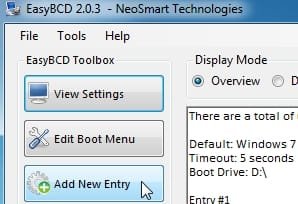
Select ADD ENTRY

easy1.jpg

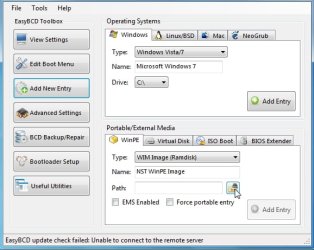
Select the WINPE Tab and click the little browse icon

easy2.jpg

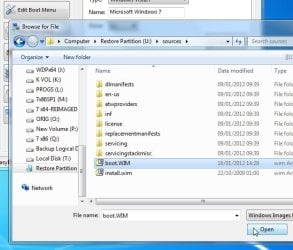
Browse to the bootable.wim file , click Open

easy3.jpg


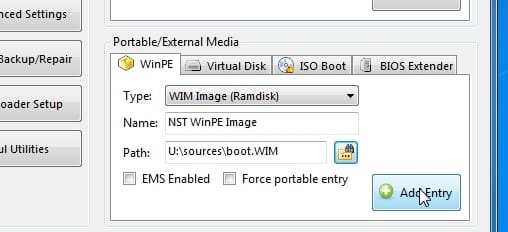
Then click ADD

easy4.jpg

Restart your pc and select the boot menu entry called NST WINPE IMAGE
 

My Computers

System One System Two

  • Computer type
    PC/Desktop
    OS
    7 X64
    CPU
    i5 8400
    Motherboard
    gigabyte b365m ds3h
    Memory
    2x8gb 3200mhz
    Hard Drives
    various
    PSU
    pure power 11 400w cm
    Case
    Coolermaster
    Cooling
    cryorig m9i
  • Computer type
    PC/Desktop
    OS
    7x64
    CPU
    g5400
    Motherboard
    ga b365m ds3h
    Memory
    8gb ddr4 2400
    PSU
    xfx pro 450w
OK I am trying this method. I have the program downloaded but when I go to add the WIM file, It shows no files, when I try to access C:/Recovery (that's the name of the recovery drive that disc manager tells me) it says access is denied.

It depends how Dell have set it up.

If you can find a file on the recovery partition called boot.wim or winre.wim , or restore.wim or similar ( it won't be very big - 165-200mb - [there will probably another .wim file called factory.wim or install.wim- much larger] )

It is the smaller one you want to add to your boot menu.

The easiest way to do that is with the free version of easybcd.

EasyBCD Download Registration Page — NeoSmart Technologies

View attachment 194146


Select ADD ENTRY

View attachment 194141

Select the WINPE Tab and click the little browse icon

View attachment 194142

Browse to the bootable.wim file , click Open

View attachment 194143


Then click ADD

View attachment 194144

Restart your pc and select the boot menu entry called NST WINPE IMAGE
 

My Computer

Computer Manufacturer/Model Number
Dell Inspiron One2305
OS
Window 7 Home Premium x64
CPU
AMD Athlon II X@ 240e Processor 2.80 GHZ
Memory
4 GB
OK, I tried assigning the recovery drive a letter, which allowed me to access it through my computer, but I don't see anything other than log files ... no wim files. It must be still hidden.
 

My Computer

Computer Manufacturer/Model Number
Dell Inspiron One2305
OS
Window 7 Home Premium x64
CPU
AMD Athlon II X@ 240e Processor 2.80 GHZ
Memory
4 GB
First unhide Hidden and System files in Control Panel>Folder Options.

Then rightlick the EasyBCD program .exe to Run as Administrator.

Follow steps given to see if you can browse to .wim file from Easy.

If you will answer the questions I asked earlier, I will provide the latest official installer ISO for Clean Reinstalling Windows 7.
 
Ok, I unhid system files. I still cannot see a factory.wim or any .wim images. Obviously it's there somewhere, when I look into recovery drive all I see are log files and a few other small files, yet it is using 7.93 of 14.6 GB


First unhide Hidden and System files in Control Panel>Folder Options.

Then rightlick the EasyBCD program .exe to Run as Administrator.

Follow steps given to see if you can browse to .wim file from Easy.

If you will answer the questions I asked earlier, I will provide the latest official installer ISO for Clean Reinstalling Windows 7.
 

My Computer

Computer Manufacturer/Model Number
Dell Inspiron One2305
OS
Window 7 Home Premium x64
CPU
AMD Athlon II X@ 240e Processor 2.80 GHZ
Memory
4 GB
It likely is only a hidden file, not a System file. Did you uncheck Hidden files?

You can try to restore Recovery to the F8 menu: Dell Recovery Partition - restoring F8 link

You can also try marking the Recovery partition Active to see if it will boot itself: Partition - Mark as Active

Otherwise you can order Factory Recovery disks from Dell, or use a Win7 retail installer to get a superior Clean Reinstall with the Product Key on COA sticker if you will answer my questions asked.
 
Yes, it is set to show hidden files.

If I try to use F8 I get a new option that windows 8 has which is a blue screen instead of black screen and it doesn't show options for factory restore.

When I try to mark the partition as active, it's greyed it. It's not a primary partition, it's the recovery partition.

I contacted dell about factory recovery disc, and they said that I would need to prove ownership, basically, I'm borrowing the computer So I am not the owner yet.

There must be some way or some other program to access the factory restore image.

It likely is only a hidden file, not a System file. Did you uncheck Hidden files?

You can try to restore Recovery to the F8 menu: Dell Recovery Partition - restoring F8 link

You can also try marking the Recovery partition Active to see if it will boot itself: Partition - Mark as Active

Otherwise you can order Factory Recovery disks from Dell, or use a Win7 retail installer to get a superior Clean Reinstall with the Product Key on COA sticker if you will answer my questions asked.
 

My Computer

Computer Manufacturer/Model Number
Dell Inspiron One2305
OS
Window 7 Home Premium x64
CPU
AMD Athlon II X@ 240e Processor 2.80 GHZ
Memory
4 GB

My Computers

System One System Two

  • Computer type
    PC/Desktop
    OS
    7 X64
    CPU
    i5 8400
    Motherboard
    gigabyte b365m ds3h
    Memory
    2x8gb 3200mhz
    Hard Drives
    various
    PSU
    pure power 11 400w cm
    Case
    Coolermaster
    Cooling
    cryorig m9i
  • Computer type
    PC/Desktop
    OS
    7x64
    CPU
    g5400
    Motherboard
    ga b365m ds3h
    Memory
    8gb ddr4 2400
    PSU
    xfx pro 450w
Ok, I changed it to 0x07, but it was already set to that option. I was able to read the contents of the recovery disc using minitool partition. The factory .wim image is 3 GB and factory2.wim is 2 GB, however, I still can't read the folders using the other program EasyBCD, or just browsing in the explorer.

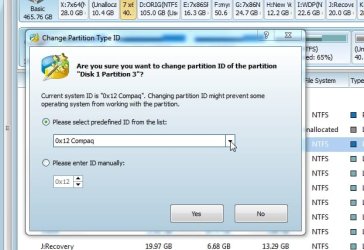
It is probabaly an oem partition ID .

You need a 3rd party app to change that so you can access it.

Like this:

Rt click the recov partition, selct Modify>change partition id

View attachment 194634

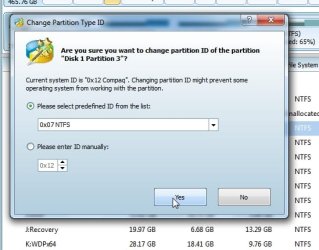
Then select 0x07 in the dropdown.

View attachment 194635

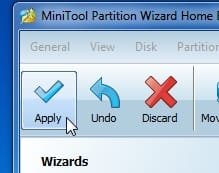
Click Yes , then click Apply.


View attachment 194636

You can use this partition manager - it is pretty good and the Home Edition is free:

Best Free Partition Manager Freeware for Windows 7, Windows Vista, and Windows XP 32 bit & 64 bit. MiniTool Free Partition Manager Software Home Edition.
 

My Computer

Computer Manufacturer/Model Number
Dell Inspiron One2305
OS
Window 7 Home Premium x64
CPU
AMD Athlon II X@ 240e Processor 2.80 GHZ
Memory
4 GB
Is there anyway to copy that recovery partition, burn it to a USB flashdrive, and make it bootable?
 

My Computer

Computer Manufacturer/Model Number
Dell Inspiron One2305
OS
Window 7 Home Premium x64
CPU
AMD Athlon II X@ 240e Processor 2.80 GHZ
Memory
4 GB
Back
Top