Router DHCP IP Range Question

artmanphoto

New member
Member
Local time
11:49 PM
Messages
77
Location
Kansas City - USA
I am trying to use a Netgear WNR3500 wireless as a wireless access point on my network.

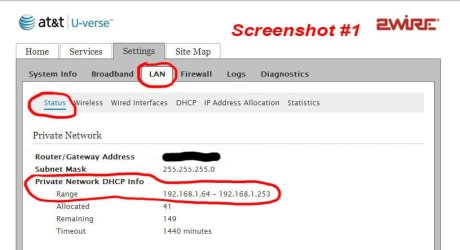
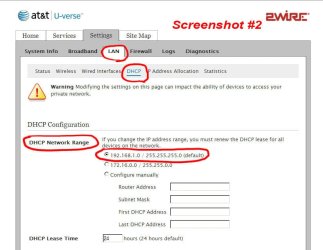
I have attached two screenshots from the main 2WIRE AT&T U-Verse wireless router. I am trying to determine the DHCP IP range of the 2WIRE AT&T router.

Screenshot #1 shows Status under the LAN tab: Private Network DHCP Info 192.168.1.64 - 192.168.1.253.

Screenshot #2 shows DHCP under the LAN tab: DHCP Network Range 192.168.1.0 - 255.255.255.0 (default)

Can someone please tell me which DHCP IP range I should use. I need to set the IP address of the Netgear router to an IP outside the DHCP range.

Thanks! Bill
 

Attachments
  • 2WIRE_Screenshot-2.jpg
    2WIRE_Screenshot-2.jpg
    51.8 KB · Views: 12
  • 2WIRE_Screenshot-1.jpg
    2WIRE_Screenshot-1.jpg
    50 KB · Views: 11

My Computer

OS
Windows 7 Professional 64 Bit
1) You can leave the 2WIRE settings alone.
2) Connect to the Netgear WNR3500
3) Disable DHCP
4) Connect the WNR3500 and the 2WIRE as shown in step 4 on this website:
How do I set up a router as a wireless access point? « ask4 Portal
Where that image shows a wall jack...
...that would be one of the ports on your 2WIRE router.

And of course you can use Wi-Fi instead of a LAN cable to connect the computer to the WNR3500 for day to day surfing, but you might not be able to configure the WNR3500 via that connection. More on that later.

The 2WIRE router will issue all of the IP addresses for your network. Once you connect to the WNR3500 via Wi-Fi, your connection will be forwarded to the 2WIRE for it to hand out an IP address.


To answer your question more directly, the DHCP IP Range is shown in screenshot #1. Screenshot #2 is showing the starting IP and a thing called a submask (255.255.255.0). That does define the starting and ending numbers for a network, but it is not the same thing as the range of IP addresses that the DHCP service will dole out.

>> I need to set the IP address of the Netgear router to an IP outside the DHCP range.
Some 2WIRE routers will not accept traffic from an IP address that are outside of the DHCP range unless you also set some things up in the router for that IP. So once you get this all hooked up, you might not be able to "surf" to the WNR3500's configuration interface. Also, you might need to look around in the 2WIRE interface to see what IP addresses are already in use by things like DVRs.

One way to avoid all of the mess mentioned in the preceding paragraph is to assign the WNR3500 an IP address of 10.0.0.1. And when you want to change settings on the WNR3500, assign a static IP address to the hard wire network adapter (Local Area Connection) on your computer:
...a static IP address of 10.0.0.2
...a subnet mask of 255.255.255.0
...and a gateway of 10.0.0.1
Then plug a LAN cable from that computer into one of the LAN jacks on that router (not the internet jack). Surf to 10.0.0.1.
 

My Computer

Computer type
Laptop
Computer Manufacturer/Model Number
Employer provided Dell Latitude
OS
W7 Pro SP1 64bit
CPU
i7
Memory
8GB
Graphics Card(s)
Intel HD Graphics
Hard Drives
crappy SSD
Antivirus
Employer mandated Symantec Endpoint Protection
Browser
Pale Moon 64bit, IE11 64bit & Chrome 64bit

My Computer

Computer type
PC/Desktop
Computer Manufacturer/Model Number
Medion Erazer (note to self: insert model number) - with custom additions
OS
Windows 10 Pro x64
CPU
Intel Core i5 7400 @ 3.00GHz
Motherboard
OEM supllied with PC
Memory
8GB 2133Mhz DDR4 (OEM supplied)
Graphics Card(s)
Gygabyte Windforce GTX 1050Ti (Factory Overclocked)
Sound Card
Realtek
Monitor(s) Displays
Acer Al1980 + HKC
Screen Resolution
1360*768(HKC) / 1280*1024(Acer)
Hard Drives
1TB Toshiba
1TB WD Caviar Green
120GB Samsung Evo 840
PSU
OEM supplied (no power rating on case)
Case
OEM Supplied
Cooling
Stock
Keyboard
Logitech Wireless
Mouse
Logitect Wireless
Internet Speed
40Mb/s Down 10Mb/s Up
Antivirus
Defender
Browser
Firefox
Actually a DHCP assigned IP will usually work fine for the secondary router.

I use DHCP for my A/P with no problems at all. Mine is a dedicated A/P so the set up is much easier than a regular router.

Change the LAN IP of the AP from its default so that it lies within the subnet of the primary router but preferably outside the dynamic LAN IP range of the primary router. (examples below) Note: This is not a requirement, but keeping everything in the same IP range can make administration and file sharing easier.

In fact for this network I would install the WNR-3500 first since it's a superior router and use the 2wire as the secondary A/P.

Disable DHCP on the 2Wire and plug into a LAN port on the 3500, set up the wireless security on both routers, you can use the same SSID to auto connect between different area's, nothing else should be required.

This link explains the process pretty well and shows other settings that may help. :)

http://www.broadbandreports.com/faq/11233
 

My Computer

Computer type
PC/Desktop
Computer Manufacturer/Model Number
Home built
OS
Windows 7 Ult, Windows 8.1 Pro,
CPU
Q9650-4.275GHz, E8600 4.5GHz, E6750-3.8GHz
Motherboard
Evga 780i FTW
Memory
G.Skill PC2 9600 1200Mhz 5 5 5 15 2T
Graphics Card(s)
GTX480
Sound Card
Asus Xonar D2
Monitor(s) Displays
HannsG
Screen Resolution
1680X1050
Hard Drives
GSkill Phoenix Pro 120GB SSD
PSU
ThermalTake Toughpower 1000Watt modular
Case
ThermalTake XaserV
Cooling
Xigmatek S1283
Keyboard
Logitech G15
Mouse
Logitech G9
Internet Speed
T1
Back
Top