Safety of XP Virtual Window with end of support

GaryDZ

New member
Local time
1:31 PM
Messages
17
I have two legacy programs that I open in a XP Virtual Window when running Windows 7. The programs are an accounting app and a desktop publishing app which are not Windows 7 compatible. I do NOT open these programs in the XP operating system window - I only open them directly from Windows 7.

With the end of support for XP on April 8th, am I at risk? Neither program can access the internet. But when I have one of these programs open I will get XP update notices. I just need to know if I must disable my internet connection whenever I use these apps. I would prefer not to since it is a PIA, but I will if I have to.
 

My Computer My Computer

At a glance

Windows 7 Professional 64bitIntel i7-920 Quad 2.66GHz12 GBNVIDIA GeForce GT 220 1GB
Computer type
PC/Desktop
Computer Manufacturer/Model Number
HP Pavilion Elite 9280t
OS
Windows 7 Professional 64bit
CPU
Intel i7-920 Quad 2.66GHz
Motherboard
PEGATRON CORPORATION TRUCKEE 1.04E01 Bus Clock: 133 megahert
Memory
12 GB
Graphics Card(s)
NVIDIA GeForce GT 220 1GB
Monitor(s) Displays
Dell 2280WFP Digital
Screen Resolution
1680 x 1050
Hard Drives
Western Digital 640GB SATA
No matter is it's a virtual or real XP installation, that date is merely a political act from MS when they officially say "We no longer care about XP and its users". The only practical difference is that they won't be publishing any more updates.

But the reality is, besides what MS says, for the real user and every installed system, that date means ABSOLUTELY NOTHING. Existing system will continue to function exactly in the same way as before (be it for good or bad), programs running on top of it will continue to run in the exactly same way as before.

As for the "risk", again, you'll face the very same risk from then on than today or yesterday or the very first day you put XP there. It won't magically become more insecure just because of this date. Since the first days XP was and still is quite a secure OS, if properly used and configured (not in the way MS suggests). Don't believe in all the FUD MS is spreading on it, since it's only used to promote their more recent OSs.
 

My Computer My Computer

At a glance

Windows 7 Ultimate x64Intel Core i7-740QM8 GB DDR3NVIDIA GeForce 330GT
Computer type
Laptop
Computer Manufacturer/Model Number
Toshiba Sattelite A665-S6092
OS
Windows 7 Ultimate x64
CPU
Intel Core i7-740QM
Memory
8 GB DDR3
Graphics Card(s)
NVIDIA GeForce 330GT
Screen Resolution
1366x768
Hard Drives
Samsung 840 SSD 500GB
1TB USB3 external HD
Cooling
Coolermaster Notepal U3 notebook cooling pad
Internet Speed
3mbps ASDL
Antivirus
ClamWin 0.98.7
Browser
Opera 12.17 x86 (main), Firefox 38 (sec), IE11 (last resort)
@ Alejandro85

I disagree with you completely.

@GaryDZ

I would certainly disable the virtual xp machine from accessing the internet, for the simple reason that you are more prone to attack as windows will no longer get security updates. (Granted the attacks will probably only effect the VM and not the host.) If the applications do not need the internet, take the xp VM off of it. Or wait till the last second of april, download all windows xp updates and then remove the network access.

A VM is safer for your host os, but if you have sensitive info on the XP VM I would remove it from the internet.
 

My Computer My Computer

At a glance

Windows 10 ProAMD Ryzen 5 2400G Processor with Radeon RX Ve...G.SKILL Ripjaws V Series 16GB (2 x 8GB) 288-P...2047MB NVIDIA GeForce GTX 1060 6GB (EVGA)
Computer type
PC/Desktop
Computer Manufacturer/Model Number
Custom Built
OS
Windows 10 Pro
CPU
AMD Ryzen 5 2400G Processor with Radeon RX Vega 11 Graphics
Motherboard
ASRock X470 Master SLI/AC AM4 AMD Promontory X470 SATA 6Gb/s
Memory
G.SKILL Ripjaws V Series 16GB (2 x 8GB) 288-Pin DDR4 SDRAM D
Graphics Card(s)
2047MB NVIDIA GeForce GTX 1060 6GB (EVGA)
Sound Card
Motherboard Built in
Monitor(s) Displays
Acer R240HY bidx 23.8-Inch IPS HDMI DVI VGA (1920 x 1080) Wi
Screen Resolution
1920 x 1080
Hard Drives
1TB Sandisk SSD PLUS (Main drive)
500 GB Seagate 7200 RPM (Games)
500 GB Western Digital 7200 RPM (Virtual Machines)
PSU
CORSAIR TX Series TX650M 650W 80+ Gold Modular Power Supply
Case
CORSAIR CARBIDE SPEC-02 Mid-Tower Gaming Case, Red LED Fan
Cooling
220mm, two 120mm, and four 60mm fans
Keyboard
Wired Dell keyboard
Mouse
Wireless Logitech mouse
Internet Speed
250mb down, 30mb up
Antivirus
Panda Cloud Antivirus
Browser
Chrome-ish x64
Other Info
Your awesome for reading this.
The truth lies somewhere in between what Alejandro and Andrew posted here above.

It is astonishingly naive to say that nothing changes, that XP continues to work and be as always. Especially the following statement is so utterly bad advice it should never have been published in a tech forum:

As for the "risk", again, you'll face the very same risk from then on than today or yesterday or the very first day you put XP there.

Of course, as every Windows user with some thinking capacity knows, each day after the end of security updates will increase the risk. As you have certainly read in the media, a surprisingly large percentage of PC users is still using XP and will continue using it. Naturally the "bad guys" have also realized this and what we can expect is that these people will continue searching for vulnerabilities even more actively than before. For a reason: they know that if they can find one, Microsoft is no longer riding for rescue with a patch meaning they have better chance to success.

On the other hand, there's no immediate reason to totally give up and stop using XP, especially when used on a virtual machine. From your original post I understand you are using Windows Virtual PC and XP Mode? Here a few simple steps to help you to continue using it even after the support has ended:
  • If not already done, install a good antivirus program on XP Mode
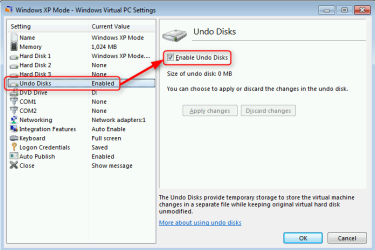
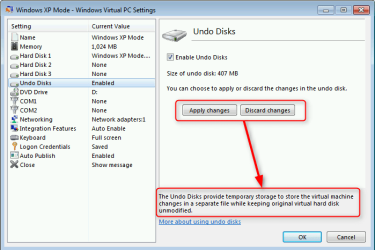
  • Use Virtual PC's Undo Disk feature. It allows you to discard all changes whenever you feel unsecure or have reason to believe something unwanted has happened. All virtualization programs have a similar feature, for instance in Hyper-V it's called Checkpoints and in VirtualBox Snapshots
    • Enable Undo Disk:
      2014-03-13_00h21_22.png
    • After shutting down, you can discard your changes:
      2014-03-13_01h01_53.png
  • Keep your own XP Mode files and documents stored on an external device (important especially when Undo Disk feature is used for not to lose your files)
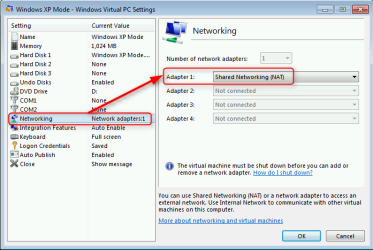
  • Use Shared Networking. It puts XP Mode in its own 192.168.131.X subnet and does not let possible malware infections through to your host system:
    2014-03-13_01h06_45.png
No reason to stop using XP, on the other hand no reason to think it's as safe as before. Rational thinking and safe install / download habits will keep you going.

I do NOT open these programs in the XP operating system window - I only open them directly from Windows 7.

It is totally irrelevant how you launch and use your XP Mode programs (launching from the host system, Windows 7's Start Menu, or directly from the XP Mode), they still run on the XP Mode virtual machine, not on the host system and are installed on the guest XP virtual machine, not on the host Windows 7.

Kari
 

My Computer My Computer

At a glance

Windows 10 Pro x64 EN-GB1.6 GHz Intel Core i7-720QM Processor6 GBATI Mobility Radeon HD 5850 Graphics
Computer type
Laptop
Computer Manufacturer/Model Number
HP ENVY 17-1150eg
OS
Windows 10 Pro x64 EN-GB
CPU
1.6 GHz Intel Core i7-720QM Processor
Memory
6 GB
Graphics Card(s)
ATI Mobility Radeon HD 5850 Graphics
Sound Card
Beats sound system with integrated subwoofer
Monitor(s) Displays
17" laptop display, 22" LED and 32" Full HD TV through HDMI
Screen Resolution
1600*900 (1), 1920*1080 (2&3)
Hard Drives
Internal: 2 x 500 GB SATA Hard Disk Drive 7200 rpm
External: 2TB for backups, 3TB USB3 network drive for media
Cooling
As Envy runs a bit warm, I have it on a Cooler Master pad
Keyboard
Logitech diNovo Media Desktop Laser (bluetooth)
Mouse
Logitech Performance Mouse MX
Internet Speed
50/10 Mbps VDSL
Antivirus
Windows Defender 4.3.9431.0
Browser
Maxthon 3.5.2., IE11
I got a visitor message about using the Shared Network option in other virtualization programs as told in my post above. For future notice, please do not VM or PM these factual questions, not for me regarding this thread or any other member regarding any other thread; only posting them in thread itself helps us to have a productive dialog and can help other users.

Using a VM to post additional questions becomes especially annoying when a member doing it has himself disabled the VM option on his profile page.

Using NAT (Shared Networking) on Virtual PC gives every vm the same IP, 192.168.131.65 with default gateway 192.168.131.254. This puts the Virtual PC vm's in a different subnet than the host machine, very effectively protecting the host and other networked devices from threats coming from virtual machine.

Only negative side effect of this is that different subnets makes communications with other networked devices harder, for instance a network printer cannot be installed on XP Mode when it's using Shared Networking. Trying it will only produce an error message about different subnets, to get it working you have to change Shared Networking to bridged mode. Personally I recommend keeping Shared Networking enabled, not to install network printer but instead move documents needing to be printed from XP Mode to host and printing from there.

How Shared Networking IP's are assigned on other virtualization programs, I do not know.

Kari
 
Last edited:

My Computer My Computer

At a glance

Windows 10 Pro x64 EN-GB1.6 GHz Intel Core i7-720QM Processor6 GBATI Mobility Radeon HD 5850 Graphics
Computer type
Laptop
Computer Manufacturer/Model Number
HP ENVY 17-1150eg
OS
Windows 10 Pro x64 EN-GB
CPU
1.6 GHz Intel Core i7-720QM Processor
Memory
6 GB
Graphics Card(s)
ATI Mobility Radeon HD 5850 Graphics
Sound Card
Beats sound system with integrated subwoofer
Monitor(s) Displays
17" laptop display, 22" LED and 32" Full HD TV through HDMI
Screen Resolution
1600*900 (1), 1920*1080 (2&3)
Hard Drives
Internal: 2 x 500 GB SATA Hard Disk Drive 7200 rpm
External: 2TB for backups, 3TB USB3 network drive for media
Cooling
As Envy runs a bit warm, I have it on a Cooler Master pad
Keyboard
Logitech diNovo Media Desktop Laser (bluetooth)
Mouse
Logitech Performance Mouse MX
Internet Speed
50/10 Mbps VDSL
Antivirus
Windows Defender 4.3.9431.0
Browser
Maxthon 3.5.2., IE11
Back
Top