Save a Search

How to Save a Search in Windows 7 and Windows 8


   Information
If you often perform a search for a certain group of files, then this will show you how to save your search so you can open the saved search at anytime to see the most current search results using the same settings as the original search. When you save a search, you don't have to fine-tune the search settings and filters the next time you want to use it.


Here's How:
1. Open and perform a search in Windows Explorer (Windows 7) or File Explorer (Windows 8).
NOTE: Just for an example, searching for all .bmp files on the C: drive.

2. When search has finished, click on: (see screenshots below) In Windows 7: Save search on the toolbar.

In Windows 8: Search (Search Tools) tab, and Save Search in ribbon.
Step1.jpg

Windows-8_Save_Search.jpg
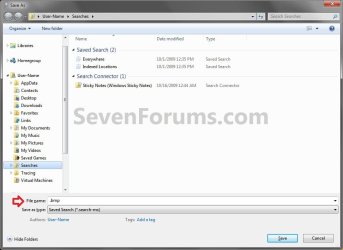
3. In the File Name box, type in a name for the search that will make it easy to know what it is for, then click/tap on the Save button. (See screenshot below) Step2.jpg
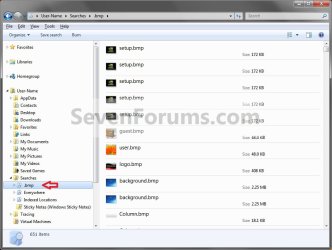
4. By default the saved search itself will be saved in the C:\Users\(user-name)\Searches folder. (See screenshots below)
NOTE: To delete the saved search, right click on it at these locations and click/tap on Delete like any other file. Step3A.jpg
Step3B.jpg

5. A shortcut of the saved search will also be added to the Favorites section of the navigation pane. (See screenshot below)
NOTE: To remove the save search from the Favorites section only, right click on it and click/tap on Remove. Step3C.jpg
6. You can now open the saved search from any of these locations anytime you want to perform the same search again to help make it easier.
That's it,
Shawn


Last edited:
Ah yes....but how can I save a search to a library. For example I have done a search on all items with "niche" in them and want to add them to a library. If the results resided in just a few folders it would be straightforward to add these folders manually to the new library I have created. But is there any way I can add the results of a search to a (new) library?

Thanks
 

My Computer

OS
Windows 7 Ultimate 64 bit
Hello zzzmuzz, and welcome to Seven Forums.

Yes. You can right click on the C:\Users\(user-name)\Searches folder, and click on Include in Library and Create new Library to create a new Search library with the saved searched referenced in it. This way anytime you save a search in the C:\Users\(user-name)\Searches folder, it will also be in the library automatically.

If you have saved searches in other folders, then you can include them in the new Searches library folder as well if you like.

Hope this helps,
Shawn
 

My Computer

Computer type
PC/Desktop
Computer Manufacturer/Model Number
Self built custom
OS
64-bit Windows 11 Pro for Workstations
CPU
Intel i7-8700K OC'd to 5 GHz
Motherboard
ASUS ROG Maximus XI Formula Z390
Memory
64 GB (4x16GB) G.SKILL TridentZ RGB DDR4 3600 MHz
Graphics Card(s)
ASUS ROG-STRIX-GTX1080TI-O11G-GAMING
Sound Card
Integrated
Monitor(s) Displays
2 x Samsung Odyssey G7 27"
Screen Resolution
2560x1440
Hard Drives
1TB Samsung 990 PRO M.2,
4TB Samsung 990 PRO PRO M.2,
TerraMaster F8 SSD Plus NAS
PSU
Seasonic Prime Titanium 850W
Case
Thermaltake Core P3
Cooling
Corsair Hydro H115i
Keyboard
Logitech wireless K800
Mouse
Logitech MX Master 4
Internet Speed
2 Gb/s Download and 100 Mb/s Upload
Antivirus
Malwarebyte Anti-Malware Premium
Browser
Google Chrome
Other Info
Logitech Z625 speaker system,
Logitech BRIO 4K Pro webcam,
HP Color LaserJet Pro MFP M477fdn,
APC SMART-UPS RT 1000 XL - SURT1000XLI,
Galaxy S23 Plus phone
Search added to Library

Thanks Brink. I can do a work around with the info you provided, however, my search folder "Searches" has four search folders in it. I can not do an "include in library" from the relevant folder. I can do an "include in library" from the "Searches" folder but that includes ALL of the searches as a library.

Neither can I do it with an individual search folder the other way around, namely, working from the Libraries.. ie Specific Library/Properties. This will not allow the addition of a search folder.

As a work around, I have done an "Include in Library" of "Searches" - and then deleted the ones I dont want. It still looks a bit odd with a Library called Searches, with a subfolder called Searches and then at the next level, my library folder, "nicheinfo"

Have I got this right?

Thanks again for your assistance.
 

My Computer

OS
Windows 7 Ultimate 64 bit
You're most welcome zzzmuzz.

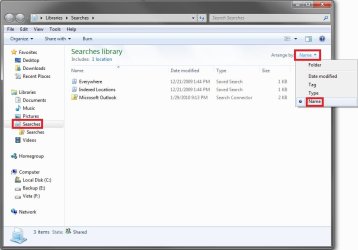
That sounds about right, but you can change the Arrange by to Names instead in the library to have it listed differently.

Searches.jpg
 

My Computer

Computer type
PC/Desktop
Computer Manufacturer/Model Number
Self built custom
OS
64-bit Windows 11 Pro for Workstations
CPU
Intel i7-8700K OC'd to 5 GHz
Motherboard
ASUS ROG Maximus XI Formula Z390
Memory
64 GB (4x16GB) G.SKILL TridentZ RGB DDR4 3600 MHz
Graphics Card(s)
ASUS ROG-STRIX-GTX1080TI-O11G-GAMING
Sound Card
Integrated
Monitor(s) Displays
2 x Samsung Odyssey G7 27"
Screen Resolution
2560x1440
Hard Drives
1TB Samsung 990 PRO M.2,
4TB Samsung 990 PRO PRO M.2,
TerraMaster F8 SSD Plus NAS
PSU
Seasonic Prime Titanium 850W
Case
Thermaltake Core P3
Cooling
Corsair Hydro H115i
Keyboard
Logitech wireless K800
Mouse
Logitech MX Master 4
Internet Speed
2 Gb/s Download and 100 Mb/s Upload
Antivirus
Malwarebyte Anti-Malware Premium
Browser
Google Chrome
Other Info
Logitech Z625 speaker system,
Logitech BRIO 4K Pro webcam,
HP Color LaserJet Pro MFP M477fdn,
APC SMART-UPS RT 1000 XL - SURT1000XLI,
Galaxy S23 Plus phone
Back
Top