
How to Change the Screen Refresh Rate in Windows 7 and Windows 8
Information
This tutorial will show you how to change the screen refresh rate for you monitor to the Hertz rate you want for it in Windows 7 and Windows 8.
Note
The refresh rate is the Hertz frequency at which the screen is redrawn. A flickering monitor can contribute to eyestrain and headaches. Increasing the screen refresh rate to at least 75 hertz for CRT monitors and 60 hertz for LCD monitors while using the native resolution will generally produce less flicker and strain on your eyes. The available rate and resolution options are based on the video adapter and it's driver, and of course your monitor and it's drivers (if available).
Warning
- Windows does not allow for each user to have their own screen refresh rate. Changing the screen refresh rate in one user account will change it for all user accounts on the computer.
- You may need to change your screen resolution before changing the refresh rate because not every screen resolution will support all of the same refresh rates.
- Make sure the Color Depth (Colors) is set to True Color (32 bit) to help have the best picture on your monitor.
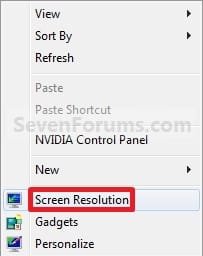
Here's How: 1. Right click on a empty space on the desktop, and click/tap on Screen Resolution. (See screenshot below)
2. Select the monitor Display you want to change the screen refresh rate for. (See screenshot below step 3)
NOTE: You will only be able to select a different display if you have more than one monitor connected.
3. Click/tap on the Advanced settings link, and do step 4 or 5 below for what you would like to do. (See screenshot below)
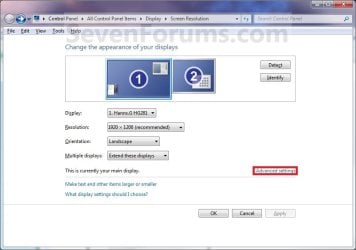
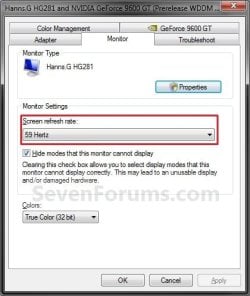
4. To Change Only the Screen Refresh Rate A) Click/tap on the Monitor tab. (See screenshot below step 4C)
B) Select an available Screen refesh rate from the drop down menu.
WARNING: It is recommended to leave the Hide modes that this monitor cannot display box checked to prevent possible damage to your monitor.
C) Click/tap on OK, and go to step 6 below.
5. To Select from a List of All Display Modes A) Click/tap on the Adapter tab, and on the List All Modes button. (See screenshot below)
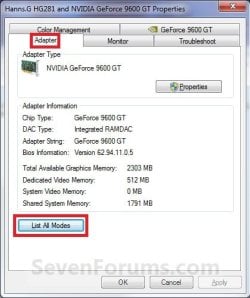
B) Select the display mode with the screen resolution, color depth, and screen refresh rate that you want to use, and click/tap on OK. (See screenshot below)
NOTE: It is recommended to use a native screen resolution with a True Color (32-bit) color depth.

C) Click/tap on OK, and go to step 6 below. (See screenshot below step 5A)
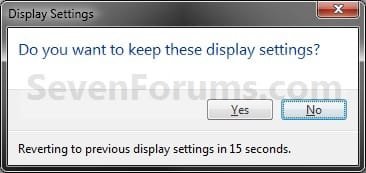
6. Click/tap on Yes to confirm the screen refresh rate change. (See screenshot below)
7. Click/tap on OK. (See screenshot below step 3)
That's it,
Shawn
Related Tutorials
- How to Change the Screen Resolution in Windows 7
- How to Change the Screen Resolution of Displays in Windows 8
- How to Change Screen Orientation in Windows 8 and 8.1
- How to Change the Color Bit Depth in Windows 7
- How to Change Display DPI Size in Windows 7 and Windows 8
- How to Change DPI Scaling Size for Displays in Windows 8.1
- How to Open and Use Display Color Calibration in Windows 7
- How to Force DVI or HDMI Resolutions and Refresh Rates in Windows 7
- How to Change the Main Display in Windows 7
- How to Change Your Main Display in Windows 8 and 8.1
- How to Create a Custom Screen Refresh Rate with NVIDIA Control Panel in Windows
- Enable or Disable Changing "DPI" and "Screen Resolution" Display Settings in Windows 7 and Windows 8
Attachments
Last edited:


