Search in Windows 7

How to Search in Windows 7

   Information
This will show you how to do a Search and Advanced Search for files and folders in Windows 7 through the Start Menu and Windows Explorer.

   Note
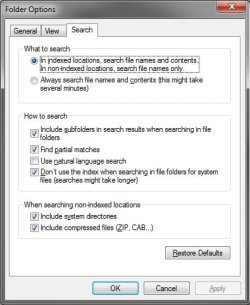
Before doing a search in Windows 7, you should make sure that you have set your Search Options for the What to search, How to search, and When searching non-indexed locations settings. If you have the index enabled (it is by default), then you should also have any locations and file types added to be indexed so they will be included in the search results when doing a search. If the files have been recently changed, then the index may not have finshed updating yet and you will need to manually rebuild the index to force it to update now.

To be able to search in libraries, the Windows Search service needs to be Started and set to Automatic. Libraries require it's included folders to also be added to the index to be tracked properly even though they will still open properly.


OPTION ONE

Search in the Start Menu


   Note
You can use the search box line in the Start menu to find files, folders, programs, and e‑mail messages stored on your computer. When searching from the Start menu, only files that have been indexed will appear in search results.

You can also adjust these settings below in the Customize Start Menu settings for what is to be included in the search from the Start Menu Search box.
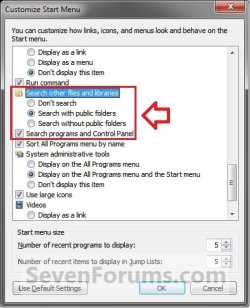
Start_Menu_Customize.jpg

1. Open the Start Menu, and type a word or part of a word for what you want to search for in the Search box. (See screenshot below)
NOTE: As you type, items that match your text will appear on the Start menu. The search is based on text in the file name, text in the file, tags, and other file properties.
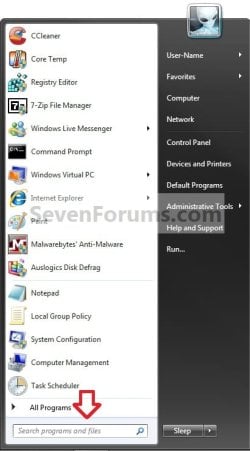
Start_Menu.jpg
2. You will now see the search results for what you search for. (See screenshot below)
NOTE: You can also click on the See more results link to see more search results in a Windows Explorer window like in OPTION TWO below.
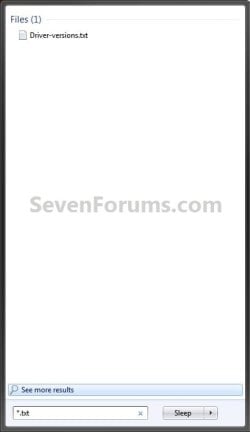
Start_Menu2.jpgStart_Menu3.jpg
3. You can now just click on a search result to open it. (See screenshot above)


OPTION TWO

Search in Windows Explorer


NOTE: This will allow you to do a search for any item from within a selected drive or folder location of your choice in Windows Explorer.
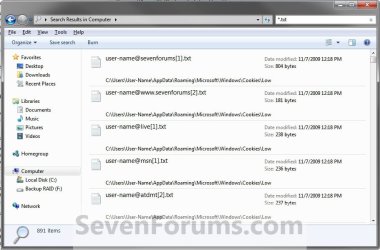
1. Press the F3 key or Windows Key + F keys. (See screenshot below)
NOTE: This Search Results window gives you the same search results as the Start Menu in OPTION ONE.
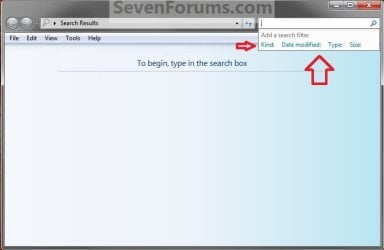
Search.jpg
A) Go to step 3.
OR

2. Open Windows Explorer, and navigate to where (ex: drive or folder) you want to search in and open it.
NOTE: When searching a drive or folder in Windows Explorer, Windows only searches from within the currently opened drive or folder location and its subfolders. Windows does not search outside this search path.

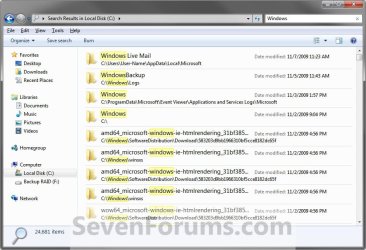
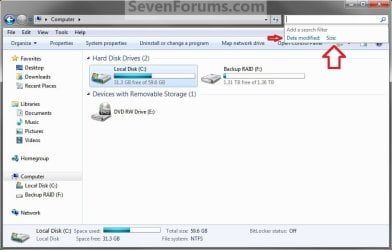
3. Type a word or part of a word for what you want to search for in the Search box at the top right corner in Windows Explorer. (See screenshots below)
NOTE: As you type, the contents of the folder or library are filtered to reflect each successive character you type. When you see the file that you want, stop typing. You will also see the word you type in highlighted in the search results.
Windows_Explorer.jpg

Windows_Explorer_B.jpg

Windows_Explorer2.jpg

Windows_Explorer3.jpg

   Tip

Using Search Filters


NOTE: If you're searching for a file based on one or more of its properties (such as a tag or the date the file was last modified), you can use search filters to specify the property in your search.
  • Click in the Search box, and select a listed search filter that you want to add to narrow the search results with.
  • Depending on the search filter selected, choose a value to be used for this search filter.
    Search_Filter.jpg
  • You can repeat these steps to add more search filters to build complex searches on multiple properties. Each time that you click a search filter or value, the search filter terms are automatically added to the search box.
Using Search Again In


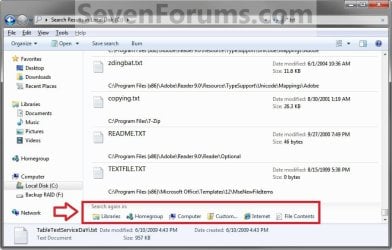
NOTE: If you can't find what you're looking for in the search results from this current Windows Explorer location, then you can expand the search to include different locations.
  • After doing a search, scroll to the bottom of the search results list. Under Search again in, do one of the following:
    • Click Libraries to search across every library.
    • Click Computer to search across your entire computer. This is the way to search for files that aren't indexed (such as system or program files). However, be aware that the search will be slower.
    • Click Custom to search specific locations.
    • Click Internet to search online, using your default web browser and your default search provider.
Search_Again.jpg


That's it,
Shawn


Related Tutorials

 
Last edited:
Hello Williest, and welcome to Seven Forums.

Double check the items in the NOTE box at the top of the tutorial to make sure that your search settings are set for how you want them.

Personally, I find that these search settings work best for me for accurate searches.

How to Have More Accurate Search Results in Windows 7 and Vista

Search_options.jpg

Hope this helps,
Shawn
 
Last edited:

My Computer

Computer type
PC/Desktop
Computer Manufacturer/Model Number
Self built custom
OS
64-bit Windows 11 Pro for Workstations
CPU
Intel i7-8700K OC'd to 5 GHz
Motherboard
ASUS ROG Maximus XI Formula Z390
Memory
64 GB (4x16GB) G.SKILL TridentZ RGB DDR4 3600 MHz
Graphics Card(s)
ASUS ROG-STRIX-GTX1080TI-O11G-GAMING
Sound Card
Integrated
Monitor(s) Displays
2 x Samsung Odyssey G7 27"
Screen Resolution
2560x1440
Hard Drives
1TB Samsung 990 PRO M.2,
4TB Samsung 990 PRO PRO M.2,
TerraMaster F8 SSD Plus NAS
PSU
Seasonic Prime Titanium 850W
Case
Thermaltake Core P3
Cooling
Corsair Hydro H115i
Keyboard
Logitech wireless K800
Mouse
Logitech MX Master 4
Internet Speed
2 Gb/s Download and 100 Mb/s Upload
Antivirus
Malwarebyte Anti-Malware Premium
Browser
Google Chrome
Other Info
Logitech Z625 speaker system,
Logitech BRIO 4K Pro webcam,
HP Color LaserJet Pro MFP M477fdn,
APC SMART-UPS RT 1000 XL - SURT1000XLI,
Galaxy S23 Plus phone
Thanks man this worked....I had to check the "don't use the index when searching for system files" and "Include compressed files"....quick question, do you know why that has to be checked in order for it to work? Just curious

Thanks again.
 

My Computer

OS
windows 7 home premium 64bit
In Windows 7 and Vista, you basically have two types of search types that can be used.

One type of searching is using the index. This is the default setting. With this, Windows only searches through the folder locations and/or file types that you have added to the index list instead of through everything on your computer. The index only updates itself for changes made during low or idle usage of the computer. If the index has not finished updating, then you might not see a say file you were searching for in the search results until it the index does finish updated. You could rebuild the index to force it to update faster, but this can get real annoying if you make a lot of file changes and do a lot of searches.

The other type of searching is non-index. This is basically allowing Windows to search through everything. Since it's searching on the fly, the searches are always accurate. However, non-index searching may take a little longer to complete though.
 

My Computer

Computer type
PC/Desktop
Computer Manufacturer/Model Number
Self built custom
OS
64-bit Windows 11 Pro for Workstations
CPU
Intel i7-8700K OC'd to 5 GHz
Motherboard
ASUS ROG Maximus XI Formula Z390
Memory
64 GB (4x16GB) G.SKILL TridentZ RGB DDR4 3600 MHz
Graphics Card(s)
ASUS ROG-STRIX-GTX1080TI-O11G-GAMING
Sound Card
Integrated
Monitor(s) Displays
2 x Samsung Odyssey G7 27"
Screen Resolution
2560x1440
Hard Drives
1TB Samsung 990 PRO M.2,
4TB Samsung 990 PRO PRO M.2,
TerraMaster F8 SSD Plus NAS
PSU
Seasonic Prime Titanium 850W
Case
Thermaltake Core P3
Cooling
Corsair Hydro H115i
Keyboard
Logitech wireless K800
Mouse
Logitech MX Master 4
Internet Speed
2 Gb/s Download and 100 Mb/s Upload
Antivirus
Malwarebyte Anti-Malware Premium
Browser
Google Chrome
Other Info
Logitech Z625 speaker system,
Logitech BRIO 4K Pro webcam,
HP Color LaserJet Pro MFP M477fdn,
APC SMART-UPS RT 1000 XL - SURT1000XLI,
Galaxy S23 Plus phone
Hello Williest, and welcome to Seven Forums.

Double check the items in the NOTE box at the top of the tutorial to make sure that your search settings are set for how you want them.

Personally, I find that these search settings work best for me for accurate searches.

How to Have More Accurate Search Results in Windows 7 and Vista

View attachment 104334

Hope this helps,
Shawn

I have tried this and after a lot of searching around I gave up.
BUT windows 7 search still searches inside files as well.

I am looking again to try fix this, is there a windows xp search option
that I can install or change to?

lets say the only file I have is a file called test.doc that I put in the c:\ drive
and then I do a search for "test" windows 7 finds heaps of files that don't even
have any part of the name called test.

How & why?

I only want to see my test file or maybe other files with part of the name test & only in the folder or drive I am searching in, but not every file that might have test inside the document as well.

I just want a simple search that finds files & folders with the text I am searching
for & not show a bunch of files that don't have that part of the text in its name.

cheers
 

My Computer

Computer Manufacturer/Model Number
Gigabyte
OS
Windows 7
CPU
Intel
Motherboard
Gigabyte
Memory
8Gb
Graphics Card(s)
Nvidia 512
Sound Card
realtek
Monitor(s) Displays
2 X 22"
Hard Drives
2 X terrabyte
Hello Techno,

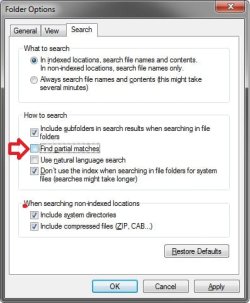
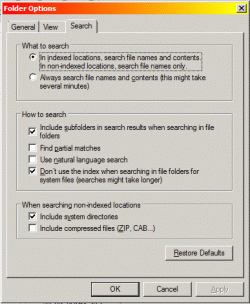
You can uncheck the Find partial matches box in the settings below to not get anything in your search results except for exactly what you typed to search for.

Folder_Options.jpg
 

My Computer

Computer type
PC/Desktop
Computer Manufacturer/Model Number
Self built custom
OS
64-bit Windows 11 Pro for Workstations
CPU
Intel i7-8700K OC'd to 5 GHz
Motherboard
ASUS ROG Maximus XI Formula Z390
Memory
64 GB (4x16GB) G.SKILL TridentZ RGB DDR4 3600 MHz
Graphics Card(s)
ASUS ROG-STRIX-GTX1080TI-O11G-GAMING
Sound Card
Integrated
Monitor(s) Displays
2 x Samsung Odyssey G7 27"
Screen Resolution
2560x1440
Hard Drives
1TB Samsung 990 PRO M.2,
4TB Samsung 990 PRO PRO M.2,
TerraMaster F8 SSD Plus NAS
PSU
Seasonic Prime Titanium 850W
Case
Thermaltake Core P3
Cooling
Corsair Hydro H115i
Keyboard
Logitech wireless K800
Mouse
Logitech MX Master 4
Internet Speed
2 Gb/s Download and 100 Mb/s Upload
Antivirus
Malwarebyte Anti-Malware Premium
Browser
Google Chrome
Other Info
Logitech Z625 speaker system,
Logitech BRIO 4K Pro webcam,
HP Color LaserJet Pro MFP M477fdn,
APC SMART-UPS RT 1000 XL - SURT1000XLI,
Galaxy S23 Plus phone
like using the old XP search

we have all our drives on a separate server

I click on our "Q" drive that contains our parts, the part number im looking for is 0173264-03

so i type in 3264

and nothing comes up

why? in XP it should show all files that had 3264 in the name: from 1993264, or 203264, or 1-3264 , or even 173264
 

My Computer

OS
7 home
Hello Papoof, and welcome to Seven Forums.

In addition to the ideas in the NOTE box at the top of this tutorial, use the one below as well to see if it may be able to help. In your case, be sure to also have the Find partial matches box checked in Search Options like in the post above.

http://www.sevenforums.com/tutorials/129437-windows-search-configure-use.html

Hope this helps,
Shawn
 

My Computer

Computer type
PC/Desktop
Computer Manufacturer/Model Number
Self built custom
OS
64-bit Windows 11 Pro for Workstations
CPU
Intel i7-8700K OC'd to 5 GHz
Motherboard
ASUS ROG Maximus XI Formula Z390
Memory
64 GB (4x16GB) G.SKILL TridentZ RGB DDR4 3600 MHz
Graphics Card(s)
ASUS ROG-STRIX-GTX1080TI-O11G-GAMING
Sound Card
Integrated
Monitor(s) Displays
2 x Samsung Odyssey G7 27"
Screen Resolution
2560x1440
Hard Drives
1TB Samsung 990 PRO M.2,
4TB Samsung 990 PRO PRO M.2,
TerraMaster F8 SSD Plus NAS
PSU
Seasonic Prime Titanium 850W
Case
Thermaltake Core P3
Cooling
Corsair Hydro H115i
Keyboard
Logitech wireless K800
Mouse
Logitech MX Master 4
Internet Speed
2 Gb/s Download and 100 Mb/s Upload
Antivirus
Malwarebyte Anti-Malware Premium
Browser
Google Chrome
Other Info
Logitech Z625 speaker system,
Logitech BRIO 4K Pro webcam,
HP Color LaserJet Pro MFP M477fdn,
APC SMART-UPS RT 1000 XL - SURT1000XLI,
Galaxy S23 Plus phone
gone threw this tutorial a few times

currently i have indexing turned off to try that but still isnt working

so i went to try and modify my search locations but i dont come up with the option to add the drives that come off our server they simply arnt even there

clicked on show all locations and still nothing is there a way to add locations on connected directly to your C drive?


all checked with >

What to search
> in indexed locations
always search

How to search
>include sub
>find partial
use natural
>dont use the index

When searching
>include system
>include compre
 

My Computer

OS
7 home
Be sure to also have the Always Search file names and contents...... selected as well in Search Options.
 

My Computer

Computer type
PC/Desktop
Computer Manufacturer/Model Number
Self built custom
OS
64-bit Windows 11 Pro for Workstations
CPU
Intel i7-8700K OC'd to 5 GHz
Motherboard
ASUS ROG Maximus XI Formula Z390
Memory
64 GB (4x16GB) G.SKILL TridentZ RGB DDR4 3600 MHz
Graphics Card(s)
ASUS ROG-STRIX-GTX1080TI-O11G-GAMING
Sound Card
Integrated
Monitor(s) Displays
2 x Samsung Odyssey G7 27"
Screen Resolution
2560x1440
Hard Drives
1TB Samsung 990 PRO M.2,
4TB Samsung 990 PRO PRO M.2,
TerraMaster F8 SSD Plus NAS
PSU
Seasonic Prime Titanium 850W
Case
Thermaltake Core P3
Cooling
Corsair Hydro H115i
Keyboard
Logitech wireless K800
Mouse
Logitech MX Master 4
Internet Speed
2 Gb/s Download and 100 Mb/s Upload
Antivirus
Malwarebyte Anti-Malware Premium
Browser
Google Chrome
Other Info
Logitech Z625 speaker system,
Logitech BRIO 4K Pro webcam,
HP Color LaserJet Pro MFP M477fdn,
APC SMART-UPS RT 1000 XL - SURT1000XLI,
Galaxy S23 Plus phone
ok we are making a little bit of progress been searching for bout 10 min now and found 1 file with 3264 in the file name but is has also come up with 4 other files without 3264 in the file names....

is there anyway to speed up this process? i understand that index search is suppose to be faster but if i cannot add the locations to the index then how am i suppose to search them faster?

is there anyway to download the old search from xp and just use that?

and thank you very much for the fast turn arounds
 

My Computer

OS
7 home
Sorry, but no you will not be able to use the search from XP in Windows 7.

You might give some 3rd party search program a try to see if it may give you faster search results. Here are a couple that I know of that are worth a try.
 

My Computer

Computer type
PC/Desktop
Computer Manufacturer/Model Number
Self built custom
OS
64-bit Windows 11 Pro for Workstations
CPU
Intel i7-8700K OC'd to 5 GHz
Motherboard
ASUS ROG Maximus XI Formula Z390
Memory
64 GB (4x16GB) G.SKILL TridentZ RGB DDR4 3600 MHz
Graphics Card(s)
ASUS ROG-STRIX-GTX1080TI-O11G-GAMING
Sound Card
Integrated
Monitor(s) Displays
2 x Samsung Odyssey G7 27"
Screen Resolution
2560x1440
Hard Drives
1TB Samsung 990 PRO M.2,
4TB Samsung 990 PRO PRO M.2,
TerraMaster F8 SSD Plus NAS
PSU
Seasonic Prime Titanium 850W
Case
Thermaltake Core P3
Cooling
Corsair Hydro H115i
Keyboard
Logitech wireless K800
Mouse
Logitech MX Master 4
Internet Speed
2 Gb/s Download and 100 Mb/s Upload
Antivirus
Malwarebyte Anti-Malware Premium
Browser
Google Chrome
Other Info
Logitech Z625 speaker system,
Logitech BRIO 4K Pro webcam,
HP Color LaserJet Pro MFP M477fdn,
APC SMART-UPS RT 1000 XL - SURT1000XLI,
Galaxy S23 Plus phone
well this is a disappointment b/c i really like everything with 7 so far besides this
 

My Computer

OS
7 home
Not sure if other people also have encountered this:
When I browse to a location (on any drive), for example: P:/temp
Now I type in the search box (top right of the explorer window where I just browsed to) i.e. "system"
Windows 7 goes to work and starts finding items. However, I never quite know for sure when it is finished at that location as it starts to find results in OTHER locations (on C, D, E, F, G, H, etc.)
This is highly annoying as I have over 12 TB of storage attached to this PC and all I want to find out was if there is a file or folder in "P:/temp" location NOT ANYWHERE ELSE!
If I search for common terms ("the") it will obviously find A LOT of results, but not necessarily in the location I was looking for!
Also, because I have disabled Indexing to get better results (as I have lot of dynamic content and also external drives that I do not want to index): I normally let it run in the background. Because it starts to search in all sorts of locations it puts a notable drag on my PC at times...
I hope somebody can give me an answer for this (other than using i.e. Agent Ransack, which I downloaded already, but did not install yet)
 

My Computer

Computer type
PC/Desktop
Computer Manufacturer/Model Number
Custom
OS
Windows 7 Ultimate x64 (Home)/ Win 7 Enterprise 32 Bit (Work)
CPU
Phenom Black II x4 3.2GHz
Motherboard
Gigabyte 880GA-UD3H
Memory
16GB
Graphics Card(s)
Onboard
Sound Card
Onboard
Monitor(s) Displays
2x 22" Asus
Screen Resolution
1680 x 1050 (16:10)
Hard Drives
1x 120GB Samsung SSD (for C Drive)
1x 55GB Adata SSD (for personal data and mail)
2x 2TB Seagate (after 2 1/2 years one is on the brink of dying!), (Backup, Pictures and Music)
1x 2TB Hitachi (External, 2nd Backup)
1x 2TB Samsung (TV recording)
PSU
Fanless 95+
Cooling
only CPU fan left :-)
Antivirus
Avira
Browser
Opera 12.54 (don't like the new one...but have it also)
Marwerno, I simply can not reproduce your issue.

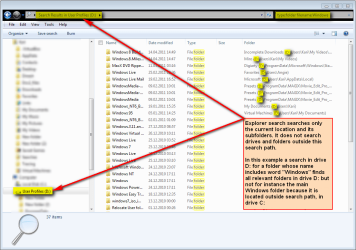
windows Search, when done from Explorer, searches the current location and its subfolders. It does not search outside this search path.

An example: I open Explorer, going to drive D: and search for folders whose name include the word Windows:
Code:
type:folder filename:Windows
Search results include all folders in my drive D: whose name includes the word Windows, but for instance my main Windows folder in C:\Windows is not found because it is located outside this search path.

Searching in Libraries is a slightly different thing, as well as a search in locations which include links to other locations. In these cases a search includes all locations included in those libraries, or locations linked from within the current search path.

So, normally the only way to get Explorer Search to include locations on multiple drives is either to search from Computer, which searches all drives, or search in a Library that contains locations on multiple drives.

Kari

Search_example_112.png
 

My Computer

Computer type
Laptop
Computer Manufacturer/Model Number
HP ENVY 17-1150eg
OS
Windows 10 Pro x64 EN-GB
CPU
1.6 GHz Intel Core i7-720QM Processor
Memory
6 GB
Graphics Card(s)
ATI Mobility Radeon HD 5850 Graphics
Sound Card
Beats sound system with integrated subwoofer
Monitor(s) Displays
17" laptop display, 22" LED and 32" Full HD TV through HDMI
Screen Resolution
1600*900 (1), 1920*1080 (2&3)
Hard Drives
Internal: 2 x 500 GB SATA Hard Disk Drive 7200 rpm
External: 2TB for backups, 3TB USB3 network drive for media
Cooling
As Envy runs a bit warm, I have it on a Cooler Master pad
Keyboard
Logitech diNovo Media Desktop Laser (bluetooth)
Mouse
Logitech Performance Mouse MX
Internet Speed
50/10 Mbps VDSL
Antivirus
Windows Defender 4.3.9431.0
Browser
Maxthon 3.5.2., IE11
Hi Kari,

thank you very much for your exhaustive answer.
Even myself cannot reproduce what I had a problem with. I think my search (or the way I use it?) is somehow messed up...
I am also still struggling with Windows 7 search. Searching seems to have been complicated by the requirement to know the keywords if you needs to search for something special or even basic things.
Why didn't they make a GUI for it? Just add a few more buttons. The keywords should be at least listed and the property of the search accessible by right clicking in the search box. (Something like a query builder like in Access would be nice...)
If I put something in "Quotation marks" it should search by that exact phrase, but it doesn't seem to work...
It took me a long time to find out how to search for the plus sign (Answer is: <filename:"+++++">), as I have labelled all Movies I have watched by simply adding + (for bad movie) to +++++ for great movie. I don't want to switch on natural search (someone recommended that) since I am worried I get even more unexpected results. In previous XP classic search I just typed ++++ to search, now I have to type something much longer to get the same result....

Sorry for the rant, I just had to let this one loose as I have spend way more time research the Windows 7 search than I should have been required to...

Maybe somebody has use for this:
If you search something in the filename and you get unexpected results when just plain typing in the search box, always use the "filename:" keyword. This seems to make the results more predictable.
 

My Computer

Computer type
PC/Desktop
Computer Manufacturer/Model Number
Custom
OS
Windows 7 Ultimate x64 (Home)/ Win 7 Enterprise 32 Bit (Work)
CPU
Phenom Black II x4 3.2GHz
Motherboard
Gigabyte 880GA-UD3H
Memory
16GB
Graphics Card(s)
Onboard
Sound Card
Onboard
Monitor(s) Displays
2x 22" Asus
Screen Resolution
1680 x 1050 (16:10)
Hard Drives
1x 120GB Samsung SSD (for C Drive)
1x 55GB Adata SSD (for personal data and mail)
2x 2TB Seagate (after 2 1/2 years one is on the brink of dying!), (Backup, Pictures and Music)
1x 2TB Hitachi (External, 2nd Backup)
1x 2TB Samsung (TV recording)
PSU
Fanless 95+
Cooling
only CPU fan left :-)
Antivirus
Avira
Browser
Opera 12.54 (don't like the new one...but have it also)
Maybe somebody has use for this:
If you search something in the filename and you get unexpected results when just plain typing in the search box, always use the "filename:" keyword. This seems to make the results more predictable.

This is because of a setting in Folder Options > Search. Default action for Windows Search is search both filename and file contents. Adding search parameter "filename:****" Windows no longer searches the file contents.

I would recommend that you, in addition to this tutorial of Brink's, read also these two excellent tutorials:
And, of course, the advanced Windows Search query syntax:
I admit it takes some time to get used to Windows Search when migrating from XP. Personally I am very happy with Windows Search, it really works and helps me to find absolutely everything.

Come back with more questions if something remains unclear.

Kari
 

My Computer

Computer type
Laptop
Computer Manufacturer/Model Number
HP ENVY 17-1150eg
OS
Windows 10 Pro x64 EN-GB
CPU
1.6 GHz Intel Core i7-720QM Processor
Memory
6 GB
Graphics Card(s)
ATI Mobility Radeon HD 5850 Graphics
Sound Card
Beats sound system with integrated subwoofer
Monitor(s) Displays
17" laptop display, 22" LED and 32" Full HD TV through HDMI
Screen Resolution
1600*900 (1), 1920*1080 (2&3)
Hard Drives
Internal: 2 x 500 GB SATA Hard Disk Drive 7200 rpm
External: 2TB for backups, 3TB USB3 network drive for media
Cooling
As Envy runs a bit warm, I have it on a Cooler Master pad
Keyboard
Logitech diNovo Media Desktop Laser (bluetooth)
Mouse
Logitech Performance Mouse MX
Internet Speed
50/10 Mbps VDSL
Antivirus
Windows Defender 4.3.9431.0
Browser
Maxthon 3.5.2., IE11
Hi Kari,

thanks, I actually read through some of the tutorials before you recommended them :-)
I still think MS Search on my PC doesn't behave proper or MS needs to rethink some behaviour. I don't have a gripe with keywords in general. Especially since I can now search many more properties, which is great. But for a "standard" search like filename, I shouldn't be required to type "filename:". There should be an easier/ faster way.

To some of my issues I have found the answer.
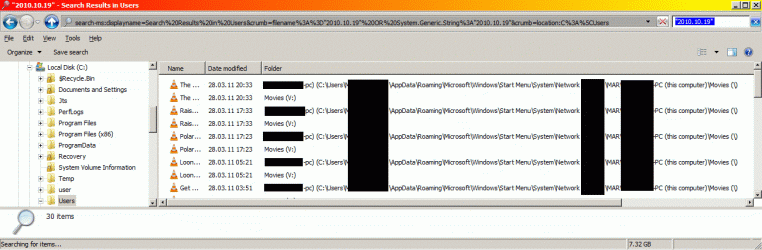
If you are searching trough user directories, they also contain the links for network shares. Therefore the search will INCLUDE locations that are shared! (And since I have a lot of shared folders it included a lot of files from "wrong" locations!
See here:
SearchResults2.gif

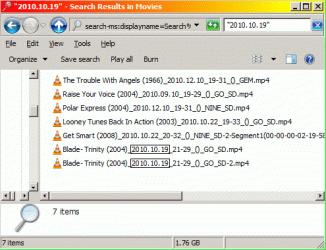
As for giving bad results, see the following search which has the search in "Quotation marks" but yet still finds other items.
(Is the Dot (.) a special marker? But how can you search for a date in the filename, since I code all my files by this date code, since the create, access, etc. date in the file properties can change when you move, access the file or resize the movie):
searchResult.gif

It also shouldn't search in properties, since I have very few locations indexed. There is also not much content to speak of in mp4 files:
indexSettings.gif

and just to complete the picture, here my other setting:
SearchSettings.gif

P.S.
All my Movies have been legally acquired by simply recording them from Free to Air television, which I am doing since 2003.
 

My Computer

Computer type
PC/Desktop
Computer Manufacturer/Model Number
Custom
OS
Windows 7 Ultimate x64 (Home)/ Win 7 Enterprise 32 Bit (Work)
CPU
Phenom Black II x4 3.2GHz
Motherboard
Gigabyte 880GA-UD3H
Memory
16GB
Graphics Card(s)
Onboard
Sound Card
Onboard
Monitor(s) Displays
2x 22" Asus
Screen Resolution
1680 x 1050 (16:10)
Hard Drives
1x 120GB Samsung SSD (for C Drive)
1x 55GB Adata SSD (for personal data and mail)
2x 2TB Seagate (after 2 1/2 years one is on the brink of dying!), (Backup, Pictures and Music)
1x 2TB Hitachi (External, 2nd Backup)
1x 2TB Samsung (TV recording)
PSU
Fanless 95+
Cooling
only CPU fan left :-)
Antivirus
Avira
Browser
Opera 12.54 (don't like the new one...but have it also)
First an explanation.

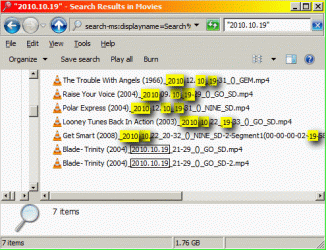
The second image in your post. Making a search query like that, it searches all files where numbers 2010, 10 and 19 can be found. Your screenshot shows Windows Search has worked as it should work:

searchResult.gif

Use wildcards instead, to search for a specific string. The easiest would be to replace dots in search string with question marks:
Code:
2010?10?19
Quotation marks are not needed. This search would result only those files where the string appears exactly as in search query i.e. a 10 character long string starting with 2010, followed by any 1 character, followed by 10, followed by any 1 character, and finally followed by 19. In your case, your naming system, the question marks would replace dots. This search would of course also find for instance files 2010-10-19, 2010X10Z19, 2010/10/19 and so on.

Search wildcards ? and * replace any character. The question mark replaces 1 character, the * from 0 to infinite characters, so using * instead of ? (2010*10*19) would also find files like 2010.Long_Text_String.10.19 and so on.

Complicated ;) No, it's just that I explain it so complicated.

Keep searching ;)

Kari
 

My Computer

Computer type
Laptop
Computer Manufacturer/Model Number
HP ENVY 17-1150eg
OS
Windows 10 Pro x64 EN-GB
CPU
1.6 GHz Intel Core i7-720QM Processor
Memory
6 GB
Graphics Card(s)
ATI Mobility Radeon HD 5850 Graphics
Sound Card
Beats sound system with integrated subwoofer
Monitor(s) Displays
17" laptop display, 22" LED and 32" Full HD TV through HDMI
Screen Resolution
1600*900 (1), 1920*1080 (2&3)
Hard Drives
Internal: 2 x 500 GB SATA Hard Disk Drive 7200 rpm
External: 2TB for backups, 3TB USB3 network drive for media
Cooling
As Envy runs a bit warm, I have it on a Cooler Master pad
Keyboard
Logitech diNovo Media Desktop Laser (bluetooth)
Mouse
Logitech Performance Mouse MX
Internet Speed
50/10 Mbps VDSL
Antivirus
Windows Defender 4.3.9431.0
Browser
Maxthon 3.5.2., IE11
Sorry for the rant, I just had to let this one loose as I have spend way more time research the Windows 7 search than I should have been required to...

I know how you feel which is why I use FileSearchEX. I don't know if it'll do everything you want, but for me a quick right click, type blah, and bam a list of possibilities is what I like. I do appreciate this thread though because I have always wondered how to use the Win7 search. I uninstalled it to remove the Search service. I hate stuff running on my box.
 

My Computer

Computer type
PC/Desktop
OS
Windows 10 x64
CPU
Intel i5-3570K
Motherboard
Asus Maximus V Gene
Memory
Crucial 16GB
Graphics Card(s)
nVidia Geforce 660 GTX
Sound Card
onboard
Monitor(s) Displays
NEC 2490WUXi2
Screen Resolution
1920x1200
Hard Drives
Crucial M4 256GB
PSU
Corsair 650TX
Case
Fractal Design - Define Mini
Keyboard
Filco Majestouch Tenkeyless Black MX
Mouse
Logitech MBJ58
Windows Search only 32 bit?

I have Windows 7 64 bit but search is limited to 32 characters? I thought file names were unlimited in 64 bit, is that wrong?
 

My Computer

Computer Manufacturer/Model Number
Lenovo
OS
Windows 7 64 bit
CPU
Intel Core Duo
Back
Top