Selective Disk Defragmentation

thehappyman

New member
Pro User
Local time
5:25 AM
Messages
258
Location
Central Florida
Question: If I turn off Automatic Disk Defragmentation in Windows 7 because my C drive is an SSD, can I still selectivley defragment the other drives in my system manually whenever I choose ????

I know I can this with a third party program like Diskeeper but can I do this from within Windows 7 ?????????
 

My Computer

Computer Manufacturer/Model Number
Alienware Aurora
OS
Win 7 Ultimate x64
CPU
Core I7 980X O.C. to 4.0 Ghz
Motherboard
Custom Intel mATX (Bios ver A10)
Memory
12GB 1600 mhz triple channel DDR3 - Kingston
Graphics Card(s)
ATI Radeon HD 5970 2GB Video Card
Sound Card
Creative Labs Titanium sound blaster
Monitor(s) Displays
30" Dell LCD
Screen Resolution
2560 x 1600
Hard Drives
240 GB OCZ Vertex 2 SSD
256 GB Samsung V2 SSD
2TB WD Black Caviar 7200 rpm SATA3
600GB WD Velociraptor 10,000 rpm SATA3
3TB WD MyBook Essential USB 3.0 7200 rpm External
PSU
850 Watt
Case
Alienware Aurora
Cooling
Water
Keyboard
Logitech G15 (original version)
Mouse
Logitech MX1000 Laser - Wireless
Internet Speed
Cable 22 Mb/sec download
Other Info
USB 3.0,
Blue Ray DVD Read/Writer
Bose Companion 3 Speakers
WRT54G Wireless Router
Of course you can, just select the drive you want to defrag with W7 Defrag and proceed, is like many other utilities, personally, I'll use O&O Defrag, but is just me, if you are happy with W7 one, go ahead, from the comments in the forum, I heard is heavily improved from older versions and keeps windows pretty fast.

See ya!! :D
 

My Computer

Computer type
PC/Desktop
Computer Manufacturer/Model Number
Assembled Desktop PC
OS
Microsoft Windows 7 Home Premium SP1 64-bit Build 7600
CPU
AMD Athlon 64 X2 5200+ Dual Core CPU @ 2.7 Ghz (Brisbane)
Motherboard
PCChips A13G+ v3.0
Memory
2x2 GB DDR2 PC-5300 (667 Mhz) Kingston ValueRAM
Graphics Card(s)
XFX ATI Radeon HD 4350 GPU (512 MB + 512 MB HM)
Sound Card
Realtek High Definition Audio Driver ALC660 @ MCP61S
Monitor(s) Displays
HP S2031 20" LED HD Widescreen Display Monitor
Screen Resolution
1600 x 900 px
Hard Drives
Maxtor Diamond Max 10 (160 GB, 7200 RPM, SATA-II Hard Disk)
Western Digital Scorpion Blue (250 GB, 5400 RPM, SATA-II External Hard Disk - Personal Data)
Toshiba MQ01ABD050 (500 GB, 5400 RPM, SATA-II External Hard Disk - Software & ISOs)
PSU
Pixxo Transformer 850W 80+ Certification PSU
Case
Compaq 5BW353 Case
Cooling
Many solutions, see other info...
Keyboard
Green Leaf (Mitzu) Standard Keyboard
Mouse
Microsoft USB Lasser Pointing Device
Internet Speed
10 MB
Antivirus
Avast Antivirus Free
Browser
Firefox, Chrome, Internet Explorer
Other Info
Windows Experience Index Result: 3.8 of 7.9.

Cooling solutions:
- AVC @ 2000/5000 RPM Copper Heatpipes (For Athlon 64 X2 6000+ CPU used in an Athlon 64 X2 5200+)
- Rear Fan 80 mm @ 2700 RPM for heat extraction
- Manhatan Chipset Cooler @ 4700/7200 RPM (For nVidia Chipset in MoBo)
- Foxconn @ 2500 RPM (Old Pentium III heatsink fan) in XFX ATI Radeon HD 4350
play with the command
defrag "driverletter + :" /H

that runs the defrag for which drive you choose. you can add this into your task scheduler to run on a schedule.
 

My Computer

Computer Manufacturer/Model Number
SMN-Productions
OS
Windows 7 x86/x64, Server 2008r2, Web Server 2008
CPU
i7 v2 3930K Steping stone 2
Motherboard
ASUS Rampage IV Extreme
Memory
G.SKILL Ripjaws Z Series 32GB
Graphics Card(s)
AMD HD 5770
Monitor(s) Displays
Acer 21" and Samsung 20"
Hard Drives
Patriot Pyro 80GB
PSU
1000 Watt
Case
HAF-X
Cooling
4 Fans
Keyboard
Black Widow Ultimate
Thanks for the Pointers you guys - am new to Win 7 :):):)
 

My Computer

Computer Manufacturer/Model Number
Alienware Aurora
OS
Win 7 Ultimate x64
CPU
Core I7 980X O.C. to 4.0 Ghz
Motherboard
Custom Intel mATX (Bios ver A10)
Memory
12GB 1600 mhz triple channel DDR3 - Kingston
Graphics Card(s)
ATI Radeon HD 5970 2GB Video Card
Sound Card
Creative Labs Titanium sound blaster
Monitor(s) Displays
30" Dell LCD
Screen Resolution
2560 x 1600
Hard Drives
240 GB OCZ Vertex 2 SSD
256 GB Samsung V2 SSD
2TB WD Black Caviar 7200 rpm SATA3
600GB WD Velociraptor 10,000 rpm SATA3
3TB WD MyBook Essential USB 3.0 7200 rpm External
PSU
850 Watt
Case
Alienware Aurora
Cooling
Water
Keyboard
Logitech G15 (original version)
Mouse
Logitech MX1000 Laser - Wireless
Internet Speed
Cable 22 Mb/sec download
Other Info
USB 3.0,
Blue Ray DVD Read/Writer
Bose Companion 3 Speakers
WRT54G Wireless Router
You can leave Auto Defrag On if you want to.

Run the WEI assesment.
After you do, Windows will likely make a couple adjustments.

Usually, it automatically disables Superfetch and Defrag on the SSD.

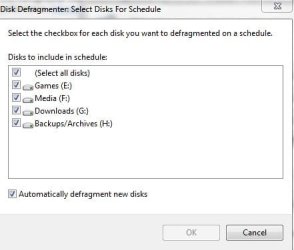
To Check, open the Disk Defragmenter.
Click On Configure Schedule
Then Click Select Disks

It should look similar to mine in this snip. I have 2 SSDs, and as you can see, both have been removed from the Defrag schedule by Windows leaving only my spinning drives.

Auto Defrag will continue to Defrag your drives on a schedule, and will exclude the SSDs if yours shows similar.

Keep in mind, if you manually choose to Defrag, it will!!
The only safe defrag I know of for SSD is Perfect Disk (Consolodate) and DiskKeeper (Hyperfast). Although this does not need to be done often at all.
 

Attachments

  • Capture.JPG
    Capture.JPG
    22.8 KB · Views: 5

My Computer

Computer Manufacturer/Model Number
Custom (Self Build)
OS
Windows 7 Home Premium 64bit
CPU
Intel Core i7 2700k
Motherboard
eVGA P67 SLI
Memory
8GB Mushkin Redline Ridgebacks @1866
Graphics Card(s)
EVGA GTX570 SC
Sound Card
XiFi Titanium HD
Monitor(s) Displays
LG W2453V
Screen Resolution
1920x1080
Hard Drives
Intel 320 80GB -- Intel X25-V 40GB --WD Black 1TB x2 -- WD Blue 640GB
PSU
Seasonic x750
Case
Corsair 600T SE White
Cooling
eVGA Superclocked CPU Cooler
Keyboard
Saitek Cyborg
Antivirus
Kaspersky
Browser
IE
Other Info
LG BD/DVD
Back
Top