Sounds - Change

How to Change Event Sound Effects in Windows 7 and Windows 8


   Information
This tutorial will show you how to change the sounds applied to events in Windows and Programs as a Sound Theme for your user account in Windows 7 and Windows 8.

   Note
Windows 7 and Windows 8 uses .wav (wave) files played for the sound events.

The default folder that Windows 7 and Windows 8 uses to store the sound files in is located at C:\Windows\Media.

   Tip
For fun and sharing, you can post the sounds that you use at this link if you would like to. :)


OPTION ONE

To Change Sound Events in "Sounds" Dialog Settings


1. Do step 2, 3, or 4 below for how you would like to open the Sound dialog.

2. Open the Control Panel (icons view), click/tap on the Sound icon, and go to step 5 below.

OR

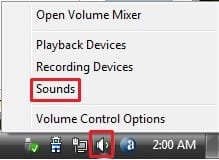
3. Right click or press and hold on the Volume (little white speaker) system icon in the notification area at the bottom right corner area of the taskbar, click/tap on Sounds, and go to step 5 below. (see screenshot below)
186d1225616182-sound-theme-change-event-sounds-volume_tray_icon.jpg

OR

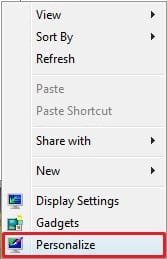
4. Right click or press and hold on a empty area of the desktop, and click/tap on Personalize. (see screenshot below)
NOTE: The Windows 7 Starter and Windows 7 Home Basic editions do not have Personalize included in them.
187d1225616182-sound-theme-change-event-sounds-right_click.jpg

B) Click/tap on the Sounds link at the bottom of the Personalization window. (see screenshot below)
NOTE: The name in gray under Sounds is the current sound scheme selected.
Personalize.jpg
C) Close the Personalization window, and go to step 5 below.
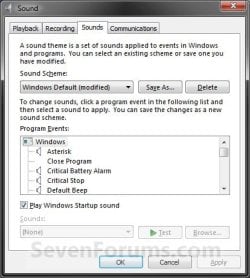
5. Click/tap on the Sounds tab, and do step 6, 7, 8, 9, 10, and/or 11 below. (see screenshot below)
Sound.jpg
6. To Turn the Windows Startup Sound On or Off
A) Check (on) or uncheck (off) the Play Windows Startup sound box, and click/tap on Apply. (see screenshot below step 5)
7. To Change an Event Sound
A) Click/tap on a listed Program Event (middle section) to select a sound event, and do either step 7B or 7C below. (see screenshot below step 5)

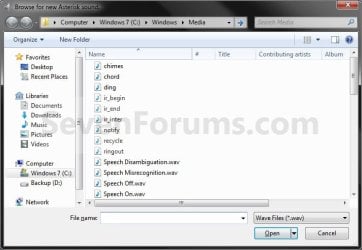
B) Click.tap on the Browse button. (see screenshot above)

NOTE: The default Windows sound files are located in the C:\Windows\Media folder.
  • Navigate to and select the .wav file that you want to be used as the sound played for the event, click/tap on Open. (see screenshot below)
Browse.jpg

  • Click/tap on Apply. (see screenshot below step 5)
OR


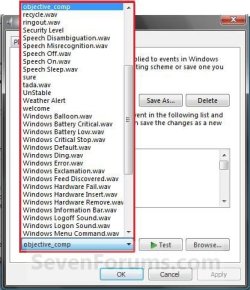
C) Click/tap on the Sounds: drop down menu at the bottom, select a sound that you want to be played for the event, and click/tap on Apply. (see screenshot below)
Browse2.jpg
8. To Test Play a Sound
A) Click/tap on a Program Event that you want to hear the current sound set to be played for the event, and click/tap on the Test button. (see screenshot below step 5)
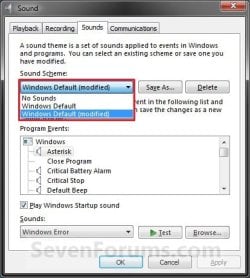
9. To Change a Sound Scheme
A) Click/tap on the Sound Scheme: drop down arrow menu, select an available sound scheme you want, and click/tap on Apply. (see screenshot below)
Sound_Scheme.jpg
10. To Save a Sound Theme
NOTE: This is useful to have all your event sound changes saved as a Sound Theme to be able to select in step 9 above.
A) Click/tap on the Save As button. (see screenshot below step 9)

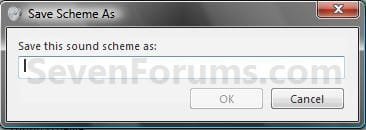
B) Type in a name you would like for the sound scheme (theme), and click/tap on OK. (see screenshot below)
192d1225616564-sound-theme-change-event-sounds-save_as.jpg

11. To Delete a Saved Sound Scheme
NOTE: You cannot delete the No Sounds, Standard Default, or Windows Default schemes, only the ones that you saved.
A) Click/tap on the Sound Scheme: drop down arrow menu. (see screenshot below step 9)

B) Select the sound scheme that you want to delete, and click/tap on the Delete button. (see screenshot below step 9)

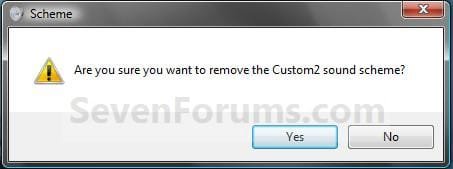
C) Click/tap on Yes to confirm. (see screenshot below)
193d1225616564-sound-theme-change-event-sounds-confirmation.jpg

11. When finished making changes in the Sounds dialog, click/tap on OK . (see screenshot below step 5)


OPTION TWO

To Change Sound Events in Registry Editor


1. Press the Windows + R keys to open the Run dialog, type regedit, and click/tap on OK.

2. If prompted by UAC, then click/tap on Yes.

3. In regedit, navigate to the location below. (see screenshot below)
NOTE: In the left pane under Apps, each subkey (folder) .Default (Windows), Explorer (Windows/File Explorer), and sapisvr (Windows Speech Recognition) contains sound events under those categories just like in Sounds from OPTION ONE above.
HKEY_CURRENT_USER\AppEvents\Schemes\Apps
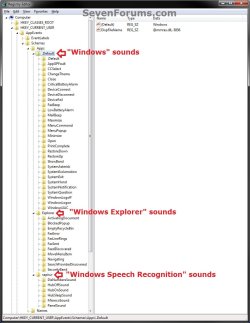
REG-1.jpg
4. In the left pane of regedit, expand the subkey for the sound event (ex: MailBeep for "New Mail Notification") that you want to change what sound is play for it to expand it. (see screenshot above)

5. In the left pane under the expanded sound event (ex: MailBeep), select the .Current key. (see screenshot below)
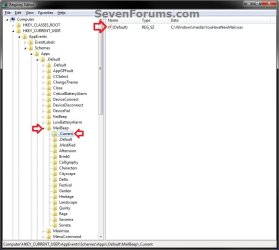
Reg-2.jpg
6. In the right pane of .Current, double click/tap on (Default) to modify it. (see screenshot above)

7. Type in the full path of the unblocked .WAV file that you want to be played for this sound event, and click/tap on OK. (see screenshot below)
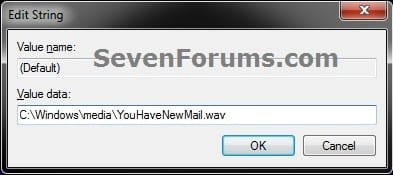
Reg-3.jpg
8. Repeat all of the steps above in OPTION TWO for any other sound event that you wanted to change what default sound is played for it.

9. When finished, close regedit.
That's it,
Shawn


Attachments

  • Volume_Tray_Icon.jpg
    Volume_Tray_Icon.jpg
    7.3 KB · Views: 237,919
  • Right_Click.jpg
    Right_Click.jpg
    7.3 KB · Views: 237,877
  • Save_As.jpg
    Save_As.jpg
    8 KB · Views: 236,505
  • Confirmation.jpg
    Confirmation.jpg
    9.6 KB · Views: 236,229
Last edited:
Last edited by a moderator:

My Computer

Computer type
PC/Desktop
Computer Manufacturer/Model Number
Home built
OS
Windows 7 Ultimate x64
CPU
AMD Phenom 9850 black box
Motherboard
MSI K9A2 platinum
Memory
16 gigabytes coarsair xms ddr2
Graphics Card(s)
MSI GTX 950
Sound Card
Realtek alc 888
Monitor(s) Displays
Samsung syncmaster 2220wm
Screen Resolution
1680 x 1050
Hard Drives
ST3000DM001 ATA 3Tb
ST31000333AS ATA 1Tb
WDC WD10EACS-00ZJB0 ATA 1Tb
WDC WD5000AAKS-00A7B0 ATA 500Mb
Promise 1+0 JBOD 1Tb
PSU
Kingswin 1100 Watt
Case
Lian Li
Cooling
Fans
Keyboard
Microsoft X4 sidewinder
Mouse
No Name gaming mouse
Internet Speed
Fire2wire 7mbs down 1mbs up
Antivirus
Avast
Browser
Firefox
You're most welcome xsile. :)
 

My Computer

Computer type
PC/Desktop
Computer Manufacturer/Model Number
Self built custom
OS
64-bit Windows 11 Pro for Workstations
CPU
Intel i7-8700K OC'd to 5 GHz
Motherboard
ASUS ROG Maximus XI Formula Z390
Memory
64 GB (4x16GB) G.SKILL TridentZ RGB DDR4 3600 MHz
Graphics Card(s)
ASUS ROG-STRIX-GTX1080TI-O11G-GAMING
Sound Card
Integrated
Monitor(s) Displays
2 x Samsung Odyssey G7 27"
Screen Resolution
2560x1440
Hard Drives
1TB Samsung 990 PRO M.2,
4TB Samsung 990 PRO PRO M.2,
TerraMaster F8 SSD Plus NAS
PSU
Seasonic Prime Titanium 850W
Case
Thermaltake Core P3
Cooling
Corsair Hydro H115i
Keyboard
Logitech wireless K800
Mouse
Logitech MX Master 4
Internet Speed
2 Gb/s Download and 100 Mb/s Upload
Antivirus
Malwarebyte Anti-Malware Premium
Browser
Google Chrome
Other Info
Logitech Z625 speaker system,
Logitech BRIO 4K Pro webcam,
HP Color LaserJet Pro MFP M477fdn,
APC SMART-UPS RT 1000 XL - SURT1000XLI,
Galaxy S23 Plus phone
Start-Up Jingle (Kill it please, Kill it now)

No Sounds is your sound scheme Right, but Win 7 thinks you don't really mean it and Still taunts you with the pre-schooler's Start-Up jingle.

**** Un-Check "Play Windows Startup Sound" near the bottom of the Sound Scheme selection window.

I missed it.
Sanity suffered. I'm better now though, thanks.

:shock: twitch twitch blink.blink yeoOOOOOwwlLLLL :shock:
 

My Computer

Computer type
PC/Desktop
Computer Manufacturer/Model Number
Dell
OS
Windows 7 Home Premium 64bit
CPU
3.30 gigahertz Intel Core i3-2120
Motherboard
Alienware 06G6JW A00
Making my own Japanese Theme

I am using a iconset from iconarchive called yoritsuki icons by hybridworks (35 Icons) I really love the japanese wallpapers that came with it. All I needed to do to fix to wallpaper problem was make a folder for both wallpapers in 1 folder and then open the folder in the theme section. Kind of a simple fix.

The hard part was understanding that I could make a separate folder for the actual sounds. I did not want to change the actual windows sounds I wanted to make a secondary folder for the new theme not have to delete or change the original sounds in case I wanted to convert back sometime.

So this post really helped me out. Thanks for writing it. By the way I plced a link to the actual icon set I used so others can find them as well. They are free and I get nothing out of just dropping a link.
 

My Computer

Computer type
PC/Desktop
Computer Manufacturer/Model Number
emachine
OS
windows 8 32
Great tutorial, thank you. As I scan through the events that one may assign a sound to, I notice that 'delete' is missing. There may be others. How do I add this event (and others) to the list in order to assign a sound?
 

My Computer

Computer type
PC/Desktop
Computer Manufacturer/Model Number
HP (HP-P6212F)
OS
Microsoft Windows 7 Home Premium 64-bit 7601 Multiprocessor Free Service Pack 1
CPU
Pentium(R) Dual-Core CPU E5300 @ 2.60GHz
Motherboard
PEGATRON CORPORATION Benicia
Memory
6.00 GB
Graphics Card(s)
Intel(R) G33/G31 Express Chipset Family
Sound Card
Realtek High Definition Audio
Monitor(s) Displays
24'' HP WS LCD
Screen Resolution
1920 x 1080 x 32 bits (4294967296 colors) @ 60 Hz
Hard Drives
(1) ATA Hitachi HDT72106 SCSI Disk Device (2) Generic- Compact Flash USB Device (3) Generic- MS/MS-Pro USB Device (4) Generic- SD/MMC USB Device (5) Generic- SM/xD-Picture USB Device (6) Verbatim STORE N GO USB Device
Keyboard
Logitech G510s
Mouse
Logitech Trackball M570
Antivirus
Microsoft Security Essentials / Malwarebytes
Browser
IE / Firefox / Chrome
Hey Marc,

I don't see a "Delete" event there by default.

I'm not sure that you can add anything other than restore any missing default events from the registry.
 

My Computer

Computer type
PC/Desktop
Computer Manufacturer/Model Number
Self built custom
OS
64-bit Windows 11 Pro for Workstations
CPU
Intel i7-8700K OC'd to 5 GHz
Motherboard
ASUS ROG Maximus XI Formula Z390
Memory
64 GB (4x16GB) G.SKILL TridentZ RGB DDR4 3600 MHz
Graphics Card(s)
ASUS ROG-STRIX-GTX1080TI-O11G-GAMING
Sound Card
Integrated
Monitor(s) Displays
2 x Samsung Odyssey G7 27"
Screen Resolution
2560x1440
Hard Drives
1TB Samsung 990 PRO M.2,
4TB Samsung 990 PRO PRO M.2,
TerraMaster F8 SSD Plus NAS
PSU
Seasonic Prime Titanium 850W
Case
Thermaltake Core P3
Cooling
Corsair Hydro H115i
Keyboard
Logitech wireless K800
Mouse
Logitech MX Master 4
Internet Speed
2 Gb/s Download and 100 Mb/s Upload
Antivirus
Malwarebyte Anti-Malware Premium
Browser
Google Chrome
Other Info
Logitech Z625 speaker system,
Logitech BRIO 4K Pro webcam,
HP Color LaserJet Pro MFP M477fdn,
APC SMART-UPS RT 1000 XL - SURT1000XLI,
Galaxy S23 Plus phone
Moving Sound Schemes to Another Computer

Just wanted to say a quick thanks! I have always wanted to know how to move\save the sound schemes. :)
 

My Computer

Computer type
PC/Desktop
Computer Manufacturer/Model Number
Custom Built
OS
Windows 7 Ultimate 64-bit SP1
CPU
Intel Core i7 3770 @ 3.40GHz
Motherboard
ASUSTeK COMPUTER INC. Model:P8Z77-V LK (LGA1155)
Memory
16384 MBytes
Graphics Card(s)
NVIDIA GeForce GTX 650 Ti
Hard Drives
1863GB Seagate ST2000DM001-1CH164 (SATA)
1863GB Seagate Expansion Desk USB Device (USB (SATA))
Antivirus
Avast
Browser
Google Chrome
I'm glad it could help treeman, and welcome to Seven Forums. :)
 

My Computer

Computer type
PC/Desktop
Computer Manufacturer/Model Number
Self built custom
OS
64-bit Windows 11 Pro for Workstations
CPU
Intel i7-8700K OC'd to 5 GHz
Motherboard
ASUS ROG Maximus XI Formula Z390
Memory
64 GB (4x16GB) G.SKILL TridentZ RGB DDR4 3600 MHz
Graphics Card(s)
ASUS ROG-STRIX-GTX1080TI-O11G-GAMING
Sound Card
Integrated
Monitor(s) Displays
2 x Samsung Odyssey G7 27"
Screen Resolution
2560x1440
Hard Drives
1TB Samsung 990 PRO M.2,
4TB Samsung 990 PRO PRO M.2,
TerraMaster F8 SSD Plus NAS
PSU
Seasonic Prime Titanium 850W
Case
Thermaltake Core P3
Cooling
Corsair Hydro H115i
Keyboard
Logitech wireless K800
Mouse
Logitech MX Master 4
Internet Speed
2 Gb/s Download and 100 Mb/s Upload
Antivirus
Malwarebyte Anti-Malware Premium
Browser
Google Chrome
Other Info
Logitech Z625 speaker system,
Logitech BRIO 4K Pro webcam,
HP Color LaserJet Pro MFP M477fdn,
APC SMART-UPS RT 1000 XL - SURT1000XLI,
Galaxy S23 Plus phone
Still No Way To Transfer Schemes (Dwarf's Way Doesn't Work)

Preliminary Item:
[HKEY_CLASSES_ROOT\Local Settings\MuiCache\290\52C64B7E]
"@mmres.dll,-8XX"="<SoundSchemeName>"
[HKEY_CURRENT_USER\Software\Classes\Local Settings\MuiCache\290\52C64B7E]
"@mmres.dll,-8XX"="<SoundSchemeName>"
Here, Dwarf's HKCR line is redundant (in the regedit code he provided above). It's merely a mirror of the accompanying HKCU key. Just include the HKCU key and you take care of the mirrored HKCR key automatically. (I confirmed this by running the HKCU key alone and then checking to see if it was also showing up in HKCR. Yes, it was.)


Main Item:

I notice that nobody else has reported concerning Dwarf's regedit method of making a scheme, so here's my report--of failure. I didn't export a scheme made in the Control Panel applet because I figured that if these are all the necessary keys, and they're supposed to work for placing your scheme on a different machine, then they also ought to work if you just write up a scheme yourself in the registry file. After all, your machine's not going to be able to tell that it wasn't exported from some other machine, right? At least not if these are all the required keys.

But this was a resounding flop, at least on my Win7 Pro. I saved my sounds in their theme-named folder ("CalligMod") in C:\Windows\Media. Then I spent over an hour on the registry code, checking everything, making sure I didn't have any glitches, even verifying that for 8XX on my system, 23 was indeed the next number in line. After I ran the registry merge, a look with the excellent freeware utility Registry Finder revealed that all the keys went where they were supposed to go. (Registry Finder is much better than Regedit. Search for it on DuckDuckGo--you won't be sorry.)

But all to no avail. I go to the Control Panel Personalizations/Sound applet and my new scheme is nowhere to be found. And that does not bode well for porting one's scheme to a new system, because if these are all the necessary registry entries, then we're hosed. As far as I can see, there's nothing in any of Dwarf's keys that would let Windows know whether this code was exported from the Sound applet or whether it was written from scratch. So if these are all the required keys, Windows should accept them. But it doesn't. Therefore, even if you create a scheme via the applet, if all you do is export the keys Dward has designated, it's almost certainly not going to work when you try to import your scheme onto another machine.

There is the off chance, of course, that it's just my system. My Win7 Pro is not a straight-up Win7 Pro, rather it's an upgrade from Win7 Home Premium. And there are some tutorials here on SevenForums (e.g. Windows 7 Installation - Transfer to a New Computer - Windows 7 Help Forums) which can only be implemented on systems that are not upgrades. So that might be coming into play here. One difference--hard to say how important--was that on my system I do not have key HKEY_CURRENT_USER\Software\Classes\Local Settings\MuiCache\290\52C64B7E which Dwarf furnishes in his posts. Instead, I have HKEY_CURRENT_USER\Software\Classes\Local Settings\MuiCache\84\52C64B7E. However, my 84 key does have the list of @mmres.dll,-8XX values, so I have to assume that it's the right key for my system. After the failure of my first attempt, I reversed all the changes, started over with a clean registry, and used the 290 key instead. Of course, this created a key with just a single value and separate from all the other @mmres.dll,-8XX values, at least on my system. But you never know whether something will work until you try. Still didn't matter, though.

So the exercise was completely abortive. Setting aside the possibility that there's something weird about my system that won't affect other users, which is possible but unlikely, I suspect that the sound applet might be doing a complete end-run around the registry, merely furnishing a desultory mirror of its actions to the registry. In other words, it's a one-way street: the sound applet makes changes to the registry, but those registry entries are merely cosmetic; unlike some other applets and their related regkeys, these don't reciprocate by reflecting back to the sound applet. At least not the keys Dwarf focused on. True, the .Current subkeys used in Brink's actual tutorial do work, but they don't create a scheme, which is our focus right now. It may be that the sound applet has a deeper relationship with some buried CLSIDs or something, but that takes us into territory beyond my capacities. At any rate, until someone can prove otherwise, we have to assume that Dwarf's keys are insufficient to get the job done, and therefore we continue to lack a method of transferring a sound scheme from one machine to another.

In case anyone wants to take a gander at my code, check it out below. It's possible I missed something, but I don't think so. (And yes, I am pretty minimalist when it comes to sounds--lots of empty slots in my config. Also lots of switching sounds around from the events MS thinks fitting: that's the whole point of the attempt.)

Code:
Windows Registry Editor Version 5.00

[HKEY_CURRENT_USER\AppEvents\Schemes\Apps\.Default\.Default\CalligMod]
@="C:\\Windows\\Media\\CalligMod\\Windows Ding.wav"
[HKEY_CURRENT_USER\AppEvents\Schemes\Apps\.Default\ChangeTheme\CalligMod]
@=""
[HKEY_CURRENT_USER\AppEvents\Schemes\Apps\.Default\Critical Battery Alarm\CalligMod]
@=""
[HKEY_CURRENT_USER\AppEvents\Schemes\Apps\.Default\DeviceConnect\CalligMod]
@="C:\\Windows\\Media\\CalligMod\\Windows Hardware Insert.wav"
[HKEY_CURRENT_USER\AppEvents\Schemes\Apps\.Default\DeviceDisconnect\CalligMod]
@="C:\\Windows\\Media\\CalligMod\\Windows Hardware Remove.wav"
[HKEY_CURRENT_USER\AppEvents\Schemes\Apps\.Default\DeviceFail\CalligMod]
@="C:\\Windows\\Media\\CalligMod\\Windows Hardware Fail.wav"
[HKEY_CURRENT_USER\AppEvents\Schemes\Apps\.Default\FaxBeep\CalligMod]
@=""
[HKEY_CURRENT_USER\AppEvents\Schemes\Apps\.Default\LowBatteryAlarm\CalligMod]
@=""
[HKEY_CURRENT_USER\AppEvents\Schemes\Apps\.Default\MailBeep\CalligMod]
@=""
[HKEY_CURRENT_USER\AppEvents\Schemes\Apps\.Default\PrintComplete\CalligMod]
@=""
[HKEY_CURRENT_USER\AppEvents\Schemes\Apps\.Default\SystemAsterisk\CalligMod]
@="C:\\Windows\\Media\\CalligMod\\Windows Print complete.wav"
[HKEY_CURRENT_USER\AppEvents\Schemes\Apps\.Default\SystemExclamation\CalligMod]
@="C:\\Windows\\Media\\CalligMod\\Windows Feed Discovered.wav"
[HKEY_CURRENT_USER\AppEvents\Schemes\Apps\.Default\SystemExit\CalligMod]
@="C:\\Windows\\Media\\CalligMod\\Windows Shutdown.wav"
[HKEY_CURRENT_USER\AppEvents\Schemes\Apps\.Default\SystemHand\CalligMod]
@="C:\\Windows\\Media\\CalligMod\\Windows Critical Stop.wav"
[HKEY_CURRENT_USER\AppEvents\Schemes\Apps\.Default\SystemNotification\CalligMod]
@="C:\\Windows\\Media\\CalligMod\\Windows Balloon.wav"
[HKEY_CURRENT_USER\AppEvents\Schemes\Apps\.Default\WindowsLogoff\CalligMod]
@=""
[HKEY_CURRENT_USER\AppEvents\Schemes\Apps\.Default\WindowsLogon\CalligMod]
@=@="C:\\Windows\\Media\\CalligMod\\Windows Logon Sound.wav"
[HKEY_CURRENT_USER\AppEvents\Schemes\Apps\.Default\WindowsUAC\CalligMod]
@="C:\\Windows\\Media\\CalligMod\\Windows User Account Control.wav"
[HKEY_CURRENT_USER\AppEvents\Schemes\Apps\Explorer\BlockedPopup\CalligMod]
@="C:\\Windows\\Media\\CalligMod\\Windows Pop""up Blocked.wav"
[HKEY_CURRENT_USER\AppEvents\Schemes\Apps\Explorer\EmptyRecycleBin\CalligMod]
@="C:\\Windows\\Media\\CalligMod\\Windows Battery Low.wav"
[HKEY_CURRENT_USER\AppEvents\Schemes\Apps\Explorer\FaxError\CalligMod]
@=""
[HKEY_CURRENT_USER\AppEvents\Schemes\Apps\Explorer\FaxLineRings\CalligMod]
@=""
[HKEY_CURRENT_USER\AppEvents\Schemes\Apps\Explorer\FaxSent\CalligMod]
@=""
[HKEY_CURRENT_USER\AppEvents\Schemes\Apps\Explorer\FeedDiscovered\CalligMod]
@=""
[HKEY_CURRENT_USER\AppEvents\Schemes\Apps\Explorer\Navigating\CalligMod]
@="C:\\Windows\\Media\\CalligMod\\Windows Navigation Start.wav"
[HKEY_CURRENT_USER\AppEvents\Schemes\Apps\Explorer\SecurityBand\CalligMod]
@=""
[HKEY_CURRENT_USER\AppEvents\Schemes\Apps\sapisvr\DisNumbers\CalligMod]
@=""
[HKEY_CURRENT_USER\AppEvents\Schemes\Apps\sapisvr\HubOffSound\CalligMod]
@=""
[HKEY_CURRENT_USER\AppEvents\Schemes\Apps\sapisvr\HubOnSound\CalligMod]
@=""
[HKEY_CURRENT_USER\AppEvents\Schemes\Apps\sapisvr\HubSleepSound\CalligMod]
@=""
[HKEY_CURRENT_USER\AppEvents\Schemes\Apps\sapisvr\MisrecoSound\CalligMod]
@=""
[HKEY_CURRENT_USER\AppEvents\Schemes\Apps\sapisvr\PanelSound\CalligMod]
@=""

[HKEY_CURRENT_USER\AppEvents\Schemes\Names\CalligMod]
@="@=mmres.dll,-823"

[HKEY_CURRENT_USER\Software\Classes\Local Settings\MuiCache\84\52C64B7E]
"@mmres.dll,-823"="CalligMod"
 
Last edited:

My Computer

Computer type
PC/Desktop
Computer Manufacturer/Model Number
Homebrew build
OS
7 Pro x64 (desktop), 7 Ultimate x86 (laptop)
CPU
i7 3770K (no OC)
Motherboard
ASRock z77 Extreme 4
Memory
8G (2x4)
Graphics Card(s)
n/a
PSU
Corsair TX650M
Case
generic Enlight
Cooling
air front-back 92mm push-pulls; side 120mm push, 80mm pull
Browser
FF only
Back
Top