SSD hard drive, deleted and quick formatted volumes

There is something strange here. If you had specified LBA range 3000 to 410000 to scan, why is it showing the partition starting at 2048??????

Can you please repeat? This time post the screenshot of scan range settings where you had fixed the range ( the same window I had posted in post #17) and the resulting Found partitions Window after the range is scanned.

Note: I am now running TestDisk on my trial HDD and again it may take sometime to finish. So I will return again to this thread only after I had formulated the next strategy and tried it myself under simulated conditions.

After posting the above information, you may download TestDisk 7.0 ( Windows) ( and not the beta version 7.1) from TestDisk Download - CGSecurity extract it to your C: drive and keep it.


About your first queation i have no idea, i'm not an expert in this field however mostly i solve my pc's problems based on my experiences.

I did it again and attached 3 screenshots, the first one is the default settings of partition recovery.

meanwhile i've downloaded testdisk.

comp_mng_screen_4.jpg

comp_mng_screen_5.jpg

comp_mng_screen_6.jpg
 

My Computer My Computer

At a glance

win 7 64bit
Computer type
PC/Desktop
Computer Manufacturer/Model Number
asus
OS
win 7 64bit
Hard Drives
samsun evo840 evo850
Antivirus
norton
Browser
firefox
OK, that I found is acceptable. I deleted the two partitions ( the second and third) I recovered on my HDD and then quick formatted it. ( Can't recover the first partition for the simple reason the quickformat deletes the partition tables present in sector 0, writes a new partition table encompassing the whole drive, and overwrites the volume boot record on sector 2048 with a new volume boot record. That is all it does. It does not touch any other sector including the original volume boot record at the start sector of the second partition and the third partition, That is why partition Recovery Wizard could recover the two partitions and restore it as it was before and I could see all data in those partitions. In your case PRW could not find those volume boot sectors.)

I then ran the Partition Recovery Wizard with the specified range 3000 to 410000 sectors. While it didn't find any volume boot record in that range - the second partition boot record in my case is at sector 442144768 (screenshot @ post #10) - it did show the first partition volume bootsector as at 2048. So it appears to be the normal behaviour.

OK, let me find out whether any data is present at all. I will run PhotoRec on my trial drive and then give you a step by step process to do it.( In my case it will definitely find all the data since I know it is all there already after partition recovery. I will be doing it only to write the steps so that you can execute it.

In the meanwhile you can read this thread on how to use Photorec. http://www.sevenforums.com/software/193467-guide-using-photorec-recovery-software.html
PhotoRec does not write anything to the drive under recovery and so you may use it without any fear. But be aware that Photorec carves out files in the absence of a filesystem and so you will only get a bunch files without any folder structure and original file names.. You will find photorec_win.exe in the TestDisk-7.0 folder

You can run it and check how it goes.

My steps will only come by tomorrow this time. (I have a slow computer and takes a lot of time to scan )

Do Not format your 250 GB SSD again. You had already quick formatted it. ( I formatted the drive in that thread only to show how one can get back the data even after formatting using PhotoRec)
 
Last edited:

My Computer My Computer

At a glance

Windows 7 Home Premium 32 bit
OS
Windows 7 Home Premium 32 bit
By default PhotoRec will save the files to a folder recup_dir.1 in the TestDisk-7.0 folder.

It would be better if you create a folder named Recovery in another external drive with adequate space. Keep this external drive plugged in before you start photorec_win.exe. When it asks you for the destination drive where files are to be copied, navigate to this external drive folder Recovery and then copy into it.
 

My Computer My Computer

At a glance

Windows 7 Home Premium 32 bit
OS
Windows 7 Home Premium 32 bit
First read my previous two posts.

Here are the steps to run PhotoRec. Please disconnect all external drives and plugin only your Destination external drive where you have created a folder named Recovery.

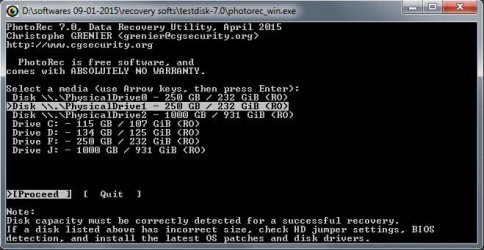
1. The first screen would show your system disk, your 250 GB SSD and your Destination disk. The partitions in your system disk, the single partition in your 250GB SSD and the partition/s on your destination external disk will be indicated by their drive letters.

Select your 250 GB SSD disk ( Select Disk , not drive; drive is the partition in it. You are working in DOS)

Also note the drive letter of your external destination disk. ( You will require this drive letter to navigate to it to copy the files)

[Proceed] is highlighted. Press Enter key

I shall take a break here and continue after another half an hour. Have to have my coffee to refresh.
 
Last edited:

My Computer My Computer

At a glance

Windows 7 Home Premium 32 bit
OS
Windows 7 Home Premium 32 bit
Continuing ... ( I want to finish it before I go to bed so that I can sleep peacefully :))

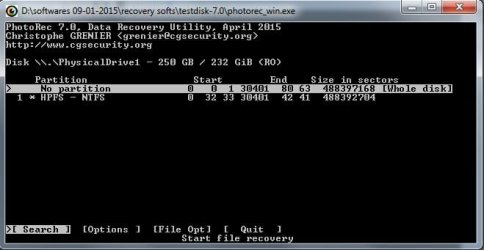
2. The second screen will show the current single partition in your 250GB SSD highlighted. [Search] command is highlighted. Press Enter.

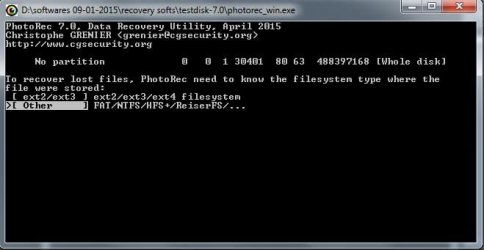
3."Other" is highlighted. ( If not, using the Up/Down arrow keys highlight it.) Press Enter

4. With Down arrow key select (highlight) " Whole" to search the whole disk and press Enter.

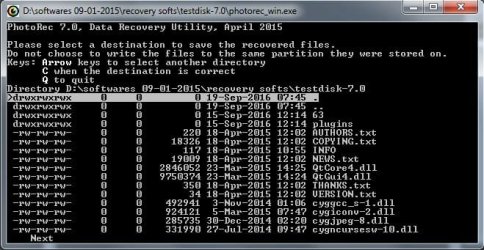
5. Here by default the testdisk folder will be shown as the destination. Press the left arrow key ( if necessary repeatedly) to show all the drives.

6. With the Up/down arrow keys select the destination drive letter you had noted in screen 1. Press Enter

7. You have arrived at your destination. Make sure you have arrived at
Directory <drive letter: >\Recovery ( You may also see my post here on copying files - screenshot seven onwards: http://www.sevenforums.com/hardware-devices/286181-my-external-hard-drive-suddenly-became-unllocated-3.html#post2395385 )

Press C
Copying the files starts.

Note: We have already found that the Volume Boot records of the Second and third partitions have been wiped out. That shouldn't happen with a quick format. Neither will it wipe out the data. This is an attempt to see whether the data exists. If the data also has been wiped out, there will be no files to copy.

But sometimes PhotoRec also may fail to find the data even if it exists in which case the author recommends the commercial software Getdataback. We shall run the free demo version and check whether it shows your data.

In case PhotoRec and also Getdataback do not find any data, we can also use a sector Editor ( I use bootice) to roll through all the sectors in the SSD to find whether it is really populated with data or it has been wiped out..

Anyway let us hope for the best.
 
Last edited:

My Computer My Computer

At a glance

Windows 7 Home Premium 32 bit
OS
Windows 7 Home Premium 32 bit
Continuing ... ( I want to finish it before I go to bed so that I can sleep peacefully :))

2. The second screen will show the current single partition in your 250GB SSD highlighted. [Search] command is highlighted. Press Enter.

3."Other" is highlighted. ( If not, using the Up/Down arrow keys highlight it.) Press Enter

4. With Down arrow key select (highlight) " Whole" to search the whole disk and press Enter.

5. Here by default the testdisk folder will be shown as the destination. Press the left arrow key ( if necessary repeatedly) to show all the drives.

6. With the Up/down arrow keys select the destination drive letter you had noted in screen 1. Press Enter

7. You have arrived at your destination. Make sure you have arrived at
Directory <drive letter: >\Recovery ( You may also see my post here on copying files - screenshot seven onwards: http://www.sevenforums.com/hardware-devices/286181-my-external-hard-drive-suddenly-became-unllocated-3.html#post2395385 )

Press C
Copying the files starts.

Note: We have already found that the Volume Boot records of the Second and third partitions have been wiped out. That shouldn't happen with a quick format. Neither will it wipe out the data. This is an attempt to see whether the data exists. If the data also has been wiped out, there will be no files to copy.

But sometimes PhotoRec also may fail to find the data even if it exists in which case the author recommends the commercial software Getdataback. We shall run the free demo version and check whether it shows your data.

In case PhotoRec and also Getdataback do not find any data, we can also use a sector Editor ( I use bootice) to roll through all the sectors in the SSD to find whether it is really populated with data or it has been wiped out..

Anyway let us hope for the best.

Hi dear Jumanji

first of all thank you for your effort.

I did all steps as you've written, but at the destination folder selecting i can't see my destination external hard drive. Also right or left arrow key's are moving inside my D drive.

I attached the step by steps screenshots to see if i've done anything wrong.

regards

comp_mng_screen_7.jpg

comp_mng_screen_8.jpg

comp_mng_screen_9.jpg

comp_mng_screen_10.jpg
 

My Computer My Computer

At a glance

win 7 64bit
Computer type
PC/Desktop
Computer Manufacturer/Model Number
asus
OS
win 7 64bit
Hard Drives
samsun evo840 evo850
Antivirus
norton
Browser
firefox
Continuing ... ( I want to finish it before I go to bed so that I can sleep peacefully :))

2. The second screen will show the current single partition in your 250GB SSD highlighted. [Search] command is highlighted. Press Enter.

3."Other" is highlighted. ( If not, using the Up/Down arrow keys highlight it.) Press Enter

4. With Down arrow key select (highlight) " Whole" to search the whole disk and press Enter.

5. Here by default the testdisk folder will be shown as the destination. Press the left arrow key ( if necessary repeatedly) to show all the drives.

6. With the Up/down arrow keys select the destination drive letter you had noted in screen 1. Press Enter

7. You have arrived at your destination. Make sure you have arrived at
Directory <drive letter: >\Recovery ( You may also see my post here on copying files - screenshot seven onwards: http://www.sevenforums.com/hardware-devices/286181-my-external-hard-drive-suddenly-became-unllocated-3.html#post2395385 )

Press C
Copying the files starts.

Note: We have already found that the Volume Boot records of the Second and third partitions have been wiped out. That shouldn't happen with a quick format. Neither will it wipe out the data. This is an attempt to see whether the data exists. If the data also has been wiped out, there will be no files to copy.

But sometimes PhotoRec also may fail to find the data even if it exists in which case the author recommends the commercial software Getdataback. We shall run the free demo version and check whether it shows your data.

In case PhotoRec and also Getdataback do not find any data, we can also use a sector Editor ( I use bootice) to roll through all the sectors in the SSD to find whether it is really populated with data or it has been wiped out..

Anyway let us hope for the best.

Hi dear Jumanji

first of all thank you for your effort.

I did all steps as you've written, but at the destination folder selecting i can't see my destination external hard drive. Also right or left arrow key's are moving inside my D drive.

I attached the step by steps screenshots to see if i've done anything wrong.

regards

View attachment 391939

View attachment 391940

View attachment 391941

View attachment 391942

Ok i solved it by putting TESTDISK folder inside my destination external drive.

I'll sen you the results as soon as it finished.

thanks

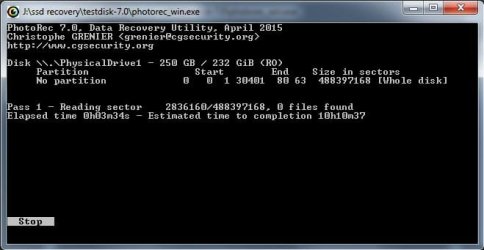
It's doing it's job

comp_mng_screen_11.jpg
 

My Computer My Computer

At a glance

win 7 64bit
Computer type
PC/Desktop
Computer Manufacturer/Model Number
asus
OS
win 7 64bit
Hard Drives
samsun evo840 evo850
Antivirus
norton
Browser
firefox

My Computer My Computer

At a glance

win 7 64bit
Computer type
PC/Desktop
Computer Manufacturer/Model Number
asus
OS
win 7 64bit
Hard Drives
samsun evo840 evo850
Antivirus
norton
Browser
firefox
You have misfired :). ( Perhaps my instructions were not very clear.) Not to worry.

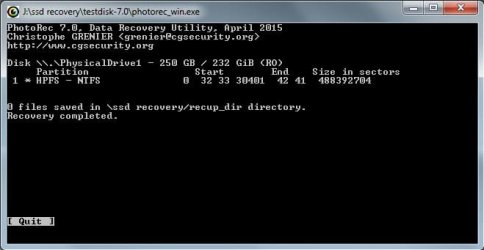
In the second screenshot you put, you should not select the No partition line. By default the second line which reads "1 * HPFS - NTFS 0 32 33......." would have been highlighted. If not highlighted by default, press the down arrow key to highlight that second line which shows the single partition and press enter to [Search]
{"2. The second screen will show the current single partition in your 250GB SSD highlighted. [Search] command is highlighted. Press Enter."}

Then
"3."Other" is highlighted. ( If not, using the Up/Down arrow keys highlight it.) Press Enter

4. With Down arrow key select (highlight) " Whole" to search the whole disk and press Enter."

Perhaps I should have put the whole sequence in screenshots but I didn't have the time and patience to do it. May be I know pretty well that even if you make mistakes, it is not going to affect anything. :)

When you come to the last screen showing the default destination TestDisk folder, press the left arrow key which will take you one level above. If it does not show all your drives press the left arrow key once again. If needed repeat this till the screen shows all your drives. Then select drive J: That was the partition in your 1TB destination drive as shown in the first screenshot. ( When you rerun PhotoRec, please note the drive letter of your 1TB destination drive. It can be different)

Anyway see what happens in the current run. If it does not find any of your files, rerun PhotoRec adhering the above instructions. ( As I see it may take 10 hours but if it is seeing any files you should be getting to know how many files it has recovered. If you want you can stop it, close it and then run it again.

If PhotoRec asks whether it should continue from where it left say no and it will start from the beginning.

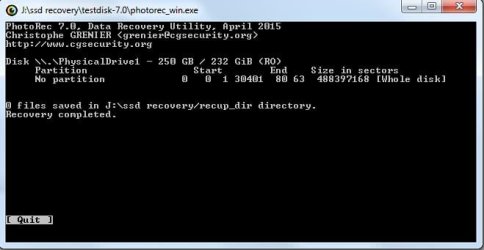
Edit: As I see it hasn't found any files. Rerun PhotoRec as per the instructions above.
 

My Computer My Computer

At a glance

Windows 7 Home Premium 32 bit
OS
Windows 7 Home Premium 32 bit
Read my previous post which crossed.
 

My Computer My Computer

At a glance

Windows 7 Home Premium 32 bit
OS
Windows 7 Home Premium 32 bit

My Computer My Computer

At a glance

win 7 64bit
Computer type
PC/Desktop
Computer Manufacturer/Model Number
asus
OS
win 7 64bit
Hard Drives
samsun evo840 evo850
Antivirus
norton
Browser
firefox
I am not available here for the next 6 hours. Will return after that.
 

My Computer My Computer

At a glance

Windows 7 Home Premium 32 bit
OS
Windows 7 Home Premium 32 bit
You have misfired :). ( Perhaps my instructions were not very clear.) Not to worry.

In the second screenshot you put, you should not select the No partition line. By default the second line which reads "1 * HPFS - NTFS 0 32 33......." would have been highlighted. If not highlighted by default, press the down arrow key to highlight that second line which shows the single partition and press enter to [Search]
{"2. The second screen will show the current single partition in your 250GB SSD highlighted. [Search] command is highlighted. Press Enter."}

Then
"3."Other" is highlighted. ( If not, using the Up/Down arrow keys highlight it.) Press Enter

4. With Down arrow key select (highlight) " Whole" to search the whole disk and press Enter."

Perhaps I should have put the whole sequence in screenshots but I didn't have the time and patience to do it. May be I know pretty well that even if you make mistakes, it is not going to affect anything. :)

When you come to the last screen showing the default destination TestDisk folder, press the left arrow key which will take you one level above. If it does not show all your drives press the left arrow key once again. If needed repeat this till the screen shows all your drives. Then select drive J: That was the partition in your 1TB destination drive as shown in the first screenshot. ( When you rerun PhotoRec, please note the drive letter of your 1TB destination drive. It can be different)

Anyway see what happens in the current run. If it does not find any of your files, rerun PhotoRec adhering the above instructions. ( As I see it may take 10 hours but if it is seeing any files you should be getting to know how many files it has recovered. If you want you can stop it, close it and then run it again.

If PhotoRec asks whether it should continue from where it left say no and it will start from the beginning.

Edit: As I see it hasn't found any files. Rerun PhotoRec as per the instructions above.

Hi,

I did it again following this instruction, and anfortunately no results.

comp_mng_screen_14.jpg
 

My Computer My Computer

At a glance

win 7 64bit
Computer type
PC/Desktop
Computer Manufacturer/Model Number
asus
OS
win 7 64bit
Hard Drives
samsun evo840 evo850
Antivirus
norton
Browser
firefox
Sorry state of affairs. Looks like your data has been completely wiped out.

Did you do a Diskpart cleanall or a complete wipe with any of the partitioning software like AOMEI Partition Assistant on your SSD prior to quickformatting it?

If you had done that, that would have written zeros to all the sectors from start to finish and the data is gone forever irrecoverably including the Volume Boot Record at the start sector of the second and third partitions..
 
Last edited:

My Computer My Computer

At a glance

Windows 7 Home Premium 32 bit
OS
Windows 7 Home Premium 32 bit
Sorry state of affairs. Looks like your data has been completely wiped out.

Did you do a Diskpart cleanall or a complete wipe with any of the partitioning software like AOMEI Partition Assistant on your SSD prior to quickformatting it?

If you had done that, that would have written zeros to all the sectors from start to finish and the data is gone forever irrecoverably including the Volume Boot Record at the start sector of the second and third partitions..

Hi dear Jumanji

I'm Astounding, i've no idea about this case.

all i did step by step is:

1- deleted volume 3 (my videos, images, etc....)

2- deleted volume 2 (my operatig system)

3- deleted volume 1 (system reserved 100mb volume)

4- at the end quick formatted whole disk.

anyway i'm grateful for your effort and don't know how to retaliate for that.

Only thing i can do is anytime you'll be in Armenia i'll do my best at least to be a good tour guide for you.

thanks again
 

My Computer My Computer

At a glance

win 7 64bit
Computer type
PC/Desktop
Computer Manufacturer/Model Number
asus
OS
win 7 64bit
Hard Drives
samsun evo840 evo850
Antivirus
norton
Browser
firefox
Thank you very much for the sentiments expressed.

I was indeed watching a documentary on Armenia during the course of this thread and it seems to be quite a country with an interesting history and the oldest church in the world situated there. I was wondering whether at all I will be visiting Armenia in my lifetime ( not much left :D).


Now coming to your drive, I haven't finished with it yet. Please read the note in my post #25.

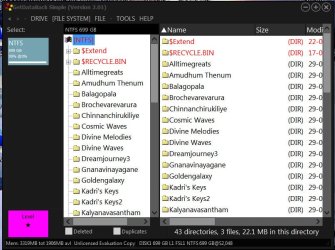
I still have my 750GB external drive (on which I did my homework concurrently) in the quickformatted stage.( I had created three partitions in it, put some data on all the three partitions, then deleted all three partitions and quickformatted it - all in Windows Disk Management)

Just a while ago I ran the free trial version of GetDataback Simple and it found all the data in it.

22-09-2016 18-49-20.jpg

So download GetdataBack simple https://www.runtime.org/data-recovery-software.htm. Read the how-to- guides on that page. It is really simple. Just run it and see whether it shows your files.

This is the last step before giving up on it.
 

My Computer My Computer

At a glance

Windows 7 Home Premium 32 bit
OS
Windows 7 Home Premium 32 bit
Thank you very much for the sentiments expressed.

I was indeed watching a documentary on Armenia during the course of this thread and it seems to be quite a country with an interesting history and the oldest church in the world situated there. I was wondering whether at all I will be visiting Armenia in my lifetime ( not much left :D).


Now coming to your drive, I haven't finished with it yet. Please read the note in my post #25.

I still have my 750GB external drive (on which I did my homework concurrently) in the quickformatted stage.( I had created three partitions in it, put some data on all the three partitions, then deleted all three partitions and quickformatted it - all in Windows Disk Management)

Just a while ago I ran the free trial version of GetDataback Simple and it found all the data in it.

View attachment 391981

So download GetdataBack simple https://www.runtime.org/data-recovery-software.htm. Read the how-to- guides on that page. It is really simple. Just run it and see whether it shows your files.

This is the last step before giving up on it.


Hi dear Jumanji

Yes the rmenian people were the first who chose christianity as their official religion, and the first people who made wine :roflmao:
Meanwhile there are too many Indians leaving in Armenia's capital Yerevan mostly studying in medical school of Yerevan, also they have their own dorm. Also there leave some Indian families who learned to speak Armenian so sweet. There are many Indian restaurants there that I'm dying for :D. So you won't be alone.

Back to work
Dear Jumanji i tested this final method and again nothing.

Sorry for the inconvenience.
 

My Computer My Computer

At a glance

win 7 64bit
Computer type
PC/Desktop
Computer Manufacturer/Model Number
asus
OS
win 7 64bit
Hard Drives
samsun evo840 evo850
Antivirus
norton
Browser
firefox
I shall write the concluding post on how to do a sector by sector examination of your drive sometime later... May be tomorrow. Today I just want to sleep / sleep over it.. :)
 

My Computer My Computer

At a glance

Windows 7 Home Premium 32 bit
OS
Windows 7 Home Premium 32 bit
Finally,I could find sometime only today to write my concluding post.

If you haven't yet formatted your SSD and it still remains in the last quickformatted condition, you can examine the drive with bootice. It is not going to recover any data but it will only facilitate viewng the sectors of your SSD to check whether the boot records of the second and third partition still exist at their start sector and whether the other sectors are populated with data.

If you have 64 bit Windows download v1.3.3.2 x64 from 【BOOTICE v1.3.3.2: 功能强大的启动维护工具】-子逸轩
Extract the RAR file into a folder named bootice64. ( You can create the folder anywhere in your system, even on a pendrive) You will get a single BOOTICEx64.exe file which you will run.

To familiarise with bootice: http://www.sevenforums.com/hardware-devices/310295-lost-partitions.html#post2584426

Note: While you can read the whole post, you are not going to save any sector. You are only going to examine the sectors.

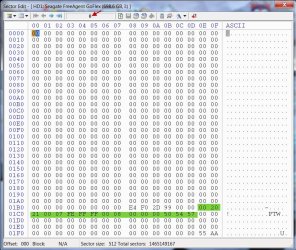
Check what is there in Sector 0. (The screenshot below shows Sector 0 of my 750GB HDD. When you created a simple volume encompassing the whole drive a new 16byte partition table is written into sector 0 after wiping out the three 16byte partition tables there. That partition table defines the start point and end point of the partition.) The partition table is highlighted in green. You will see the current partition table in your SSD.

22-09-2016 18-18-08.jpg

(The following 48bytes field can accommodate three more 16byte partition tables. So one can have only a total of four partitions in an MBR drive.)

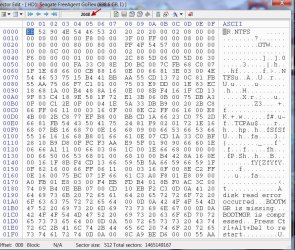
When you quickformatted the drive, it would have wiped the volume boot record of your previous first partition at 2048 and would have written a new Volume Boot Record (NTFS File system) consistent with the partition table in sector 0. ( The first partition always starts at sector 2048) The screenshot below shows the volume boot record at sector 2048 on my drive )

2 25-09-2016 10-44-40.jpg

Creating a single simple volume and quickformatting it makes only these two changes on these two sectors.

So the volume boot record of the second and third partition at their start points as well as data in all the sectors will still remain unaffected.

Using bootice you can now do a search.

To be continued after a break .........

.
 

My Computer My Computer

At a glance

Windows 7 Home Premium 32 bit
OS
Windows 7 Home Premium 32 bit
To continue........

Your first partition was a 100MB System Reserved partition. Now a little maths.

Each sector is 512bytes. 2048 sectors constitute 1 MB. 100 MB = 2048X100 = 204800 Sectors.

Start sector of the first SRP is 2048. It should end somewhere near 2048+204800 = 2064848 sectors and your second partition should start after 2064800 sectors. You can manually search now between sectors 1900000 to 2400000 sectors to check whether you can see the volume boot sector. It should appear more or less like the second screenshot in my previous post. The most obvious clue will be that NTFS should appear in the first line of the ASCII pane in the right. ( This exactly what we did with PRW scan range 3000 to 410000 butt PW did not find the boot sector.)

To roll through the sectors , you can keep the mouse pointer inside the bootice Window and use the mouse roller to roll through the sectors.

For the endpoint of your second partition to arrive at the possible start sector location of the third partition, I shall leave it to you to do the maths and decide the scan range.

I know that it is going to be an exercise but while rolling through the various sectors you can also see whether those sectors are populated with data . A data sector will appear to be filled with random hexadecimal bytes.

I shall continue but subsequent posts will explain mostly what I did, how PW recovered the second and third partitions. But that will be tomorrow or later and at my own pace :). I have most screenshots ready but I need to compose it into a coherent presentation to help others.

In your case. however something more than quick format had happened either before ( most likely) or after ( less likely) that has wiped all data. You had run Easeus Recovery and AOMEI Partition Recovery after the quickformat but I don't think those could delete the data. Most recovery software only scan the drive and do not write anything to the drive. So it still remains a mystery to me.
 
Last edited:

My Computer My Computer

At a glance

Windows 7 Home Premium 32 bit
OS
Windows 7 Home Premium 32 bit
Back
Top