SSD - Install and Transfer the Operating System

How to Physically Install a SSD and Transfer the Operating System


Introduction

If you never owned an SSD, you have missed something. Yes, they are not cheap, but Dollar per Dollar there is no other piece of hardware that can give you as much additional performance than an SSD.

Because SSDs are expensive, their current use is for placing the operating system. That’s how you get the best mileage. Although XP and Vista can be installed on SSDs, it is recommended to use them for Windows7, which is the first system to support Trim.

For desktops, an SSD with a 60GB capacity is usually sufficient. The user data can be moved to the HDD – I will explain the procedure later. Should you have very large programs, e.g., games, you should move their program files during the installation of the game to the HDD too.

For laptops, the situation is more complicated because you usually have only one disk bay. I use 80GB and 90GB SSDs on my laptops. In addition, I use the HDD that I recovered from the laptop after I installed the SSD in an external USB enclosure. But, if you move around a lot with the laptop, that may not be so convenient and a bigger SSD (120GB or 250GB) may be in order (budget allowing).


Hardware Installation

For a desktop, you will need a bracket if it is a 2.5” SSD (like most today). But, there are also 3.5” SSDs that will fit without adaptor brackets into the disk bays. You also need a cable to attach the SSD to the motherboard. For electricity, there is usually an extra plug at the PSU which you can use for the SSD’s.

Once you have all those bits, you can install the SSD in an available disk bay – or if none available, some self-adhesive Velcro will also do. The SSDs are light and do not produce any vibration or heat.

For a laptop, you need an external enclosure that attaches to a USB port. That will allow you to make the initial SSD setups. The one I linked attaches via USB2 and eSata, which may be practical later to use as external drive with the HDD that you recovered from the laptop. Also for hot swapping bare bone HDDs. But there are cheaper enclosures for USB2 only and also some that allow attachment to USB3.

Transfer the Operating System

There are two ways to transfer the operating system from your current HDD to the SSD:
1. The Geeky way which comes for free and
2. The easy way that costs $19.95.

1.The Geeky way requires the following steps:

Prepare the SSD – You first have to initialize the SSD to create the MBR. You can do that with Disk Management or with this program (which you will need later anyhow).

Then you need to align the SSD and define an active partition on it. You use an elevated Command Prompt with the following commands:

Diskpart
List disk
Select disk n (where n is the number that was given for your SSD in List disk)
Clean
Create partition primary align=1024
Format fs=ntfs quick
Active (assuming you want to install an OS)
Exit

Note: If you are more comfortable working with Disk Management, you can also define a primary active partition with Disk Management. On a SSD, the partition will be automatically aligned by 1024.


If you want to verify that the alignment is correct, you use these commands:

Diskpart
List disk
Select disk n
List partition


You should see a result like this:

Partition ### Type Size Offset


------------- ---------------- ------- -------
Partition 1 Primary 59 GB

1024 KB - but 64KB or any number divisible by 4 is also good. The offset has to be divisible by 4.

In Windows7, you may have the 100MB active boot partition. The easiest way to deal with that is to move the bootmgr to the C: partition using EasyBCD. That you do on your HDD before you transfer anything to the SSD. Then you do not have to worry about it and you need only transfer the C: partition to the SSD.


But if you care to keep the 100MB partition, then the partition you just created on the SSD is for that 100MB partition. The next step is to shrink the partition you just created to a 100MB size (make sure it is not any smaller). With Disk Management you will have trouble to do that. I recommend this program for the operation.

From the free space you gained, you create the C: partition for the OS. This partition must not be active and need not be a primary (because the 100MB partition contains the boot manager).

Alternatively and easier is if you first create the 100MB partition with these commands:

Diskpart
List disk
Select disk n (where n is the number that was given for your SSD in List disk)
Clean
Create partition primary size=100 align=1024
Format fs=ntfs quick
Active
Exit

Note: The unit in the size parameter is MB

After this action you can use Disk Management to create the C partition from the remaining unallocated space. That can be a logical partition.

If there is no 100MB partition, things are easy. The partition you created with Command Prompt will receive the C partition including boot manager and all.

There may be more partitions on your factory HDD – e.g., the Recovery partition and a Tools Partition. Those you should not transfer to the SSD because of space constraints. I would back them up – e.g., with an imaging program. The Recovery Partition you can also burn to DVDs.

The OS transfer

This is done with an image. There are a variety of free imaging programs (e.g., the free editions of Macrium, Paragon, Acronis, etc.) that are suitable for the task. You can also use the Windows7 imaging, which has the advantage that it deals with the 100MB active boot partition automatically. Disadvantage is that you never know exactly what it does.

You image your partitions to an external disk (you may have to assign a drive letter to the 100MB partition so that the imaging program can identify it) and then pull the images back in to the SSD (using the bootable recovery program of the imaging program).
The recovery is partition by partition. So you have to make separate runs for the 100MB partition (if any) and the C: partition.

Note: Many free imaging programs cannot shrink the originating partition to fit into the usually much smaller C: partition on the SSD - even if the amount of data in that partition would fit. In that case you will need to shrink the C: partition on the HDD prior to imaging it. The HDD C: partition must be smaller or equal in size to the designated partition on the SSD. For that operation I also recommend this program because Disk Management might not be able to shrink it enough. Note: Free Macrium can image to a smaller disk if the data fits.

It is, of course, understood, that the amount of data on your HDD C: partition must not exceed the capacity of the designated C: partition on the SSD. Should you have more data on your HDD C: partition than the size of the SSD C: partition can hold, I suggest you first create a data partition on the HDD system and move the user data there. Here is my video tutorial that explains how this is done. When you finally are on the SSD system, you then right click on the user folders in the data partition (Documents, Pictures, etc.) and Include them into the appropriate library. That approach does not require you to move the user folders later.

Next step is to change the boot sequence in the BIOS to set the SSD as second boot device (leave the CD/DVD reader as first boot device) and, hopefully, your system will boot.

2.The easy way for transferring the OS requires you to purchase this program. It does everything for you – alignment, deals with the 100MB partition, transfers C:, shrinks the originating partition, etc. All you will have to do is change the boot sequence.

Note: Before you activate the SSD, it is recommended to set the BIOS to AHCI. Best time to do that is just before you change the boot sequence. Once Windows7 is running, you make the corresponding settings in the OS. Here is a tutorial on how to do that.
Many people claim that there is a significant performance gain with AHCI. I, however, did not see that. But it may be different from system to system.

Settings after the OS transfer

Disk Defragmentation makes no sense on an SSD. For a laptop, go into Services, navigate to Disk Defragmenter, right click on it and go to Properties. Here you set the service to Disabled.
For a desktop, you may want to disable defrag in the Disk Defragmenter and only for the SSD so that the remaining HDDs can still be defragmented.

Note: As long as Defrag Service is turned off, you cannot shrink any partition. The partition shrink process requires the Defrag service. If you need to shrink a partition later, turn the Defragmentation Service temporarily on.

Hibernation File – most of us do not use Hibernation, but Sleep instead. But, the hiberfile takes precious space on your SSD – to the same tune as the size as your RAM. To get rid of it, run the following command in elevated Command Prompt: powercfg –h off. If you ever want it back, it is powercfg – h on.

Superfetch – many “experts” suggest to turn Superfetch off. I think that is not appropriate. Fetching a program or data from RAM is still a lot faster than fetching it from a disk – even from an SSD.

There are no other settings that are necessary. On the SSD forums you will find a lot of tweaks. I recommend you stay away from them.


Move the user folders to the HDD

To move the user folders to the HDD is very simple. Create a Data partition on the HDD. Define folders in that partition – e.g., Documents, Music, Pictures, etc. One for each folder you want to move off the SSD. The name of those folders can be anything. The system will rename them anyhow. It is just more obvious if you call them by the same name as the originating folders.

Then, open the Explorer and right click on, e.g., My Documents folder (not the Documents Library) in the left pane. Go to Properties and click on the Location tab. Here you click on Move and navigate to the corresponding folder in your Data Partition on the HDD. Then you Select that folder and Apply it.

Very Important: You must move the SSD folder to the corresponding Data Partition folder – NOT to the root of the partition itself. That would create a mess.


Last edited:
thank you
 

My Computer

Computer Manufacturer/Model Number
Home Built
OS
Windows 7 Home Premium 64 bit
CPU
AMD Phenom II X4 955 Black Edition Deneb 3.2GHz
Motherboard
GIGABYTE GA-970A-UD3 AM3+ AMD 970 SATA 6Gb/s USB 3.0 ATX AMD
Memory
Crucia 16 GB (4 x 4GB) 240-Pin DDR3 SDRAM DDR3 1333
Graphics Card(s)
XFX PVT95GYDQ3 GeForce 9500 GT 512MB 128-bit GDDR3 PCI Expre
Sound Card
onboard
Monitor(s) Displays
42 in Vizio TV
Hard Drives
Crucial M4 CT064M4SSD2 2.5" 64GB SATA III MLC Internal Solid State Drive (SSD)


SAMSUNG Spinpoint F3 HD103SJ 1TB 7200 RPM 32MB Cache SATA 3.0Gb/s 3.5" Internal Hard Drive -Bare Drive
PSU
700 watt
Case
COOLER MASTER RC-690-KKN1-GP Black SECC/ ABS ATX Mid Tower
Cooling
COOLER MASTER Hyper 212 Plus RR-B10-212P-G1
No problem. Any time.
 

My Computer

Computer Manufacturer/Model Number
HP, Dell, Gateway, Toshiba - 4 laptops and 2 desktops
OS
Vista, Windows7, Mint Mate, Zorin, Windows 8
CPU
from 1.6GHz Duo to i7
Monitor(s) Displays
2x HP w2207
Hard Drives
5x HDD, 7x SSD, 12x Externals
Keyboard
with trackball - no mices
Mouse
Trackball mice
Internet Speed
DSL 6000
Hello everyone,
Thanks for creating the tutorial, but just to clarify, if I have a computer with a 1TB HDD that's around a third full, and I plan to purchase a 60 GB SSD and only want to transfer the OS onto it, I can follow this tutorial exactly and not worry about losing anything or having to purchase anything extra such as a backup storage beside the SSD? Thanks in advance :)

and btw, is this a decent deal? http://www.newegg.com/Product/Produ...111-_-EMC-111111-Index-_-SSD-_-20233223-L010D
 

My Computer

OS
Windows 7 Professional x64
CPU
AMD Phenom II x4 955 BE 3.8GHz
Motherboard
Biostar A870u3
Memory
Corsair XMS3 8 GB (2 x 4GB) 1333 MHz
Graphics Card(s)
GTX 560 Ti
Monitor(s) Displays
23.6" Asus
Screen Resolution
1920X1080
Hard Drives
OCZ Vertex 3 90GB SSD,
WD Caviar Black 1 TB HDD
PSU
Antec EarthWatts EA650 650W
Case
Antec 300
Cooling
CM Hyper 212+
Keyboard
Das Keyboard
Mouse
Logitech G500
Internet Speed
Not fast enough
1. The Corsair is a decent deal. but I would not buy it. I would look for a Crucial. Intel or OCZ. But don't go by me. The 3 guys that bought it from Newegg seem to like it and gave it a high rating.

2. If you want to transfer your OS from the 1TB drive, you can do that as described assuming that both drives are installed in the system. There are, however, several traps you can fall into if you are not an experienced (SSD) user. Those have to do with:

1. Alignment
2. 100MB hidden active partition
3. Partition size - the C partition on the 1TB drive must not be bigger than the space on the SSD to where you restore it (and remember that you also need a bit of space for the hidden 100MB partition). The reason for that is that free Macrium cannot shrink the image.

To make things easy and safe, you may want to consider using the Paragon Migration tool which is linked in the tutorial. Yes that would be an extra $19.95 but it does the job with 2 clicks and you do not have to worry about any of the traps mentioned in 1,2,3.

But if you prefer to wrestle it yourself (you would be learning a lot), we will be glad to guide you thru the process over and above what is described in the tutorial.
 

My Computer

Computer Manufacturer/Model Number
HP, Dell, Gateway, Toshiba - 4 laptops and 2 desktops
OS
Vista, Windows7, Mint Mate, Zorin, Windows 8
CPU
from 1.6GHz Duo to i7
Monitor(s) Displays
2x HP w2207
Hard Drives
5x HDD, 7x SSD, 12x Externals
Keyboard
with trackball - no mices
Mouse
Trackball mice
Internet Speed
DSL 6000
I got a daily deal from Buy.com and got my Crucial 64 gig drive for 99 dollars shipped . You can buy the same drive at newegg . One will cost more but comes with an install kit . I did a fresh custom install on the SSD . The terabyte drive still had windows 7 on it . No problems but if you go that route unplug the terabyte drive install and reconnect . I wasn't sure on how to clone the drive to move it . Some SSD's come with software that will move the system with easy directions .
 

My Computer

Computer Manufacturer/Model Number
Home Built
OS
Windows 7 Home Premium 64 bit
CPU
AMD Phenom II X4 955 Black Edition Deneb 3.2GHz
Motherboard
GIGABYTE GA-970A-UD3 AM3+ AMD 970 SATA 6Gb/s USB 3.0 ATX AMD
Memory
Crucia 16 GB (4 x 4GB) 240-Pin DDR3 SDRAM DDR3 1333
Graphics Card(s)
XFX PVT95GYDQ3 GeForce 9500 GT 512MB 128-bit GDDR3 PCI Expre
Sound Card
onboard
Monitor(s) Displays
42 in Vizio TV
Hard Drives
Crucial M4 CT064M4SSD2 2.5" 64GB SATA III MLC Internal Solid State Drive (SSD)


SAMSUNG Spinpoint F3 HD103SJ 1TB 7200 RPM 32MB Cache SATA 3.0Gb/s 3.5" Internal Hard Drive -Bare Drive
PSU
700 watt
Case
COOLER MASTER RC-690-KKN1-GP Black SECC/ ABS ATX Mid Tower
Cooling
COOLER MASTER Hyper 212 Plus RR-B10-212P-G1
Thanks whs!
So if I purchase this program, would I be able to use it multiple times and would I be able to not worry about the transfer even if I have over 60 GB of data in my 1TB drive's C partition?
I'm not really tech savvy so I apologize if I keep asking for something that was already answered :(
 

My Computer

OS
Windows 7 Professional x64
CPU
AMD Phenom II x4 955 BE 3.8GHz
Motherboard
Biostar A870u3
Memory
Corsair XMS3 8 GB (2 x 4GB) 1333 MHz
Graphics Card(s)
GTX 560 Ti
Monitor(s) Displays
23.6" Asus
Screen Resolution
1920X1080
Hard Drives
OCZ Vertex 3 90GB SSD,
WD Caviar Black 1 TB HDD
PSU
Antec EarthWatts EA650 650W
Case
Antec 300
Cooling
CM Hyper 212+
Keyboard
Das Keyboard
Mouse
Logitech G500
Internet Speed
Not fast enough
Right, you can use it multiple times and on any PC and it is really childs play. Everything is automatic - just 2 clicks. It even finds your SSD automatically (if it is installed on the system - not if it is in the box, LOL). And it does adjust the size provided that there is not more data on the C partition than can fit on the SSD - but if that were the case, we could fix that beforehand.

Since you said that you have more than 60GB of data on C, I suggest to move your user files to another partition. Instructions are here: http://www.sevenforums.com/tutorials/72427-data-partition.html

But before you begin, make sure you do not have 4 primary partitions on your HDD. Best would be if you posted a picture of your Disk Management.
 

My Computer

Computer Manufacturer/Model Number
HP, Dell, Gateway, Toshiba - 4 laptops and 2 desktops
OS
Vista, Windows7, Mint Mate, Zorin, Windows 8
CPU
from 1.6GHz Duo to i7
Monitor(s) Displays
2x HP w2207
Hard Drives
5x HDD, 7x SSD, 12x Externals
Keyboard
with trackball - no mices
Mouse
Trackball mice
Internet Speed
DSL 6000
Hey whs,
I have just gotten my hands on a 60GB ssd, and also the migration tool from a friend. But even then, I'm still not sure how to optimally use what I have.

If I uncheck everything, this is what I get. I am not sure which folders I should leave checked (which will I benefit the most from having in the SSD)
http://www.flickr.com/photos/71584625@N02/6470325485/

My general usage for this desktop is gaming, light windows office use, browsing the internet, and it has anti malware running, so should I simply just find those folders in program files and select them? Or can I just do that after migration with everything unchecked?

There is also an option saying "Use all available space for partition with OS", should I check that? the Description recommends if if I don't plan on creating partitions on the new SSD

In the end of the manual, it states that after a successful "migration, shutdown the computer, remove the source drive, make the remaining drive bootable in BIOS and restart the computer. Your migrated system will boot after some time." What happens to the OS originally on my HDD? Is it just safe to plug it back in and continue as normal?

I have viewed the tutorial about data partitioning, but I still don't know how to move all my user data away from the OS into the new partition or vise versa, sorry :(


Thank you so much! again!
 
Last edited:

My Computer

OS
Windows 7 Professional x64
CPU
AMD Phenom II x4 955 BE 3.8GHz
Motherboard
Biostar A870u3
Memory
Corsair XMS3 8 GB (2 x 4GB) 1333 MHz
Graphics Card(s)
GTX 560 Ti
Monitor(s) Displays
23.6" Asus
Screen Resolution
1920X1080
Hard Drives
OCZ Vertex 3 90GB SSD,
WD Caviar Black 1 TB HDD
PSU
Antec EarthWatts EA650 650W
Case
Antec 300
Cooling
CM Hyper 212+
Keyboard
Das Keyboard
Mouse
Logitech G500
Internet Speed
Not fast enough
The photo in your Flickr link is restricted. I'm not allowed to view it.
 

My Computer

Computer type
PC/Desktop
Computer Manufacturer/Model Number
Custom-built
OS
Windows 7 Professional SP1 32-bit
CPU
Intel Core 2 Duo E6600 2.4GHz
Motherboard
Asus PL5D2
Memory
4GB DDR2-667 (4x1GB in dual-channel config)
Graphics Card(s)
nVidia GeForce 9800 GT
Sound Card
Creative X-Fi XtremeMusic
Monitor(s) Displays
Acer P236H
Screen Resolution
1920x1200 (DVI)
Hard Drives
OCZ SSD Vertex Plus 60GB SATA (Firmware 3.55), 64MB cache
Hitachi HD321KJ SATA, 320GB, 7200rpm, 16MB cache
PSU
Antec TruePower 2.0
Case
Cooler Master Centurion
Cooling
Too many fans
Keyboard
Standard
Mouse
Microsoft wireless optical mouse
Internet Speed
AT&T U-verse (18mbit/sec)
Antivirus
Microsoft Security Essentials
Browser
Firefox
Other Info
Other devices:
Compaq CQ-60 laptop
Google Nexus 7 (2012) tablet
Nvidia SHIELD tablet (US/LTE)
Hardkernel ODROID-XU single-board computer (Samsung Exynos 5420)
Last edited:

My Computer

OS
Windows 7 Professional x64
CPU
AMD Phenom II x4 955 BE 3.8GHz
Motherboard
Biostar A870u3
Memory
Corsair XMS3 8 GB (2 x 4GB) 1333 MHz
Graphics Card(s)
GTX 560 Ti
Monitor(s) Displays
23.6" Asus
Screen Resolution
1920X1080
Hard Drives
OCZ Vertex 3 90GB SSD,
WD Caviar Black 1 TB HDD
PSU
Antec EarthWatts EA650 650W
Case
Antec 300
Cooling
CM Hyper 212+
Keyboard
Das Keyboard
Mouse
Logitech G500
Internet Speed
Not fast enough
There is nothing to check or uncheck. Just change the BIOS to boot from the SSD. And when you replugged your HDD, you can delte your OS partition and the 100MB system partition from there - unless you want to keep it as a backup.

For moving your user folders you have 2 options - for one as explained in the video tutorial. But these days I prefer another method. Create new folders for Documents, Pictures etc. on the HDD and then right click on those and INCLUDE them into the corresponding library. Then move your own use folders to there.

The advantage of this second method is that you get a clear seperation of your own stuff and the folders that are created by the system and some programs which will go into the default folders. And there will be some - especially in Documents.
 

My Computer

Computer Manufacturer/Model Number
HP, Dell, Gateway, Toshiba - 4 laptops and 2 desktops
OS
Vista, Windows7, Mint Mate, Zorin, Windows 8
CPU
from 1.6GHz Duo to i7
Monitor(s) Displays
2x HP w2207
Hard Drives
5x HDD, 7x SSD, 12x Externals
Keyboard
with trackball - no mices
Mouse
Trackball mice
Internet Speed
DSL 6000
Hello,
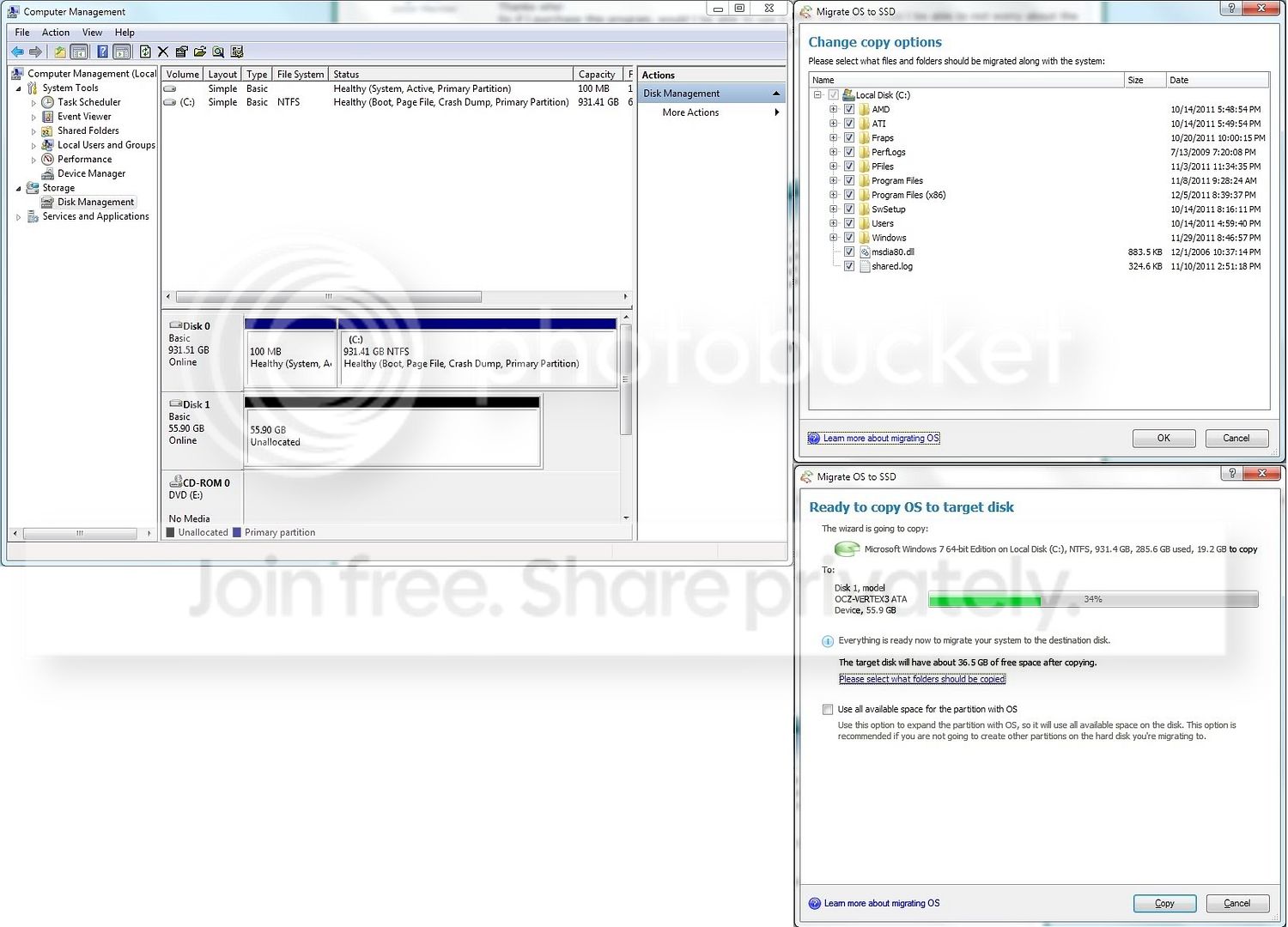
Sorry if my previous post is unclear, but when running the paragon migration tool, it prompts me to uncheck the folders in order for it to fit onto the ssd. The screenshot of it taking 34% space is having everything unchecked. My question is that during that process, is there anything I should leave checked to optimize my performance?

It get's a little blurry between whats what and where the drivers are that I should migrate along with the OS. For example, there is both microsoft office in Program Files AND Program files (X86) so do I select both?

Thanks again, for all the help.
 

My Computer

OS
Windows 7 Professional x64
CPU
AMD Phenom II x4 955 BE 3.8GHz
Motherboard
Biostar A870u3
Memory
Corsair XMS3 8 GB (2 x 4GB) 1333 MHz
Graphics Card(s)
GTX 560 Ti
Monitor(s) Displays
23.6" Asus
Screen Resolution
1920X1080
Hard Drives
OCZ Vertex 3 90GB SSD,
WD Caviar Black 1 TB HDD
PSU
Antec EarthWatts EA650 650W
Case
Antec 300
Cooling
CM Hyper 212+
Keyboard
Das Keyboard
Mouse
Logitech G500
Internet Speed
Not fast enough
You only uncheck your own data folders - none of the system folders. Then you make another partition on the HDD where you make new folders for your own stuff and include them as described above.

You could also first move your stuff out of the C: partition on the HDD (to a seperate partition) so that you only have the system left on C: - which should fit easily on the SSD.
 

My Computer

Computer Manufacturer/Model Number
HP, Dell, Gateway, Toshiba - 4 laptops and 2 desktops
OS
Vista, Windows7, Mint Mate, Zorin, Windows 8
CPU
from 1.6GHz Duo to i7
Monitor(s) Displays
2x HP w2207
Hard Drives
5x HDD, 7x SSD, 12x Externals
Keyboard
with trackball - no mices
Mouse
Trackball mice
Internet Speed
DSL 6000
Okay, so is the "Windows" folder in my C partition my systems folder therefore cannot be excluded from the transfer?
 

My Computer

OS
Windows 7 Professional x64
CPU
AMD Phenom II x4 955 BE 3.8GHz
Motherboard
Biostar A870u3
Memory
Corsair XMS3 8 GB (2 x 4GB) 1333 MHz
Graphics Card(s)
GTX 560 Ti
Monitor(s) Displays
23.6" Asus
Screen Resolution
1920X1080
Hard Drives
OCZ Vertex 3 90GB SSD,
WD Caviar Black 1 TB HDD
PSU
Antec EarthWatts EA650 650W
Case
Antec 300
Cooling
CM Hyper 212+
Keyboard
Das Keyboard
Mouse
Logitech G500
Internet Speed
Not fast enough
Absolutely not. Do not touch any folders that are not your own.
 

My Computer

Computer Manufacturer/Model Number
HP, Dell, Gateway, Toshiba - 4 laptops and 2 desktops
OS
Vista, Windows7, Mint Mate, Zorin, Windows 8
CPU
from 1.6GHz Duo to i7
Monitor(s) Displays
2x HP w2207
Hard Drives
5x HDD, 7x SSD, 12x Externals
Keyboard
with trackball - no mices
Mouse
Trackball mice
Internet Speed
DSL 6000
Absolutely not. Do not touch any folders that are not your own.

So check or uncheck? I'm sorry for these silly questions but I want to make sure.
I posted a screenshot earlier indicating all the options. They are defaulted checked in the paragon migration tool

I have yet to proceed with the migration yet
 

My Computer

OS
Windows 7 Professional x64
CPU
AMD Phenom II x4 955 BE 3.8GHz
Motherboard
Biostar A870u3
Memory
Corsair XMS3 8 GB (2 x 4GB) 1333 MHz
Graphics Card(s)
GTX 560 Ti
Monitor(s) Displays
23.6" Asus
Screen Resolution
1920X1080
Hard Drives
OCZ Vertex 3 90GB SSD,
WD Caviar Black 1 TB HDD
PSU
Antec EarthWatts EA650 650W
Case
Antec 300
Cooling
CM Hyper 212+
Keyboard
Das Keyboard
Mouse
Logitech G500
Internet Speed
Not fast enough
jff, The idea is to make the data on the C: partition small enough before you migrate or during the migration so that it fits on the SSD. The actual size of the C: partition does not matter - what matters is what amount of data is in the partition. If you had Win7 only on the HDD C: partition, it should not be much bigger than 20 to 30GBs.

So the aim is to get your own user files out of the way. You could copy your own stuff temporarily to an external disk and delete it in C: or you make a "holding" partition on the HDD (if you can gain enough space on it to hold everything) and move it there.

In the first case (external disk), you can then reimport your files to the HDD into the space that in now C: after you migrated that slimmed down C: and delted the partition to use the space for the creation of a new data partition.

In the second case (where you moved it to a holding partition on the HDD right away) you can use that as is and just INCLUDE your folders into the library system of the SSD.

The other possibility is to exclude your own folders during the migration. In that case they will stay on your C: on the HDD and you can use them from there after the migration (by including them into the SSD libraries). Problem here is that you cannot easily get rid of the Win7 OS that is sitting on the HDD - that is why I would prefer one of the other solutions.

And I am sorry - I cannot read your screenshot. Too small, my eyes are too bad.
 

My Computer

Computer Manufacturer/Model Number
HP, Dell, Gateway, Toshiba - 4 laptops and 2 desktops
OS
Vista, Windows7, Mint Mate, Zorin, Windows 8
CPU
from 1.6GHz Duo to i7
Monitor(s) Displays
2x HP w2207
Hard Drives
5x HDD, 7x SSD, 12x Externals
Keyboard
with trackball - no mices
Mouse
Trackball mice
Internet Speed
DSL 6000
Thank you so much for your patience whs, I truly appreciate it.

Originally I thought the migration tool will be enough to separate the system files from the user files, but I am wrong.

So from what you are saying now is that I should just create a partition from C by shrinking C, and naming the new partition to my main partition. Then create folders there with the same names as all my user folders and move everything besides the OS there.

Now the problem is that I am not entirely sure which files are the system files and which ones are the ones I should be moving to the new partition.

But once i figured that out and moved my files out of C to the new partition, running the paragon tool will be as easy as selecting all of C, and a few things from the new partition (lets call it F) and pick apps like microsoft office and google chrome and anti malware

here is the previous screenshot on a different web host imaging service (have you tried to zoom in the previous image?):
Migration.jpg


The two windows on the right is what shows up during the use of Paragon Migration Tool, and the bottom right image is when i UNCHECKED everything. it still shows that ~20GB of data is being transfered, so I assume that's the OS

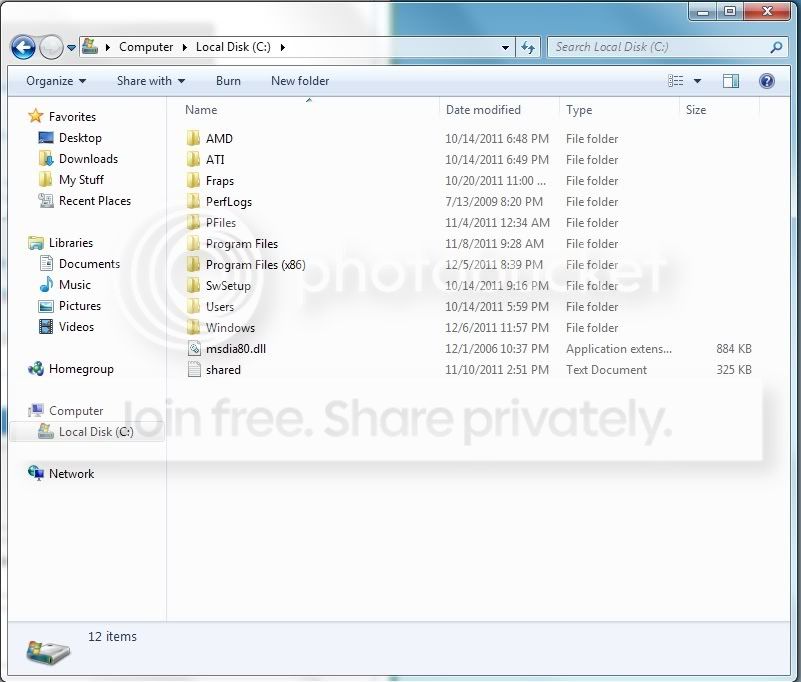
And this is what my C partition look like (So which folders should I move to F?):
C.jpg
 

My Computer

OS
Windows 7 Professional x64
CPU
AMD Phenom II x4 955 BE 3.8GHz
Motherboard
Biostar A870u3
Memory
Corsair XMS3 8 GB (2 x 4GB) 1333 MHz
Graphics Card(s)
GTX 560 Ti
Monitor(s) Displays
23.6" Asus
Screen Resolution
1920X1080
Hard Drives
OCZ Vertex 3 90GB SSD,
WD Caviar Black 1 TB HDD
PSU
Antec EarthWatts EA650 650W
Case
Antec 300
Cooling
CM Hyper 212+
Keyboard
Das Keyboard
Mouse
Logitech G500
Internet Speed
Not fast enough
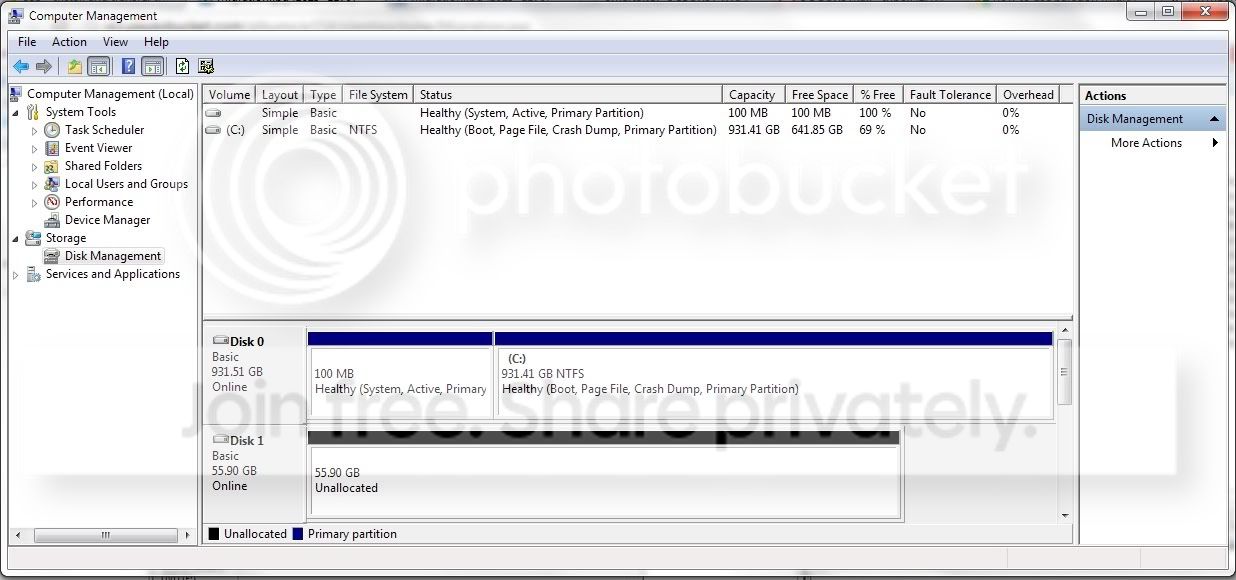
!. I can read your pics now - thank you. Unfortunately I cannot see any sizes anywhere. Make a snip of COMPUTER - that will be more telling. Or a snip of DisK Management like mine below which shows all the size info.

2. What you should move out of C: is: Documents, Pictures, Videos, Music and possibly Downloads if you have a lot of stuff in there.

3. Run CCleaner before you start the migration. That will get rid of all the temporary files.
 

Attachments

  • 2011-12-07_1524.png
    2011-12-07_1524.png
    67.7 KB · Views: 551

My Computer

Computer Manufacturer/Model Number
HP, Dell, Gateway, Toshiba - 4 laptops and 2 desktops
OS
Vista, Windows7, Mint Mate, Zorin, Windows 8
CPU
from 1.6GHz Duo to i7
Monitor(s) Displays
2x HP w2207
Hard Drives
5x HDD, 7x SSD, 12x Externals
Keyboard
with trackball - no mices
Mouse
Trackball mice
Internet Speed
DSL 6000
Here you go, thanks:
Untitled-3.jpg


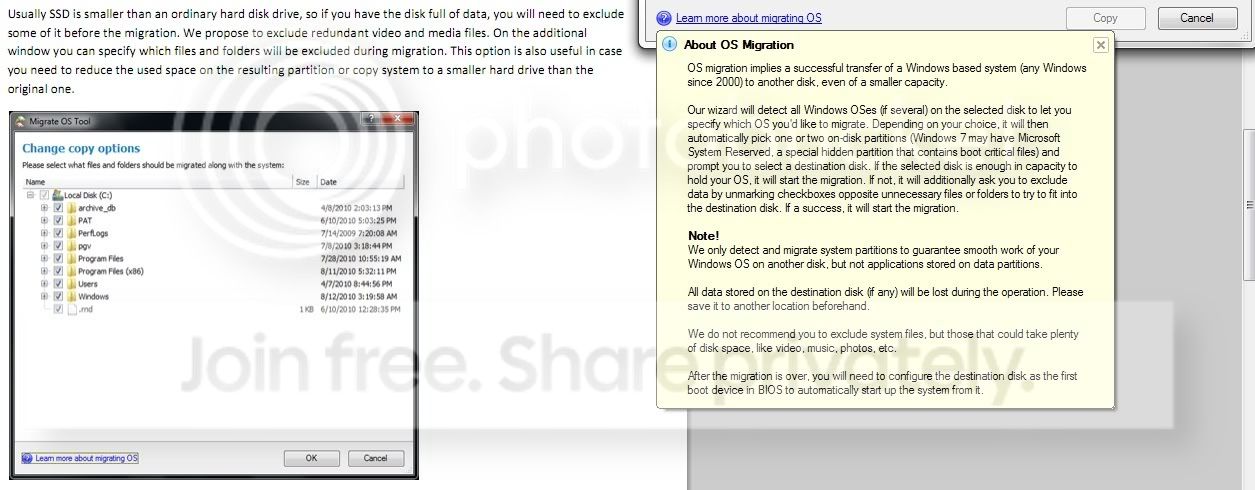
And this could be small (try ctrl +?), but basically this is the step i was stuck on:
(Left side is manual, right side is program)
Description.jpg

The yellow box states that i should NOT exclude the systems folder while migrating with the program, and the program should take care of the problem of "too much stuff in C"
Paragon.jpg
 

My Computer

OS
Windows 7 Professional x64
CPU
AMD Phenom II x4 955 BE 3.8GHz
Motherboard
Biostar A870u3
Memory
Corsair XMS3 8 GB (2 x 4GB) 1333 MHz
Graphics Card(s)
GTX 560 Ti
Monitor(s) Displays
23.6" Asus
Screen Resolution
1920X1080
Hard Drives
OCZ Vertex 3 90GB SSD,
WD Caviar Black 1 TB HDD
PSU
Antec EarthWatts EA650 650W
Case
Antec 300
Cooling
CM Hyper 212+
Keyboard
Das Keyboard
Mouse
Logitech G500
Internet Speed
Not fast enough
Back
Top