SSD's and System Restore

thehappyman

New member
Pro User
Local time
11:02 AM
Messages
258
Location
Central Florida
So "they" tell us to always turn System Restore off if you are using an SSD. So what happens if you turn System Restore off and some new program you are installing tries to create a restore point ??? Does that still work ??? And why does system restore hurt an SSD that supports the TRIM operation ???? :confused::confused::confused:
 

My Computer

Computer Manufacturer/Model Number
Alienware Aurora
OS
Win 7 Ultimate x64
CPU
Core I7 980X O.C. to 4.0 Ghz
Motherboard
Custom Intel mATX (Bios ver A10)
Memory
12GB 1600 mhz triple channel DDR3 - Kingston
Graphics Card(s)
ATI Radeon HD 5970 2GB Video Card
Sound Card
Creative Labs Titanium sound blaster
Monitor(s) Displays
30" Dell LCD
Screen Resolution
2560 x 1600
Hard Drives
240 GB OCZ Vertex 2 SSD
256 GB Samsung V2 SSD
2TB WD Black Caviar 7200 rpm SATA3
600GB WD Velociraptor 10,000 rpm SATA3
3TB WD MyBook Essential USB 3.0 7200 rpm External
PSU
850 Watt
Case
Alienware Aurora
Cooling
Water
Keyboard
Logitech G15 (original version)
Mouse
Logitech MX1000 Laser - Wireless
Internet Speed
Cable 22 Mb/sec download
Other Info
USB 3.0,
Blue Ray DVD Read/Writer
Bose Companion 3 Speakers
WRT54G Wireless Router
It doesnt hurt the SSD.

Theres similar thoughts about SuperFetch, when in all reality it makes things faster even with a SSD.

The idea behind all of this is that a SSD has a limited amount of writes, (or more specifically erase cycles) and that you should limit writes to be as minimal as possible.

Quite honestly, its all blown way out of proportion.
Neither System restore nor SuperFetch harm the SSD in any way.


As far as System Restore being off, you will be fine in regards to anything attempting to make a system restore.
All that happens is you get a error log that "creating a System Restore Point failed!", and things move on as normal.

I have mine Off, but only because I make daily system images with Acronis, and would MUCH rather it handle all forms of backup and recovery.
If I must roll the system back to an earlier time, its just as fast & easy for Acronis to Re-image the drive from a Image made earlier in the day, or day before.

However, I would not recommend everyone disable it, unless you have a specific, regular plan of disaster recovery.

Bottom Line, System Restore will not hurt anything left On or Off.
Disabling it for sake of saving writes to the SSD is pointless.
 

My Computer

Computer Manufacturer/Model Number
Custom (Self Build)
OS
Windows 7 Home Premium 64bit
CPU
Intel Core i7 2700k
Motherboard
eVGA P67 SLI
Memory
8GB Mushkin Redline Ridgebacks @1866
Graphics Card(s)
EVGA GTX570 SC
Sound Card
XiFi Titanium HD
Monitor(s) Displays
LG W2453V
Screen Resolution
1920x1080
Hard Drives
Intel 320 80GB -- Intel X25-V 40GB --WD Black 1TB x2 -- WD Blue 640GB
PSU
Seasonic x750
Case
Corsair 600T SE White
Cooling
eVGA Superclocked CPU Cooler
Keyboard
Saitek Cyborg
Antivirus
Kaspersky
Browser
IE
Other Info
LG BD/DVD
So "they" tell us to always turn System Restore off if you are using an SSD. So what happens if you turn System Restore off and some new program you are installing tries to create a restore point ??? Does that still work ??? And why does system restore hurt an SSD that supports the TRIM operation ???? :confused::confused::confused:


In the words of that great philosopher: Thou shalt sweat it not!

In other words, don't turn system restore off.

I have an SSD. I wouldn't, not even on my deathbed, think of turning System Restore off.
 

My Computer

Computer Manufacturer/Model Number
Toshiba Satellite S875D-S7239 laptop
OS
MS Windows 7 Ultimate SP1 64-bit
CPU
AMD A10-4600M
Motherboard
AMD Pumori (Socket FT1)
Memory
6.00 GB Dual-Channel DDR3 @ 798MHz (11-11-12-28)
Graphics Card(s)
AMD Radeon HD 7660G
Sound Card
High Definition Audio Device
Monitor(s) Displays
Generic PnP Monitor (1600x900@60Hz)
Screen Resolution
1600x900@60Hz
Hard Drives
SSD 119GB Corsair CSSD-V128GB2 ATA Device
Keyboard
Standard PS/2 Keyboard
Mouse
HP Wireless Optical Mobile Mouse Model FHA-3410
Internet Speed
What the local pub, local coffee shop offers.
Other Info
Optical Drive:MATSHITA BD-CMB UJ160B ATA Device


Also have an Asus ha1002xp netbook with Win 7 Ultimate installed.
If it helps...

There is alot of literature available with respect to both of these points.

With respect to System Restore, there has been alot of evidence that the was Win7 allocates its restore points severely impairs if not completely shuts down TRIM. I approached Intel with this sometime ago who stated they would look into it and supply response to which their only response was to tell people to shut down System Restore.

I have an article dedicated to it and the way to test for its effects on The SSD Review if you are interested.

With respect to prefetch its really like having an extra unneeded appendage. the purpose of superfetch and prefetch was to speed things up on hard drives, however, they serve no purpose simply because the access speed of a ssd is .1ms and this cannot be improved upon in any way by these two things. Will it reduce your ssd life through excessive writes to the drive? Who knows really as there is no first hand proof but understanding the mechanics would make one believe so.

In fact, the lifespan should even be more of a concern for System Restore as this wreaks havoc on the end life write total.

Hope this helps a bit.

Yup first post...found this on Google and joined to help a bit with the response..
 

My Computer

OS
Win 7 64Bt Ult
There is alot of literature available with respect to both of these points.

With respect to prefetch its really like having an extra unneeded appendage. the purpose of superfetch and prefetch was to speed things up on hard drives, however, they serve no purpose simply because the access speed of a ssd is .1ms and this cannot be improved upon in any way by these two things.

True SSDs are fast. But another side to this debate, Although a SSD is fast, it is still not as fast as RAM.

Also the fact, Superfetch will have preloaded most of the DATA.


So, if you think about it, with SF turned off, the SSD still needs to fetch the DATA and load it to memory.

With Pre-Fetch ON, it Simply launches from memory (Which is faster than a SSD)
 

My Computer

Computer Manufacturer/Model Number
Custom (Self Build)
OS
Windows 7 Home Premium 64bit
CPU
Intel Core i7 2700k
Motherboard
eVGA P67 SLI
Memory
8GB Mushkin Redline Ridgebacks @1866
Graphics Card(s)
EVGA GTX570 SC
Sound Card
XiFi Titanium HD
Monitor(s) Displays
LG W2453V
Screen Resolution
1920x1080
Hard Drives
Intel 320 80GB -- Intel X25-V 40GB --WD Black 1TB x2 -- WD Blue 640GB
PSU
Seasonic x750
Case
Corsair 600T SE White
Cooling
eVGA Superclocked CPU Cooler
Keyboard
Saitek Cyborg
Antivirus
Kaspersky
Browser
IE
Other Info
LG BD/DVD
Les,

There is much "literature".

When your SSD manufacturer has a statement in print that one should not use System Restore, then please post such.
 

My Computer

Computer Manufacturer/Model Number
Toshiba Satellite S875D-S7239 laptop
OS
MS Windows 7 Ultimate SP1 64-bit
CPU
AMD A10-4600M
Motherboard
AMD Pumori (Socket FT1)
Memory
6.00 GB Dual-Channel DDR3 @ 798MHz (11-11-12-28)
Graphics Card(s)
AMD Radeon HD 7660G
Sound Card
High Definition Audio Device
Monitor(s) Displays
Generic PnP Monitor (1600x900@60Hz)
Screen Resolution
1600x900@60Hz
Hard Drives
SSD 119GB Corsair CSSD-V128GB2 ATA Device
Keyboard
Standard PS/2 Keyboard
Mouse
HP Wireless Optical Mobile Mouse Model FHA-3410
Internet Speed
What the local pub, local coffee shop offers.
Other Info
Optical Drive:MATSHITA BD-CMB UJ160B ATA Device


Also have an Asus ha1002xp netbook with Win 7 Ultimate installed.
I have my system restore turned off. It is a feature that gets trumped up by a few reports of it actually working, yet you don't hear of all the other issues (like mine) where it has never worked, ever, since it's inception. I turn it off right away and leave it on, and don't ever plan to run it. Most of the time it might work, it just set the system up to repeat the same issue anyway. I would much prefer to solve the issue than jump back in line for it again. No thank you.

If you are concerned, disable it, learn to employ a proper back up method, and be done with it.
 

My Computer

OS
Windows 7 Ultimate x64 SP1
CPU
Intel Core i7-2600
Motherboard
Gigabyte GA-P67A-UD3P-B3
Memory
12 GB Patriot Extreme DDR3-1333
Graphics Card(s)
Nvidia GTX 470
Monitor(s) Displays
Dell UltraSharp 2209WA
Hard Drives
OCZ Agility3 240 GB, WD5001AALS, WD7501AALS
PSU
OCZ ModStream 700W
Case
CoolerMaster HAF 912 Advanced
Cooling
CoolerMaster Hyper 212 Plus
So "they" tell us to always turn System Restore off if you are using an SSD.
Not sure who "they" is, but I would never tell anybody to disable system system. Even on an SSD. I'm sure the concern here is limited disk space...so go adjust the total amount of space that you would want it to consume. The people who tell you to disable system restore, are most likely the same people who image their computer on a daily basis and will go back to that in the case of a problem. While I do image my computer, i only do it about once per month and have used system restore in the past to correct pesky little problems without having to resort to an older image.

I have my system restore turned off. It is a feature that gets trumped up by a few reports of it actually working, yet you don't hear of all the other issues (like mine) where it has never worked, ever, since it's inception.
I've only had it NOT work on one computer that I was fixing for a family memory. And it would go most of the way, then blue screen and revert back to where it was...so it didn't make things any worse, but it didn't fix the problem either. Every other time that I have used it on my own personal computers as well as coworker computers it has always worked.
 

My Computer

Computer Manufacturer/Model Number
Self-Built in July 2009
OS
Windows 7 Ultimate x64
CPU
Intel Q9550 2.83Ghz OC'd to 3.40Ghz
Motherboard
Gigabyte GA-EP45-UD3R rev. 1.1, F12 BIOS
Memory
8GB G.Skill PI DDR2-800, 4-4-4-12 timings
Graphics Card(s)
EVGA 1280MB Nvidia GeForce GTX570
Sound Card
Realtek ALC899A 8 channel onboard audio
Monitor(s) Displays
23" Acer x233H
Screen Resolution
1920x1080
Hard Drives
Intel X25-M 80GB Gen 2 SSD
Western Digital 1TB Caviar Black, 32MB cache. WD1001FALS
PSU
Corsair 620HX modular
Case
Antec P182
Cooling
stock
Keyboard
ABS M1 Mechanical
Mouse
Logitech G9 Laser Mouse
Internet Speed
15/2 cable modem
Other Info
Windows and Linux enthusiast. Logitech G35 Headset.
System Restore has saved me much anguish. We all have our own experiences. I will agree that System Restore did not work correctly or well in Vista. One of the pleasant surprises with Win 7 is that System Restore works as advertised and has been a life-saver for me.

There are some disk and some av software out there which do not work well, and in fact, work destructively upon System Restore and shadow copies.
 

My Computer

Computer Manufacturer/Model Number
Toshiba Satellite S875D-S7239 laptop
OS
MS Windows 7 Ultimate SP1 64-bit
CPU
AMD A10-4600M
Motherboard
AMD Pumori (Socket FT1)
Memory
6.00 GB Dual-Channel DDR3 @ 798MHz (11-11-12-28)
Graphics Card(s)
AMD Radeon HD 7660G
Sound Card
High Definition Audio Device
Monitor(s) Displays
Generic PnP Monitor (1600x900@60Hz)
Screen Resolution
1600x900@60Hz
Hard Drives
SSD 119GB Corsair CSSD-V128GB2 ATA Device
Keyboard
Standard PS/2 Keyboard
Mouse
HP Wireless Optical Mobile Mouse Model FHA-3410
Internet Speed
What the local pub, local coffee shop offers.
Other Info
Optical Drive:MATSHITA BD-CMB UJ160B ATA Device


Also have an Asus ha1002xp netbook with Win 7 Ultimate installed.
There are some disk and some av software out there which do not work well, and in fact, work destructively upon System Restore and shadow copies.
Many AV vendors also recommend disabling System Restore, because some malware can hide there and reinfect the system. Maybe this isn't the case anymore, but I've learned to just properly back up my system, and my users systems, so there's never been a need to chance System Restore. I can just reimage and restore my data, same as all of my users.
 

My Computer

OS
Windows 7 Ultimate x64 SP1
CPU
Intel Core i7-2600
Motherboard
Gigabyte GA-P67A-UD3P-B3
Memory
12 GB Patriot Extreme DDR3-1333
Graphics Card(s)
Nvidia GTX 470
Monitor(s) Displays
Dell UltraSharp 2209WA
Hard Drives
OCZ Agility3 240 GB, WD5001AALS, WD7501AALS
PSU
OCZ ModStream 700W
Case
CoolerMaster HAF 912 Advanced
Cooling
CoolerMaster Hyper 212 Plus
Although there are many which do work correctly with Microsoft software, my choice, Microsoft Security Essentials, works perfectly, smoothly, and with a small-footprint.
 

My Computer

Computer Manufacturer/Model Number
Toshiba Satellite S875D-S7239 laptop
OS
MS Windows 7 Ultimate SP1 64-bit
CPU
AMD A10-4600M
Motherboard
AMD Pumori (Socket FT1)
Memory
6.00 GB Dual-Channel DDR3 @ 798MHz (11-11-12-28)
Graphics Card(s)
AMD Radeon HD 7660G
Sound Card
High Definition Audio Device
Monitor(s) Displays
Generic PnP Monitor (1600x900@60Hz)
Screen Resolution
1600x900@60Hz
Hard Drives
SSD 119GB Corsair CSSD-V128GB2 ATA Device
Keyboard
Standard PS/2 Keyboard
Mouse
HP Wireless Optical Mobile Mouse Model FHA-3410
Internet Speed
What the local pub, local coffee shop offers.
Other Info
Optical Drive:MATSHITA BD-CMB UJ160B ATA Device


Also have an Asus ha1002xp netbook with Win 7 Ultimate installed.
Apologies, I need to backtrack here because I cannot find the reference. Intel's New SSD Users Guide states to shut down Super fetch and I cannot find the reference where they state to shut down system restore as it has been so long now. I can, however, find tons of examples of performance degradation which was the result of System Restore being active and a simple Google search gets one to any of them.

If you do such, you will find a large number that were assisted by Flamenko; that is me. This icludes a long forum between myself and an Intel Rep (SSDelightful) where he said intel would look into it and then never returned.

With respect to Pre/Superfetch and RAM being faster. This is another wives tail which stands side by side with shutting down pagefile, another topic I have been very active on since the first release of an SSD. My belief is that I shut pagefile down because, well its useless and I want to force my RAM to be used to its fullest whereas you counter by saying when RAM is on, Super/Prefetch is faster.

The truth is that neither of us can back that up with any data. There is absolutely no recognizable difference whatsoever and we are relying on logic with no verification at the end.

In the end, the OP can follow either direction and received both sides of the argument. We can go back and forth for 100 posts and we will still be no further ahead.
 

My Computer

OS
Win 7 64Bt Ult
Apologies, I need to backtrack here because I cannot find the reference. Intel's New SSD Users Guide states to shut down Super fetch and I cannot find the reference where they state to shut down system restore as it has been so long now. I can, however, find tons of examples of performance degradation which was the result of System Restore being active and a simple Google search gets one to any of them.

If you do such, you will find a large number that were assisted by Flamenko; that is me. This icludes a long forum between myself and an Intel Rep (SSDelightful) where he said intel would look into it and then never returned.

With respect to Pre/Superfetch and RAM being faster. This is another wives tail which stands side by side with shutting down pagefile, another topic I have been very active on since the first release of an SSD. My belief is that I shut pagefile down because, well its useless and I want to force my RAM to be used to its fullest whereas you counter by saying when RAM is on, Super/Prefetch is faster.

The truth is that neither of us can back that up with any data. There is absolutely no recognizable difference whatsoever and we are relying on logic with no verification at the end.

In the end, the OP can follow either direction and received both sides of the argument. We can go back and forth for 100 posts and we will still be no further ahead.

I would disagree about the PF, and this is why.

I have actually seen several "Virtual Memory Errors" due to the Page File being disabled or set to low, with certain applications or games. Even in Win7.

Both from helping others resolve crashing issues of applications/games, and I have also seen it happen on my own machines in the past.
Each with varying amounts of RAM (4GB, 8GB, and even more)

A quick Google of what causes 'Virtual Memory Error" will yield many results pointing to the Page File.

You will still use the same amount of RAM with the page File On as you do OFF, as Seven will not really use it unless it needs to.

The only difference is, if the app in questions wants/needs a PF for whatever reason, the app will crash with a Virtual Memory error if it is disabled.


-->Superfetch I suppose is really a personal choice. To me, I can tell a difference when it is on.
Everything is snappier.

Plus I like the fact it per-loads and uses every single MB of my 8GB of my RAM, (albiet most in standby mode) of everything 7 knows I will be using that day.

So even with the PF ON, and SF on, I have 0 free space left of 8GB RAM.

So in my experience (limited I know), it seems to me turning off the PF can only lead to trouble, and doesnt force the system to use more RAM, as it already uses it all with it on.
 

My Computer

Computer Manufacturer/Model Number
Custom (Self Build)
OS
Windows 7 Home Premium 64bit
CPU
Intel Core i7 2700k
Motherboard
eVGA P67 SLI
Memory
8GB Mushkin Redline Ridgebacks @1866
Graphics Card(s)
EVGA GTX570 SC
Sound Card
XiFi Titanium HD
Monitor(s) Displays
LG W2453V
Screen Resolution
1920x1080
Hard Drives
Intel 320 80GB -- Intel X25-V 40GB --WD Black 1TB x2 -- WD Blue 640GB
PSU
Seasonic x750
Case
Corsair 600T SE White
Cooling
eVGA Superclocked CPU Cooler
Keyboard
Saitek Cyborg
Antivirus
Kaspersky
Browser
IE
Other Info
LG BD/DVD
I have to disagree Les.

Turning off your System Restore is rather silly, unless you image your drive very often.

My new SSD (WD Silicon Edge Blue 64GB) has a life estimate of 3 years when writing 17.5 GB per day to the drive. I can't see System Restore/Superfetch/Prefetch writing that much data to a drive that I only use as a system and program drive. My pagefile is on a spinning drive, as well as all of my data.

The average spinning drive lasts me about 3 to 5 years, though some go longer. If I can get 5 years out of this SSD, I'd say I've done well. By that time, they will be dirt cheap to replace.
 

My Computer

Computer type
PC/Desktop
Computer Manufacturer/Model Number
Mellon Labs (custom build)
OS
Win 7 Pro x64/Win 10 Pro x64 dual boot
CPU
AMD FX 8350 Vishera @ 4200
Motherboard
ASUS M5A97 R2.0
Memory
16 GB Mushkin Blackline DDR3-2400 @ 1866 (9-10-10-10-31)
Graphics Card(s)
XFX Radeon R9 280 Double D Black Edition
Sound Card
Realtek HD Audio on MB. Sounds great.
Monitor(s) Displays
Acer 24", Acer 22"
Screen Resolution
3840 x 1080
Hard Drives
1 x Mushkin Chronos 120 GB SSD (Win 10)
1 x Samsung 850 EVO 250 GB SSD (Win 7)
1 x WD 1TB SATA Blue
1 x WD 1TB SATA Green
PSU
Corsair TX-750
Case
CoolerMaster HAF 912+
Cooling
Coolermaster Seidon 240M Liquid AIO. 6 case fans
Keyboard
Logitech G710+
Mouse
Logitech G500s
Internet Speed
Much better since I got fiber, but still way overpriced.
Antivirus
MSE, Malware Bytes for scanning
Browser
Firefox
Other Info
Corsair VOID USB headphones.

A Mellon Labs X-1 - LCD Smartie driven system status display.

Brought to you by the letter E
With respect to Pre/Superfetch and RAM being faster. This is another wives tail
Um....no....RAM is much, much, much faster than any SSD drive. When I run winsat mem I got approx 7500MB/s....and my Intel X25-M G2 80GB SSD gets around 220MB/s using HDTune. So, my RAM is about 34 times faster than my SSD drive.

When i went from superfetch off to superfetch on with my computer and my SSD, I saw a noticeable difference in about 2 days. Small apps don't see hardly any difference because you are loading very little data...but larger apps have benefited.

Maybe this isn't the case anymore, but I've learned to just properly back up my system, and my users systems, so there's never been a need to chance System Restore. I can just reimage and restore my data, same as all of my users.
System restore is never a substitute for a backup. But once after loading a crappy roxio application, a few machines had their burners simply disappear. Uninstalling Roxio didn't bring the drive back. Running system restore and going back just prior to installing the crappy roxio application solved the issue. I found that much easier than doing a full image restore in that instance.
 

My Computer

Computer Manufacturer/Model Number
Self-Built in July 2009
OS
Windows 7 Ultimate x64
CPU
Intel Q9550 2.83Ghz OC'd to 3.40Ghz
Motherboard
Gigabyte GA-EP45-UD3R rev. 1.1, F12 BIOS
Memory
8GB G.Skill PI DDR2-800, 4-4-4-12 timings
Graphics Card(s)
EVGA 1280MB Nvidia GeForce GTX570
Sound Card
Realtek ALC899A 8 channel onboard audio
Monitor(s) Displays
23" Acer x233H
Screen Resolution
1920x1080
Hard Drives
Intel X25-M 80GB Gen 2 SSD
Western Digital 1TB Caviar Black, 32MB cache. WD1001FALS
PSU
Corsair 620HX modular
Case
Antec P182
Cooling
stock
Keyboard
ABS M1 Mechanical
Mouse
Logitech G9 Laser Mouse
Internet Speed
15/2 cable modem
Other Info
Windows and Linux enthusiast. Logitech G35 Headset.
I disable my restore points with a regular hard drive, lol.

Happy Imaging!
 

My Computers

System One System Two

  • Computer type
    PC/Desktop
    Computer Manufacturer/Model Number
    PowerSpec G164
    OS
    WIN10
    CPU
    AMD Ryzen 5 3600 6-Core Processor 3.59 GHz
    Memory
    16.0 GB
    Internet Speed
    VERY FAST>>>!!!
  • Antivirus
    ESET Security Premium
My SSD and System Restore

Thanks to everybody for your opinions - though I notice that some of them differ quite a bit.

In my 10 years of experience with XP I have used System Restore many, many times, almost always after I have made some stupid mistake, modifying the OS in some objectionable way, or when a program install fails after its already changed the registry. I have grown used to having System Restore to fix small mistakes (in the registry) that have not corrupted the OS or any SPECIFIC Programs.

I also image my c drive about once a month or after I make major changes to the system. I use Acronis True Home for the imaging. It images RAID 0 ARRAYS with no problem.

When the OS itself gets corrupted (this is quite rare) or a program gets "damaged" (also rare), then System Restore is useless and the entire C drive must be restored from its latest mirror image backup.

To recover the registry settings with System Restore (which works 99% of the time) it takes only a couple of minutes. Re-imaging the entire C drive on my last system (with two 150 GB WD 10,000 rpm Raptors) would take maybe a half hour (I would always use the verify after restore cmd). So clearly I'd much rather use System Restore as long as it fixes the problem. And I dont want to have to waste a half hour every day making a new mirror image backup to another drive.

My SSD will be 256 GB so it isnt really, really small. My only concern is that System Restore wont harm it in any way and that System Restore will work as reliably on the SSD as it does a regular disk. Of course I will be using Win 7 now, not XP.

I plan on calling my SSD manuafacturer after I get my system and asking their Tech Support how they feel about it and what they recommend. The company I am buying the system from says that they use SSD's from 3 different manufacturers so I wont know my SSD manufacturer until I get the system and take a look at the disk inside. Then I will know who to call. Two more weeks for the new system to arrive.......

I have read the "SSD Review" and their optimization guides. I know they suggest to turn System Restore off with an SSD but I'd rather not do that unless I am forced to.
There are perhaps many things that one can do to reduce the total number of writes to the SDD. Like relocating the Browser's temporary internert files to another drive, and maybe relocating Outlooks .PST file to another drive ????? And then theres the question of what to do with the swap file.

I know I'll be doing some benchmarks every month to see if the SSD slows down at all. I am assuming at this time that the TRIM operation will work without any problems.

Thanks again to all for your suggestions, I wish it was more "black and white" but I guess theres going to be some experimenting. :D:D:D

Any more opions or suggestions you SSD'ers ?????

 

My Computer

Computer Manufacturer/Model Number
Alienware Aurora
OS
Win 7 Ultimate x64
CPU
Core I7 980X O.C. to 4.0 Ghz
Motherboard
Custom Intel mATX (Bios ver A10)
Memory
12GB 1600 mhz triple channel DDR3 - Kingston
Graphics Card(s)
ATI Radeon HD 5970 2GB Video Card
Sound Card
Creative Labs Titanium sound blaster
Monitor(s) Displays
30" Dell LCD
Screen Resolution
2560 x 1600
Hard Drives
240 GB OCZ Vertex 2 SSD
256 GB Samsung V2 SSD
2TB WD Black Caviar 7200 rpm SATA3
600GB WD Velociraptor 10,000 rpm SATA3
3TB WD MyBook Essential USB 3.0 7200 rpm External
PSU
850 Watt
Case
Alienware Aurora
Cooling
Water
Keyboard
Logitech G15 (original version)
Mouse
Logitech MX1000 Laser - Wireless
Internet Speed
Cable 22 Mb/sec download
Other Info
USB 3.0,
Blue Ray DVD Read/Writer
Bose Companion 3 Speakers
WRT54G Wireless Router
Remember that alot of times with disabling things for SSD, it's to ensure a long life of the product. In my opinion, people exaggerate and blow this problem way out of proportion. In principal, the fewer the rights, the better. I agree with that. However, if it's the difference between lasting 5 years or lasting 12 years...I don't care...as I will never have it for either length of time. Thus, I don't worry about these little oddball tweaks. If I want to ensure a long life, I'll just skip using my computer for a couple of days and it will extend the life of the SSD.
 

My Computer

Computer Manufacturer/Model Number
Self-Built in July 2009
OS
Windows 7 Ultimate x64
CPU
Intel Q9550 2.83Ghz OC'd to 3.40Ghz
Motherboard
Gigabyte GA-EP45-UD3R rev. 1.1, F12 BIOS
Memory
8GB G.Skill PI DDR2-800, 4-4-4-12 timings
Graphics Card(s)
EVGA 1280MB Nvidia GeForce GTX570
Sound Card
Realtek ALC899A 8 channel onboard audio
Monitor(s) Displays
23" Acer x233H
Screen Resolution
1920x1080
Hard Drives
Intel X25-M 80GB Gen 2 SSD
Western Digital 1TB Caviar Black, 32MB cache. WD1001FALS
PSU
Corsair 620HX modular
Case
Antec P182
Cooling
stock
Keyboard
ABS M1 Mechanical
Mouse
Logitech G9 Laser Mouse
Internet Speed
15/2 cable modem
Other Info
Windows and Linux enthusiast. Logitech G35 Headset.
Remember that alot of times with disabling things for SSD, it's to ensure a long life of the product. In my opinion, people exaggerate and blow this problem way out of proportion. In principal, the fewer the rights, the better. I agree with that. However, if it's the difference between lasting 5 years or lasting 12 years...I don't care...as I will never have it for either length of time. Thus, I don't worry about these little oddball tweaks. If I want to ensure a long life, I'll just skip using my computer for a couple of days and it will extend the life of the SSD.

Practical Logic there Pparks1 :):):)
 

My Computer

Computer Manufacturer/Model Number
Alienware Aurora
OS
Win 7 Ultimate x64
CPU
Core I7 980X O.C. to 4.0 Ghz
Motherboard
Custom Intel mATX (Bios ver A10)
Memory
12GB 1600 mhz triple channel DDR3 - Kingston
Graphics Card(s)
ATI Radeon HD 5970 2GB Video Card
Sound Card
Creative Labs Titanium sound blaster
Monitor(s) Displays
30" Dell LCD
Screen Resolution
2560 x 1600
Hard Drives
240 GB OCZ Vertex 2 SSD
256 GB Samsung V2 SSD
2TB WD Black Caviar 7200 rpm SATA3
600GB WD Velociraptor 10,000 rpm SATA3
3TB WD MyBook Essential USB 3.0 7200 rpm External
PSU
850 Watt
Case
Alienware Aurora
Cooling
Water
Keyboard
Logitech G15 (original version)
Mouse
Logitech MX1000 Laser - Wireless
Internet Speed
Cable 22 Mb/sec download
Other Info
USB 3.0,
Blue Ray DVD Read/Writer
Bose Companion 3 Speakers
WRT54G Wireless Router
So "they" tell us to always turn System Restore off if you are using an SSD. So what happens if you turn System Restore off and some new program you are installing tries to create a restore point ??? Does that still work ??? And why does system restore hurt an SSD that supports the TRIM operation ???? :confused::confused::confused:

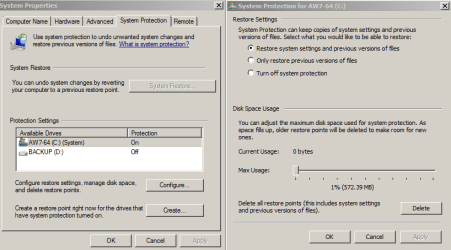
Everyone is correct about "things being over exagerated when using an SSD". Yes, do keep System Restore intact, just reduce how much space it uses on the drive. I have my 60 GB reduced to just 500 MB. That's plenty of system restore space for a couple of days.

I would also like to mention all the hype about AHCI. Unless you are going to use the features included in this mode for drives, you're just fine with SATA/IDE in your BIOS. Windows 7 will not flinch at all when you plug-in your SSD and install your OS.

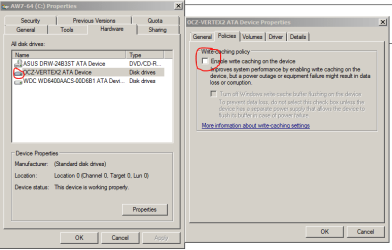
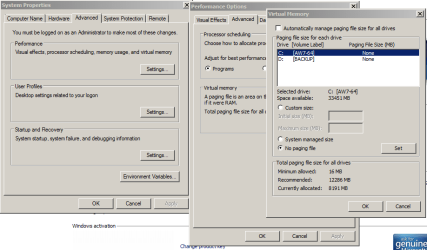
I use a huge battery backup, therefore I disable Write Caching and Page File. I also have Indexing file on both internal drives disabled. Most of do very little file searching in our Systems, so that's more space and time saved by not simply right clicking on your drive, uncheck Indexing and choose "ignore all" when prompted. Some of those are system files that need to be indexed. No sweat when you do that.

Now. On top of all this information, if you are not creating a system image using Acronis, Widows 7 Backup Utility or any other 3rd party system backup software, you're really taking a very unnecessary risk of losing data and reformating and installing Windows.

Please, pease please! Use Windows Backup and make a system image or use any other reputable system image creator/backup software. You are going to thank youself a 1000 times over should your SSD or HDD crash and burn or get terribly infected. ;)

:geek:
 

Attachments

  • writecatching.PNG
    writecatching.PNG
    16.2 KB · Views: 216
  • systemrestore.PNG
    systemrestore.PNG
    18.5 KB · Views: 194
  • pagefile.PNG
    pagefile.PNG
    21.4 KB · Views: 184
Last edited:

My Computer

Computer Manufacturer/Model Number
My own Custom Build: Asus, Corsair, Transcend, AMD, PNY, Ultra
OS
W7 64 Bit
CPU
AMD Phenom x4 4000Mhz
Memory
8 GB DDR-2
Graphics Card(s)
PNY-NVIDIA GeForce GTX 460 1GB GDDR5 PCI-e
Monitor(s) Displays
Dual: Flatron L1942T
Hard Drives
C: Drive (Agility 2 Solid State Drive 60 GB)
D: Drive (HDD Internal Western Digital 640 GB)
PSU
650 Watt
Cooling
Corsair Hydro H6 Liquid Cooler
Internet Speed
25 mbps down - 3 mbps up
Back
Top