Startup Repair Infinite Loop Recovery

How to Recover from an Infinitely Looping Startup Repair Loop without Reinstalling Windows

If you've ever experienced a Startup Repair that continously loops and fails to fix the problem of not being able to load windows, even in safe mode, then you'll know that usually the only way to recover from this when System Restore does not work is to do a clean install of Windows.

Until now.

This tutorial will show you how to use the System Recovery Options provided by Windows to recover your system to a working state so that you don't have to risk losing data by performing a clean install.

   Warning
The instructions presented withing this tutorial must be followed correctly, or you can damage your Windows 7 installation even further. This tutorial is designed to help recover from a bad registry that is causing the startup repair loop. You should note that there may still be some issues remaining that cannot be fixed by manually restoring the registry.


Recovering Your System
  1. Boot to the System Recovery Options screen.
    • If Windows automatically opens Startup Repair, and subsequently fails to fix a problem, you can skip ahead to step 4 below.
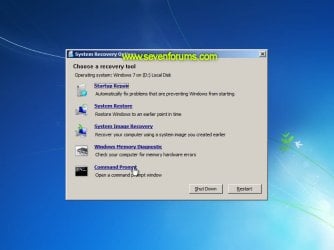
  2. In the System Recovery Options screen, click Startup Repair:
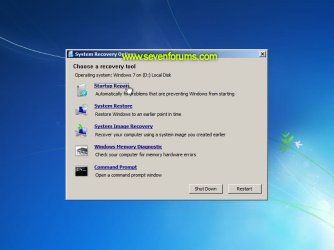
    Image05_startuprepair.jpg


  3. Windows will search for an attempt to repair startup problems:
    Image06_searching.jpg


  4. If startup problems could not be repaired, you will receive the message Windows cannot repair this computer automatically. Click View advanced options for system recovery and support:
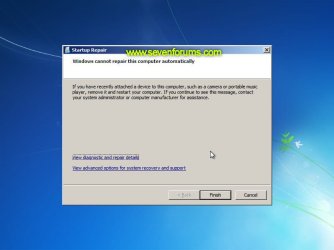
    Image07_cannotfix.jpg


  5. Click View advanced options for system recovery and support, which which bring you back to the main System Recovery Options screen.
  6. Click Command Prompt:
    Image08_clickcommand.jpg


  7. Command Prompt should open to X:, which is an internal ram disk use by System Repair:
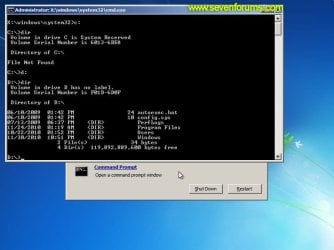
    Image10_changedrive.jpg


  8. Now you need to find your system drive. Depending on how your system is setup, this could be either C: or D:.
    • Type C: and press <ENTER>.
    • Verify that this is your system drive by typing DIR and pressing <ENTER>. If you see the Program Files, Users and Windows folders, then you have found your system drive, and can continue to step 9 below.
    • If the drive is not your system drive, repeat steps I and II above, changing the drive letter to D, E or some other letter until the system drive is located.
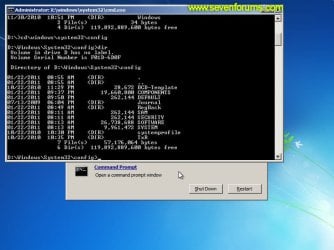
      Image11_chdir_config.jpg

  9. When you have located your Windows system drive, type CD \windows\system32\config and press <ENTER>:
  10. Type DIR and press <ENTER>, and verify that the following files and folders exist in the config folder:
    • RegBack (which is a folder)
    • DEFAULT
    • SAM
    • SECURITY
    • SOFTWARE
    • SYSTEM
      Image11_chdir_config.jpg

  11. Type MD mybackup and press <ENTER> to create a backup folder that you can use incase this procedure does not work as expected.
  12. Type copy *.* mybackup and press <ENTER>.
    • If you are prompted to overwrite existing files, press A to allow all backups to be overwritten.
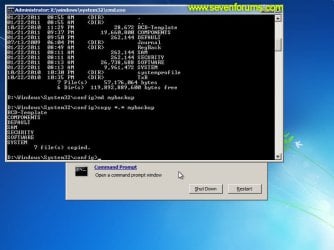
      Image12_mybackup.jpg

  13. Now you need to check if you can use the automatic Windows backups to restore your registry:
    • Type CD RegBack and press <ENTER> to go to the RegBack folder.
    • Type DIR and press <ENTER> to view the contents of the folder. All the following files must exist:
      • The DEFAULT, SAM and SECURITY files should each be about 262,000 bytes in size.
      • The SOFTWARE file should be about 26,000,000 bytes.
      • The SYSTEM file should be about 9,900,000 bytes.
      • The file sizes presented here are approximate estimations, and may vary depending on your system. If any one of them are 0 bytes, then you should stop what you're doing now and seek an alternative method of recovering your system, because Windows cannot function with a 0-byte size registry hive.
    • If the hive files listed in RegBack are ok, then proceed to step 14 of the tutorial.
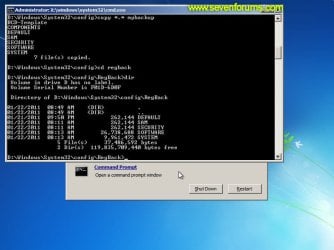
      Image13_checkregback.jpg


  14. Type copy *.* .. and press <ENTER> to copy the backup hive files to \Windows\System32\config.
    • If you are prompted to overwrite existing files, press A to allow all file to be overwritten.
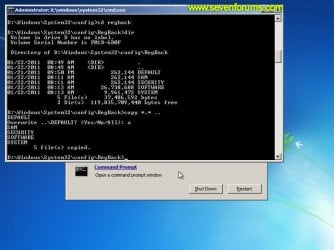
      Image14_copyregback.jpg

  15. Type exit and press <ENTER> to close the command prompt.
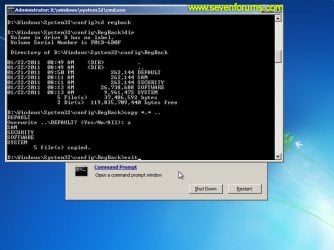
    Image15_exit.jpg


  16. Click the Restart button to reboot your computer. If all goes well, your system will boot normally.
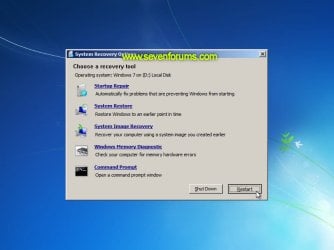
    Image16_restart.jpg
    Image17_working.jpg


Reference Information
This tutorial was made possible after learning how to manualy replace the Windows 7 Registry Hives after reading the Recovering Windows 7 Registry Hives/Files article on Microsoft Technet.


Attachments
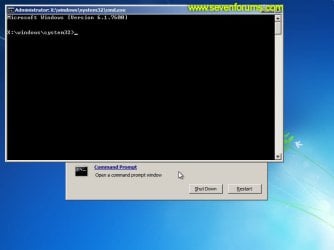
  • Image09_commandprompt.jpg
    Image09_commandprompt.jpg
    26.1 KB · Views: 373
Last edited by a moderator:
Are you looking in your "C:\Users\(user-name)Desktop" and "C:\Users\(user-name)\Documents" folders for them?
 

My Computer My Computer

At a glance

64-bit Windows 11 Pro for WorkstationsIntel i7-8700K OC'd to 5 GHz64 GB (4x16GB) G.SKILL TridentZ RGB DDR4 3600...ASUS ROG-STRIX-GTX1080TI-O11G-GAMING
Computer type
PC/Desktop
Computer Manufacturer/Model Number
Self built custom
OS
64-bit Windows 11 Pro for Workstations
CPU
Intel i7-8700K OC'd to 5 GHz
Motherboard
ASUS ROG Maximus XI Formula Z390
Memory
64 GB (4x16GB) G.SKILL TridentZ RGB DDR4 3600 MHz
Graphics Card(s)
ASUS ROG-STRIX-GTX1080TI-O11G-GAMING
Sound Card
Integrated
Monitor(s) Displays
2 x Samsung Odyssey G7 27"
Screen Resolution
2560x1440
Hard Drives
1TB Samsung 990 PRO M.2,
4TB Samsung 990 PRO PRO M.2,
TerraMaster F8 SSD Plus NAS
PSU
Seasonic Prime Titanium 850W
Case
Thermaltake Core P3
Cooling
Corsair Hydro H115i
Keyboard
Logitech wireless K800
Mouse
Logitech MX Master 4
Internet Speed
2 Gb/s Download and 100 Mb/s Upload
Antivirus
Malwarebyte Anti-Malware Premium
Browser
Google Chrome
Other Info
Logitech Z625 speaker system,
Logitech BRIO 4K Pro webcam,
HP Color LaserJet Pro MFP M477fdn,
APC SMART-UPS RT 1000 XL - SURT1000XLI,
Galaxy S23 Plus phone
Yes I am. I can see the Desktop Folder but there's nothing inside it. And there is no My Documents or Documents Folder inside the User(s) Folder. I'm really depressed now. I was hoping they were hidden somehow but I couldn't see them with knoppix either.
 

My Computer My Computer

At a glance

Windows XP 32-bit
OS
Windows XP 32-bit

My Computer My Computer

At a glance

64-bit Windows 11 Pro for WorkstationsIntel i7-8700K OC'd to 5 GHz64 GB (4x16GB) G.SKILL TridentZ RGB DDR4 3600...ASUS ROG-STRIX-GTX1080TI-O11G-GAMING
Computer type
PC/Desktop
Computer Manufacturer/Model Number
Self built custom
OS
64-bit Windows 11 Pro for Workstations
CPU
Intel i7-8700K OC'd to 5 GHz
Motherboard
ASUS ROG Maximus XI Formula Z390
Memory
64 GB (4x16GB) G.SKILL TridentZ RGB DDR4 3600 MHz
Graphics Card(s)
ASUS ROG-STRIX-GTX1080TI-O11G-GAMING
Sound Card
Integrated
Monitor(s) Displays
2 x Samsung Odyssey G7 27"
Screen Resolution
2560x1440
Hard Drives
1TB Samsung 990 PRO M.2,
4TB Samsung 990 PRO PRO M.2,
TerraMaster F8 SSD Plus NAS
PSU
Seasonic Prime Titanium 850W
Case
Thermaltake Core P3
Cooling
Corsair Hydro H115i
Keyboard
Logitech wireless K800
Mouse
Logitech MX Master 4
Internet Speed
2 Gb/s Download and 100 Mb/s Upload
Antivirus
Malwarebyte Anti-Malware Premium
Browser
Google Chrome
Other Info
Logitech Z625 speaker system,
Logitech BRIO 4K Pro webcam,
HP Color LaserJet Pro MFP M477fdn,
APC SMART-UPS RT 1000 XL - SURT1000XLI,
Galaxy S23 Plus phone
At least, you are giving me some hope, Thanks.

I've never tried Recuva, just DiskDigger. I'll let you know what happens but thank you for everything, really.
 

My Computer My Computer

At a glance

Windows XP 32-bit
OS
Windows XP 32-bit
Help

After I follow the steps it takes me to a black screen hitch a cursor and nothing else, wtf help
 

My Computer My Computer

At a glance

Windows 7 home premium 64 bit
OS
Windows 7 home premium 64 bit
I have the same problem, I get the black screen also, Im trying to redo the steps again, hoping that I will not get it this time, but just in case, please post help. Thank you
 

My Computer My Computer

At a glance

Windows 7 64 bit
OS
Windows 7 64 bit
Stuck at step 12

After a week of thrashing around with first replacing the old hard drive on our office Dell PC, and now being confronted with an infinite loop on the notebook I was using as a backup while I wrestled with the PC :rolleyes: ... I can't express how happy I am to find this site! Most of the hard-core sites wander off into unintelligible (to me) suggestions that make my eyes cross. Thank you thank you thank you for this clearly worded and easy-to-follow procedure!:D

I let startup repair do its little dance for two days, then finally opened up the dratted notebook last night, popped out the hard drive and copied most of the vital, easily seen files onto a usb thumb drive with a SATA-USB adapter. So I've got most of the important stuff, but I'm convinced there's a backup file for our invoicing program on there that would save me a lot of hassle in having to re-number and track down all the shipping docs that went out the day the sucker died on me. Plus, it'd be nice not to have to buy a second new hard drive for the notebook if I don't absolutely need to ... ;)

Anyway. Everything went great with the tutorial until step 12. I initiated the copy to mybackup, but it stalled on copying the SYSTEM file. So I'm stuck here:

E:\Windows\System32\config>copy *.* mybackup
BCD-Template
COMPONENTS
DEFAULT
SAM
SECURITY
//It hung here for a while, then finally spit out:
The request could not be performed because of an I/O device error.
SYSTEM
6 file<s> copied.
I tried it a second time, telling it to copy over the prior files that were copied, just because, hey, why not? But still no dice. Does this mean there's definitely something irreparably toasted on the HD and I should give up and just start with the replace/reinstall, or is there something else I can try??
 

My Computer My Computer

At a glance

Windows 7 Starter & Windows 7 Professional 64bit
Computer Manufacturer/Model Number
Samsung Notebook N150 Plus & Dell Dimension 5150
OS
Windows 7 Starter & Windows 7 Professional 64bit
OK, so I'm clearly not the patient type ...

I reread the tutorial and realized/remembered that step 12 was just to create the backup in case the whole maneuver didn't work, so figuring that the worst that could happen was that I'd lose some data I couldn't access anyway, I went ahead and moved on to replacing the reg hive files with the backup.

Rebooting took forever, but it did eventually boot into Windows. And though it was super sluggish at first, it now appears to be working pretty well (although I haven't restarted again yet). I didn't manage to salvage the backup invoice-database file I was looking for, but I'm not sure it even managed to make one at the relevant point anyway, and I only lost a few documents all told.

Just thought I'd leave an update and thank Dzomlija again for the great tutorial!
 

My Computer My Computer

At a glance

Windows 7 Starter & Windows 7 Professional 64bit
Computer Manufacturer/Model Number
Samsung Notebook N150 Plus & Dell Dimension 5150
OS
Windows 7 Starter & Windows 7 Professional 64bit
FRIGGING AWESOME!

Thread author you rock! I had a partner machine at work that crapped out like this and your fix worked. I have been a member here for a few years, but been away for awhile.

Seven Forums - Kicking Windows arse since 2009
 

My Computer My Computer

At a glance

Windows 7Core i78 GBATI FireGL
Computer Manufacturer/Model Number
HP Pavilion dv7
OS
Windows 7
CPU
Core i7
Memory
8 GB
Graphics Card(s)
ATI FireGL
Monitor(s) Displays
Secondary is an HP L1940T
Screen Resolution
1680x1050
Hard Drives
160 GB SSD and 500 GB SATA
Keyboard
G11 Logitech
Mouse
G7 Logitech
Internet Speed
Fiber
Other Info
My rig smegging rules!
Software and System File problem

On Step 13, my Default, Sam, and Security files are all at the correct 262,000 bytes.
However, my Software and System files are also 262,000 bytes.
How do I correct them to the appropriate amounts?
 

My Computer My Computer

At a glance

Windows 7 Ultimate x64
OS
Windows 7 Ultimate x64
Hello Rick, and welcome to Seven Forums.

Those are only estimated average sizes in the tutorial to be used only as a guideline. You only have a real issue if they are 0 bytes in size. :)
 

My Computer My Computer

At a glance

64-bit Windows 11 Pro for WorkstationsIntel i7-8700K OC'd to 5 GHz64 GB (4x16GB) G.SKILL TridentZ RGB DDR4 3600...ASUS ROG-STRIX-GTX1080TI-O11G-GAMING
Computer type
PC/Desktop
Computer Manufacturer/Model Number
Self built custom
OS
64-bit Windows 11 Pro for Workstations
CPU
Intel i7-8700K OC'd to 5 GHz
Motherboard
ASUS ROG Maximus XI Formula Z390
Memory
64 GB (4x16GB) G.SKILL TridentZ RGB DDR4 3600 MHz
Graphics Card(s)
ASUS ROG-STRIX-GTX1080TI-O11G-GAMING
Sound Card
Integrated
Monitor(s) Displays
2 x Samsung Odyssey G7 27"
Screen Resolution
2560x1440
Hard Drives
1TB Samsung 990 PRO M.2,
4TB Samsung 990 PRO PRO M.2,
TerraMaster F8 SSD Plus NAS
PSU
Seasonic Prime Titanium 850W
Case
Thermaltake Core P3
Cooling
Corsair Hydro H115i
Keyboard
Logitech wireless K800
Mouse
Logitech MX Master 4
Internet Speed
2 Gb/s Download and 100 Mb/s Upload
Antivirus
Malwarebyte Anti-Malware Premium
Browser
Google Chrome
Other Info
Logitech Z625 speaker system,
Logitech BRIO 4K Pro webcam,
HP Color LaserJet Pro MFP M477fdn,
APC SMART-UPS RT 1000 XL - SURT1000XLI,
Galaxy S23 Plus phone
Alright, thank you. I continued the rest of the points from that step, but once I rebooted, it went back into the startup repair loop. I have tried the steps several times thus far. Does anyone have further potential advice?
 

My Computer My Computer

At a glance

Windows 7 Ultimate x64
OS
Windows 7 Ultimate x64
I went back and looked at my System bytes, referred to in step 13.
I have an additional SYSTEM.LOG1 that's 262,144 bytes created on the date the problems arose roughly 4 hours after they began. Then below that I have a SYSTEM.LOG2 that is 0 bytes and created back in July of 2009.
 

My Computer My Computer

At a glance

Windows 7 Ultimate x64
OS
Windows 7 Ultimate x64
That's fine Rick. It's just for those specific items listed in step 13 and displayed in the screenshot under step 12. :)
 

My Computer My Computer

At a glance

64-bit Windows 11 Pro for WorkstationsIntel i7-8700K OC'd to 5 GHz64 GB (4x16GB) G.SKILL TridentZ RGB DDR4 3600...ASUS ROG-STRIX-GTX1080TI-O11G-GAMING
Computer type
PC/Desktop
Computer Manufacturer/Model Number
Self built custom
OS
64-bit Windows 11 Pro for Workstations
CPU
Intel i7-8700K OC'd to 5 GHz
Motherboard
ASUS ROG Maximus XI Formula Z390
Memory
64 GB (4x16GB) G.SKILL TridentZ RGB DDR4 3600 MHz
Graphics Card(s)
ASUS ROG-STRIX-GTX1080TI-O11G-GAMING
Sound Card
Integrated
Monitor(s) Displays
2 x Samsung Odyssey G7 27"
Screen Resolution
2560x1440
Hard Drives
1TB Samsung 990 PRO M.2,
4TB Samsung 990 PRO PRO M.2,
TerraMaster F8 SSD Plus NAS
PSU
Seasonic Prime Titanium 850W
Case
Thermaltake Core P3
Cooling
Corsair Hydro H115i
Keyboard
Logitech wireless K800
Mouse
Logitech MX Master 4
Internet Speed
2 Gb/s Download and 100 Mb/s Upload
Antivirus
Malwarebyte Anti-Malware Premium
Browser
Google Chrome
Other Info
Logitech Z625 speaker system,
Logitech BRIO 4K Pro webcam,
HP Color LaserJet Pro MFP M477fdn,
APC SMART-UPS RT 1000 XL - SURT1000XLI,
Galaxy S23 Plus phone
So, I did the tutorial as you have shown me, and guess what? IT DIDN'T WORK. So, since I have an HP Pavilion dv6 laptop (don't remember the exact model), I can use an Ubuntu Live CD to copy my files to an external drive then reboot and use HP's Recovery Manager to reset the laptop to the factory state, since I don't think there's any other way. But, before I do that, I would just like you to know that I have tried using Bootrec (to no avail), BUT, I haven't fully run chkdsk just yet, so I'm not sure if the disk is actually damaged or not. Should I run chkdsk before I run the factory reset, or should I go on and backup then reset it anyway? (And how do I run it with the parameters again, I forget. :P )

Also, will the HP reset actually work (AKA, actually boot up)? Because I'm a bit skeptical when it comes to fixing my computer.. If not, I could always download the W7 ISO disk from one of the tutorials you provided, I guess. :)

-StupidlyClever
 

My Computer My Computer

At a glance

Windows 7 Home Premium 64-bit
OS
Windows 7 Home Premium 64-bit
Thanks for the help!

Your solution worked great the first time. Copying a boot drive to another drive should be common enough useage of a partition utility that this issue shouldn't occur, or if it does, it should be referenced by the utility provider.

Messaged Partition Wizard asking that they include a link to your troubleshooting tips, or at least address the "pwnative" error somewhere on their website (search on that error yields nothing currently). Your clear concise write up put an end to hours of confusion so thanks for taking the time!

Dan
 

My Computer My Computer

At a glance

win7
OS
win7
hello,
I just tried the solution to the Infinite loop recovery with the prompt, but my operation goes fine until the step 14, in which the laptop try to copy the files for some minutes (with the hard drive light always on),
and then gives this error back: "The request could not be performed because of an I/O device error", and as you can see in the image 4 file(s) were copied.

photo.JPG


I tried this more times and I also tried to restart but the problem (as predictable) is not solved.

Can you help me?
Thank you.

Davide
 

My Computer My Computer

At a glance

Windows 7 Home Premium 64bit
OS
Windows 7 Home Premium 64bit
Thanks Dzomlija for this. In the years I've been doing support, I never came across a solution for this issue until now. Its always been to reimage with the standard image, or reinstall Windows completely. Today was the first day that I was able to get a client's system back up and running. I had done all the normal Startup Repair tasks both automatically and manually. The system always restarted, not giving me a chance to see the error. Finally I realized that the system was acting just like having a corrupted HAL, and I began searching to see if there were any newer solutions since the last time I had to resolve it. Most searches ended up with just reinstall Windows. I saw yours last night and thought it was worth a try. Amazing result. Thanks again.
 

My Computer My Computer

At a glance

Windows 7 Ultimate 64-bit
OS
Windows 7 Ultimate 64-bit
AMAZING!!!! You guys ROCK!

I woke up to a BSOD after a critical update last night (Thanks, Microsoft...) After banging my head against the wall (proverbially, not actually) I happened across your tutorial. It worked LIKE A CHAMP!!! First time - no problems. As a small business owner who depends on my computer to work perfectly, you guys saved my day. Keep up the good work.
 
Last edited:

My Computer My Computer

At a glance

Windows 7 Ultimate x64
OS
Windows 7 Ultimate x64
This thread is a godsend! My computer hasn't been able to boot for the past 5 days and I've scoured the Internet looking for a solution, but to no avail. Then I found this thread. Honestly, this has been the hardest computer repairing I have done. I've tried startup repair, chkdsk, SFC, even dism. This worked like a charm! Thank you for saving me a painful reinstallation of Windows!
 

My Computer My Computer

At a glance

Windows 7 Home Premium 64-bitIntel Core i7-720QM [1.6Ghz - 2.8Ghz]6GBNVIDIA GeForce 310M
Computer type
Laptop
Computer Manufacturer/Model Number
Toshiba Satellite A505-S6033
OS
Windows 7 Home Premium 64-bit
CPU
Intel Core i7-720QM [1.6Ghz - 2.8Ghz]
Motherboard
Intel HM57
Memory
6GB
Graphics Card(s)
NVIDIA GeForce 310M
Sound Card
Realtek HD
Screen Resolution
1366 x 768
Hard Drives
Internal: Seagate 750GB SATA [7200RPM]
||
External: Western Digital My Book Essential 1TB [5400RPM]
Internet Speed
10Mbps Download / 768Kbps Upload
Antivirus
avast!
Browser
Mozilla Firefox
Back
Top